
مقدمة
This manual provides essential information for the HP Victus Gaming Laptop, model 15-fa. It covers initial setup, operational guidelines, maintenance procedures, troubleshooting tips, and detailed product specifications. Please read this manual thoroughly to ensure proper use and longevity of your device.
The HP Victus Gaming Laptop is designed for performance, featuring a 12th Gen Intel Core i5-12450H processor, NVIDIA GeForce RTX 3050 graphics, 16GB RAM, and a 2TB PCIe 4.0 SSD, all housed within a 15.6-inch FHD 144Hz display. It operates on Windows 11 Pro.

Image: The HP Victus Gaming Laptop with its lid open, showcasing the 15.6-inch display with the Windows 11 Pro operating system interface.
فيديو: أكثر منview of the HP Victus Gaming Laptop, highlighting its design and key features. This video provides a visual introduction to the product.
يثبت
1. فك الصندوق والفحص الأولي
أزل جميع المكونات من العبوة بعناية. يجب أن يحتوي الصندوق على العناصر التالية:
- لابتوب HP Victus للألعاب
- محول التيار المتردد
- Battery (may be integrated)
- التوثيق
- كابل HDMI
Inspect the laptop and accessories for any signs of damage. If any components are missing or damaged, contact your retailer or HP support immediately.
2. التشغيل والشحن
- قم بتوصيل محول التيار المتردد بمنفذ الطاقة الخاص بالكمبيوتر المحمول، ثم بمأخذ الطاقة.
- اضغط على زر الطاقة لتشغيل الكمبيوتر المحمول.
- Allow the battery to fully charge before initial use, or continue using it while charging.
3. إعداد نظام التشغيل (ويندوز 11 برو)
Follow the on-screen instructions to complete the Windows 11 Pro setup. This typically involves:
- تحديد منطقتك وتخطيط لوحة المفاتيح.
- الاتصال بشبكة Wi-Fi.
- تسجيل الدخول باستخدام حساب مايكروسوفت أو إنشاء حساب جديد.
- إعداد إعدادات الخصوصية.
4. توصيل الأجهزة الطرفية
Your HP Victus laptop offers various ports for connecting external devices. Refer to the port diagram below for identification.

Image: A detailed diagram illustrating the various ports available on the HP Victus Gaming Laptop, including USB-C, USB-A, HDMI, RJ45, SD Card Reader, and headphone/microphone combo jack.
- USB-C (5Gbps signaling rate, DisplayPort 1.4, HP Sleep and Charge): لنقل البيانات، وإخراج الفيديو، وشحن الأجهزة المتوافقة.
- USB Type-A (5Gbps signaling rate, HP Sleep and Charge): لتوصيل أجهزة USB مثل الفأرة أو لوحة المفاتيح أو محركات الأقراص الخارجية.
- HDMI 2.1: للاتصال بالشاشات الخارجية أو أجهزة التلفاز.
- آر جيه-45: للاتصال بشبكة إيثرنت السلكية.
- Multi-format SD media card reader: لقراءة بطاقات الذاكرة SD.
- سماعة رأس/ميكروفون مدمجة: لتوصيل سماعات الرأس أو سماعة الرأس.
تشغيل الكمبيوتر المحمول
1. التفاعل الأساسي
The laptop features a full-size backlit keyboard and a precision touchpad for navigation. Familiarize yourself with common Windows gestures for efficient use.
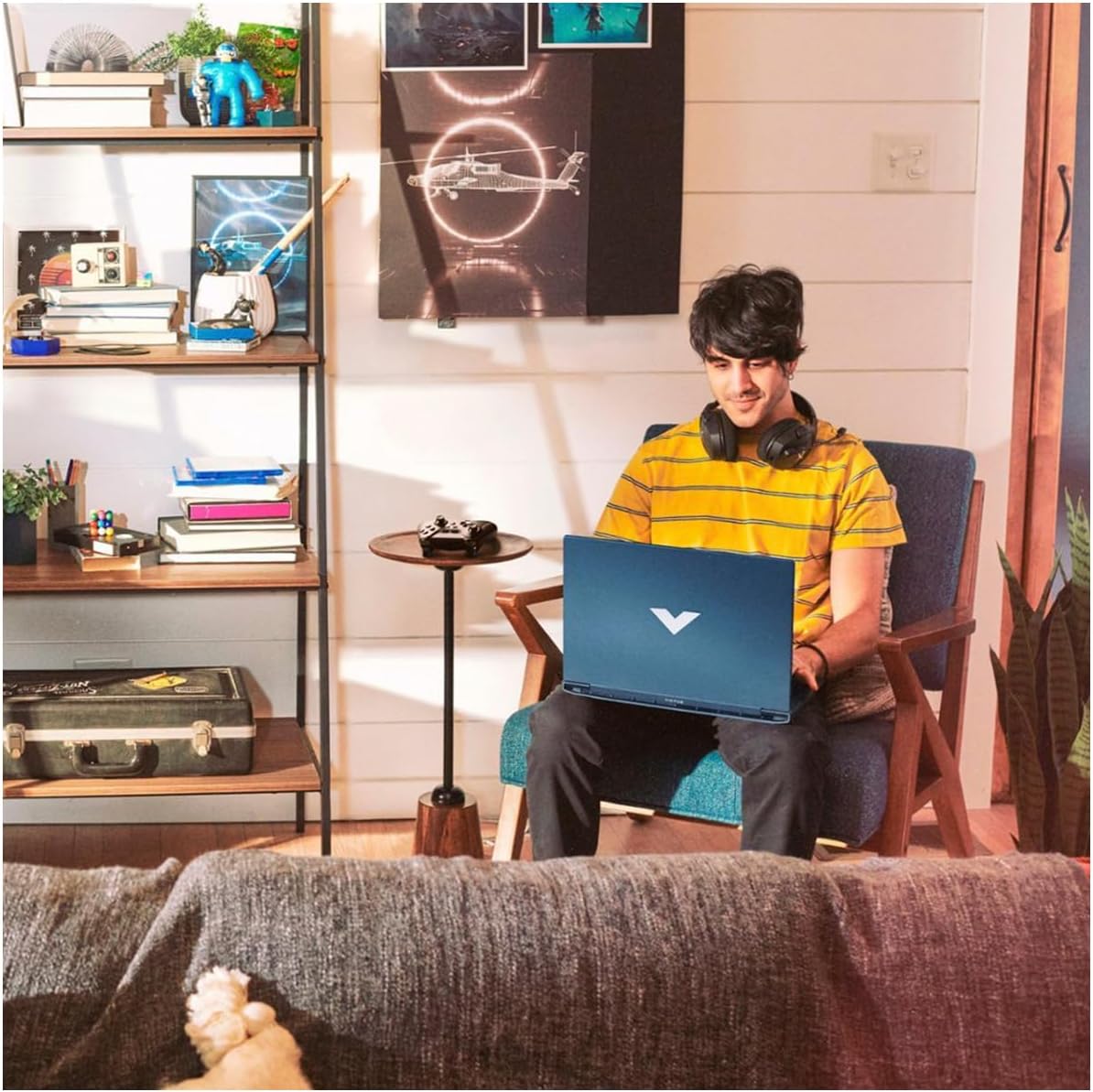
Image: A user comfortably operating the HP Victus Gaming Laptop in a home environment, demonstrating typical usage.

الصورة: لقطة مقربة view of hands interacting with an external gaming keyboard and mouse, with the HP Victus laptop visible nearby, illustrating its use with peripherals.
2. العرض والرسومات
Your laptop is equipped with a 15.6-inch FHD (1920 x 1080) 144Hz IPS anti-glare display, powered by an NVIDIA GeForce RTX 3050. This combination provides smooth visuals and high frame rates for gaming and multimedia. Adjust display settings via Windows Display Settings or NVIDIA Control Panel for optimal performance.
3. ميزات الصوت
Experience clear audio through HP Dual Speakers with HP Audio Boost, custom-tuned by B&O. Adjust volume and audio profiles through the Windows sound settings or dedicated HP audio software.
4. الشبكة والاتصال
- واي فاي 6: Connect to wireless networks for internet access. Manage connections through the Windows network settings.
- بلوتوث: Pair with Bluetooth-enabled devices such as headphones, speakers, or game controllers.
- RJ-45 (إيثرنت): For a stable, high-speed wired internet connection.
صيانة
1. تنظيف جهاز الكمبيوتر المحمول الخاص بك
- استخدم قطعة قماش ناعمة وخالية من الوبر وامسحها برفق.ampاغسلها بالماء أو بمنظف الشاشة.
- لتنظيف لوحة المفاتيح والهيكل، استخدم قطعة قماش ناعمة. تجنب المواد الكيميائية القاسية.
- استخدم الهواء المضغوط بشكل دوري لإزالة الغبار من الفتحات للحفاظ على التبريد الأمثل.
2. العناية بالبطارية
- تجنب درجات الحرارة القصوى.
- لا تقم بتفريغ البطارية بالكامل بشكل متكرر.
- إذا كنت ستخزن الكمبيوتر المحمول لفترة طويلة، فتأكد من شحن البطارية إلى حوالي 50-70%.
3. تحديثات البرامج
Regularly update Windows 11 Pro and device drivers (especially graphics drivers) to ensure security, performance, and compatibility. You can check for updates via Windows Update and the HP Support Assistant application.
4. إدارة التخزين
Your laptop comes with a 2TB PCIe 4.0 SSD. Regularly manage your storage by deleting unnecessary files, uninstalling unused applications, and utilizing cloud storage if needed, to maintain optimal system performance.
استكشاف الأخطاء وإصلاحها
يتناول هذا القسم المشكلات الشائعة التي قد تواجهها. للمشكلات الأكثر تعقيدًا، راجع قسم دعم HP. webالموقع أو الاتصال بالدعم الفني.
1. لا يعمل الكمبيوتر المحمول
- تأكد من توصيل محول التيار المتردد بشكل آمن بالكمبيوتر المحمول ومأخذ الطاقة العامل.
- تأكد من أن منفذ الطاقة يعمل عن طريق توصيل جهاز آخر.
- إذا كانت البطارية فارغة تمامًا، اتركها تشحن لمدة 30 دقيقة على الأقل قبل محاولة تشغيلها مرة أخرى.
2. مشاكل العرض
- لا توجد صورة على الشاشة: Ensure the laptop is powered on. Try connecting an external monitor via HDMI to check if the issue is with the laptop's display or graphics output.
- صورة متقطعة أو مشوهة: Update your graphics drivers. Adjust display resolution and refresh rate in Windows settings.
3. Connectivity Problems (Wi-Fi/Bluetooth)
- عدم الاتصال بشبكة Wi-Fi: Check if Wi-Fi is enabled in Windows settings. Restart your router and modem. Ensure you are entering the correct Wi-Fi password.
- جهاز البلوتوث غير مقترن: Ensure Bluetooth is enabled on both the laptop and the device. Place devices close to each other. Try removing and re-pairing the device.
4. مشاكل الأداء
- الأداء البطيء: Close unnecessary applications. Check Task Manager for processes consuming high CPU or RAM. Ensure sufficient free space on the SSD.
- ارتفاع درجة الحرارة: Ensure vents are clear of obstructions. Use the laptop on a hard, flat surface. Consider using a cooling pad if persistent.
تحديد
Below are the key technical specifications for the HP Victus Gaming Laptop 15-fa:
| ميزة | التفاصيل |
|---|---|
| اسم الموديل | Victus 15-fa |
| المعالج | 12th Gen Intel Core i5-12450H (8 Cores, up to 4.40 GHz) |
| الرسومات | NVIDIA GeForce RTX 3050 (مخصصة) |
| عرض | 15.6-inch FHD (1920 x 1080), 144 Hz, IPS, micro-edge, anti-glare, 250 nits, 45% NTSC |
| كبش | ذاكرة SO-DIMM سعة 16 جيجابايت |
| تخزين | 2 TB PCIe 4.0 SSD |
| نظام التشغيل | ويندوز 11 برو |
| الموانئ | 1x USB-C (5Gbps, DisplayPort 1.4, HP Sleep and Charge), 2x USB-A (5Gbps, HP Sleep and Charge), 1x HDMI 2.1, 1x RJ45, 1x SD Card Reader, 1x Headphone/Microphone combo |
| الاتصال اللاسلكي | واي فاي 6، بلوتوث |
| صوتي | HP Dual Speakers, HP Audio Boost, B&O Tuning |
| لوحة المفاتيح | لوحة مفاتيح بإضاءة خلفية مع لوحة مفاتيح رقمية |
| الأبعاد (الطول × العرض × الارتفاع) | 14.09 × 10.04 × 0.93 بوصة |
| وزن | 5.06 رطل |
| لون | Performance Blue |

Image: A diagram illustrating the physical dimensions (width, depth, height) of the HP Victus Gaming Laptop.
الضمان والدعم
1. ضمان المنتج
Your HP Victus Gaming Laptop comes with a ضمان لمدة 12 شهرًا. This warranty covers manufacturing defects and hardware malfunctions under normal use. Please retain your proof of purchase for warranty claims. For detailed terms and conditions, refer to the warranty documentation included with your product or visit the official HP webموقع.
2. الدعم الفني
For technical assistance, troubleshooting beyond this manual, or warranty service, please contact HP Support. You can find support resources, drivers, and contact information on the official HP webموقع:
When contacting support, have your laptop's serial number and model number (15-fa) ready. These can usually be found on a sticker on the bottom of the laptop or within the system information in Windows.