
1. المقدمة
The Novation Launchkey 61 MK4 is a 61-key semi-weighted USB MIDI keyboard controller designed for comprehensive digital audio workstation (DAW) integration and music production. It features a suite of onboard creation tools, including Chord & Scale Modes, 16 velocity-sensitive drum pads with polyphonic aftertouch, and an editable Arpeggiator. The controller is engineered for musical expression and an efficient creative workflow.
تتضمن الميزات الرئيسية ما يلي:
- Premium Semi-Weighted Keybed: Offers a responsive playing experience.
- 16 FSR Drum Pads: With polyphonic aftertouch for dynamic drumming, clip launching, and chord triggering.
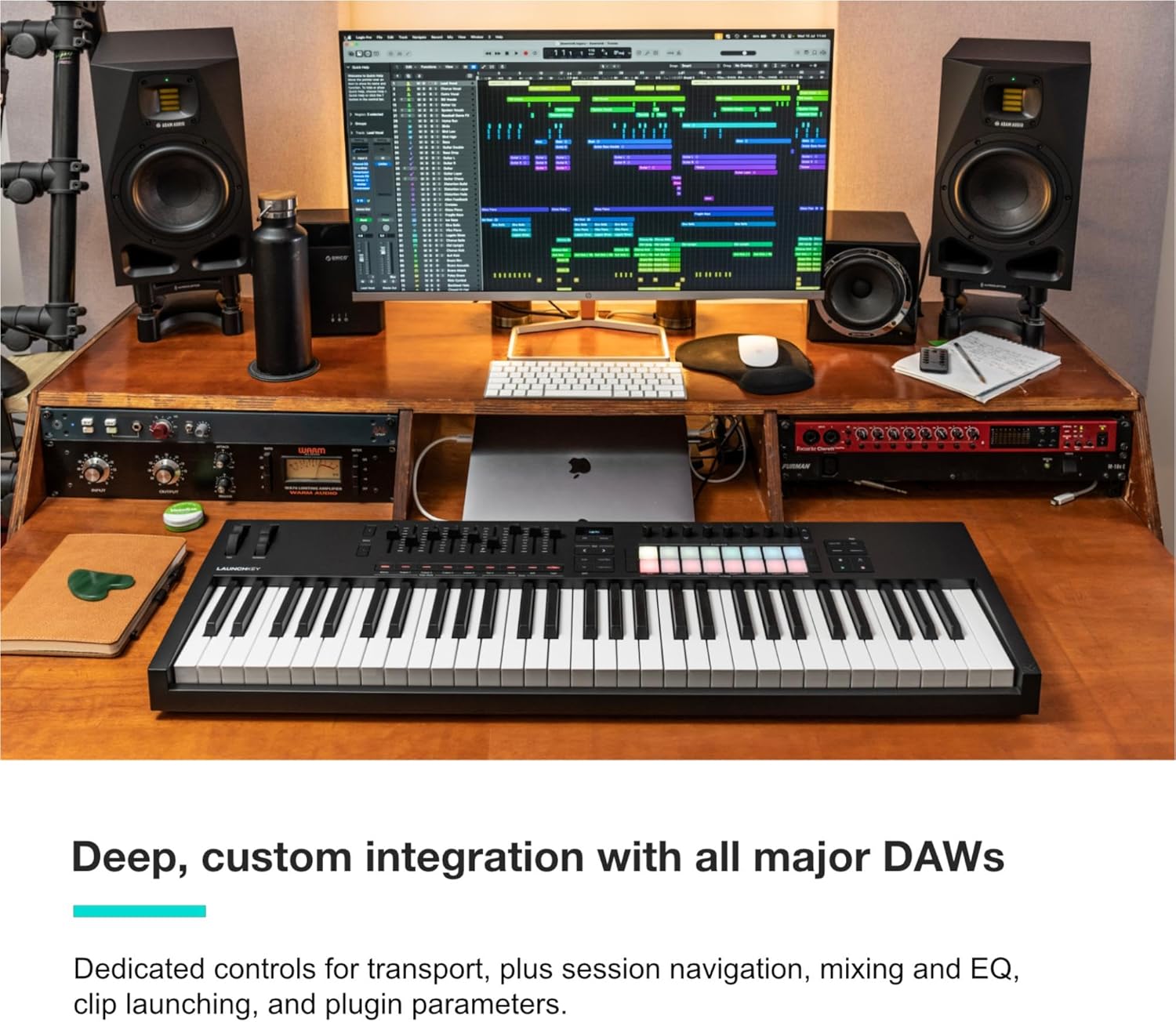
- تكامل DAW: Seamless control with major DAWs like Ableton Live, Logic Pro, Cubase, Reason, Reaper, FL Studio, and Ardour.
- الأدوات الإبداعية: Includes Scale Mode to prevent wrong notes, Chord Modes for quick progressions, and a powerful Arpeggiator.
- شاشة OLED: Provides clear visual feedback for settings and parameters, including a Chord Detector.
- NKS-Ready: Integrates with Native Instruments software for enhanced control.

2. دليل الإعداد
This section outlines the steps to set up your Novation Launchkey 61 MK4 controller.
2.1. فك العبوة والمحتويات
أزل جميع المكونات من العبوة بعناية. تأكد من وجود العناصر التالية:
- Novation Launchkey 61 MK4 Controller
- كابل يو اس بي
- ورقة معلومات السلامة
2.2. الاتصال بجهاز الكمبيوتر الخاص بك
- Place the Launchkey 61 MK4 on a stable, flat surface.
- Connect one end of the supplied USB cable to the USB port on the Launchkey 61 MK4.
- Connect the other end of the USB cable to an available USB port on your computer (PC or Mac). The Launchkey is USB-powered and does not require an external power supply.
- Your computer should automatically detect the device. For specific driver installations or software bundles, refer to the Novation website or the included safety information sheet.
2.3. Software Installation and DAW Integration
The Launchkey 61 MK4 is designed for seamless integration with various DAWs. Follow these general steps:
- Visit the official Novation webموقع (novationmusic.com) and register your product. This will grant access to included software bundles (e.g., Ableton Live Lite, Cubase LE) and any necessary drivers or firmware updates.
- Install any required drivers as instructed by Novation.
- Open your preferred DAW (e.g., Ableton Live, Logic Pro, FL Studio).
- Navigate to the DAW's preferences or settings menu, typically under 'MIDI' or 'Control Surfaces'.
- Select the Novation Launchkey 61 MK4 as a control surface and/or MIDI input device. Specific setup instructions for each DAW can be found in the Novation online documentation.

3. تعليمات التشغيل
The Launchkey 61 MK4 offers a range of controls and features for music creation and performance.
3.1. علىview من الضوابط
The controller features a semi-weighted keyboard, 16 velocity-sensitive pads, 8 rotary encoders, 9 faders, transport controls, and an OLED display.
3.2. DAW Control
Once integrated with your DAW, the Launchkey provides hands-on control over various functions:
- ضوابط النقل: Play, Stop, Record, Loop, and other navigation functions.
- Mixer Control: Faders can control track volumes, while rotary encoders can adjust pan or send levels.
- Device and Effect Control: Encoders and faders can be mapped to control parameters of virtual instruments and effects within your DAW.
- Clip Launching: The 16 pads can be used to launch clips and scenes in compatible DAWs like Ableton Live.
3.3. FSR Drum Pads
The 16 FSR (Force Sensing Resistor) pads are highly responsive and offer polyphonic aftertouch, allowing for expressive performances. They can be used for:
- Drum programming and finger drumming.
- Triggering samples and loops.
- Launching clips and scenes in Ableton Live.
- Acting as step sequencers or chord triggers.

3.4. Creative Modes: Chord, Scale, and Arpeggiator
The Launchkey 61 MK4 includes powerful tools to enhance your musical creativity:
- وضع المقياس: This mode ensures that any note you play will be in the selected scale, preventing incorrect notes and facilitating melodic exploration.
- Chord Modes: Three distinct Chord Modes allow you to trigger complex musical progressions from a single key or pad. The OLED display can show the currently played chord.
- عازف الاربجيات: The unique and editable Arpeggiator can generate rhythmic and melodic patterns from held notes. Parameters such as rate, direction, and octave range can be adjusted.

3.5. Software Bundle
Your Launchkey 61 MK4 includes a comprehensive software bundle to get you started with music production. This typically includes:
- برنامج Ableton Live Lite
- كوبيز جنيه
- Sounds and instruments from GForce, Klevgrand, Orchestral Tools, and Native Instruments.
- Melodics lessons for learning to play.
Access to these resources is usually provided upon product registration on the Novation webموقع.

4. الصيانة
Proper care and maintenance will ensure the longevity and optimal performance of your Launchkey 61 MK4.
4.1. التنظيف
- افصل دائمًا كابل USB قبل التنظيف.
- Use a soft, dry, lint-free cloth to wipe the surface of the controller.
- بالنسبة للأوساخ العنيدة، قم بإزالة الأوساخ برفق.ampبللي قطعة القماش بالماء. تجنبي استخدام المواد الكيميائية القاسية أو المنظفات الكاشطة أو المذيبات، لأنها قد تتلف الطلاء والمكونات الإلكترونية.
- لا تسمح بدخول السوائل إلى أي فتحات.
4.2 التخزين والمناولة
- قم بتخزين وحدة التحكم في مكان بارد وجاف بعيدًا عن أشعة الشمس المباشرة ودرجات الحرارة القصوى والرطوبة العالية.
- تجنب وضع أشياء ثقيلة على وحدة التحكم.
- When transporting the device, use a protective case to prevent damage from impacts or dust.
- Do not attempt to disassemble the unit. Refer to qualified service personnel for any repairs.
5. استكشاف الأخطاء وإصلاحها
This section addresses common issues you might encounter with your Launchkey 61 MK4.
5.1. No Power/Device Not Recognized
- التحقق من اتصال USB: Ensure the USB cable is securely connected to both the Launchkey and your computer. Try a different USB port or cable.
- قوة الكمبيوتر: تأكد من أن جهاز الكمبيوتر الخاص بك قيد التشغيل وليس في وضع السكون.
- السائقين: Verify that the necessary drivers are installed. Check the Novation webموقع للحصول على أحدث برامج التشغيل.
- إعادة تشغيل: Try restarting your computer and the Launchkey (by unplugging and replugging the USB cable).
5.2. No Sound or MIDI Output
- إعدادات برنامج DAW: In your DAW's preferences, ensure the Launchkey 61 MK4 is selected as a MIDI input device and that the correct track is armed for recording or receiving MIDI.
- Instrument Loaded: Verify that a virtual instrument or sound is loaded and active in your DAW.
- مستويات الصوت: Check the volume levels on your DAW, computer, and audio interface.
- قناة MIDI: Ensure the Launchkey and your DAW/instrument are communicating on the same MIDI channel.
5.3. Controls Not Responding Correctly
- DAW Mapping: Confirm that the controls (faders, knobs, pads) are correctly mapped within your DAW. Some DAWs require manual mapping for certain functions.
- البرامج الثابتة: Check the Novation website for any available firmware updates for your Launchkey. Updating firmware can resolve performance issues.
- اعدادات المصنع: As a last resort, performing a factory reset on the Launchkey may resolve persistent issues. Refer to the Novation documentation for instructions on how to perform a factory reset.
6. المواصفات
| ميزة | التفاصيل |
|---|---|
| اسم الموديل | Launchkey 61 [MK4] |
| ماركة | إستبدال الإلزام |
| عدد مفاتيح لوحة المفاتيح | 61 |
| نوع المفتاح | شبه مثقل |
| تكنولوجيا الاتصال | USB |
| واجهة الأجهزة | USB, MIDI |
| الأجهزة المتوافقة | PC, Synthesizer, Groovebox |
| نظام التشغيل | Mac OS, Windows OS |
| اسم اللون | أسود |
| مادة الجسم | بلاستيك |
| وزن العنصر | 10.5 رطل (4.76 كجم) |
| أبعاد المنتج | 35.2 × 10.3 × 3.6 بوصة (89.4 × 26.2 × 9.1 سم) |
| المميزات الخاصة | Scale and Chord modes, Arpeggiator, FSR Drum Pads with Polyphonic Aftertouch |
7. الضمان والدعم
7.1. معلومات الضمان
Novation products typically come with a manufacturer's warranty. For detailed information regarding the warranty period and terms for your Launchkey 61 MK4, please refer to the warranty card included with your product or visit the official Novation webموقع.
7.2. دعم العملاء
For technical assistance, product registration, driver downloads, firmware updates, or further documentation, please visit the official Novation support page:
You can also explore the Novation brand store on Amazon for additional product information and accessories: