
مقدمة
This manual provides essential information for the setup, operation, maintenance, and troubleshooting of your GIGABYTE MO34WQC2 34-inch QD-OLED Curved Gaming Monitor. Please read this manual thoroughly before using the product to ensure correct usage and optimal performance.
The GIGABYTE MO34WQC2 monitor features a 34-inch curved QD-OLED display, offering a 0.03ms GTG response time and a 240 Hz refresh rate for smooth visual experiences. It includes Type-C KVM functionality, allowing seamless switching between multiple devices.
المميزات الرئيسية:
- 3rd Gen QD-OLED Panel: Delivers high image quality and gaming performance.
- GIGABYTE OLED Care: AI-based algorithm to minimize burn-in risks with adjustable settings.
- معدل تحديث 240 هرتز ووقت استجابة 0.03 مللي ثانية: Ensures ultra-smooth motion clarity and responsiveness.
- Life-Like Colors: Features 1.5M:1 contrast ratio, 99% DCI-P3 color gamut, and 10-bit color depth.
- VESA DisplayHDR True Black 400 & ClearMR 13000: Provides realistic contrast and top-tier motion clarity.
- AMD FreeSync Premium Pro: Reduces screen tearing and stuttering, especially in HDR content.
- الميزات التكتيكية: Includes Game Assist (timer, crosshairs, PIP/PBP), Black Equalizer 2.0, and Dashboard for enhanced gameplay.
- ضمان لمدة سنة واحدة: Covers panel burn-in (terms may vary by region).
تعليمات الإعداد
1. التفريغ والتجمع
أخرج الشاشة وجميع مكوناتها من العبوة بحرص. ضع الشاشة ووجهها لأسفل على سطح ناعم ونظيف لمنع الخدوش.

This image shows the GIGABYTE MO34WQC2 monitor with its stand, viewed from the front. The monitor is curved and displays a vibrant, colorful image.
إرفاق الحامل:
- ثبّت عنق الحامل بلوحة الشاشة. تأكد من تثبيته بإحكام.
- Attach the stand base to the stand neck and tighten the screw at the bottom of the base.
Alternatively, the monitor supports VESA 100x100mm wall mounts. Refer to the image below for VESA mounting points.

This image illustrates the adjustable stand of the GIGABYTE MO34WQC2 monitor, showing its tilt range (-5° to +20°) and height adjustment (130mm). A close-up inset highlights the VESA 100x100mm mounting area on the back of the monitor.
2. توصيل الكابلات
Connect the necessary cables to the monitor's I/O ports. Ensure all connections are firm.

This diagram shows the input/output ports on the back of the GIGABYTE MO34WQC2 monitor. Ports include HDMI 2.1 (in), DP 1.4 (in), USB Type-C (DP Alt), Mic, Headphone, USB 3.2 (Upstream), and USB 3.2 (Downstream).
- سلك الطاقة: قم بتوصيل كبل الطاقة بالشاشة ومنفذ الطاقة.
- مدخلات الفيديو: Connect your PC or gaming console using an HDMI 2.1, DisplayPort 1.4, or USB Type-C cable.
- USB المنبع: For KVM functionality and USB hub use, connect a USB 3.2 Upstream cable from your PC to the monitor.
- صوتي: Connect headphones or external speakers to the Headphone jack if desired.
تعليمات التشغيل
1. تشغيل/إيقاف التشغيل
اضغط على زر التشغيل، الموجود عادةً في الجزء الخلفي أو السفلي من الشاشة، لتشغيلها أو إيقاف تشغيلها. سيضيء مؤشر الطاقة عند تشغيل الشاشة.
2. الملاحة على الشاشة (OSD)
The monitor features a joystick control for navigating the OSD menu. This joystick is typically located on the back of the monitor.
- يضعط: Enter OSD menu / Confirm selection.
- فوق تحت: التنقل بين خيارات القائمة.
- يسار/يمين: Adjust settings / Navigate sub-menus.
3. وظيفة KVM
The built-in KVM (Keyboard, Video, Mouse) switch allows you to control multiple devices (e.g., a desktop PC and a laptop) with a single keyboard and mouse connected to the monitor. To use KVM, ensure both devices are connected to the monitor via video input (HDMI/DP/USB-C) and the USB Upstream cable from the primary device.

This image shows the GIGABYTE MO34WQC2 monitor connected to a desktop PC via HDMI/DP and a laptop via USB Type-C, illustrating how the Type-C KVM feature allows switching between devices with a single button press.
Switch between connected devices using the dedicated KVM button or through the OSD menu.
4. إعدادات العرض
قم بالوصول إلى قائمة OSD لضبط إعدادات العرض المختلفة:
- صورة: السطوع، التباين، الحدة، درجة حرارة اللون.
- لون: Gamma, Hue, Saturation.
- الألعاب: Overdrive, FreeSync Premium Pro, Black Equalizer 2.0, Crosshair, Timer.
- مدخل: Select input source (HDMI, DisplayPort, USB-C).
- نظام: Language, OSD Timeout, Power LED.
5. GIGABYTE OLED Care
The monitor includes AI-based OLED Care features to prevent burn-in. These settings can be accessed and adjusted via the OSD menu. It is recommended to keep these features enabled for optimal panel longevity.
صيانة
1. تنظيف الشاشة
- قم دائمًا بإيقاف تشغيل الشاشة وفصل سلك الطاقة قبل التنظيف.
- استخدم قطعة قماش ناعمة وخالية من الوبر برفق دampاغسلها بالماء أو بمنظف شاشة غير كاشط.
- لا تقم برش المنظف مباشرة على الشاشة.
- تجنب استخدام المواد الكيميائية القاسية، أو المذيبات، أو المواد الكاشطة.
2. العناية بلوحة OLED
To prolong the life of your QD-OLED panel and minimize the risk of burn-in, utilize the GIGABYTE OLED Care features available in the OSD menu. These features include pixel shift, static image detection, and pixel refresh cycles. Regular use of these functions is recommended.
استكشاف الأخطاء وإصلاحها
إذا واجهت مشكلات مع شاشتك، فراجع المشكلات والحلول الشائعة التالية:
| مشكلة | الحل المحتمل |
|---|---|
| لا توجد صورة على الشاشة | Ensure the power cable is securely connected and the monitor is powered on. Verify the video input cable (HDMI, DP, USB-C) is properly connected to both the monitor and the source device. Select the correct input source via the OSD menu. |
| تذبذب الصورة أو تشوهها | Check video cable connections. Ensure the graphics card drivers are up to date. Try a different video cable or port. Disable or adjust FreeSync Premium Pro settings in the OSD if experiencing issues. |
| الألوان تظهر غير صحيحة | Adjust color settings (brightness, contrast, color temperature) in the OSD menu. Ensure HDR is correctly configured on your source device and monitor. |
| Burn-in or image retention | Utilize the GIGABYTE OLED Care features in the OSD menu, such as Pixel Refresh or Static Image Detection, to mitigate these issues. Avoid displaying static images for extended periods. |
| KVM not switching devices | Ensure the USB Upstream cable is connected from the primary device to the monitor. Verify all video inputs are correctly connected. Check KVM settings in the OSD menu. |
تحديد
| ميزة | التفاصيل |
|---|---|
| ماركة | جيجابايت |
| رقم الموديل | MO34WQC2-SA |
| حجم الشاشة | 34 بوصة |
| دقة | دقة WQHD 3440 × 1440 |
| نسبة العرض إلى الارتفاع | 21:9 |
| نوع العرض | شاشة OLED QD |
| معدل التحديث | 240 هرتز |
| وقت الاستجابة | 0.03 Milliseconds (GtG) |
| نسبة التباين | 1,500,000:1 |
| مجموعة الألوان | 99% دي سي آي-بي3 |
| دعم HDR | شاشة VESA DisplayHDR True Black 400 |
| المزامنة التكيفية | تقنية AMD FreeSync Premium Pro |
| الاتصال | 2x HDMI 2.1, 1x DisplayPort 1.4, 1x USB Type-C (DP Alt Mode), 2x USB 3.2 (Downstream), 1x USB 3.2 (Upstream), Headphone Jack |
| التعديلات | الارتفاع، الميل |
| VESA Mount | 100×100 ملم |
| الأبعاد (العرض × العمق × الارتفاع) | 31.96 بوصة × 9.65 بوصة × 23.42 بوصة (مع الحامل) |
| وزن | 21.7 رطل |
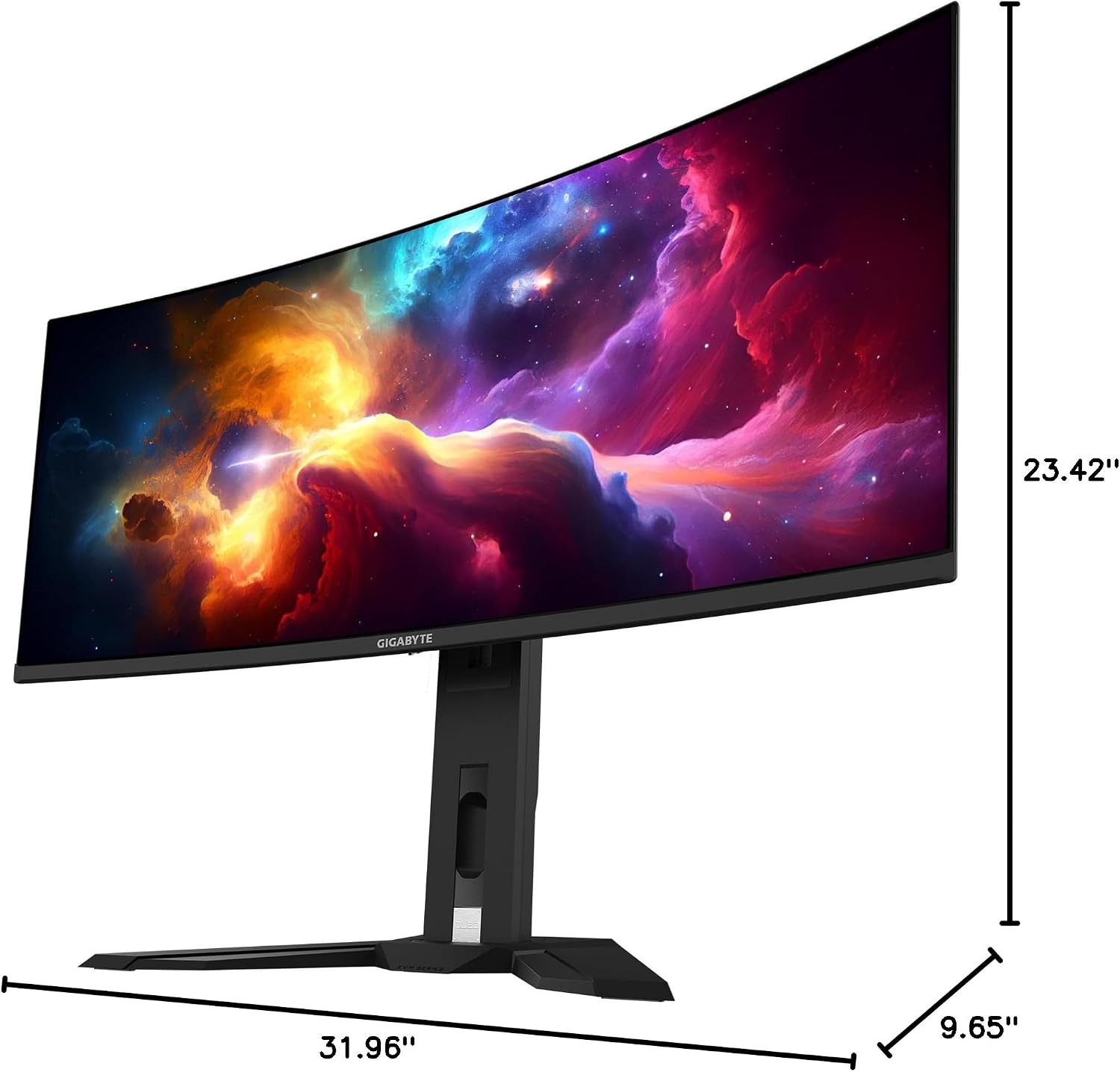
This image provides a diagram of the GIGABYTE MO34WQC2 monitor's dimensions, showing a width of 31.96 inches, a depth of 9.65 inches, and a height of 23.42 inches (including the stand).
الضمان والدعم
معلومات الضمان
Your GIGABYTE MO34WQC2 monitor comes with an extended 3-year manufacturer warranty. This warranty includes coverage for panel burn-in, supported by the AI-based GIGABYTE OLED Care protection. Please note that warranty terms may vary by region.
دعم العملاء
For technical assistance, warranty claims, or further inquiries, please visit the official GIGABYTE support website or contact their customer service department. Refer to the product packaging or GIGABYTE's official website for specific contact details and support resources in your region.