
1. المقدمة وما فوقview
Thank you for choosing the SENGBIRCH Keyboard Case for your Lenovo Tab P12 12.7" tablet. This product combines a protective case with a detachable Bluetooth keyboard, enhancing your tablet's functionality for typing, work, and entertainment. This manual provides detailed instructions for setup, operation, maintenance, and troubleshooting to ensure optimal use of your new accessory.
المميزات الرئيسية:
- Detachable Bluetooth 5.0 keyboard for stable and fast connection.
- Durable protective case with precise cutouts.
- قابل للتعديل viewزوايا للاستخدام المريح.
- Integrated stylus holder.
- بطارية قابلة لإعادة الشحن تدوم طويلاً.
التوافق: صُممت حافظة لوحة المفاتيح هذه خصيصًا لـ Lenovo Tab P12 12.7" (2023) model TB370FU. Please verify your tablet's model number before use to ensure proper fit and functionality.

Image 1.1: Compatibility guide for the keyboard case. Ensure your tablet is the Lenovo Tab P12 12.7" (TB370FU).
2. تعليمات الإعداد
2.1 شحن لوحة المفاتيح
Before first use, fully charge the keyboard. Connect the provided USB-C charging cable to the keyboard's charging port and a USB power adapter (not included). The charging indicator light will illuminate during charging and turn off when fully charged.
- وقت الشحن: حوالي 2-3 ساعات.
- Continuous Use: Up to 48 hours.
- مدة الاستعداد: أكثر من 2 أشهر.

Image 2.1: Keyboard charging port (Type-C) and battery indicators.
2.2 Inserting the Tablet into the Case
- Gently align your Lenovo Tab P12 12.7" tablet with the case's frame.
- Press the tablet firmly into the soft inner shell, ensuring all edges are securely seated and cutouts align with ports and buttons.
2.3 إقران لوحة مفاتيح البلوتوث
- Turn on the keyboard by sliding the 'ON/OFF' switch to the 'ON' position. The power indicator light will briefly illuminate.
- اضغط على زر "الاتصال" الموجود على لوحة المفاتيح. سيبدأ ضوء مؤشر البلوتوث بالوميض، مما يشير إلى أنه في وضع الاقتران.
- On your Lenovo Tab P12, go to الإعدادات > البلوتوث.
- قم بتشغيل البلوتوث والبحث عن الأجهزة المتاحة.
- Select "Bluetooth Keyboard" (or a similar name) from the list of devices.
- اتبع التعليمات التي تظهر على الشاشة لإكمال عملية الاقتران. سيتوقف ضوء مؤشر البلوتوث الموجود على لوحة المفاتيح عن الوميض بمجرد إتمام الاقتران بنجاح.
3. تعليمات التشغيل
3.1 تركيب وفصل لوحة المفاتيح
The keyboard is magnetically attached to the case. To attach, simply place the keyboard onto the designated area within the case. To detach, gently pull the keyboard away from the magnetic surface.

Image 3.1: The keyboard can be magnetically detached from the case.
3.2 تعديل Viewزوايا جي
The case features an adjustable stand that supports three different viewing angles (130°, 125°, 120°). Simply fold the case cover to create a stable triangular stand and adjust it to your preferred angle for typing, viewالرسم أو التخطيط.

Image 3.2: Adjustable stand angles for versatile use.
3.3 وظائف لوحة المفاتيح
- التبديل بين أنظمة التشغيل: The keyboard supports different operating systems. Use Fn + Q لنظام iOS، Fn + W for Android, and Fn + E لنظام التشغيل Windows.
- ضبط الإضاءة الخلفية: يضعط Fn + رمز المصباح to cycle through 3 backlight brightness levels. Press Fn + RGB icon to change between 7 backlight colors.
- شخصيات خاصة: استخدم Fn key in combination with other keys to access special characters, such as the Euro symbol (€) or accent marks (ñ).
- وضع السكون التلقائي: To conserve battery, the keyboard will automatically enter sleep mode after approximately 8 minutes of inactivity. Press any key to wake it up.
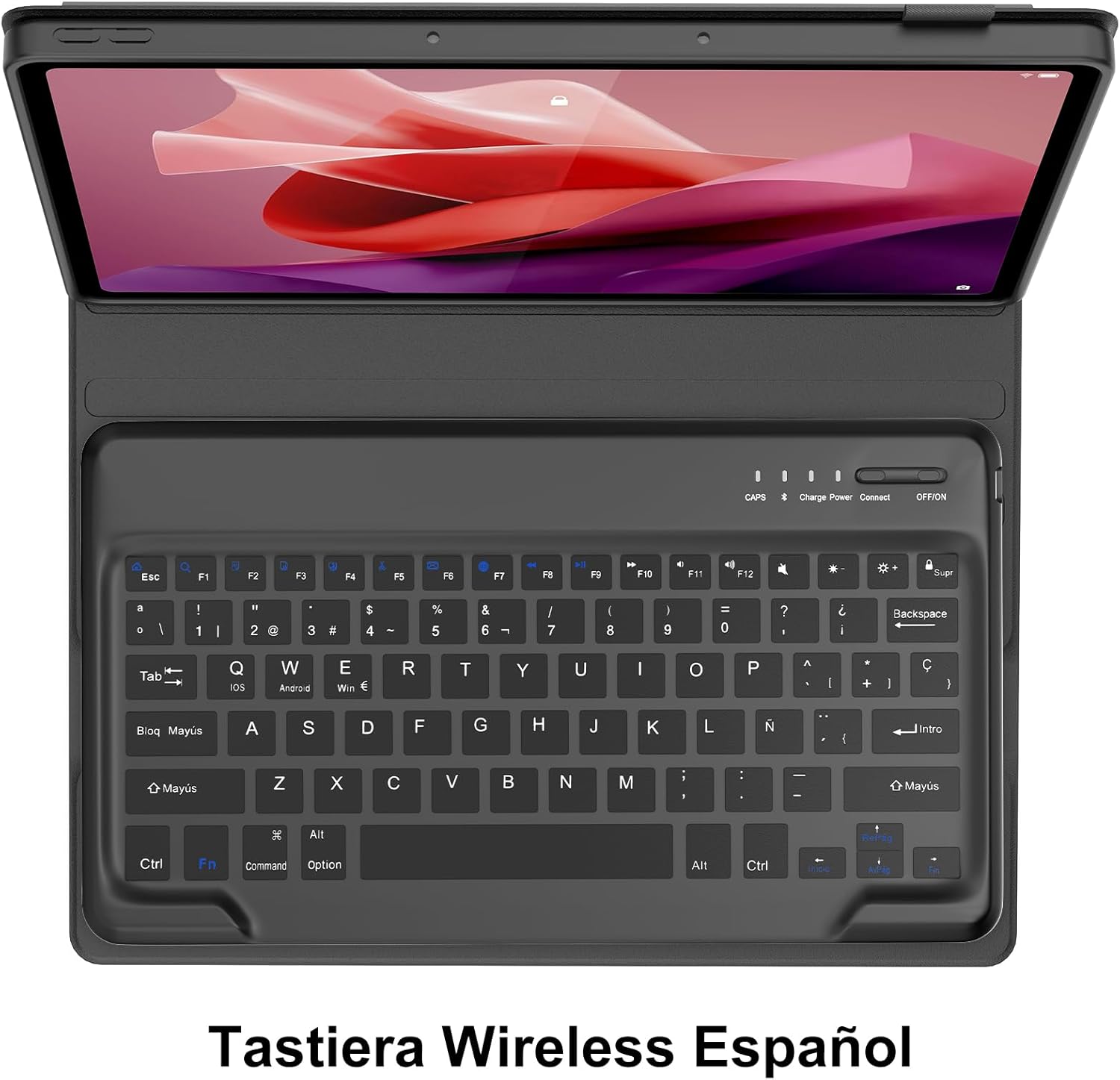
Image 3.3: Keyboard layout with function key combinations for various settings.
3.4 Stylus Holder
The case includes a dedicated slot for your stylus, ensuring it is securely stored and easily accessible.

Image 3.4: Integrated stylus holder for convenience.
4. الصيانة
4.1 تنظيف الهيكل ولوحة المفاتيح
- امسح الجزء الخارجي من العلبة بقطعة قماش ناعمة و...amp القماش. تجنب المواد الكيميائية القاسية أو المنظفات الكاشطة.
- For the keyboard, use a soft, dry cloth or a can of compressed air to remove dust and debris from between the keys.
- تأكد من إيقاف تشغيل لوحة المفاتيح قبل التنظيف.
4.2 العناية بالبطارية
- Recharge the keyboard when the low battery indicator appears or when performance degrades.
- تجنب تفريغ البطارية بالكامل بشكل متكرر لإطالة عمرها.
- إذا كنت ستخزن لوحة المفاتيح لفترة طويلة، فاشحنها إلى حوالي 50% وخزنها في مكان بارد وجاف.
5. استكشاف الأخطاء وإصلاحها
If you encounter issues with your SENGBIRCH Keyboard Case, please refer to the following troubleshooting steps:
5.1 Keyboard Not Connecting/Frequent Disconnections
- التحقق من البطارية: Ensure the keyboard is sufficiently charged. Low battery can cause connection issues.
- إعادة إصلاح لوحة المفاتيح: Delete the "Bluetooth Keyboard" from your tablet's Bluetooth device list and repeat the pairing steps (Section 2.3).
- إعادة تشغيل الأجهزة: Turn off and on both your tablet and the keyboard.
- تدخل: ابتعد عن الأجهزة اللاسلكية الأخرى التي قد تسبب تداخلاً.
5.2 Keys Not Responding or Sticky Keys
- التحقق من البطارية: Ensure the keyboard has enough power.
- تنظيف لوحة المفاتيح: Dust or debris under the keys can cause them to stick. Refer to Section 4.1 for cleaning instructions.
- إعادة تشغيل لوحة المفاتيح: أطفئ لوحة المفاتيح ثم أعد تشغيلها.
5.3 Tablet Not Fitting Correctly
- تحقق من الطراز: Double-check that your tablet is indeed the Lenovo Tab P12 12.7" (2023) model TB370FU. This case is not compatible with other models.
- الإدراج السليم: Ensure the tablet is aligned correctly and gently pressed into all corners of the soft inner shell.
6. المواصفات
| ماركة | سينجبيرش |
| Compatible Tablet Model | Lenovo Tab P12 12.7" (2023) TB370FU |
| تكنولوجيا الاتصال | بلوتوث 5.0 |
| تخطيط لوحة المفاتيح | Spanish (QWERTY) |
| نوع البطارية | قابلة للشحن ليثيوم بوليمر |
| وقت الشحن | 2-3 ساعات |
| وقت الاستخدام المستمر | تصل إلى 48 ساعة |
| وقت الاستعداد | أكثر من 2 شهرًا |
| مادة | Plastic (keyboard), Faux Leather (case exterior) |
| لون | أسود |
| الأبعاد (العبوة) | 31.2 × 25.1 × 4.1 سم |
| الوزن (المنتج) | 970 جرام |
7. الضمان والدعم
SENGBIRCH products are designed for reliability and performance. For any questions, technical support, or warranty claims, please contact SENGBIRCH customer service through the retailer where you purchased the product or visit the official SENGBIRCH webموقع لمعلومات الاتصال.
يرجى الاحتفاظ بإثبات الشراء لأغراض الضمان.