
1. انتهى المنتجview
The ZTE U50 is a portable 5G WiFi hotspot designed to provide high-speed internet connectivity for multiple devices. It features an unlocked SIM slot, supporting 5G and 4G+ networks, and utilizes AX1800 WiFi 6 technology. This device is suitable for home, business, and travel use, allowing up to 32 devices to connect simultaneously.

Image: ZTE U50 5G WiFi Hotspot shown from various perspectives, highlighting its compact design and ports.
2. الميزات الرئيسية
- اتصال عالي السرعة بتقنية الجيل الخامس: Equipped with Qualcomm Snapdragon X55, supporting all 5G networks for fast internet access. LTE downlink speed reaches 5G+ EN-DC 2.63 Gbit/s.
- Extensive Device Support: Connects up to 32 WiFi-enabled devices, including laptops, tablets, phones, and gaming consoles.
- عمر بطارية طويل: Features a 4500 mAh battery, providing approximately 8 hours of stable 5G network service with high speed and low latency.
- Enhanced Signal & Security: Integrated 4x4 MIMO high-gain antennas improve speed by 15% compared to standard 5G hotspots. A security firewall with PP2P/L2TP protection ensures network safety.
- الإعداد السهل: No complex configuration required. Simply insert a 5G nano-SIM card. Manage the device using the ZTE Link app on iOS and Android.

Image: Visual summary of ZTE U50 features, including 5G speed, Qualcomm Snapdragon X55 processor, support for 32 devices, and secure network encryption.
3. محتويات العبوة
تأكد من وجود جميع العناصر في العبوة:
- ZTE U50 5G WiFi Hotspot Device
- كابل شحن USB-C
- دليل البدء السريع (هذا الدليل)
- بطاقة الضمان
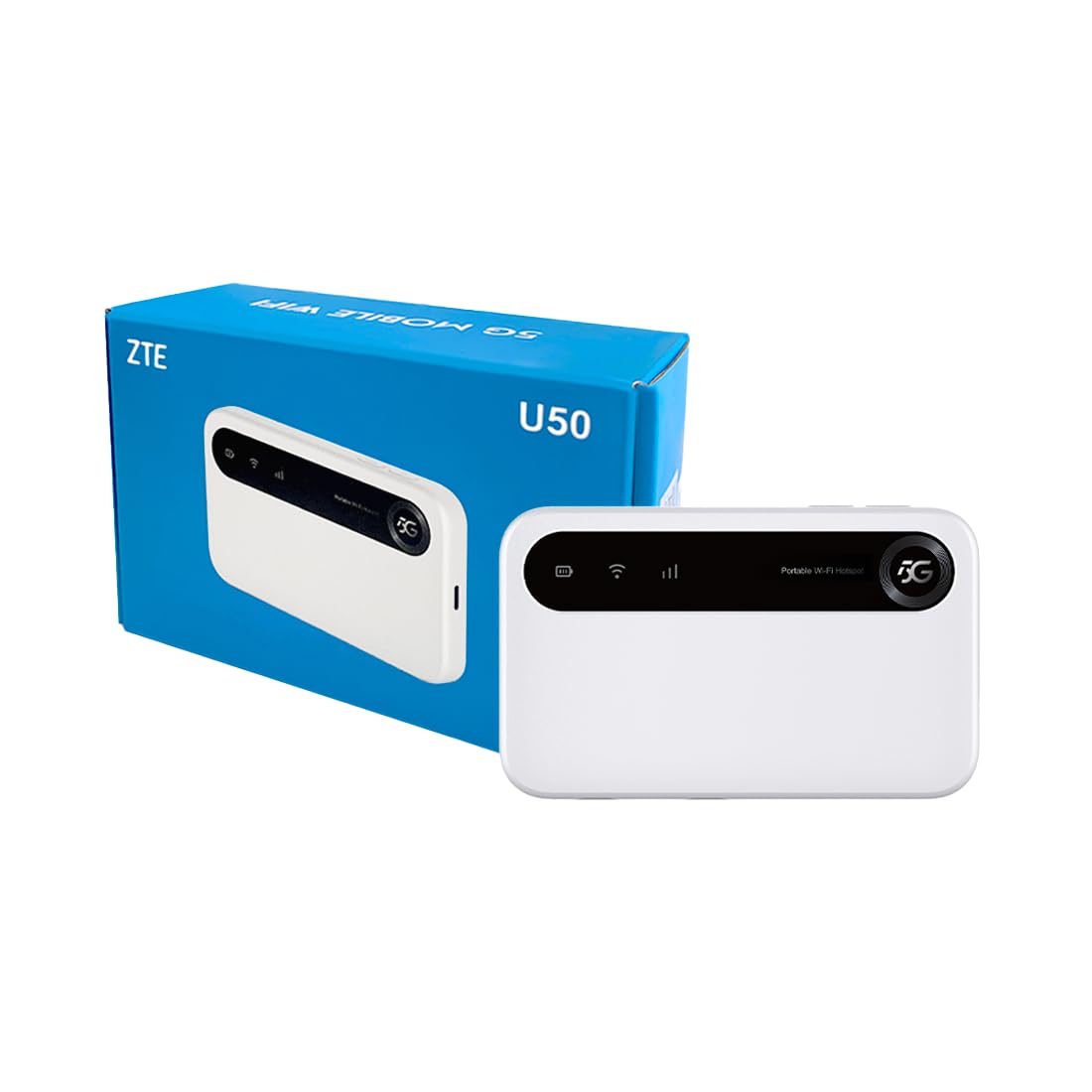
Image: The ZTE U50 device and its accompanying USB-C cable, representing the typical package contents.
4. دليل الإعداد
4.1. إدخال بطاقة SIM
- Locate the SIM card slot on the device. Refer to the device diagram in the Product Overview قسم.
- افتح غطاء فتحة بطاقة SIM بعناية.
- Insert a 5G nano-SIM card into the slot with the gold contacts facing down and the notched corner aligned correctly.
- أغلق غطاء فتحة بطاقة SIM بإحكام.
4.2. تشغيل الجهاز
Press and hold the Power button for a few seconds until the screen illuminates. The device will begin to search for a network connection.
4.3. توصيل الأجهزة عبر شبكة Wi-Fi
- Once the device is powered on and connected to a mobile network, the Wi-Fi network name (SSID) and password will be displayed on the device screen.
- On your Wi-Fi enabled device (laptop, smartphone, tablet), search for available Wi-Fi networks.
- Select the SSID corresponding to your ZTE U50 hotspot.
- أدخل كلمة مرور Wi-Fi عندما يُطلب منك ذلك.
- Your device should now be connected to the internet through the ZTE U50 hotspot.

Image: Illustration showing the ZTE U50 hotspot wirelessly connecting to various devices like laptops, phones, and gaming consoles.
5. تعليمات التشغيل
5.1. Device Management via ZTE Link App
The ZTE Link app (available on iOS and Android) allows you to manage your U50 hotspot settings, monitor data usage, change Wi-Fi passwords, and more. Download the app from your device's app store and follow the on-screen instructions to connect to your U50.
5.2. Checking Device Status
The device's screen displays important information such as signal strength, battery level, connected devices, and data usage. Periodically check the screen for updates on your hotspot's status.
5.3. إدارة البطارية
The ZTE U50 is equipped with a 4500 mAh battery. To maximize battery life:
- قم بشحن الجهاز باستخدام كابل USB-C المرفق ومحول الطاقة المتوافق.
- Reduce the number of connected devices if extended battery life is needed.
- قم بإيقاف تشغيل الجهاز عندما لا يكون قيد الاستخدام.
6. الصيانة
6.1. تحديثات البرامج
Regularly check for and install software updates for your ZTE U50. Updates can improve performance, enhance security, and add new features. You can typically check for updates via the ZTE Link app or the device's web واجهة الإدارة.
6.2. تنظيف الجهاز
Use a soft, dry cloth to clean the exterior of the device. Avoid using liquid cleaners or abrasive materials, as these can damage the device.
6.3. التخزين
When storing the device for extended periods, ensure it is fully charged and then powered off. Store it in a cool, dry place away from direct sunlight and extreme temperatures.
7. استكشاف الأخطاء وإصلاحها
| مشكلة | السبب المحتمل | حل |
|---|---|---|
| لا يوجد اتصال بالإنترنت | No SIM card, incorrect SIM, no network signal, data plan expired. | Ensure SIM is correctly inserted and active. Check for network signal. Verify data plan status with your provider. Restart the device. |
| سرعة الانترنت بطيئة | إشارة ضعيفة، عدد كبير جدًا من الأجهزة المتصلة، ازدحام الشبكة. | Move to an area with better signal. Disconnect unnecessary devices. Contact your service provider if congestion is suspected. |
| لا يمكن الاتصال بشبكة Wi-Fi | Incorrect Wi-Fi password, device out of range, Wi-Fi disabled. | Verify Wi-Fi password. Move closer to the hotspot. Ensure Wi-Fi is enabled on both the hotspot and your connecting device. |
| الجهاز لا يعمل | Low battery, faulty power button. | اشحن الجهاز لمدة 30 دقيقة على الأقل. إذا لم يتم تشغيله بعد ذلك، فاتصل بالدعم الفني. |
8. المواصفات
| ميزة | التفاصيل |
|---|---|
| ماركة | زد تي اي |
| اسم الموديل | تحت 50 |
| تكنولوجيا الاتصال | 5G, WiFi 6 |
| معيار الاتصال اللاسلكي | 802.11ax |
| فئة نطاق التردد | Dual-band (2.4 GHz) |
| سرعة نقل البيانات | 150 Megabits per second (Upstream) |
| عرض النطاق الترددي لمنفذ LAN | 1000 ميجابايت في الثانية |
| عدد الهوائيات | 4 (Internal) |
| المميزات الخاصة | وضع نقطة الوصول |
| الأجهزة المتوافقة | Laptop, Smartphone, Game Console, Tablet |
| الاستخدامات الموصى بها | Gaming, Business, Home |
| المكونات المضمنة | جهاز التوجيه |
| بروتوكول الأمان | WPA2-PSK |
| طريقة التحكم | App (iOS & Android) |
| لون | أبيض |
| وزن العنصر | 163.7 جرام |
| سعة البطارية | 4500 mAh (Built-in rechargeable) |
9. الضمان والدعم
9.1. معلومات الضمان
The ZTE U50 5G WiFi Hotspot comes with a ضمان الشركة المصنعة لمدة عامين. Please retain your proof of purchase for warranty claims. The warranty covers defects in materials and workmanship under normal use. It does not cover damage caused by misuse, accidents, unauthorized modifications, or external causes.
9.2. دعم العملاء
For technical assistance, troubleshooting, or warranty inquiries, please contact ZTE customer support through their official website or the contact information provided in your product packaging. You can also refer to the ZTE Link app for additional support resources.