
1. المقدمة
This manual provides detailed instructions for the installation, operation, and maintenance of your ninetom 10.25-inch Car Radio Touchscreen. This device is designed to upgrade the infotainment system in specific BMW 1 Series models.
1.1 التوافق
This touchscreen is compatible with BMW 1 Series E81, E82, E87, E88 models manufactured between 2008 and 2012, specifically those equipped with the CIC system. It is not suitable for vehicles with CCC or NBT systems. Please verify your car's system before installation.

Image 1.1: Compatibility check for BMW systems. The device is compatible with CIC systems (indicated by a green checkmark) and incompatible with CCC, NBT, and EVO systems (indicated by red crosses).

Image 1.2: Visual guide to identify compatible BMW 1 Series models and their respective CIC, CCC, NBT, and EVO systems. The product is designed for CIC systems.
2. معلومات السلامة
Read all instructions carefully before installation and use. Improper installation or operation can lead to vehicle damage or personal injury. Always prioritize safe driving practices. Do not operate the device in a way that distracts you from the road. Consult a professional for installation if you are unsure about any steps.
3. محتويات العبوة
تأكد من وجود جميع المكونات في الحزمة قبل البدء في التثبيت:
- 1 x 10.25-inch Upgraded Car Radio Touchscreen
- 1 × كابل الطاقة
- 1 × كابل يو اس بي
- شنومكس x أوكس كابل
- 1 x Bracket (Note: Back bracket may vary depending on model)
- تعليمات التثبيت

Image 3.1: Contents of the product package, showing the 10.25-inch screen, power cable, USB cable, AUX cable, and mounting bracket.
4. الإعداد والتثبيت
Installation is designed to be non-destructive, meaning no original cables will be damaged. The process primarily involves removing the original car screen and connecting the new unit.
4.1 خطوات ما قبل التثبيت
- Ensure your vehicle is turned off and the battery is disconnected to prevent electrical damage.
- Carefully remove the original car screen and any associated trim panels. Refer to your vehicle's service manual for specific removal procedures.
- Verify the compatibility of your car's system (CIC) as outlined in Section 1.1.
4.2 توصيل الوحدة
- Connect the provided power cable to the new touchscreen and the vehicle's wiring harness.
- Connect the USB and AUX cables as needed for additional functionality.
- Secure the new touchscreen using the provided bracket.
4.3 بعد التثبيت
- أعد توصيل بطارية السيارة.
- Turn on the vehicle and test the new touchscreen's functionality.
- Ensure all original car functions (radio, amplifier, joystick, etc.) are still operational.
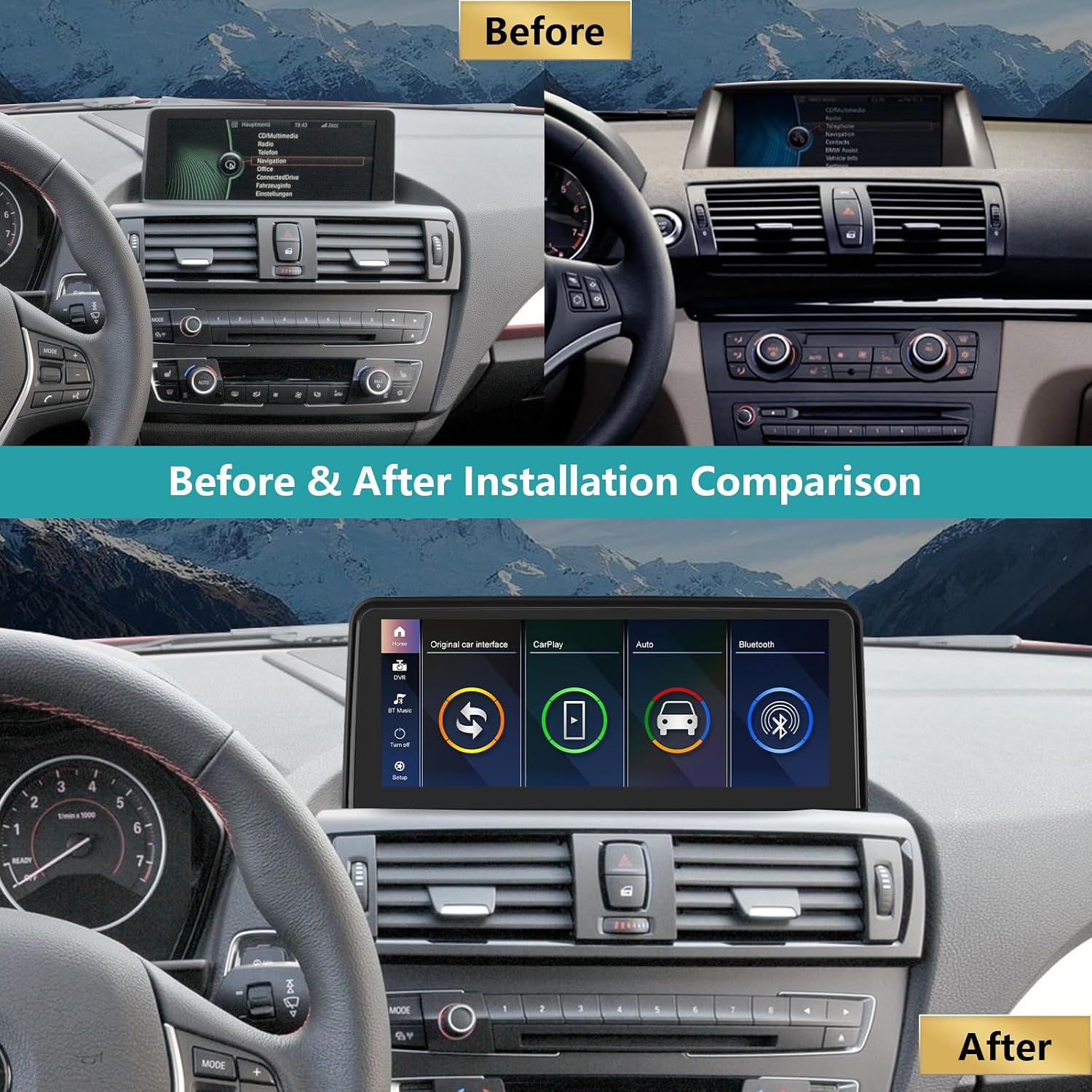
Image 4.1: A visual comparison showing the car's dashboard before and after the installation of the ninetom 10.25-inch touchscreen, highlighting the integrated appearance.

Image 4.2: Another perspective of the car's interior, illustrating the transformation from the original display to the new ninetom touchscreen.
5. تعليمات التشغيل
The ninetom touchscreen offers a range of features to enhance your driving experience. It operates on a Linux system and provides seamless integration with your original car functions.
5.1 انتهى النظامview
The device features a 10.25-inch HD full touch capacitive monitor with a resolution of 1920x720. It supports one-button switching between the new Linux system interface and the original car interface.

Image 5.1: Displays the Linux system interface with icons for original car interface, CarPlay, Auto, and Bluetooth, alongside the original BMW factory system interface.

Image 5.2: Illustrates the retention of original car functions such as radio, GPS navigation, Bluetooth, DVD/CD, rear view camera, joystick control, and steering wheel controls.
5.2 Apple CarPlay و Android Auto
The unit comes with integrated wireless and wired Apple CarPlay and Android Auto functionalities. This allows you to access GPS navigation, make phone calls, send messages, and play music directly from your smartphone on the car's display.

Image 5.3: Demonstrates the navigation capabilities with CarPlay and Android Auto, support for original navigation, various navigation software, multiple languages, and Mirrorlink functionality for both iOS and Android phones.

Image 5.4: Shows the wireless connectivity for CarPlay and Android Auto, along with the Mirrorlink feature for screen mirroring from smartphones.
5.3 Mirrorlink
Mirrorlink functionality allows you to mirror your iOS or Android smartphone screen onto the 10.25-inch display, enabling you to view maps, videos, and other content.
5.4 الملاحة
Utilize GPS navigation through Apple CarPlay, Android Auto, or other supported navigation software. The system supports various map types and offers clear visual guidance.

Image 5.5: A visual representation of the navigation map displayed on the touchscreen, indicating routes and points of interest.
5.5 Media Playback & Connectivity
The unit supports music playback through CarPlay/Android Auto, Bluetooth, and AUX input. It retains the original car radio and amplifier functions. Steering wheel controls are also supported for convenient media management.

Image 5.6: An icon representing the AUX and Bluetooth connectivity options available for audio input.

Image 5.7: Shows the steering wheel buttons for multimedia control and the iDrive controller, both of which remain functional with the new system.
5.6 Rear Camera & Parking Assistance
The system supports the original rear camera and aftermarket cameras, as well as parking radar functions, providing visual assistance when reversing.

Image 5.8: A display of the rear camera view on the touchscreen, complete with parking guidelines and proximity sensors.
5.7 عرض فيديو
Video 5.1: A demonstration of the ninetom car radio touchscreen in operation, showcasing features such as Apple CarPlay, navigation, music playback, hands-free calling, switching to the original car system, and rear camera functionality. This video highlights the user interface and key interactions.
6. الصيانة
To ensure the longevity and optimal performance of your touchscreen, follow these maintenance guidelines:
- تنظيف: استخدم قطعة قماش ناعمة وخالية من الوبر لتنظيف الشاشة. لإزالة البقع الصعبة، امسحها برفق.ampامسح الشاشة بقطعة قماش مبللة بالماء أو بمنظف آمن. تجنب المواد الكاشطة أو المواد الكيميائية القاسية.
- درجة حرارة: تجنب تعريض الجهاز لدرجات حرارة شديدة.
- التعرض السائل: Prevent liquids from entering the unit.
- تحديثات البرامج: Periodically check for software updates from the manufacturer to ensure the best performance and access to new features.
7. استكشاف الأخطاء وإصلاحها
If you encounter issues with your ninetom touchscreen, refer to the following common problems and solutions:
| مشكلة | السبب المحتمل | حل |
|---|---|---|
| No power/Screen blank | توصيل الطاقة غير محكم، فتيل محترق، أسلاك غير صحيحة. | Check all power connections. Verify vehicle fuses. Ensure correct wiring according to the installation guide. |
| لا يوجد صوت | Incorrect AUX input selection, volume too low, loose audio cables. | Ensure the correct AUX input is selected on the original car system. Increase volume. Check audio cable connections. |
| لا يتم الاتصال بـ CarPlay/Android Auto | Bluetooth/Wi-Fi issues, incorrect phone settings, incompatible phone. | Ensure Bluetooth and Wi-Fi are enabled on your phone. Restart phone and unit. Check phone compatibility. For wired connection, try a different USB cable. |
| Original functions not working | Incorrect wiring, system not switched to original interface. | Verify wiring connections. Ensure you have switched to the "Original Car Interface" mode on the touchscreen. |
| شاشة اللمس لا تستجيب | Temporary software glitch, screen damage. | أعد تشغيل الجهاز. إذا استمرت المشكلة، فاتصل بدعم العملاء. |
If the problem persists after attempting these solutions, please contact ninetom customer support for further assistance.
8. المواصفات
- اسم الموديل: NT-BMW1-CIC-10.25
- حجم الشاشة: 10.25 بوصة
- دقة: 1920 × 720
- نوع الشاشة: الشاشة التي تعمل باللمس بالسعة
- نظام التشغيل: لينكس
- الاتصال: بلوتوث، يو اس بي، ايه يو اكس
- المميزات الخاصة: Apple CarPlay (Wireless/Wired), Android Auto (Wireless/Wired), Mirrorlink, GPS Navigation, Spotify, Retains Original Car Functions (Radio, Amplifier, Joystick, Rear Camera)
- نوع المركبة المتوافقة: Automobile (BMW 1 Series E81, E82, E87, E88 with CIC system, 2008-2012)
- نوع التركيب: On-dash
- وضع إخراج الصوت: ستيريو
- أبعاد العنصر (الطول × العرض × الارتفاع): 39.5 × 18.4 × 17.3 سم
- وزن السلعة: 1.7 كيلوغرام
- بلد المنشأ: الصين
9. الضمان والدعم
9.1 ضمان المنتج
This ninetom product comes with a ضمان لمدة 1 سنوات يسري الضمان من تاريخ الشراء. ويغطي عيوب التصنيع والأعطال الناتجة عن الاستخدام العادي. ولا يغطي الأضرار الناجمة عن التركيب غير الصحيح، أو سوء الاستخدام، أو الحوادث، أو التعديلات غير المصرح بها.
9.2 دعم العملاء
For technical assistance, installation support, or warranty claims, please contact ninetom customer service. Refer to the contact information provided with your purchase or visit the official ninetom webموقع.