
1. المقدمة
This manual provides essential information for the proper setup, operation, and maintenance of your NexiGo NG17QH 4K Portable Monitor. Please read this manual thoroughly before using the device to ensure optimal performance and to prevent damage. Keep this manual for future reference.

Image: The NexiGo NG17QH 4K Portable Monitor, showcasing its sleek design and smart cover.
2. محتويات العبوة
Verify that all items listed below are included in your package. If any items are missing or damaged, please contact NexiGo customer support.
- NexiGo NG17QH 4K Portable Monitor
- Smart Cover / Stand
- كابل USB-C إلى USB-C
- كابل HDMI صغير إلى HDMI
- كابل طاقة من USB-A إلى USB-C
- محول الطاقة
3. انتهى المنتجview
Familiarize yourself with the ports and controls on your NexiGo NG17QH portable monitor.
الصورة: مفصلة view of the monitor's ports and controls.
المنافذ والأزرار:
- منفذ USB-C كامل المواصفات: Used for power, video, and audio transmission with compatible devices.
- منفذ HDMI صغير: Used for video and audio transmission with HDMI-compatible devices.
- زر الطاقة: Press and hold to power the monitor on or off. Short press to access the OSD menu.
- ضوء مؤشر الطاقة: Indicates the monitor's power status.
- Multi-Function Key: Used to navigate the OSD menu and adjust settings.
- OTG Interface (USB-C): Allows connection of USB peripherals like keyboards or mice when the monitor is connected via the full-featured USB-C port.
- مقبس سماعة رأس مقاس 3.5 ملم: لتوصيل أجهزة الصوت الخارجية.
4. الإعداد
Follow these steps to set up your NexiGo NG17QH portable monitor.
4.1 تشغيل الشاشة
- Using a single USB-C cable (Full-Featured): If your device (laptop, smartphone) supports full-featured USB-C output, connect the monitor to your device using the provided USB-C to USB-C cable. This single cable can provide both power and display signal.
- Using an external power adapter: If your device does not provide sufficient power or if you are using the Mini HDMI port, connect the provided USB-A to USB-C power cable to the monitor's full-featured USB-C port and plug the USB-A end into the power adapter, then into a wall outlet.
4.2 الاتصال بالأجهزة
- Laptop/PC (USB-C): Connect the monitor to your laptop/PC using the USB-C to USB-C cable. Ensure your laptop's USB-C port supports DisplayPort Alternate Mode.
- Laptop/PC (HDMI): Connect the monitor to your laptop/PC using the Mini HDMI to HDMI cable. Ensure the monitor is powered externally via the USB-C power cable.
- Gaming Consoles (PS5, Xbox, Switch): Connect the monitor to your console using the Mini HDMI to HDMI cable. Ensure the monitor is powered externally via the USB-C power cable.
- الهاتف الذكي: Connect the monitor to your smartphone using the USB-C to USB-C cable. Ensure your smartphone's USB-C port supports video output.
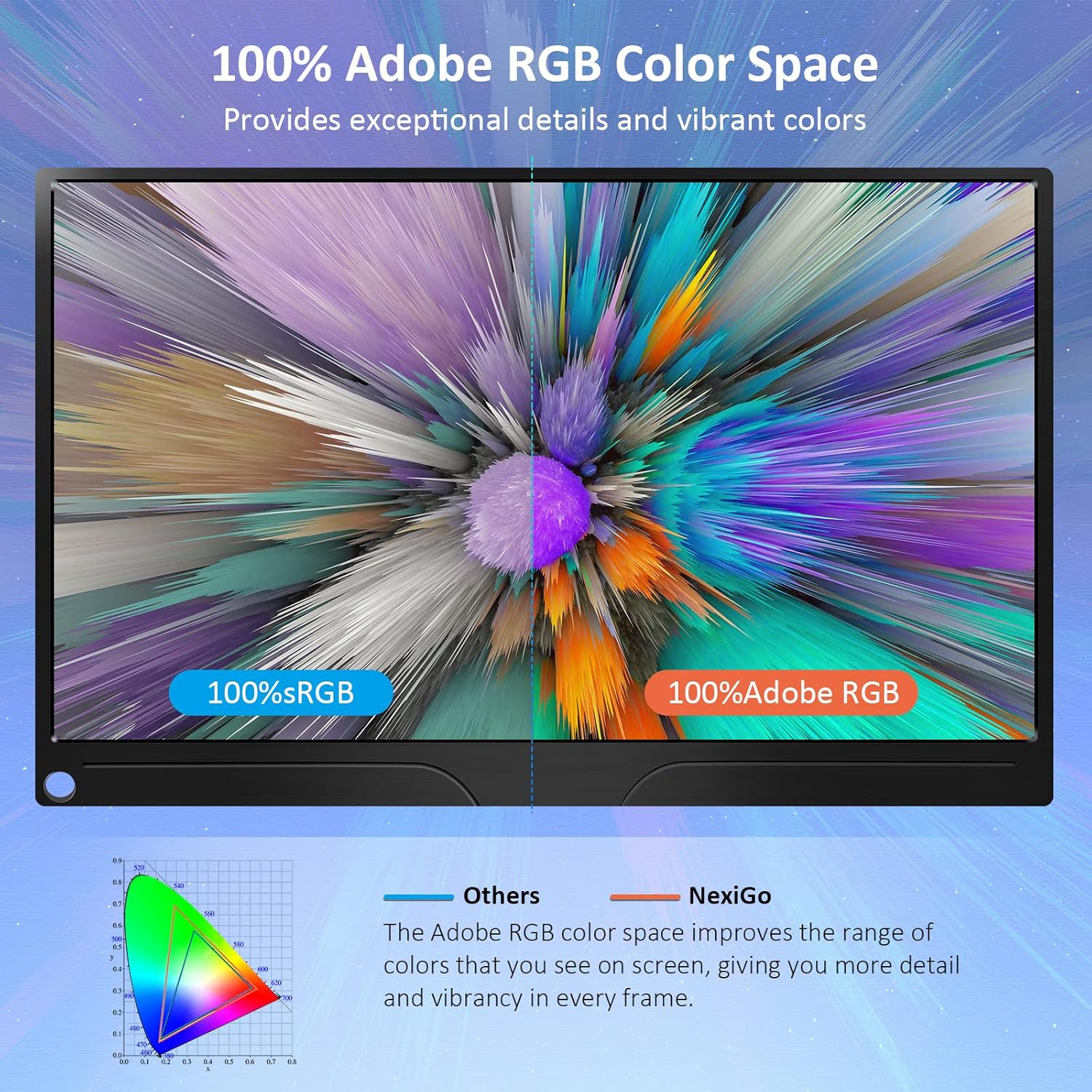
Image: The portable monitor connected to a laptop, demonstrating an extended display setup.
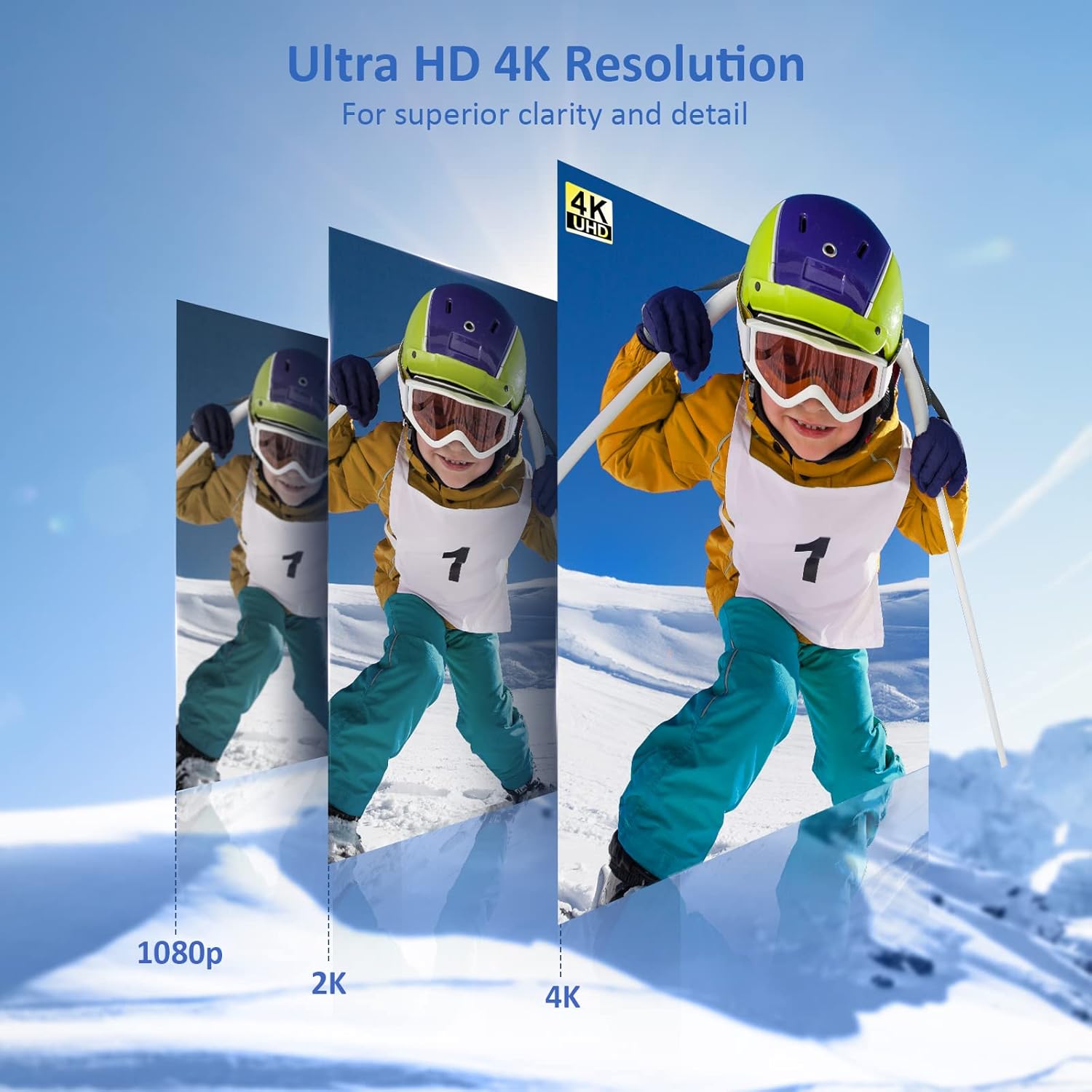
Image: The portable monitor connected to a smartphone, displaying content.
4.3 تركيب VESA
The monitor is compatible with VESA mounts (75x75mm). To mount the monitor, remove the smart cover and attach it to a compatible VESA arm or wall mount using appropriate screws (not included).
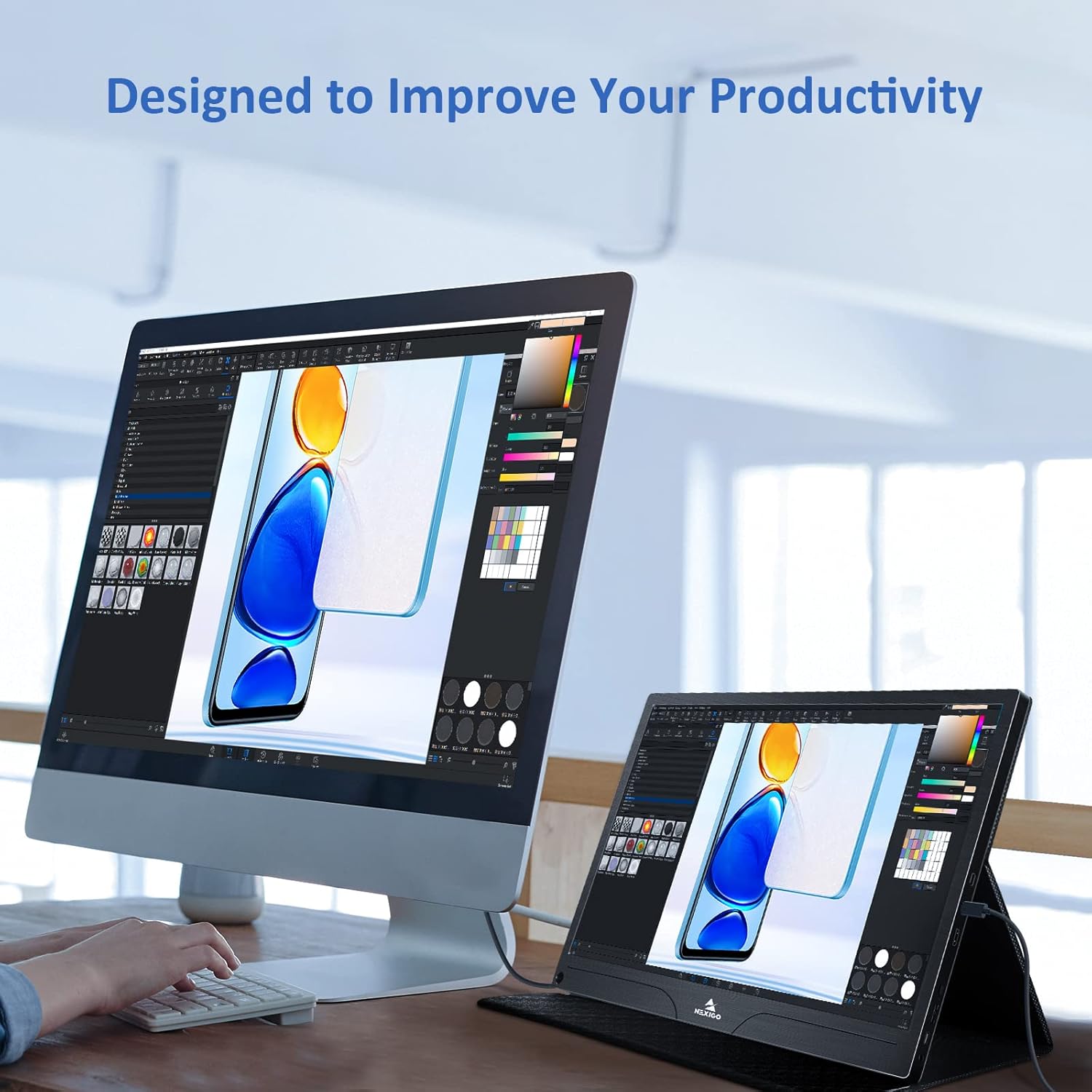
Image: The monitor mounted on a VESA-compatible desk arm.
5. تشغيل الشاشة
5.1 تشغيل/إيقاف التشغيل
اضغط مع الاستمرار على زر الطاقة for approximately 3 seconds to turn the monitor on or off.
5.2 قائمة العرض على الشاشة (OSD)
The OSD menu allows you to adjust various display settings. Short press the زر الطاقة to open the OSD menu. Use the مفتاح متعدد الوظائف to navigate and select options.
- فوق تحت: Move the Multi-Function Key up or down to navigate through menu options.
- يدخل: Press the Multi-Function Key inward to select an option or confirm a setting.
- مخرج: Press the Power Button to exit the current menu or the OSD.
5.3 إعدادات العرض
- السطوع / التباين: ضبط الإضاءة العامة والتباين للشاشة.
- إعدادات الألوان: قم بتعديل درجة حرارة اللون، والصبغة، والتشبع.
- وضع تقرير التنمية البشرية: Enable or disable High Dynamic Range for enhanced visual quality with compatible content.
- المزامنة الحرة: Enable FreeSync for smoother gaming experiences by synchronizing the monitor's refresh rate with your GPU's frame rate.
- نسبة العرض إلى الارتفاع: Adjust the display aspect ratio (e.g., 16:9, 4:3).
5.4 إعدادات الصوت
Adjust the volume of the built-in dual speakers or connected headphones through the OSD menu.
6. الصيانة
- تنظيف الشاشة: استخدم قطعة قماش ناعمة وخالية من الوبر برفق دampيُنظف بالماء أو بمنظف شاشات غير كاشط. لا ترش السائل مباشرة على الشاشة.
- تنظيف Casing: امسح الشاشةasinامسح بقطعة قماش ناعمة وجافة. تجنب استخدام المواد الكيميائية القاسية أو المذيبات.
- تخزين: When not in use, store the monitor in a cool, dry place, preferably in its original packaging or smart cover to protect it from dust and scratches.
- تجنب الظروف القاسية: لا تعرض الشاشة لدرجات حرارة شديدة أو رطوبة عالية أو لأشعة الشمس المباشرة.
7. استكشاف الأخطاء وإصلاحها
If you encounter issues with your monitor, refer to the following table for common problems and solutions.
| مشكلة | السبب المحتمل | حل |
|---|---|---|
| لا يوجد عرض / رسالة "لا توجد إشارة" | توصيل الكابل غير صحيح، الطاقة غير كافية، مصدر الإدخال غير صحيح. | Ensure cables are securely connected. Verify external power is supplied if needed. Check the input source setting in the OSD menu. |
| الشاشة لا تعمل | No power supply, faulty cable. | Ensure the power adapter is connected and working. Try a different USB-C cable or power source. |
| شاشة متذبذبة | Faulty cable, unstable power, incompatible resolution/refresh rate. | Replace the cable. Ensure stable power. Adjust the display resolution or refresh rate on your connected device. |
| لا يوجد صوت | Volume too low, incorrect audio output setting, faulty cable. | Increase volume via OSD or connected device. Ensure the monitor is selected as the audio output device on your source. Check cable connections. |
| OTG port not working | Monitor not powered via full-featured USB-C, device incompatibility. | Ensure the monitor is connected to a device via the full-featured USB-C port that supports OTG functionality. |
8. المواصفات
Detailed technical specifications for the NexiGo NG17QH 4K Portable Monitor.
| ميزة | مواصفة |
|---|---|
| رقم الموديل | NG17QH |
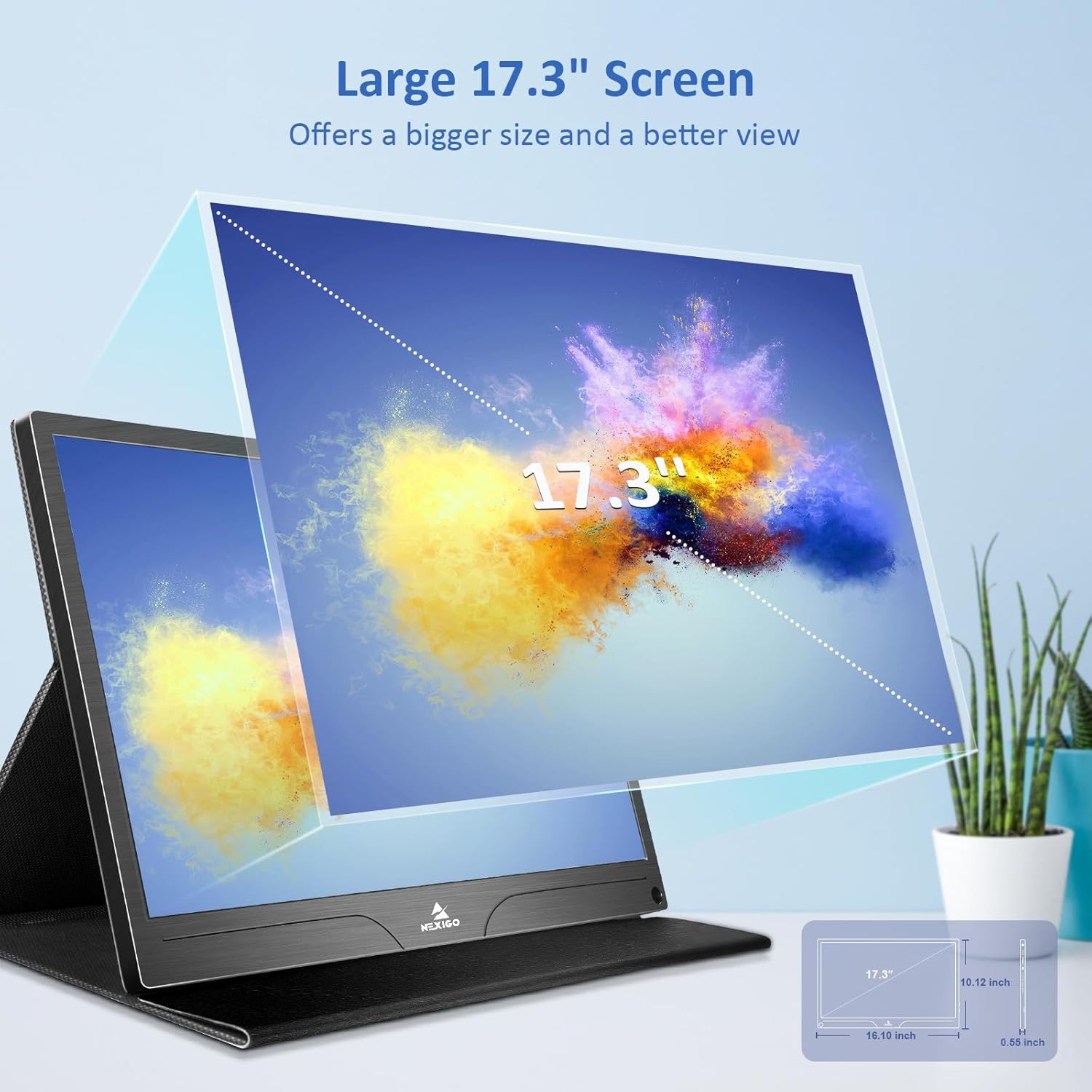
| حجم الشاشة | 17.3 بوصة |
| دقة | 3840 × 2160 (4K UHD) |
| نوع اللوحة | اي بي اس |
| سطوع | 400 شمعة/م² |
| مجموعة الألوان | 100٪ Adobe RGB |
| نسبة العرض إلى الارتفاع | 16:9 |
| Viewزاوية جي | 178° |
| سمات | FreeSync, HDR, Eye Care Screen |
| المتحدثون | مكبرات صوت مدمجة مزدوجة |
| الاتصال | Full-Featured USB-C (x1), Mini HDMI (x1), OTG USB-C (x1), 3.5mm Audio Jack (x1) |
| التوافق مع VESA | 75 × 75 ملم |
| أبعاد المنتج | 16.1 × 10.12 × 0.55 بوصة |
| وزن العنصر | 6.39 رطل |

Image: Visual comparison of 1080p, 2K, and 4K resolutions, demonstrating the clarity of the 4K display.
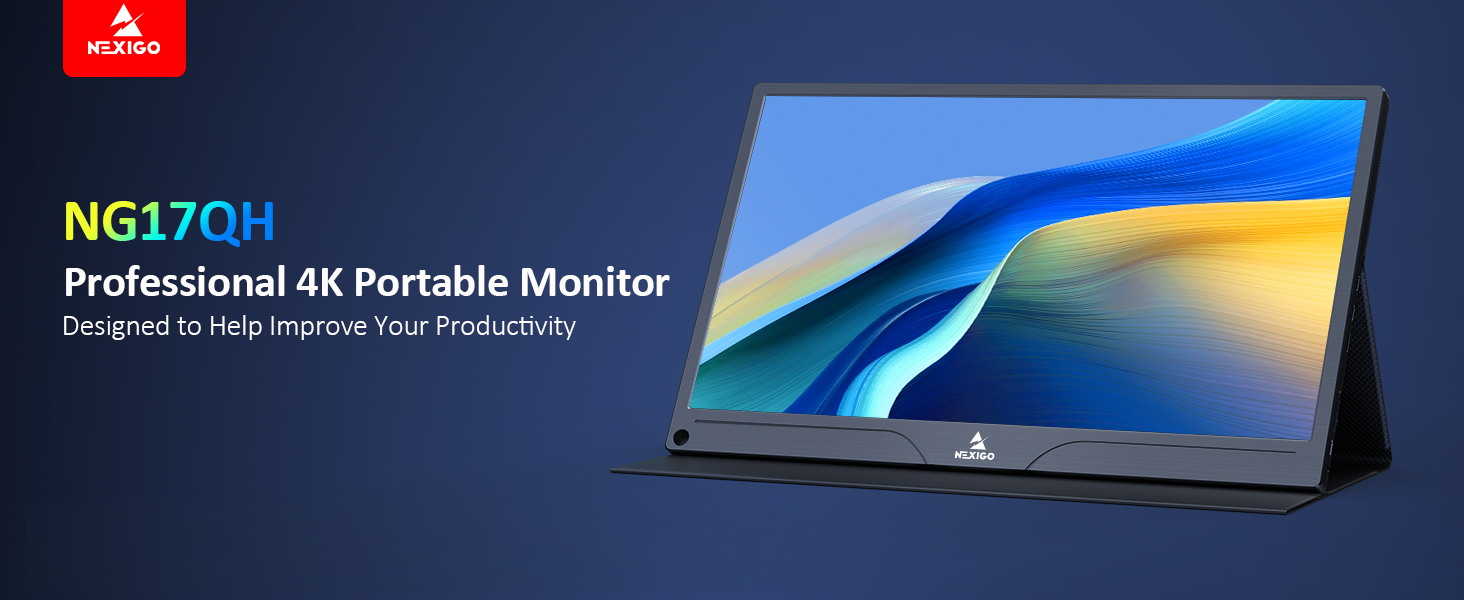
Image: A visual representation of 100% Adobe RGB color space coverage, indicating vibrant and detailed color reproduction.
9. الضمان والدعم
Your NexiGo NG17QH Portable Monitor comes with a manufacturer's warranty. For detailed warranty information, product registration, or technical support, please visit the official NexiGo webالموقع أو تواصل مع خدمة العملاء مباشرةً. احتفظ بإيصال الشراء كإثبات للشراء في حال وجود أي مطالبات بالضمان.
NexiGo Official Webموقع: www.nexigo.com