
مقدمة
This manual provides detailed instructions for the setup, operation, maintenance, and troubleshooting of your ZTE MC888 Ultra 5G Router. The MC888 Ultra is a high-performance 5G router designed to deliver fast and reliable internet connectivity. It supports download speeds up to 3.8 Gbps and upload speeds up to 280 Mbps, features dual Gigabit LAN/WAN ports, and includes an RJ11 port for voice calls via VoIP, VoLTE, or VoNR.
معلومات السلامة
- اقرأ جميع التعليمات بعناية قبل استخدام الجهاز.
- Do not open or modify the device. Unauthorized modifications can void your warranty and create safety hazards.
- Use only the power adapter and accessories supplied with the router.
- احفظ الجهاز بعيدًا عن الماء والرطوبة ودرجات الحرارة القصوى.
- تأكد من التهوية المناسبة حول جهاز التوجيه لمنع ارتفاع درجة الحرارة.
- تجنب وضع جهاز التوجيه بالقرب من المجالات الكهرومغناطيسية القوية.
محتويات الحزمة
تأكد من وجود جميع العناصر في الحزمة الخاصة بك:
- راوتر ZTE MC888 الترا 5G
- محول الطاقة
- كابل إيثرنت
- دليل البدء السريع (غير مدرج في هذا الدليل)
انتهى الجهازview
Familiarize yourself with the ports and indicators on your ZTE MC888 Ultra 5G Router.
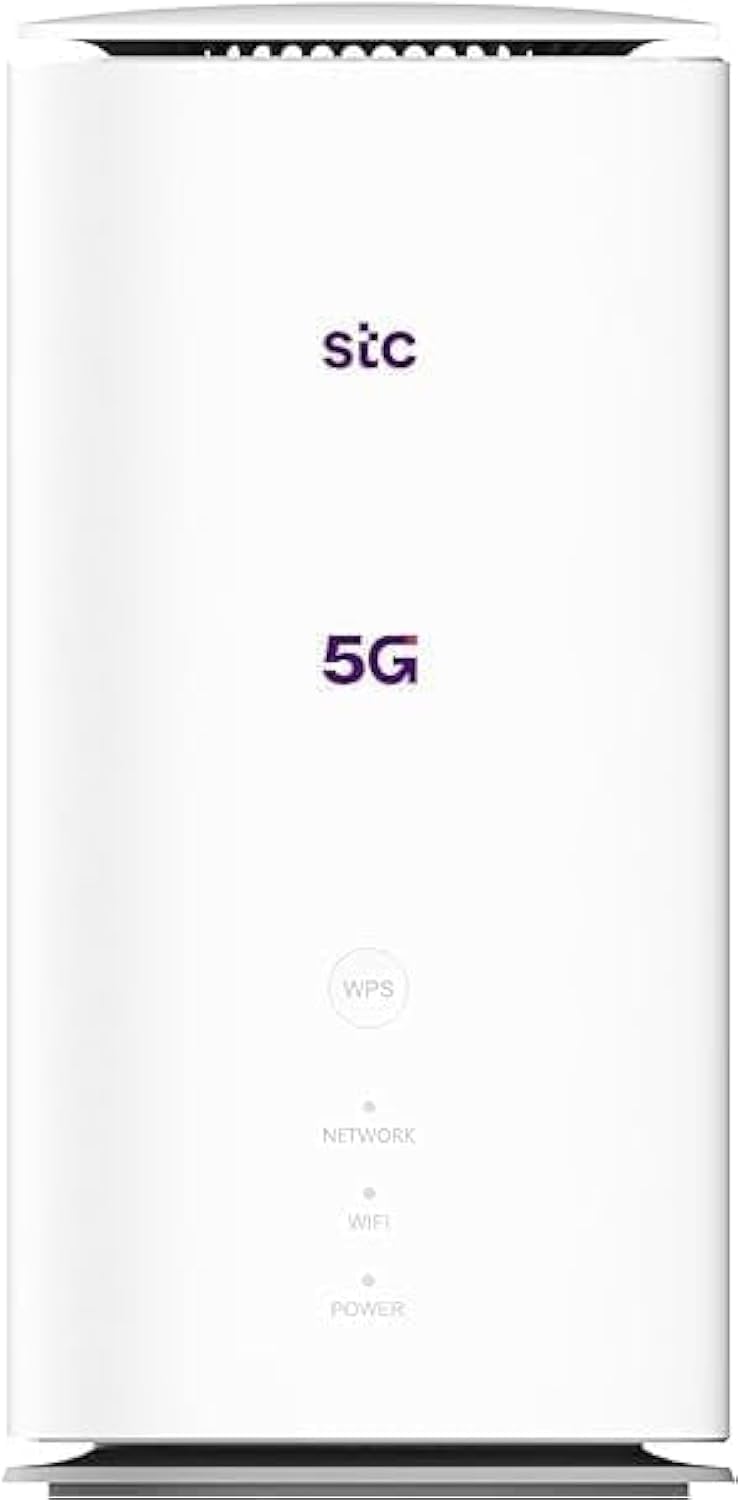
الصورة: الأمامية والخلفية view of the ZTE MC888 Ultra 5G Router, showing LED indicators, SIM card slot, power port, LAN/WAN ports, and RJ11 port.
مؤشرات اللوحة الأمامية:
- مؤشر الطاقة LED: يشير إلى حالة الطاقة.
- مؤشر LED للشبكة: يشير إلى حالة اتصال شبكة الجيل الرابع/الجيل الثالث.
- مؤشر LED لشبكة Wi-Fi: يشير إلى نشاط Wi-Fi.
منافذ اللوحة الخلفية:
- منفذ الطاقة: يتصل بمحول الطاقة.
- LAN/WAN Ports (x2): Gigabit Ethernet ports for wired connections or WAN input.
- منفذ RJ11: For connecting a telephone for VoIP, VoLTE, or VoNR calls.
- فتحة بطاقة SIM: لإدخال شريحة SIM الخاصة بك من نوع 5G/4G.
- زر إعادة الضبط: يستخدم لاستعادة إعدادات المصنع الافتراضية.
يثبت
1. أدخل بطاقة SIM
- تأكد من إيقاف تشغيل جهاز التوجيه.
- حدد مكان فتحة بطاقة SIM على اللوحة الخلفية.
- أدخل بطاقة Nano-SIM القياسية في الفتحة بحيث تكون نقاط التلامس الذهبية متجهة للأسفل والزاوية المشقوقة موجهة بشكل صحيح. اضغط حتى تستقر في مكانها.
2. توصيل الطاقة
- Connect the supplied power adapter to the router's power port.
- قم بتوصيل الطرف الآخر من محول الطاقة بمأخذ التيار الموجود على الحائط.
3. تشغيل الطاقة
- The router will automatically power on. Wait for the Power LED to turn solid, and the Network LED to indicate a stable 5G/4G connection. This may take a few minutes.
4. توصيل الأجهزة
- اتصال واي فاي: Find the Wi-Fi network name (SSID) and password printed on the label at the bottom of the router. Select this network on your device (smartphone, laptop, etc.) and enter the password.
- اتصال إيثرنت: Use the provided Ethernet cable to connect your computer or other network device to one of the LAN/WAN ports on the router.
التشغيل
الوصول إلى Web الواجهة
- افتح web متصفح على جهاز متصل بالموجه.
- Enter the router's default IP address (e.g., 192.168.0.1 or 192.168.1.1) into the address bar and press Enter. The exact IP address is usually found on the router's label.
- Enter the default username and password (also found on the router's label) to log in.
Changing Wi-Fi Settings
من web interface, navigate to the Wi-Fi settings section to change your SSID, password, security type, or enable/disable guest networks.
RJ11 Voice Call Functionality
The RJ11 port allows you to connect a standard analog telephone. You can manage sending and receiving calls via a configured VoIP account, or through VoLTE or VoNR, depending on your mobile operator's compatibility and SIM card support. Refer to your service provider for specific setup details.
وضع نقطة الوصول
The router supports Access Point (AP) mode, allowing it to extend an existing wired network wirelessly. This feature can be configured through the web interface under network settings.
صيانة
تحديثات البرامج الثابتة
تحقق من جهاز التوجيه بشكل دوري web interface for available firmware updates. Keeping your firmware up-to-date ensures optimal performance, security, and access to new features. Follow the on-screen instructions for safe updating.
تنظيف
Clean the router with a soft, dry cloth. Do not use liquid cleaners or aerosols. Ensure the device is powered off before cleaning.
إعادة ضبط المصنع
If you experience persistent issues or forget your login credentials, you can perform a factory reset. With the router powered on, use a pin to press and hold the Reset button on the rear panel for approximately 5-10 seconds until the indicators flash. The router will restart with default settings.
استكشاف الأخطاء وإصلاحها
- لا يوجد اتصال بالإنترنت: Check the Network LED. If it's off or red, ensure the SIM card is correctly inserted and has an active data plan. Try restarting the router.
- سرعة الواي فاي بطيئة: Ensure your devices are within range. Reduce interference from other electronic devices. Try changing the Wi-Fi channel in the web واجهة.
- لا يمكن الوصول Web الواجهة: Verify your device is connected to the router via Wi-Fi or Ethernet. Double-check the IP address and login credentials. Try clearing your browser's cache.
- انقطاعات شبكة Wi-Fi: Update router firmware. Ensure the router is placed in a central location. Check for conflicting Wi-Fi networks.
تحديد
| ماركة | زد تي اي |
| اسم الموديل | MC888 ألترا |
| رقم الموديل | MC888 ULTRA |
| تكنولوجيا الاتصال | Wi-Fi, 5G/4G Cellular |
| المعيار اللاسلكي | 802.11 ايه سي |
| فئة نطاق التردد | النطاق المزدوج |
| أقصى سرعة تنزيل | 3.8 جيجابت في الثانية |
| أقصى سرعة تحميل | 280 ميجابايت في الثانية |
| عرض النطاق الترددي لمنفذ LAN | 1000 ميجابت في الثانية (جيجابت) |
| عدد المنافذ | 2 x Gigabit LAN/WAN, 1 x RJ11 |
| نوع الهوائي | داخلي |
| بروتوكول الأمان | خدمة WPS |
| المميزات الخاصة | Access Point Mode, RJ11 for VoIP/VoLTE/VoNR |
| كبش | 4 جيجا بايت |
| الأجهزة المتوافقة | PC, Laptop, Smartphone, Tablet, Gaming Console, Smart TV, Surveillance Camera, Printer, Ethernet-enabled devices |
| المكونات المضمنة | Router, Ethernet Cable, Charger |
الضمان والدعم
معلومات الضمان
The ZTE MC888 Ultra 5G Router comes with a 2-year agent warranty. Please retain your proof of purchase for warranty claims. The warranty covers manufacturing defects and malfunctions under normal use. It does not cover damage caused by misuse, accidents, unauthorized repairs, or acts of nature.
دعم العملاء
For technical assistance, warranty service, or further inquiries, please contact your local ZTE authorized service center or the retailer from whom you purchased the product. You may also visit the official ZTE webموقع لموارد الدعم والأسئلة الشائعة.