
1. المقدمة
This manual provides detailed instructions for the setup, operation, and maintenance of your BoxWave SlimKeys Bluetooth Keyboard. Please read this manual thoroughly before using the product to ensure proper functionality and longevity.
محتويات الحزمة:
- BoxWave SlimKeys Bluetooth Keyboard
- كابل شحن USB
- دليل المستخدم
2. انتهى المنتجview
The BoxWave SlimKeys Bluetooth Keyboard is a compact and portable input device designed for seamless connectivity with various Bluetooth-enabled devices, including smartphones and tablets. It features a slim profile, chiclet-style keys for comfortable typing, and a long-lasting battery.
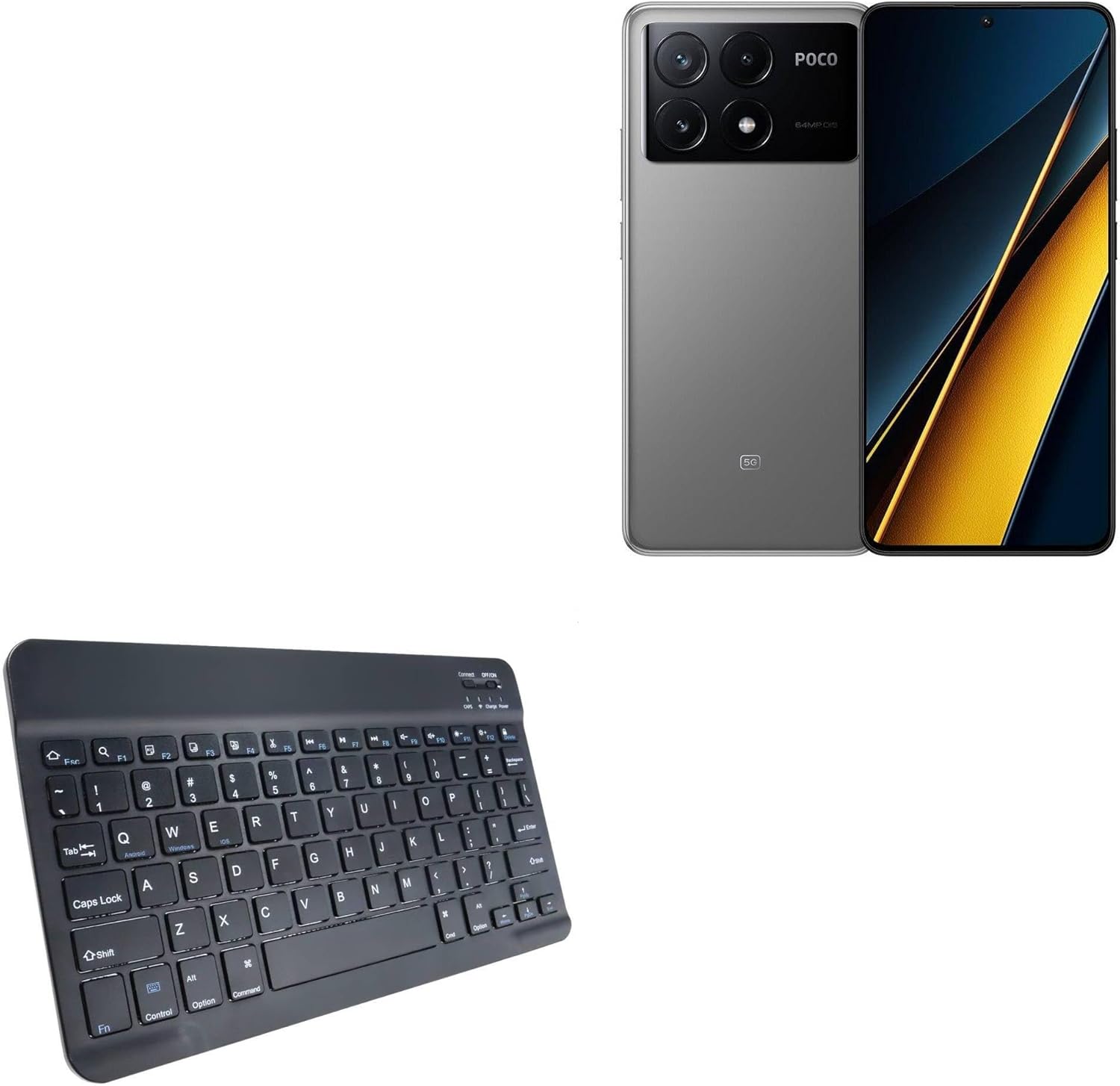
Image 2.1: The BoxWave SlimKeys Bluetooth Keyboard, showcasinتصميمها المدمج.

الصورة 2.2: زاوية view of the keyboard, highlighting the key layout and slim profile.

Image 2.3: A user typing comfortably on the SlimKeys Bluetooth Keyboard, demonstrating its ergonomic use.
3. تعليمات الإعداد
3.1 شحن لوحة المفاتيح
Before initial use, fully charge the keyboard. Connect the included USB charging cable to the keyboard's charging port and the other end to a USB power source (e.g., computer, wall adapter). The charging indicator light will illuminate during charging and turn off when fully charged.

Image 3.1: The charging port located on the side of the SlimKeys Bluetooth Keyboard.

Image 3.2: The keyboard connected to a charging cable, illustrating the long-lasting battery feature.
3.2 اقتران بلوتوث
Follow these steps to pair your SlimKeys Bluetooth Keyboard with your device:
- تأكد من أن لوحة المفاتيح مشحونة بالكامل.
- Turn on the keyboard using the ON/OFF switch located on the top right. The power indicator light will turn on.
- اضغط على يتصل button (usually located near the ON/OFF switch). The Bluetooth indicator light will start blinking, indicating it is in pairing mode.
- On your device (e.g., Xiaomi Poco X6 Pro), go to Bluetooth settings and turn Bluetooth on.
- بحث عن available devices. You should see "BoxWave SlimKeys Keyboard" or a similar name appear in the list.
- Select the keyboard from the list. Your device may prompt you to enter a pairing code displayed on the screen. Type this code on the SlimKeys keyboard and press يدخل.
- Once paired, the Bluetooth indicator light on the keyboard will stop blinking and remain solid or turn off, depending on the model. Your device will confirm successful pairing.
If pairing fails, turn off both the keyboard and your device's Bluetooth, then repeat the steps.
4. تعليمات التشغيل
4.1 الطباعة الأساسية
Once paired, the keyboard functions like a standard computer keyboard. Simply open any text input application on your device and begin typing.
4.2 وظيفة مفاتيح
The SlimKeys Bluetooth Keyboard includes specialized function keys (F1-F12) that provide quick access to various device functions. These keys often require pressing the Fn اضغط على المفتاح في نفس الوقت مع مفتاح الوظيفة المطلوبة.

Image 4.1: A detailed diagram illustrating the specialized function keys and their corresponding actions.
| مجموعة المفاتيح | وظيفة |
|---|---|
| Fn + Esc (Home) | انتقل إلى الشاشة الرئيسية |
| Fn + F1 (Search) | Open Search function |
| Fn + F2 (Select All) | Select all text/items |
| Fn + F3 (Copy) | Copy selected content |
| Fn + F4 (Paste) | Paste copied content |
| Fn + F5 (Cut) | Cut selected content |
| Fn + F6 (Skip Back) | Skip to previous track/media |
| Fn + F7 (Play/Pause) | Play or Pause media |
| Fn + F8 (Skip Forward) | Skip to next track/media |
| Fn + F9 (Volume Down) | خفض مستوى الصوت |
| Fn + F10 (Volume Up) | زيادة الحجم |
| Fn + F11 (Brightness Down) | تقليل سطوع الشاشة |
| Fn + F12 (Brightness Up) | زيادة سطوع الشاشة |
| Fn + Delete (Lock) | Lock the device screen |
5. الصيانة
5.1 التنظيف
لتنظيف لوحة المفاتيح، امسح السطح برفق بقطعة قماش ناعمة.amp cloth. Avoid using harsh chemicals, abrasive cleaners, or excessive moisture, as these can damage the keyboard's electronics and finish.
5.2 التخزين
When not in use, store the keyboard in a cool, dry place away from direct sunlight and extreme temperatures. Ensure the keyboard is turned off to conserve battery life.

Image 5.1: The SlimKeys Bluetooth Keyboard being stored in a bag, demonstrating its portability and ease of storage.
6. استكشاف الأخطاء وإصلاحها
6.1 Keyboard Not Pairing
- تأكد من شحن لوحة المفاتيح وتشغيلها.
- تأكد من تمكين البلوتوث على جهازك.
- اضغط على يتصل button on the keyboard to enter pairing mode.
- حرك لوحة المفاتيح بالقرب من جهازك.
- Restart both the keyboard and your device, then attempt pairing again.
6.2 المفاتيح لا تستجيب
- تحقق من مستوى شحن بطارية لوحة المفاتيح وقم بشحنها إذا لزم الأمر.
- Ensure the keyboard is properly paired and connected to your device.
- Try unpairing and re-pairing the keyboard.
- Test the keyboard with another Bluetooth-enabled device to rule out device-specific issues.
6.3 الاتصال المتقطع
- Ensure there are no obstructions or sources of interference (e.g., other wireless devices, metal objects) between the keyboard and your device.
- Keep the keyboard within the recommended Bluetooth operating range (typically 10 meters or 33 feet).
- Update your device's operating system and Bluetooth drivers if available.
7. المواصفات
| ميزة | التفاصيل |
|---|---|
| الاتصال | بلوتوث 3.0 |
| التوافق | Android, Windows, iOS devices (e.g., Xiaomi Poco X6 Pro) |
| نوع لوحة المفاتيح | Chiclet-style |
| الأبعاد (تقريبًا) | Width: 9.5 inches (24.2 cm), Depth: 5.75 inches (14.5 cm), Height: 0.2 inches (0.5 cm) |
| وزن | 8.6 أونصة (حوالي 244 جرامًا) |
| بطارية | Rechargeable (1 Product Specific battery included) |
| عمر البطارية | Up to 30 days (usage), 6 months (standby) |
| لون | أسود كالفحم |

Image 7.1: The SlimKeys Bluetooth Keyboard displaying its ultra-slim and lightweight dimensions.
8. الضمان والدعم
BoxWave products are designed for quality and reliability. For warranty information, please refer to the product packaging or visit the official BoxWave website. If you encounter any issues or require technical assistance, please contact BoxWave customer support through their official channels.
لمزيد من المساعدة، يرجى زيارة: BoxWave Support