
1. المقدمة
This manual provides detailed instructions for the setup, operation, and maintenance of your Pisichen 16-inch 1920x1200P Touch Panel Portable Monitor. Please read this manual thoroughly before using the product to ensure proper functionality and to prevent damage.

Image 1.1: The Pisichen 16-inch Portable Monitor, showcasing its vibrant display and slim design.
2. معلومات السلامة
- لا تعرض الشاشة للمطر أو الرطوبة لتجنب خطر الصدمة الكهربائية أو الحريق.
- لا تفتح الشاشةasinز. إحالة جميع أعمال الصيانة إلى موظفين مؤهلين.
- تجنب وضع الشاشة في ضوء الشمس المباشر أو بالقرب من مصادر الحرارة.
- Use only the power adapter and cables provided or approved by the manufacturer.
- Clean the screen with a soft, lint-free cloth. Do not use liquid cleaners or aerosol sprays directly on the screen.
3. محتويات العبوة
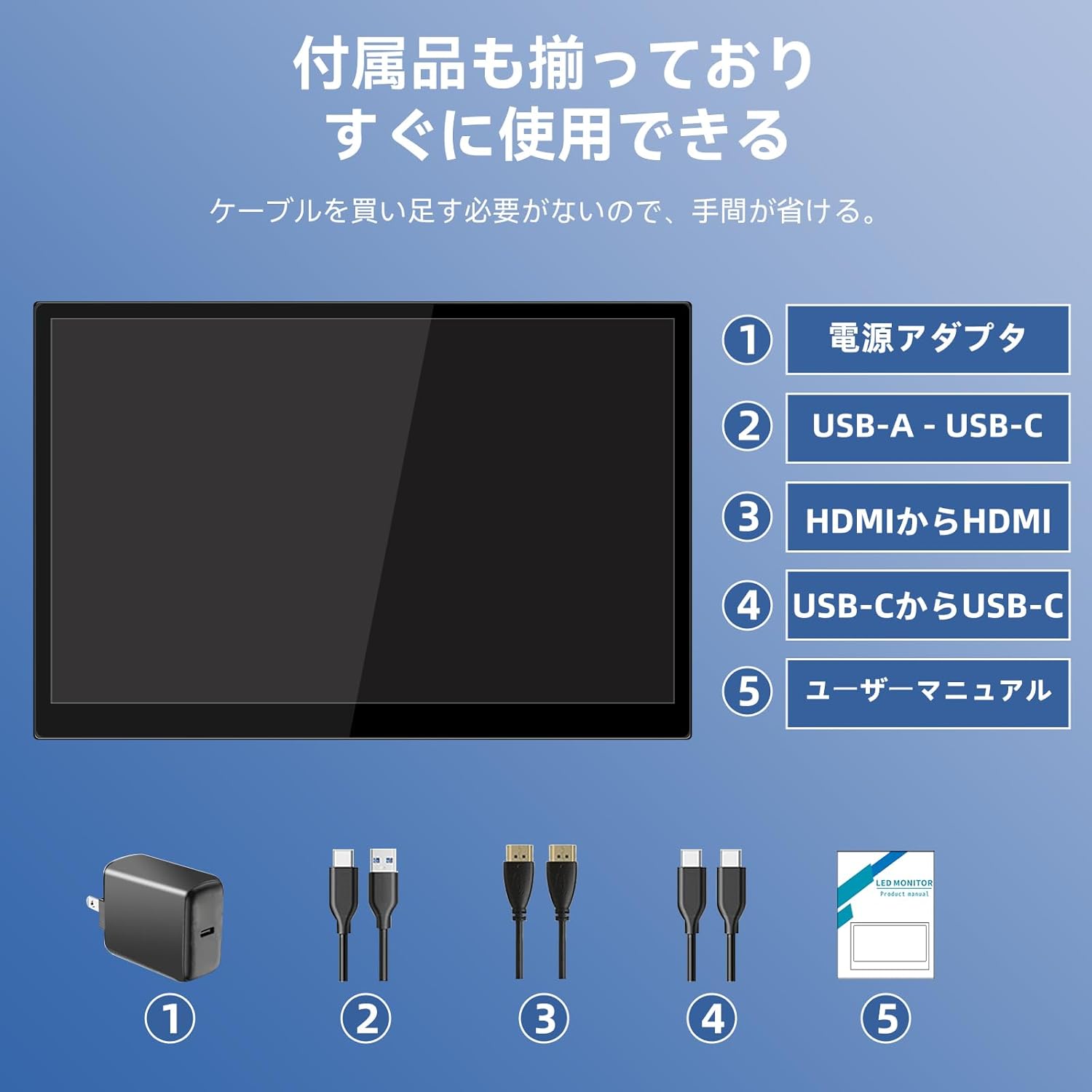
يرجى التحقق من الحزمة للعناصر التالية:
- Pisichen 16-inch Portable Monitor
- محول الطاقة
- كابل USB-A إلى USB-C
- كابل HDMI إلى HDMI
- كابل USB-C إلى USB-C
- دليل المستخدم (هذا المستند)

Image 3.1: All items included in the product package, ready for immediate use.
4. انتهى المنتجview
The monitor features multiple ports for versatile connectivity and control buttons for easy navigation of settings.
4.1. المنافذ والأزرار
الصورة 4.1: تفصيلية view of the monitor's interfaces, including audio port, USB-C ports, HDMI port, brightness controls, menu/OK button, volume/down button, and USB-A port.
- منفذ صوت 3.5 ملم: لتوصيل سماعات الرأس أو مكبرات الصوت الخارجية.
- USB-C Port 1 (Full-function): Supports power, video, and touch signal transmission.
- USB-C Port 2 (Full-function): Supports power, video, and touch signal transmission.
- منفذ HDMI: For video signal input from devices.
- Brightness Up / Power Button: Short press to increase brightness, long press to power on/off.
- Menu / OK Button: Press to open OSD menu, press again to confirm selection.
- Volume Down / Back Button: Short press to decrease volume, long press to go back in OSD menu.
- USB-A Port (OTG): لتوصيل الماوس أو لوحة المفاتيح.
5. الإعداد
اتبع هذه الخطوات لتوصيل شاشتك المحمولة بأجهزة مختلفة.
5.1. Single Cable Connection (USB-C)
For devices with a full-function USB-C port (supporting DisplayPort Alternate Mode and power delivery), a single USB-C to USB-C cable can transmit video, audio, touch signals, and power.
- Connect one end of the USB-C to USB-C cable to a full-function USB-C port on your device (e.g., laptop, smartphone).
- Connect the other end to either USB-C Port 1 or USB-C Port 2 on the monitor.
- The monitor should automatically power on and display the content. Touch functionality will also be active.
5.2. Dual Cable Connection (HDMI + USB-C for Power/Touch)
For devices with an HDMI output, or if your USB-C port does not support power delivery, you will need two cables.
- Connect one end of the HDMI to HDMI cable to your device's HDMI output.
- Connect the other end to the HDMI Port on the monitor.
- Connect the power adapter to one of the monitor's USB-C ports (Port 1 or Port 2) for power.
- For touch functionality, connect the USB-A end of the USB-A to USB-C cable to your device's USB-A port, and the USB-C end to the other available USB-C port on the monitor.

Image 5.1: Illustration of different connection methods: single USB-C cable for power, video, and touch, and dual cable setup using HDMI for video and USB-C for power and touch.
6. تعليمات التشغيل
6.1. تشغيل/إيقاف التشغيل
Long press the Brightness Up / Power Button (5) for approximately 3 seconds to power the monitor on or off.
6.2. قائمة العرض على الشاشة (OSD)
Press the Menu / OK Button (6) to access the OSD menu. Use the Brightness Up / Power Button (5) and Volume Down / Back Button (7) to navigate through options. Press the Menu / OK Button (6) to confirm selections. Long press the Volume Down / Back Button (7) to exit the menu.
6.3. وظيفة اللمس
The monitor supports 10-point capacitive multi-touch. Ensure a USB connection (via full-function USB-C or USB-A to USB-C cable) is established for touch input to work. The touch screen allows for intuitive interaction, including swiping, writing, and annotating.
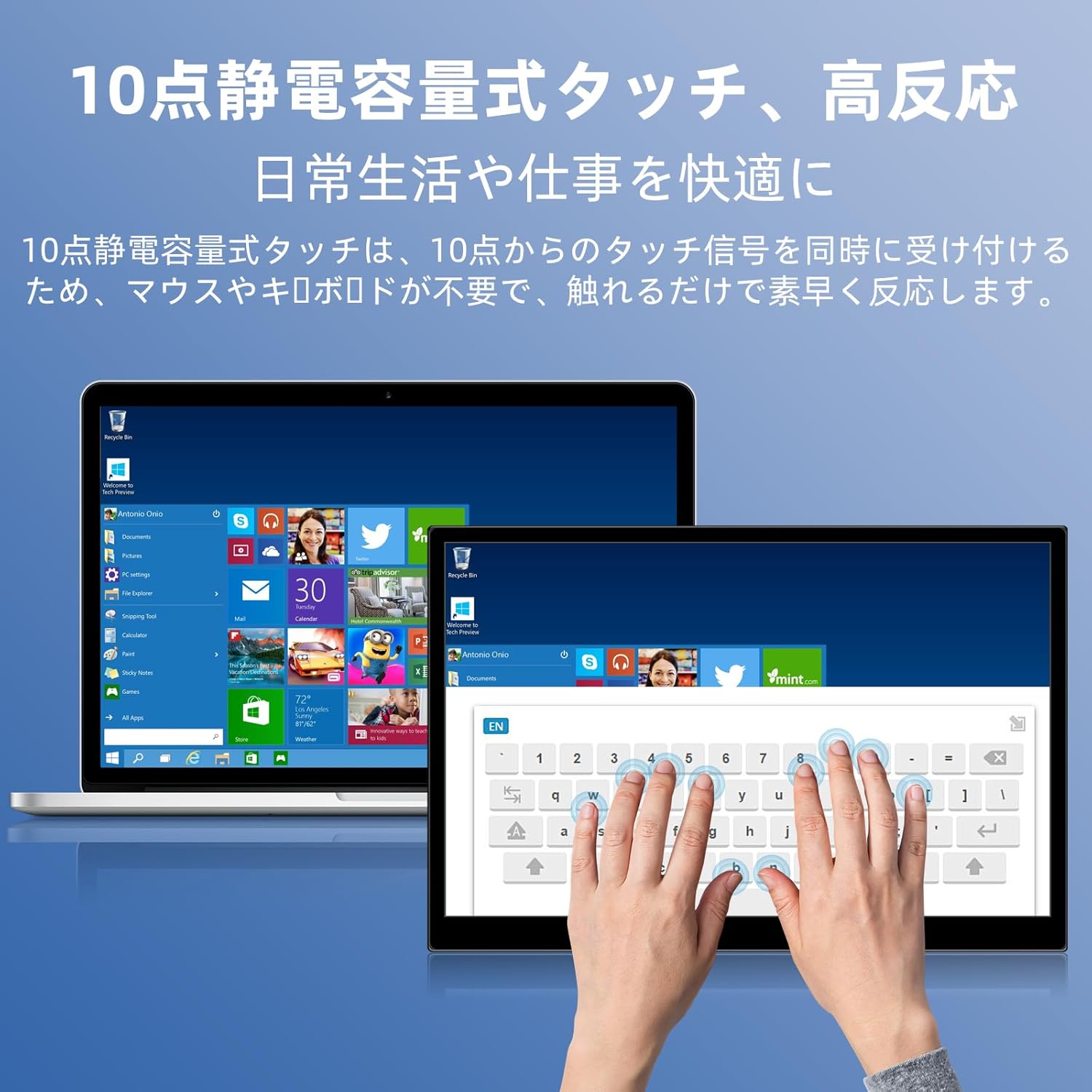
Image 6.1: A user demonstrating the responsive 10-point capacitive touch functionality on the portable monitor, enabling smooth interaction with on-screen content.
6.4. أوضاع العرض
تدعم الشاشة أوضاع عرض متنوعة عند توصيلها بجهاز كمبيوتر:
- وضع مكرر: يعكس محتوى شاشتك الرئيسية.
- تمديد الوضع: Extends your desktop, providing more screen real estate for multitasking.
- وضع الشاشة الثانية: يستخدم الشاشة المحمولة فقط كشاشة عرض.
6.5. Screen Orientation
The monitor supports both landscape and portrait orientations. You can adjust the display settings on your connected device (e.g., Windows Display Settings, macOS Display Preferences) to change the orientation as needed for different tasks like document viewing or design work.
6.6. HDR Technology
The monitor features HDR (High Dynamic Range) mode, which provides deeper and more realistic colors for an enhanced visual experience. This setting can typically be toggled within the OSD menu or your device's display settings.

الصورة 6.2: مثالamples of the monitor's versatility, showing its use for entertainment, mobile productivity, and as an extended display for a home office.
7. الصيانة
- تنظيف الشاشة: امسح الشاشة برفق بقطعة قماش ناعمة وجافة وخالية من الوبر. لإزالة البقع الصعبة، امسحها برفق.ampانقع قطعة القماش بالماء أو بمنظف خاص بالشاشات (ضعه على قطعة القماش، وليس مباشرة على الشاشة).
- تنظيف Casing: استخدم قطعة قماش ناعمة وجافة لمسح الشاشة.asinز. تجنب استخدام المنظفات الكاشطة.
- تخزين: When not in use for extended periods, store the monitor in a cool, dry place, preferably in its original packaging or a protective sleeve.
- إدارة الكابلات: تجنب ثني أو ليّ الكابلات بشكل مفرط لمنع تلفها.
8. استكشاف الأخطاء وإصلاحها
| مشكلة | السبب المحتمل | حل |
|---|---|---|
| لا يوجد عرض / رسالة "لا توجد إشارة" | توصيل الكابل غير صحيح، الطاقة غير كافية، مصدر الإدخال غير صحيح. | Ensure cables are securely connected. Verify the device's USB-C port supports video output. Connect the power adapter if using HDMI or if USB-C power is insufficient. Check OSD menu for correct input source. |
| وظيفة اللمس لا تعمل | No USB connection for touch, driver issue (rare). | Ensure the USB-C cable is full-function or that the USB-A to USB-C cable is connected for touch data. Restart the monitor and connected device. |
| وميض الشاشة | Unstable power, faulty cable, refresh rate mismatch. | Use the provided power adapter. Try a different cable. Adjust the refresh rate in your device's display settings. |
| الصورة مشوهة أو ممتدة | Incorrect aspect ratio settings. | Adjust the aspect ratio in the OSD menu or your device's display settings to match the monitor's native resolution (1920x1200). |

Image 8.1: Demonstrating the importance of correct aspect ratio settings to avoid image distortion.
9. المواصفات
| ميزة | مواصفة |
|---|---|
| ماركة | بيسيشين |
| رقم الموديل | 16QTHCM-1200P |
| حجم الشاشة | 16 بوصة |
| دقة | 1920 × 1200 بكسل (FHD) |
| نوع اللوحة | اي بي اس |
| Viewزاوية جي | 178° |
| معدل التحديث | 60 هرتز |
| نسبة التباين | 1000:1 |
| سطوع | 300 شمعة/م² |
| مجموعة الألوان | 100% إس آر جي بي |
| عمق اللون | 16.7 مليون لون |
| شاشة تعمل باللمس | 10-point Capacitive Touch |
| الاتصال | 2x Full-function USB-C 3.1, 1x HDMI, 1x USB-A (OTG), 1x 3.5mm Audio Jack |
| دعم HDR | نعم |
| جبل متوافق | نعم |
| أبعاد المنتج (العرض × الارتفاع × العمق) | 350 × 230 × 10 ملم |
| وزن | 1.62 كجم |
10. الضمان والدعم
For warranty information and technical support, please refer to the warranty card included in your product package or contact Pisichen customer service through their official website or the retailer where the product was purchased. Please have your model number (16QTHCM-1200P) and purchase details ready when contacting support.