
مقدمة
Thank you for choosing the MoKo Bluetooth AZERTY Keyboard. This manual provides detailed instructions to help you set up, operate, and maintain your keyboard, ensuring optimal performance with your Microsoft Surface Pro device. Please read this manual thoroughly before use.
التوافق
This keyboard is specifically designed for the following Microsoft Surface Pro models:
- Surface Pro 7 Plus (2021)
- Surface Pro 7 (2019)
- سيرفس برو 6
- Surface Pro 5 (Pro 2017)
- سيرفس برو 4
- سيرفس برو 3
The keyboard dimensions are approximately 29.5 cm (11.6 inches) in length, 21.7 cm (8.54 inches) in width, and 0.6 cm (0.23 inches) in height, providing a similar typing experience to official Surface Pro keyboards.
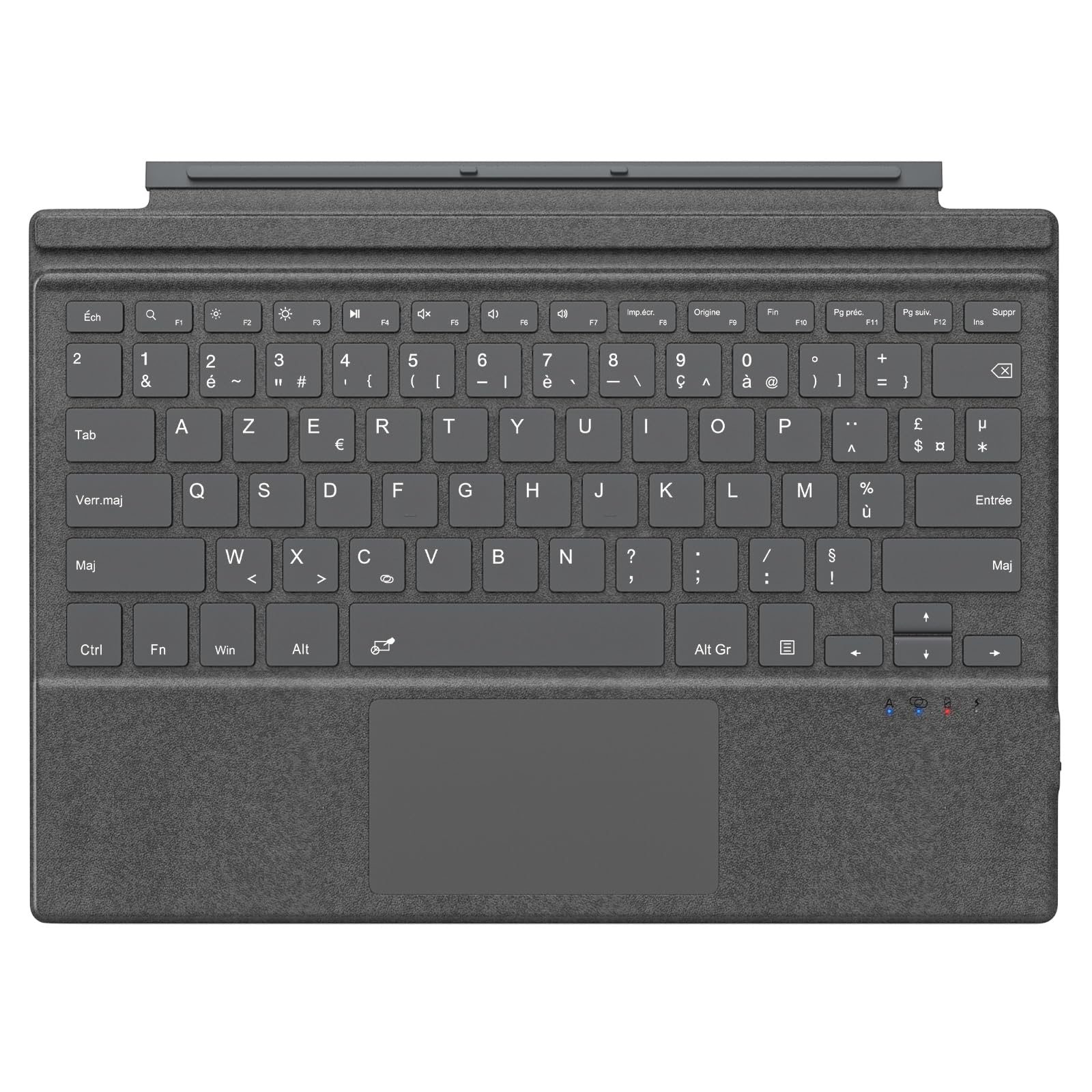
Image: The MoKo Bluetooth AZERTY Keyboard shown with several Microsoft Surface Pro models, illustrating compatibility.
ماذا يوجد في الصندوق
عند فتح العبوة، يرجى التأكد من وجود جميع العناصر:
- MoKo Bluetooth AZERTY Keyboard
- كابل شحن USB
يثبت
1. شحن لوحة المفاتيح
The keyboard is equipped with a built-in 520mAh lithium battery. Before initial use, or when the battery is low, charge the keyboard using the provided USB cable.
- Connect the small end of the USB charging cable to the charging port on the keyboard.
- Connect the larger end of the USB cable to a USB power source (e.g., computer, wall adapter).
- سيضيء مؤشر الشحن. بعد اكتمال الشحن، قد يتغير لونه أو ينطفئ.
توفر الشحنة الكاملة حوالي 25 ساعات من الاستخدام المتواصل.

الصورة: لقطة مقربة view of the keyboard's charging port with a USB cable connected, indicating the charging process.
2. اقتران بلوتوث
To connect your keyboard to your Surface Pro:
- تأكد من شحن لوحة المفاتيح وتشغيلها.
- على جهاز Surface Pro الخاص بك، انتقل إلى إعدادات > الأجهزة > البلوتوث والأجهزة الأخرى.
- قم بتشغيل البلوتوث.
- اضغط على Fn المفتاح و C key simultaneously on the keyboard to enter pairing mode. The Bluetooth indicator light on the keyboard will flash.
- On your Surface Pro, click إضافة بلوتوث أو جهاز آخر > بلوتوث.
- Select "MoKo Keyboard" (or similar name) from the list of available devices.
- Follow any on-screen prompts to complete the pairing process. The Bluetooth indicator light on the keyboard will stop flashing once connected.
The keyboard can be used attached to your Surface Pro or detached for flexible positioning. The effective Bluetooth connection range is approximately 10 meters (33 feet).

Image: A Surface Pro tablet with the MoKo keyboard detached, illustrating the wireless Bluetooth connection capability.
تعليمات التشغيل
Keyboard Layout and Keys
This keyboard features an AZERTY layout with 105 keys, providing a full-size typing experience. The keys utilize a scissor-switch mechanism for comfortable and responsive typing.

الصورة: تفصيلية view of the keyboard's AZERTY layout, highlighting the scissor-switch keys and integrated trackpad.
وظائف لوحة اللمس
The integrated trackpad allows for precise navigation and control of your Surface Pro. To activate or deactivate the trackpad, press the Fn المفتاح و مفتاح المسافة معًا.
ملحوظة: Please remove any protective film from the trackpad surface before use to ensure proper functionality.
زوايا كتابة قابلة للتعديل
The keyboard's design allows for two different typing angles, providing an ergonomic and comfortable experience whether you are working on a desk, lap, or other surface.

Image: A Surface Pro with the keyboard attached, demonstrating the two possible ergonomic typing angles.
إدارة الطاقة
وضع السكون التلقائي
To conserve battery life, the keyboard will automatically enter sleep mode after 10 minutes of inactivity. The Bluetooth connection will automatically disconnect during this period.
Reconnecting After Sleep
To wake the keyboard and re-establish the Bluetooth connection, simply press any key. The keyboard will automatically attempt to reconnect to the last paired device.

Image: An illustration of the keyboard's power management, including automatic sleep mode and USB-C charging.
صيانة
To ensure the longevity and optimal performance of your MoKo keyboard, follow these maintenance guidelines:
- تنظيف: استخدم قطعة قماش ناعمة وجافة وخالية من الوبر لتنظيف سطح لوحة المفاتيح. لإزالة الأوساخ المستعصية، افركها برفق.ampانقع قطعة القماش في الماء أو محلول تنظيف خفيف. تجنب الرطوبة الزائدة.
- تخزين: عند عدم الاستخدام، قم بتخزين لوحة المفاتيح في مكان بارد وجاف بعيدًا عن أشعة الشمس المباشرة ودرجات الحرارة القصوى.
- تجنب السوائل: Do not expose the keyboard to liquids. It is not waterproof.
- التعامل معها بحذر: تجنب إسقاط لوحة المفاتيح أو تعريضها لصدمات قوية.
استكشاف الأخطاء وإصلاحها
إذا واجهت مشاكل مع لوحة المفاتيح، فراجع الحلول الشائعة التالية:
| مشكلة | حل |
|---|---|
| لوحة المفاتيح لا تعمل | Ensure the keyboard is charged. Connect it to a power source using the USB cable. |
| غير قادر على الاقتران عبر البلوتوث | 1. Ensure the keyboard is in pairing mode (Fn + C). 2. Make sure Bluetooth is enabled on your Surface Pro. 3. Delete any previous keyboard pairings on your Surface Pro and try again. 4. Ensure the keyboard is within the 10-meter range. |
| Keyboard disconnects frequently | 1. Ensure the keyboard is charged. 2. Avoid placing obstacles between the keyboard and your Surface Pro. 3. Reconnect the Bluetooth connection manually if needed. |
| لوحة التتبع لا تستجيب | 1. Ensure the trackpad is activated (Fn + Spacebar). 2. Remove any protective film from the trackpad surface. 3. Restart the keyboard and try again. |
| المفاتيح لا تستجيب | 1. Ensure the keyboard is properly connected via Bluetooth. 2. Check battery level and charge if necessary. 3. Restart your Surface Pro and the keyboard. |
تحديد
| ميزة | التفاصيل |
|---|---|
| ماركة | موكو |
| اسم الموديل | Clavier Français |
| رقم الموديل | B0CPLZXMFK |
| تكنولوجيا الاتصال | بلوتوث |
| وصف لوحة المفاتيح | مدمج |
| ميزة خاصة | بيئة العمل المريحة |
| لون | رمادي |
| تخطيط لوحة المفاتيح | أزيرتي |
| عدد المفاتيح | 105 |
| نوع المفتاح | تبديل مقص |
| مصدر الطاقة | Battery Powered (520mAh Lithium) |
| أبعاد المنتج (الطول × العرض × الارتفاع) | 29.5 سم × 21.7 سم × 0.6 سم (11.6 × 8.54 × 0.23 بوصة) |
| وزن العنصر | 10.93 أونصة |
| مادة | ABS (أكريلونيتريل بوتادين ستايرين) |
| نظام التشغيل المتوافق | Windows (Minimum Windows 10) |

Image: A technical diagram illustrating the precise dimensions of the MoKo Bluetooth AZERTY Keyboard.
الضمان والدعم
For warranty information or technical support, please refer to the documentation provided with your purchase or contact MoKo customer service directly through their official webالموقع أو بائع التجزئة الذي تم شراء المنتج منه.