
1. المقدمة
The Nillkin Bumper Combo Keyboard Case is a versatile accessory designed to enhance your Apple iPad experience. It features a removable keyboard, an adjustable stand, and a trackpad, facilitating typing, viewing, reading, and sketching. The case also provides robust protection for your device, including an anti-fall design and a patented sliding camera cover.
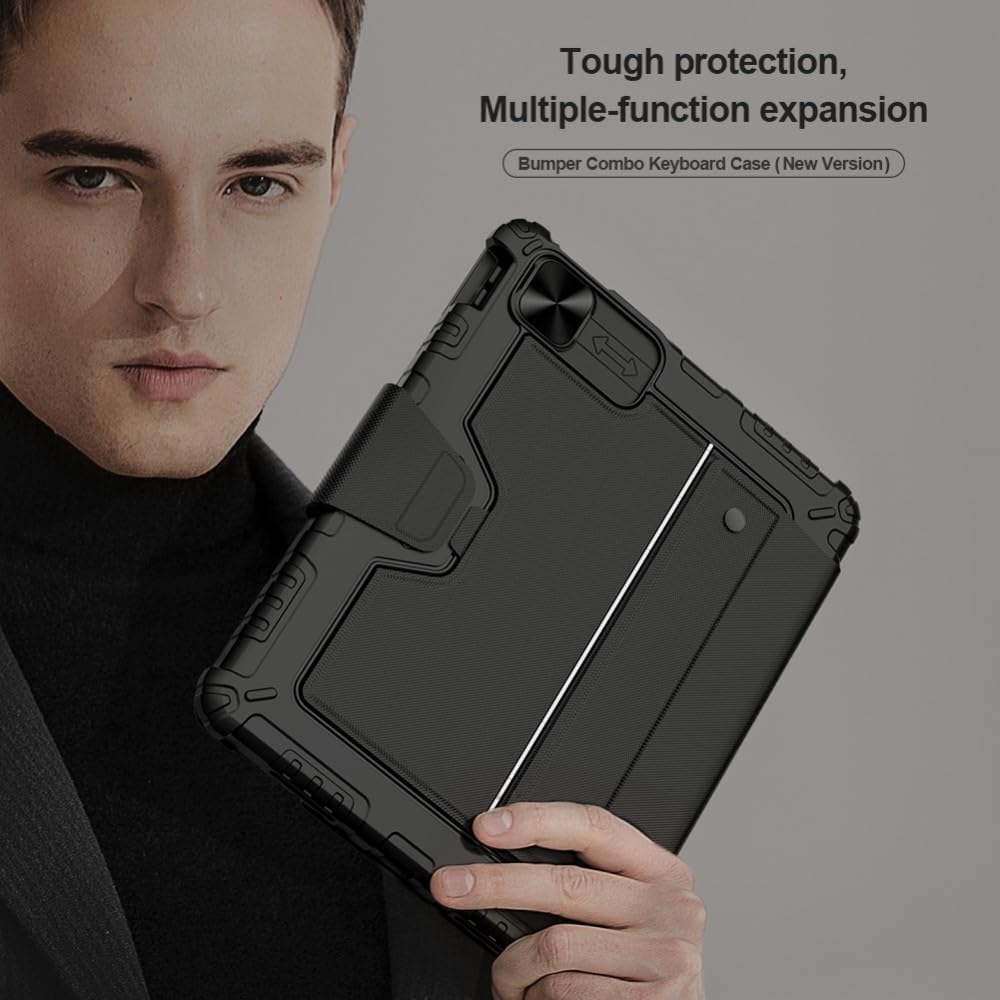
Image: The Nillkin Bumper Combo Keyboard Case, highlighting its protective and multi-functional design.
2. التوافق
This keyboard case is specifically designed for the following Apple iPad models:
- آيباد إير 11 بوصة (M2، 2024)
- iPad Air 5th Generation (2022)
- iPad Air 4th Generation (2020)
- iPad Pro 11-inch (2022/2021/2020/2018)
Compatible iPad model numbers include: A2435, A2761, A27759, A2316, A2324, A2325, A2072, A2377, A2459, A2301, A2460, A2068, A2228, A2230, A2231, A1980, A2013, A1934, A1979.
مهم: Please verify your iPad's model number before use. The Apple Pencil is not included.

Image: A visual guide to identifying compatible iPad models and their corresponding model numbers.
3. محتويات العبوة
تتضمن الحزمة:
- 1 x Nillkin Bumper Combo Keyboard Case for Apple iPad
4. الإعداد
4.1 توصيل جهاز iPad الخاص بك
- Carefully align your iPad with the case.
- Gently press the iPad into the bumper case, ensuring all edges are securely fitted. The anti-fall design will wrap tightly around the iPad's edges.
4.2 Connecting the Keyboard (Bluetooth Pairing)
- تأكد من شحن لوحة المفاتيح (راجع القسم 4.3).
- قم بتشغيل لوحة المفاتيح باستخدام زر الطاقة الخاص بها.
- على جهاز iPad الخاص بك، انتقل إلى إعدادات > بلوتوث.
- Enable Bluetooth and select the Nillkin keyboard from the list of available devices.
- اتبع أي مطالبات تظهر على الشاشة لإكمال عملية الاقتران.
4.3 شحن لوحة المفاتيح
Connect the keyboard to a power source using the provided charging cable. A full charge typically takes 2-3 hours. Once fully charged, the wireless keyboard can remain on standby for up to 90 days.
5. تعليمات التشغيل
5.1 استخدام لوحة المفاتيح
The keyboard features silent keys with a scissor foot structure for a comfortable and quiet typing experience. It includes various shortcut keys for quick access to functions.
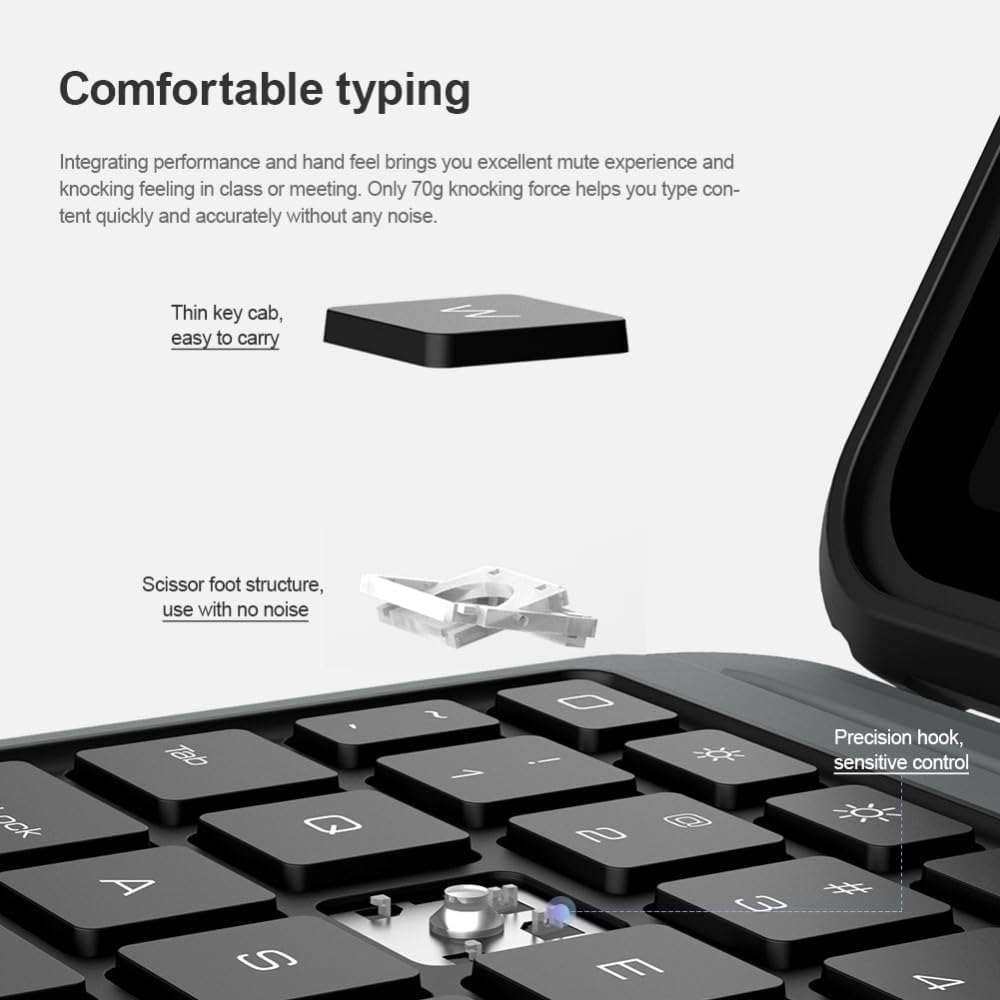
Image: Detail of the keyboard's thin keycaps and scissor foot structure, designed for quiet and precise typing.
مفاتيح الاختصار:
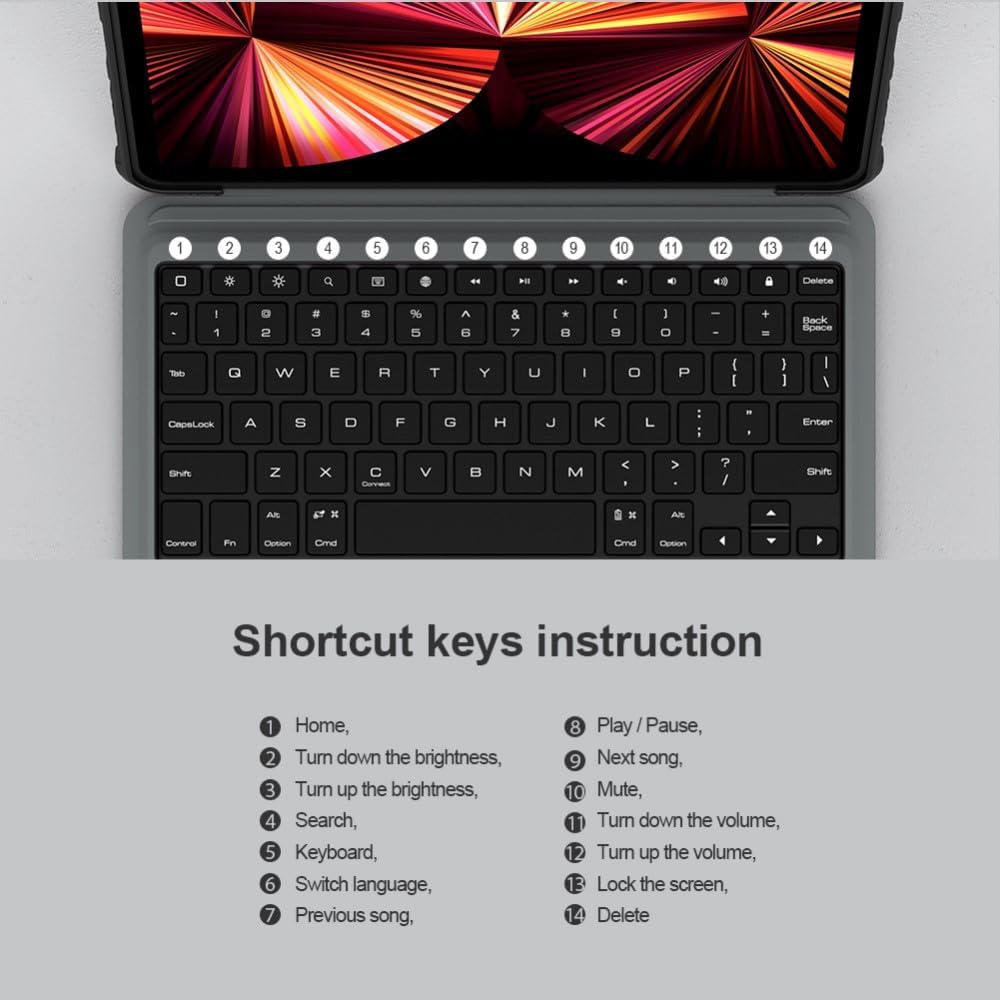
Image: An instruction guide for the keyboard's shortcut keys, detailing functions like Home, brightness adjustment, search, language switching, media playback control, and screen lock.
- بيت: العودة إلى الشاشة الرئيسية.
- Turn down brightness: تقليل سطوع الشاشة.
- Turn up brightness: زيادة سطوع الشاشة.
- يبحث: Activate search function.
- لوحة المفاتيح: Toggle virtual keyboard.
- تبديل اللغة: Change input language.
- الأغنية السابقة: انتقل إلى المسار السابق.
- تشغيل/إيقاف مؤقت: قم بتشغيل الوسائط أو إيقافها مؤقتًا.
- الأغنية التالية: انتقل إلى المسار التالي.
- صامت: كتم الصوت.
- خفض حجم الصوت: خفض مستوى الصوت.
- رفع الصوت: زيادة الحجم.
- قفل الشاشة: قم بقفل شاشة جهاز iPad الخاص بك.
- يمسح: Delete character.
5.2 Trackpad Operations
The integrated trackpad supports various gestures for flexible control. To enable trackpad functionality after connecting to iPad, go to إعدادات > عام > لوحة التتبع > Tap to Click > انتهى الإعداد.

Image: A comprehensive guide to trackpad gestures, illustrating single-finger (swipe, click), two-finger (right click, move left/right, move up/down), and three-finger (back to home, switch multiple tasks, switch different pages) operations.
Gesture Guide:
- إصبع واحد:
- Swipe: Move the mouse.
- Click: Left click.
- إصبعين:
- Click with two fingers: Right click.
- Swipe left or right: Move left or right.
- Swipe up or down: Move up or down.
- ثلاثة أصابع:
- Swipe up: Back to the home page.
- Swipe up and hold: Switch between multiple tasks.
- Swipe left or right: Switch between different pages.
The keyboard also features anti-mistouch technology, which automatically disables the touchpad when typing to prevent accidental cursor movements, allowing you to concentrate on your work.

Image: An iPad in the keyboard case, illustrating the anti-mistouch technology that disables the trackpad during typing.
5.3 حامل قابل للتعديل
The flexible stand allows you to adjust the viewing angle between 0° and 180° to suit your needs for typing, viewing, reading, or sketching. The mechanical hinge structure ensures stability.

Image: The adjustable stand in action, demonstrating the range of viewing angles from 0° to 180° for optimal comfort.
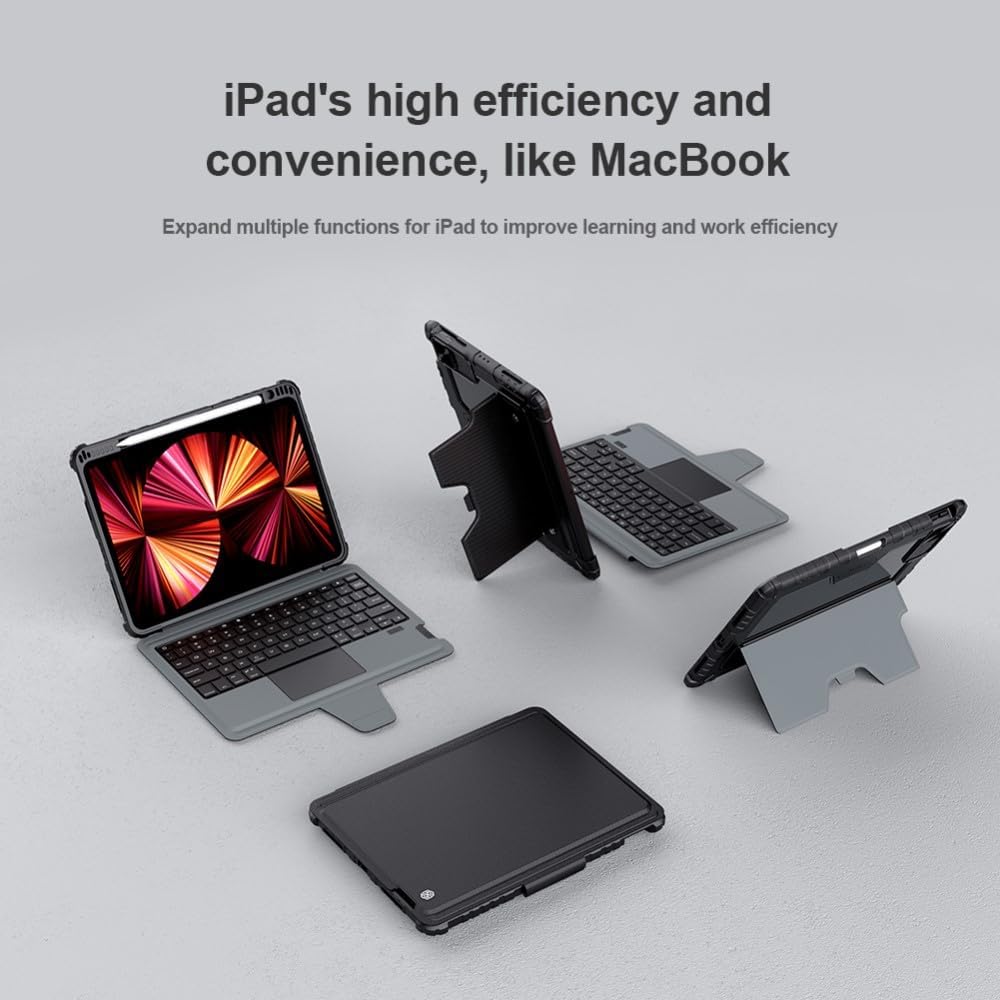
Image: Various usage modes of the keyboard case, illustrating how it can be configured for different tasks like typing, viewing, and drawing.
5.4 Camera Protection
The case features a patented sliding camera cover made of metal, with a 1.1mm lifted bezel. This design effectively protects your iPad's camera from wear, scratches, and collisions.

الصورة: تفصيلية view of the sliding camera cover, demonstrating its protective function and how it prevents scratches and dust accumulation.
حامل قلم أبل 5.5
The case includes a dedicated holder for your Apple Pencil. When placed in the slot, the Apple Pencil will charge securely.

Image: The Apple Pencil holder, showing the pencil securely stored and charging within the case.
5.6 Power Management (Intelligent Sleep)
To conserve power, the keyboard will automatically enter standby mode if there is no operation within 10 minutes. You can wake it up by pressing any key. Closing the case will also automatically put the tablet to sleep.

Image: The keyboard's intelligent sleep feature, which automatically puts the device into standby after 10 minutes of inactivity to save power.
6. الصيانة
- Clean the case and keyboard regularly with a soft, dry cloth.
- Avoid using harsh chemicals or abrasive materials, as these may damage the surface.
- Keep the case away from extreme temperatures and direct sunlight.
- تأكد من أن منفذ الشحن خالي من الغبار والحطام.
7. استكشاف الأخطاء وإصلاحها
- لوحة المفاتيح غير متصلة: Ensure Bluetooth is enabled on your iPad and the keyboard is powered on and charged. Try re-pairing the keyboard via iPad's Bluetooth settings.
- المفاتيح لا تستجيب: Check if the keyboard is charged. If the issue persists, try restarting both the iPad and the keyboard.
- لوحة اللمس لا تعمل: Ensure the trackpad is enabled in iPad settings (Settings > General > Trackpad > Tap to Click). Check for any physical obstructions.
- عمر بطارية قصير: Ensure the keyboard is fully charged. Reduce usage of backlight (if applicable) and ensure the intelligent sleep function is active.
8. المواصفات
- ماركة:
- نيلكين
- رقم الموديل:
- 6902048257955
- لون:
- أسود
- الأجهزة المتوافقة:
- Apple iPad Air 11 2024/10.9 2020/Air 4/Air 5/Pro 11 2020/2021/2022
- عامل الشكل:
- قضية
- نوع القضية:
- صعب
- مادة:
- بولي كربونات
- Max. Compatible Device Size:
- 11 بوصة
- المميزات الخاصة:
- Sliding Camera Cover, Pencil Holder, Trackpad
- نمط:
- صلب
- مستوى مقاومة الماء:
- غير مقاوم للماء
- المكونات المتضمنة:
- 1 x Nillkin Bumper Combo Keyboard Case for Apple
- البطاريات:
- 1 Product specific battery required (included)
- أبعاد الحزمة:
- 31 x 22 x 3.5 cm ؛ 840 ز
- بلد المنشأ:
- تايوان
9. الضمان والدعم
Information regarding product warranty and customer support is not specified in the provided product data. Please refer to the retailer or manufacturer's official webللحصول على تفاصيل حول تغطية الضمان وخيارات الدعم، يرجى زيارة الموقع الإلكتروني.