
1. المقدمة
The CarlinKit Ai Box 3.0 is an advanced adapter designed to integrate a full Android 13.0 operating system into vehicles equipped with factory-wired CarPlay. This device enhances your in-car entertainment and navigation experience by providing access to a wide range of Android applications, wireless CarPlay, and wireless Android Auto functionalities. It features an 8-core Qualcomm SM6225 processor, 8GB RAM, and 128GB ROM for smooth performance.
ملاحظة التوافق: This adapter is compatible only with vehicles that have existing OEM wired CarPlay. Ensure your car radio has a touch screen for optimal functionality. If your vehicle uses a rotary knob for control, some features may be inaccessible or difficult to navigate.
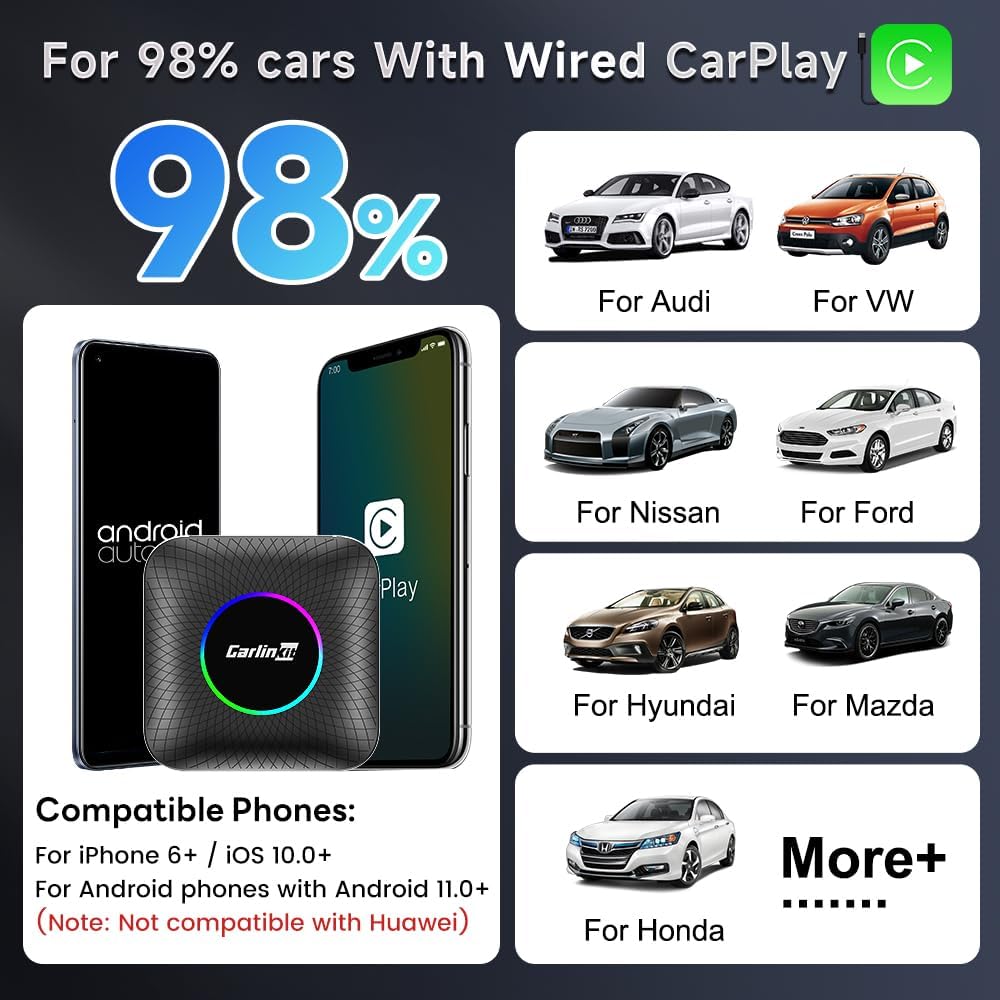
Image: CarlinKit Ai Box 3.0 compatibility with various car brands and phone types, including iPhone 6+/iOS 10+ and Android 11.0+ phones.
2. مواصفات المنتج
- نظام التشغيل: أندرويد 13.0
- المعالج: Qualcomm 8-core chip (SM6225)
- ذاكرة: 8GB LPDDR4 RAM + 128GB UFS ROM
- الاتصال: Built-in GPS, Dual Bluetooth, 4G full Netcom module, Wi-Fi (802.11 a/b/g/n/ac, 2.4G+5G)
- Wireless Integration: Supports Wireless CarPlay and Wireless Android Auto
- توسيع التخزين: SIM card slot for 4G network, TF card slot for additional storage
- الوسائط المتعددة: Access to a wide range of apps including Spotify, Netflix, YouTube, Music, IPTV, etc.
- تصميم: Ultra-thin design with colorful ambient LED lights.
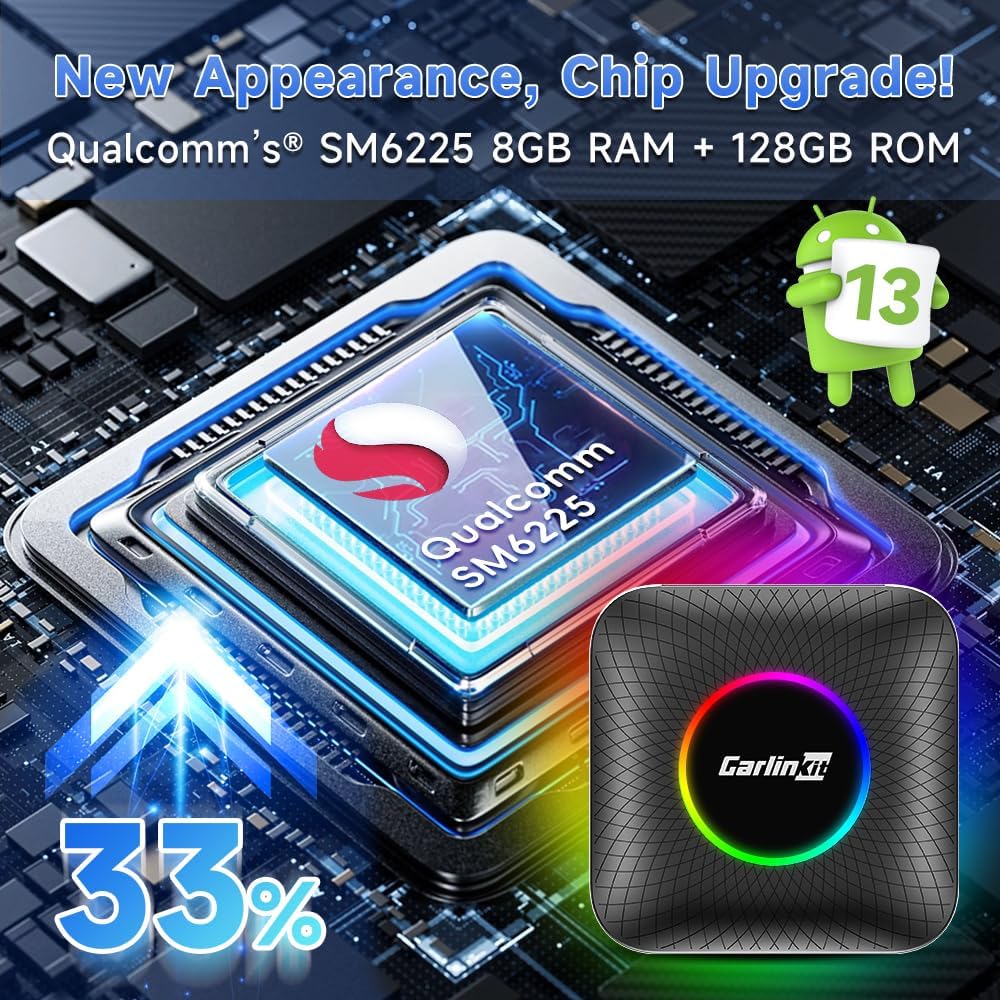
Image: CarlinKit Ai Box 3.0 highlighting Qualcomm SM6225 chip, 8GB RAM, and 128GB ROM for enhanced performance.
3. محتويات العبوة
Verify that all items are present in your CarlinKit Ai Box 3.0 package:
- CarlinKit Ai Box 3.0 device
- USB-C to USB-C data cable (x1)
- USB-C to USB-A data cable (x1)
- دليل المستخدم

Image: CarlinKit Ai Box 3.0 package contents including the device, two data cables (USB-C to USB-C and USB-C to USB-A), and user manual.
4. الإعداد
4.1 اتصال فيزيائي
- Ensure your vehicle's engine is running or the ignition is in accessory mode.
- Locate your vehicle's wired CarPlay USB port.
- Connect the CarlinKit Ai Box 3.0 to the vehicle's USB port using one of the provided data cables (USB-C to USB-C or USB-C to USB-A, depending on your car's port type).
- The device will power on, and an initial boot-up screen will appear on your car's display. This process may take approximately 30 seconds.

Image: CarlinKit Ai Box 3.0 connection mode diagram illustrating the physical USB connection to the car's wired CarPlay port and subsequent phone pairing steps.
4.2 Network Connection (Wi-Fi / SIM Card)
The CarlinKit Ai Box 3.0 requires an internet connection to access online features and applications. You have two options:
- نقطة اتصال الهاتف المحمول: Connect the Ai Box to your smartphone's personal hotspot via Wi-Fi. Navigate to the device's Wi-Fi settings and select your phone's hotspot.
- بطاقة SIM: Insert a 4G-enabled SIM card into the designated SIM card slot on the device. This provides an independent network connection for the Ai Box.

Image: CarlinKit Ai Box 3.0 illustrating the SIM card and TF card slots, and two methods for internet connection: mobile hotspot or direct SIM card insertion.
4.3 اتصال لاسلكي بنظامي CarPlay و Android Auto
Once the CarlinKit Ai Box 3.0 has booted up and is connected to the internet, you can connect your smartphone wirelessly:
- On the CarlinKit Ai Box interface, open the مجموعة أدوات تلقائية طلب.
- On your smartphone (iPhone for CarPlay, Android phone for Android Auto), enable Bluetooth and Wi-Fi.
- بحث عن the Bluetooth name displayed in the AutoKit app (usually named "AutoKit Tbox Plus") on your phone and pair with it.
- Confirm any pairing requests on both your phone and the car screen.
- Once paired, your phone should automatically connect to Wireless CarPlay or Wireless Android Auto.
Video: Instructions for connecting Wireless Android Auto to the CarlinKit Ai Box 3.0.
Video: Instructions for connecting Wireless CarPlay to the CarlinKit Ai Box 3.0.
5. التشغيل
5.1 التنقل عبر الواجهة
The CarlinKit Ai Box 3.0 features a customized Android interface optimized for in-car use. You can navigate using your car's touchscreen, steering wheel controls, or voice commands.
- الشاشة الرئيسية: Displays frequently used apps and widgets.
- درج التطبيقات: الوصول إلى جميع التطبيقات المثبتة.
- Floating Button: A customizable floating button provides quick access to navigation functions and other shortcuts. It can be moved anywhere on the screen.
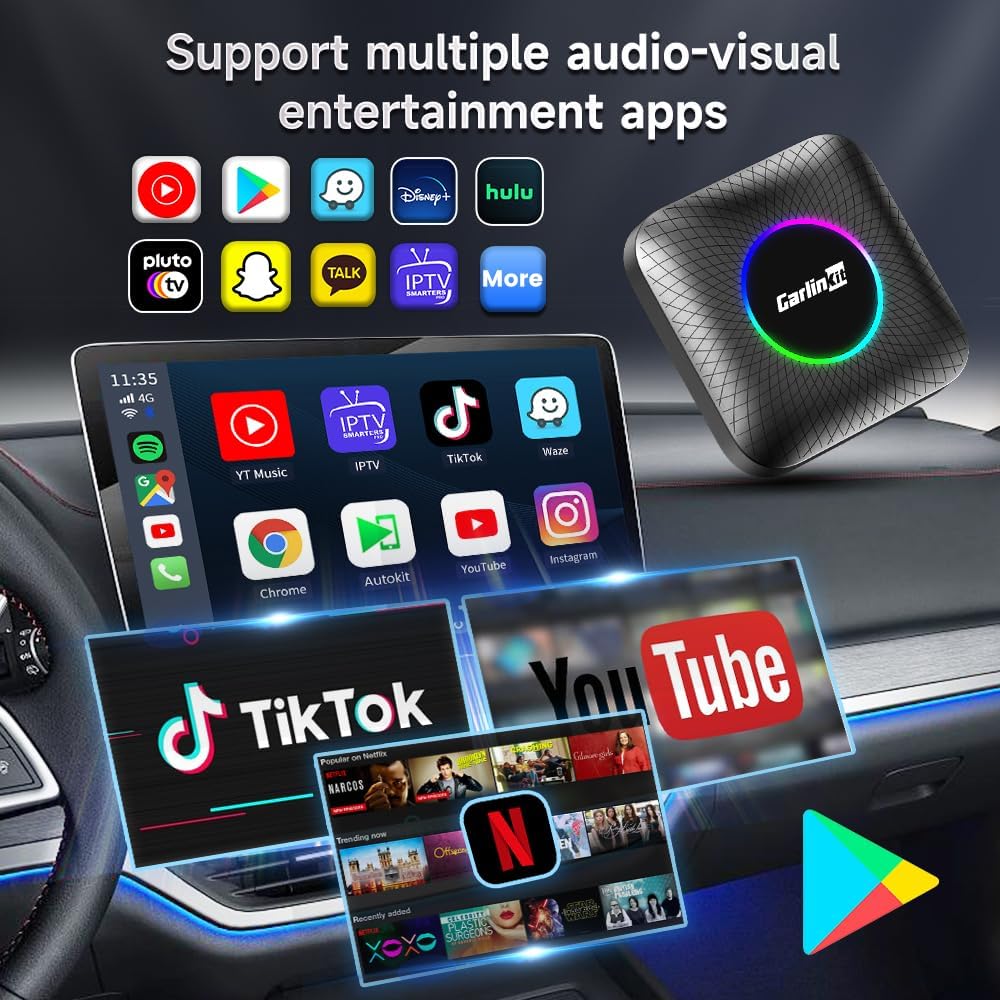
Image: CarlinKit Ai Box 3.0 interface displaying various multimedia and navigation applications.
5.2 استخدام التطبيقات
The device comes with pre-installed applications and allows you to download more from the Google Play Store. Popular apps include:
- ملاحة: Google Maps, Waze
- جاري: YouTube, Netflix, Spotify, YouTube Music, IPTV
- تواصل: Contacts, Phone
- المتصفح: الكروم
To download new applications, open the Google Play Store, sign in with your Google account, and browse or search for desired apps.

Image: CarlinKit Ai Box 3.0 displaying various Android applications like YouTube, Spotify, Netflix, and Google Maps, showcasinواجهة نظام أندرويد 13.0.
5.3 التحكم الصوتي
Utilize voice commands for hands-free operation, including navigation, music playback, and making calls. The device supports both Siri (via CarPlay) and Google Voice (via Android Auto or the Android system).
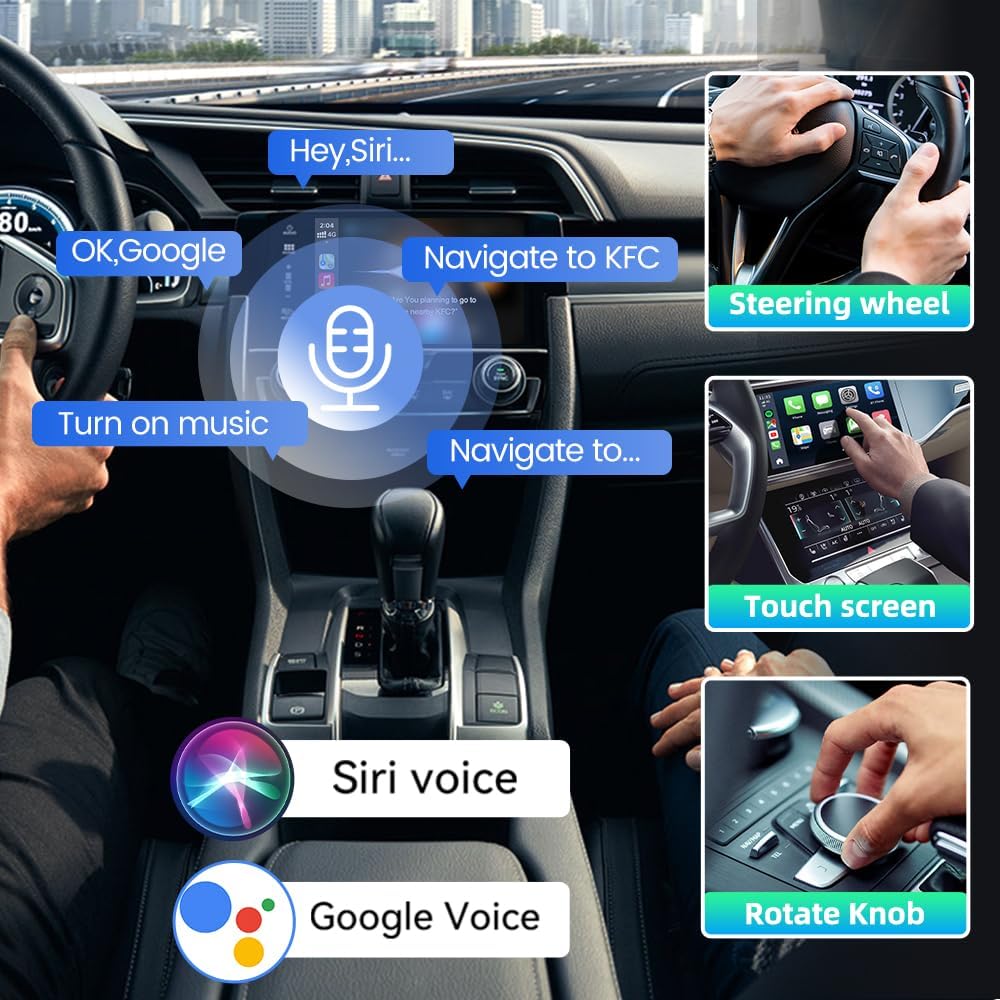
Image: CarlinKit Ai Box 3.0 demonstrating voice control features like 'Hey Siri' and 'OK Google' for navigation and music commands.
5.4 LED Color Settings
The CarlinKit Ai Box 3.0 features customizable ambient LED lights. You can adjust the colors and effects through a dedicated application on the device's interface. Options typically include various colors, pulsation speeds, and light effects like 'Corrugation', 'Spectrum', and 'Neon'.

Image: CarlinKit Ai Box 3.0 highlighting colorful ambient LED lights and quick connect feature.
6. الصيانة
6.1 Firmware Updates (FOTA)
To ensure optimal performance and access to the latest features, regularly check for and install firmware updates. The CarlinKit Ai Box 3.0 supports Firmware Over-The-Air (FOTA) updates.
- Ensure the device is connected to a stable internet connection (Wi-Fi or SIM card).
- On the device's interface, locate and open the تحديث FOTA طلب.
- Tap "Check Version" to see if a new update is available.
- If an update is found, follow the on-screen prompts to download and install it.
- The device will restart during the update process. Do not disconnect power or interfere with the device until the update is complete.
Video: Tutorial on how to perform an online firmware update for the CarlinKit Ai Box 3.0.
7. استكشاف الأخطاء وإصلاحها
- الجهاز لا يعمل: Ensure the USB cable is securely connected to both the CarlinKit Ai Box and your vehicle's wired CarPlay USB port. Check if the vehicle's ignition is on.
- لا يوجد عرض على شاشة السيارة: Verify that your car's wired CarPlay system is active. Try restarting both the car's infotainment system and the CarlinKit Ai Box. Some vehicles may require a specific USB port for CarPlay.
- عدم اتصال CarPlay/Android Auto اللاسلكي: Ensure Bluetooth and Wi-Fi are enabled on your phone. Confirm that you have selected the correct Bluetooth device name (e.g., "AutoKit Tbox Plus") and accepted any pairing requests. Try forgetting the device on your phone's Bluetooth settings and re-pairing.
- لا يوجد اتصال بالإنترنت: Check your mobile hotspot settings or ensure the SIM card is correctly inserted and has an active data plan. Verify Wi-Fi settings on the CarlinKit Ai Box.
- تأخر أو بطء الأداء: Close unnecessary background applications. Ensure the device has sufficient ventilation. Check for and install any available firmware updates.
- Audio Delay with Videos: A slight audio delay may be noticeable when streaming videos due to the wireless transmission. This is a common characteristic of wireless video streaming.
- Touchscreen Issues with Rotary Knob Cars: If your car only has a rotary knob for control, some touchscreen-dependent features may not function as intended. A touchscreen infotainment system is recommended for full functionality.
8. المواصفات
| ميزة | مواصفة |
|---|---|
| أبعاد المنتج | 3.09 × 3.09 × 0.72 بوصة (78.6 × 78.6 × 18.5 مم) |
| وزن العنصر | 6.5 أونصة (0.19 كجم) |
| نظام التشغيل | أندرويد 13.0 |
| المعالج | Qualcomm 8-core chip (SM6225) |
| ذاكرة | 8GB LPDDR4 RAM + 128GB UFS ROM |
| تكنولوجيا الاتصال | Bluetooth (Dual), Wi-Fi (802.11 a/b/g/n/ac, 2.4G+5G), 4G LTE |
| ميزة خاصة | Fast Charging, Built-in GPS |
| مادة | البولي كربونات (PC) |
| الهواتف المدعومة | Wireless CarPlay: iPhone 6 and above; Wireless Android Auto: Android Phone 11.0+ |
9. الضمان والدعم
For warranty information, please refer to the documentation included with your purchase or visit the official Carlinkit website. If you encounter any issues or require technical assistance, please contact Carlinkit customer support through their official channels. Provide your product model number (CarlinKit Ai Box 3.0) and a detailed description of the issue for efficient support.


