
1. المقدمة
The Moxa UPort 1610-8-G2 is a high-performance USB to 8-port RS-232 serial converter designed for industrial applications. It provides reliable serial communication by converting a single USB port into eight RS-232 serial ports, enabling connectivity for various serial devices to a host computer. This device features USB 3.2 SuperSpeed capability and includes a 512-byte on-chip FIFO cache with flow control for enhanced data transfer performance. It supports a wide operating temperature range of 0 to 60°C, making it suitable for diverse environments.
تتضمن الميزات الرئيسية ما يلي:
- USB 3.2 SuperSpeed capability for high-speed data transfer.
- 512-byte on-chip FIFO cache and flow control for optimized performance.
- Broad operating system driver support, including Windows and Linux.
- Configurable baud rates from 50 bps to 921.6 kbps, with support for nonstandard baud rates.
- Double-sided LEDs indicating power, transmit (TX), and receive (RX) statuses.
2. محتويات العبوة
قبل المتابعة في عملية التثبيت، تأكد من أن الحزمة تحتوي على العناصر التالية:
- Moxa UPort 1610-8-G2 unit
- كابل يو اس بي
- محول الطاقة (إن أمكن)
- Documentation CD or link to driver download
- دليل التثبيت السريع
If any items are missing or damaged, please contact your vendor or Moxa customer service.
3. الإعداد
3.1 تركيب الأجهزة
- قم بتوصيل كبل USB: Connect one end of the provided USB cable to the USB port on the UPort 1610-8-G2 and the other end to an available USB port on your host computer.
- Connect Serial Devices: Connect your RS-232 serial devices to the 8 serial ports on the UPort 1610-8-G2 using appropriate serial cables. Ensure secure connections for all devices.
- توصيل الطاقة: If an external power adapter is included or required, connect it to the UPort 1610-8-G2 and then to a power outlet. The device may draw power directly from the USB port, but external power might be necessary for certain configurations or to ensure stable operation with all 8 ports active.
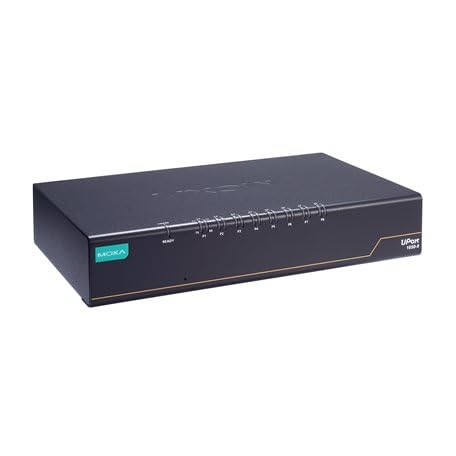
Image: The Moxa UPort 1610-8-G2 USB to 8-Port RS-232 Serial Converter, showing its compact design and multiple serial ports. The USB input port is visible, along with the array of RS-232 connectors for various devices.
3.2 تثبيت برنامج التشغيل
The UPort 1610-8-G2 requires specific drivers to function correctly with your operating system. Drivers are provided for a broad selection of operating systems, including Windows and Linux.
- الحصول على برامج التشغيل: Download the latest drivers from the official Moxa webموقع (www.moxa.com) by searching for 'UPort 1610-8-G2'. Alternatively, use the provided documentation CD if available.
- تثبيت برامج التشغيل: Follow the on-screen instructions to install the drivers. For Windows, this typically involves running an executable file. For Linux, consult the provided installation guide for specific commands and procedures.
- التحقق من التثبيت: After installation, check your operating system's Device Manager (Windows) or equivalent system information tool (Linux) to ensure that the UPort 1610-8-G2 and its virtual COM ports are recognized correctly.
4. التشغيل
4.1 التشغيل الأساسي
Once the hardware is connected and drivers are installed, the UPort 1610-8-G2 will create virtual COM ports on your host computer. These virtual COM ports can be accessed by your serial communication software as if they were native serial ports.
- تكوين البرنامج: Configure your serial communication software (e.g., terminal emulator, SCADA system) to use the assigned virtual COM port numbers.
- Baud Rate Settings: Set the baud rate, data bits, parity, and stop bits in your software to match the settings of your connected serial devices. The UPort 1610-8-G2 supports baud rates from 50 bps to 921.6 kbps.
- نقل البيانات: Initiate data transmission or reception through your software. The UPort 1610-8-G2 will handle the conversion between USB and RS-232 signals.
4.2 مؤشرات LED
The UPort 1610-8-G2 features double-sided LEDs located at the corners, providing visual status indications:
- مؤشر الطاقة LED: يشير إلى أن الجهاز يتلقى الطاقة.
- مؤشر LED للإرسال (TX): Flashes when data is being transmitted from the host computer through the serial port.
- مؤشر LED للاستقبال (RX): Flashes when data is being received by the serial port from a connected device.
Monitoring these LEDs can help in diagnosing communication issues.
5. الصيانة
To ensure the longevity and optimal performance of your Moxa UPort 1610-8-G2, follow these maintenance guidelines:
- تنظيف: Keep the device clean and free from dust. Use a soft, dry cloth for cleaning. Avoid liquid cleaners or solvents.
- الظروف البيئية: Operate the device within its specified temperature range of 0 to 60°C. Avoid exposing it to extreme temperatures, high humidity, or direct sunlight.
- إدارة الكابلات: تأكد من توصيل جميع الكابلات بإحكام وعدم تعرضها للضغط. تجنب ثني الكابلات بشكل حاد.
- تحديثات البرامج الثابتة: قم بفحص الموكسا بشكل دوري webيمكنك الاطلاع على الموقع الإلكتروني للحصول على أي تحديثات متاحة للبرامج الثابتة لجهازك. يمكن لتحديثات البرامج الثابتة تحسين الأداء، وإضافة ميزات جديدة، أو إصلاح الأخطاء.
6. استكشاف الأخطاء وإصلاحها
If you encounter issues with your UPort 1610-8-G2, consider the following troubleshooting steps:
6.1 No Device Recognition
- التحقق من اتصال USB: Ensure the USB cable is securely connected to both the UPort and the host computer. Try a different USB port or cable.
- مزود الطاقة: Verify that the device is receiving power. Check the Power LED. If using an external adapter, ensure it is properly connected and functional.
- تثبيت برنامج التشغيل: Confirm that the correct drivers are installed. Reinstall drivers if necessary. Check Device Manager (Windows) for any error indicators.
- إعادة تشغيل الكمبيوتر: قد يؤدي إعادة تشغيل النظام أحيانًا إلى حل مشكلات التعرف.
6.2 Communication Errors
- إعدادات المنفذ التسلسلي: Double-check that the baud rate, data bits, parity, and stop bits in your software match those of the connected serial device.
- سلامة الكابل: Inspect the serial cables for damage. Try a different serial cable.
- وظائف الجهاز: Ensure the connected serial device is powered on and functioning correctly.
- LED Activity: Observe the TX/RX LEDs. If they are not flashing during data transmission, there might be an issue with the software configuration or the connected device.
6.3 مشاكل الأداء
- نوع منفذ USB: Ensure the UPort 1610-8-G2 is connected to a USB 3.0/3.1/3.2 port on your host computer to utilize its SuperSpeed capabilities. Connecting to a USB 2.0 port will result in lower speeds.
- موارد النظام: Close unnecessary applications on your host computer to free up system resources.
7. المواصفات
| ميزة | مواصفة |
|---|---|
| نموذج | يوبورت 1610-8-G2 |
| واجهة USB | USB 3.2 SuperSpeed |
| المنافذ التسلسلية | 8 × RS-232 |
| معدل الباود | 50 bps to 921.6 kbps (nonstandard baudrates supported) |
| FIFO Cache | 512-byte on-chip |
| التحكم في التدفق | مدعوم |
| درجة حرارة التشغيل | 0 إلى 60 درجة مئوية |
| أبعاد المنتج | 8.5 × 4.79 × 1.63 بوصة |
| وزن العنصر | 4 رطل |
| أنظمة التشغيل المدعومة | ويندوز، لينكس |
8. معلومات الضمان
Moxa products are backed by a manufacturer's warranty. The specific terms and duration of the warranty may vary by region and product. Please refer to the warranty card included with your product or visit the official Moxa webالموقع للحصول على معلومات مفصلة حول الضمان وإجراءات التسجيل.
احتفظ بإثبات الشراء الخاص بك لمطالبات الضمان.
9. الدعم الفني
For further assistance, technical support, or to report issues not covered in this manual, please contact Moxa's customer support team.
- موكسا Webموقع: يزور www.moxa.com/support for FAQs, driver downloads, documentation, and contact information.
- الدعم عبر الإنترنت: Utilize the online support portal for submitting tickets or accessing knowledge base articles.
When contacting support, please have your product model (UPort 1610-8-G2) and serial number ready.