
مقدمة
Thank you for choosing the Dinosoo RGB Wireless Controller. This manual provides detailed instructions for setting up, operating, and maintaining your controller to ensure optimal performance. This controller is designed for use with iOS, Android, and PC (Windows 10/11) devices. Please note that connecting to game consoles is not supported at this time.
محتويات الحزمة
- Dinosoo RGB Wireless Controller
- محول لاسلكي بتردد 2.4 جيجاهرتز (دونجل USB)
- كابل شحن USB
- دليل المستخدم
تخطيط تحكم
صورة: الامام والخلف view of the Dinosoo RGB Wireless Controller with labels for all buttons, sticks, and ports, including Left Stick, Share, Cross key, Turbo, Light keys, Home, View, Menu, A/B/X/Y buttons, Right Stick, LB, RB, RT, LT, PR, PL, SET button, and Type-C interface.
Familiarize yourself with the controller's buttons and features:
- عصا التحكم اليسرى / عصا التحكم اليمنى: Analog joysticks for movement and camera control.
- أزرار A/B/X/Y: أزرار الإجراءات القياسية.
- D-Pad (مفتاح متقاطع): الإدخال الاتجاهي.
- LB / RB: أزرار الكتف اليسرى واليمنى.
- LT / RT: أزرار الزناد اليسرى واليمنى.
- زر الصفحة الرئيسة: يقوم بتشغيل/إيقاف وحدة التحكم والوصول إلى قوائم النظام.
- View زر: Accesses secondary functions or menus.
- زر القائمة: يُتيح الوصول إلى قوائم اللعبة أو النظام.
- زر المشاركة: For sharing content (functionality may vary by device/game).
- زر التوربو (T): يقوم بتفعيل وظيفة Turbo.
- مفاتيح الإضاءة: التحكم في أوضاع الإضاءة RGB.
- زر SET: Used for Macro function programming.
- PR / PL Buttons: Programmable back paddles (Macro function).
- واجهة من النوع C: للشحن والاتصال السلكي.
- مقبس سماعة رأس مقاس 3.5 ملم: لإخراج الصوت وإدخال الميكروفون.
يثبت
1. شحن وحدة التحكم
Before first use, fully charge the controller. Connect the supplied USB charging cable to the Type-C interface on the controller and the other end to a USB power source (e.g., PC, USB wall adapter). The indicator light will show charging status and turn off or change color when fully charged.
2. الاتصال اللاسلكي
2.1. Connecting to PC (Windows 10/11) via 2.4GHz Adapter
- Insert the 2.4GHz wireless adapter (USB dongle) into an available USB port on your PC.
- Long press the controller's بيت button for 1 second to turn it on.
- اضغط لفترة طويلة على زر الاقتران (refer to Controller Layout for exact location, often a small button on the top or back) for 1 second after the controller turns on. The controller will enter pairing mode, indicated by a flashing light.
- Once successfully paired, the controller indicator light will remain steadily on. The PC should recognize the controller as an X-box One mode device.
2.2. Connecting to iOS/Android Devices via Bluetooth

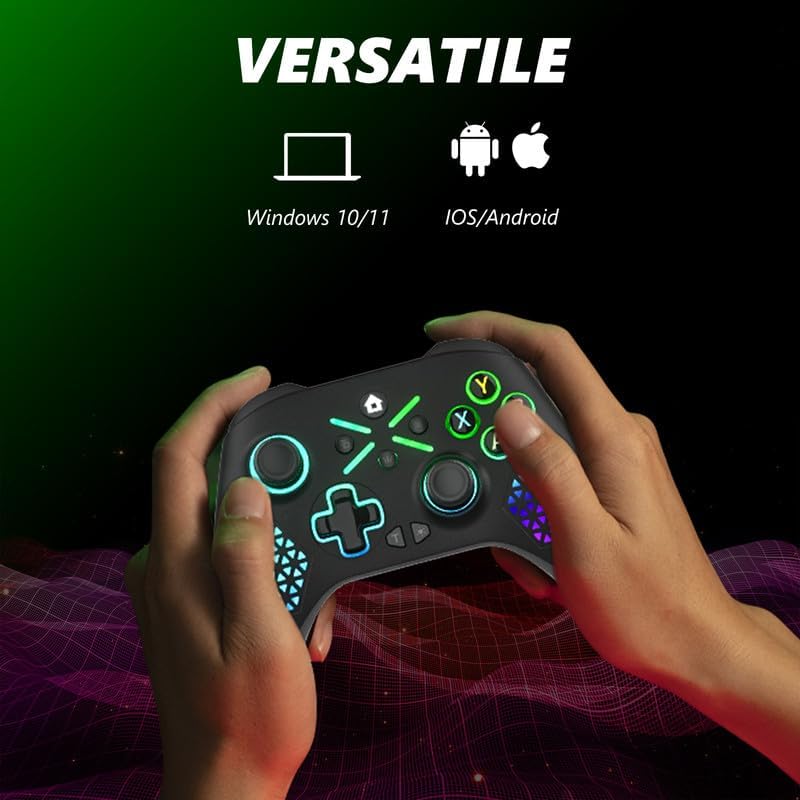
صورة: The Dinosoo RGB Wireless Controller shown with icons indicating compatibility with Windows 10/11 and iOS/Android operating systems, highlighting its versatile connectivity.
- تأكد من تفعيل البلوتوث على جهازك الذي يعمل بنظام iOS أو Android.
- Long press the controller's بيت button for 1 second to turn it on.
- اضغط لفترة طويلة على زر الاقتران on the controller for 1 second to enter Bluetooth pairing mode (flashing light).
- على جهازك، انتقل إلى إعدادات Bluetooth وابحث عن الأجهزة المتاحة.
- Select the controller (e.g., "Dinosoo Controller" or similar) from the list to pair.
- Once paired, the controller indicator light will remain steadily on.
تعليمات التشغيل
1 أوضاع إضاءة RGB

صورة: The Dinosoo RGB Wireless Controller illuminated with vibrant RGB lights, showcasing its "7 Colors Lights with 8 Mode" feature for a customizable gaming experience.
The controller features 7 colors and 8 lighting modes. Use the مفاتيح الإضاءة button (refer to Controller Layout) to cycle through different lighting effects and colors to personalize your gaming experience.
2. وظيفة التوربو
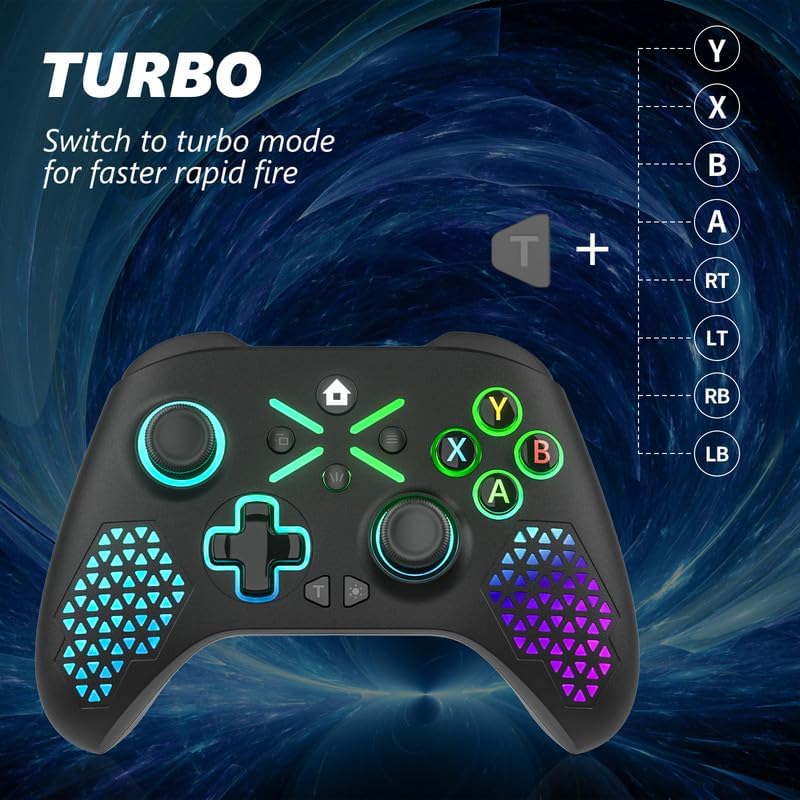
صورة: The Dinosoo RGB Wireless Controller highlighting the Turbo button and a list of buttons (Y, X, B, A, RT, LT, RB, LB) that can be assigned the Turbo function for faster rapid fire.
تتيح وظيفة Turbo إدخالًا سريعًا ومستمرًا بضغطة زر. لتفعيلها:
- اضغط مع الاستمرار على Turbo (T) زر.
- بينما يحمل T, press the button you wish to assign Turbo to (e.g., A, B, X, Y, LB, RB, LT, RT).
- Release both buttons. The assigned button will now have Turbo functionality.
لإلغاء تفعيل وضع Turbo لزر معين، كرر العملية: اضغط باستمرار T and press the Turbo-assigned button again.
3. Macro Function (On-the-Fly Mapping)
صورة: The back of the Dinosoo RGB Wireless Controller, illustrating the PR and PL programmable back paddles and the SET button, with an overlay showing various face buttons and triggers (X, Y, A, B, RB, LB, R3, L3, RT, LT) that can be mapped to these paddles without software.
The controller features programmable back paddles (PR and PL) for on-the-fly macro mapping without requiring software.
- اضغط مع الاستمرار على تعيين زر موجود في الجزء الخلفي من وحدة التحكم.
- بينما يحمل تعييناضغط إما على PR or PL paddle you wish to program. The indicator light will flash.
- Press the button(s) you want to map to the paddle (e.g., A, B, X, Y, LB, RB, LT, RT, R3, L3). You can map a single button or a sequence.
- اضغط على تعيين button again to confirm and save the macro. The indicator light will stop flashing.
To clear a macro, press and hold تعيين, then press the programmed paddle (PR or PL), and then press تعيين again without pressing any other buttons.
4. Dual Vibration Motors

صورة: An X-ray style view of the Dinosoo RGB Wireless Controller, highlighting the internal placement of two rumble motors to illustrate its "Hyper-Realistic" dual vibration feature.
The controller is equipped with dual vibration motors to provide immersive haptic feedback during gameplay. The intensity of the vibration may vary depending on the game and platform.
5. 3.5mm جاك سماعة الرأس
Connect a standard 3.5mm headset to the audio jack on the controller for in-game audio and voice chat (where supported by the connected device and application).
صيانة
- تنظيف: استخدم قطعة قماش ناعمة وجافة لتنظيف وحدة التحكم. تجنب استخدام المواد الكيميائية القاسية أو المواد الكاشطة.
- تخزين: قم بتخزين وحدة التحكم في مكان بارد وجاف بعيدًا عن أشعة الشمس المباشرة ودرجات الحرارة القصوى.
- العناية بالبطارية: لإطالة عمر البطارية، تجنب تفريغ وحدة التحكم بالكامل بشكل متكرر. اشحنها بانتظام، حتى في حال عدم استخدامها لفترات طويلة.
استكشاف الأخطاء وإصلاحها
- جهاز التحكم لا يعمل: تأكد من أن وحدة التحكم مشحونة بالكامل.
- Connection issues (PC/iOS/Android):
- For 2.4GHz connection: Ensure the USB adapter is securely plugged in and try a different USB port. Re-initiate pairing mode on the controller and adapter.
- For Bluetooth connection: Ensure Bluetooth is enabled on your device. Forget the device in your Bluetooth settings and attempt to pair again. Ensure the controller is in Bluetooth pairing mode.
- Restart your PC or mobile device.
- Buttons unresponsive or sticky: Ensure the controller is clean and free of debris. If issues persist, contact customer support.
- الاهتزاز لا يعمل: Check in-game settings to ensure vibration feedback is enabled. Ensure the controller is fully charged.
- Audio issues via 3.5mm jack: Ensure your headset is fully plugged in. Check audio settings on your connected device.
تحديد
| ماركة | ديناصور |
| رقم الموديل | 134-1106 |
| تكنولوجيا الاتصال | Bluetooth, 2.4GHz Wireless Adapter |
| الأجهزة المتوافقة | PC (Windows 10/11), iOS, Android |
| المميزات الخاصة | RGB Lighting, Dual Vibration, Turbo Function, Macro Function, 3.5mm Headphone Jack |
| وزن العنصر | 11.7 أونصة (حوالي 331 جرامًا) |
| أبعاد الحزمة | 6.73 × 4.8 × 2.83 بوصة |
الضمان والدعم
For warranty information and technical support, please refer to the product packaging or contact Dinosoo customer service directly. Keep your purchase receipt for warranty claims.