
1. المقدمة
شكرا لك على الشراءasing the BoxWave SlimKeys Bluetooth Keyboard. This portable, backlit keyboard is designed to enhance your typing experience across various devices, including tablets, smartphones, and computers. Its slim profile, customizable LED backlight, and reliable Bluetooth connectivity make it an ideal companion for productivity on the go. This manual provides detailed instructions for setup, operation, maintenance, and troubleshooting to ensure optimal performance of your device.

Image: The SlimKeys Bluetooth Keyboard positioned alongside a Blackview Tab 7 tablet, demonstrating its compact size and compatibility.
2. مواصفات المنتج
- الإضاءة الخلفية LED المتكاملة: Illuminates keys for typing in low-light or dark environments.
- إضاءة خلفية قابلة للتخصيص: Choose from seven vibrant LED backlight colors to personalize your setup.
- اتصال لاسلكي موثوق: Connects quickly and easily via Bluetooth 3.0 for a stable and responsive typing experience.
- Battery-Saving Power Switch: A dedicated on/off switch helps extend battery life during travel or downtime.
- تصميم نحيف ومحمول: Compact and lightweight, making it easy to store and transport without added bulk.
- Chiclet Keys: يتميز باحترافية منخفضةfile keys designed for quiet and comfortable typing.
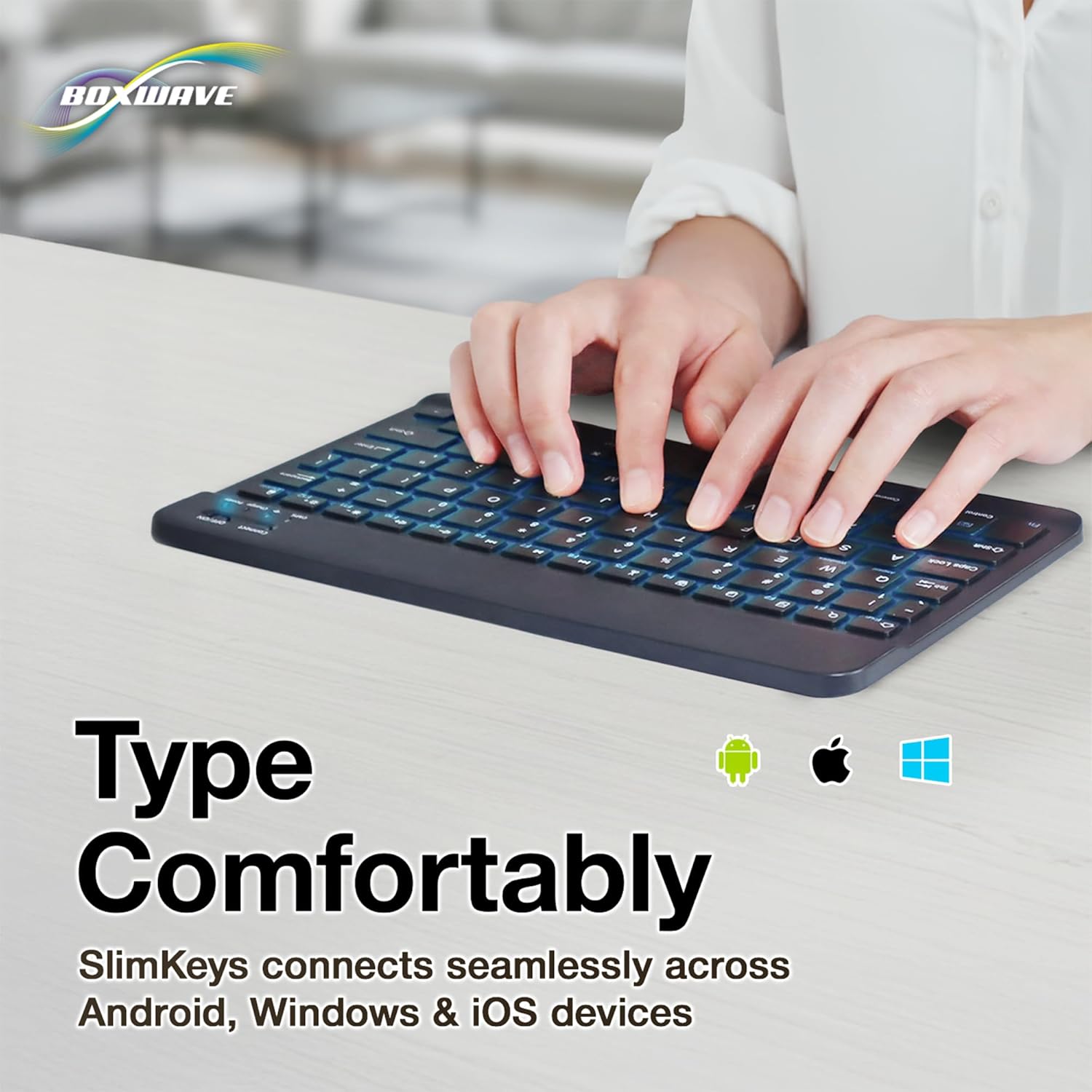
- التوافق مع منصات متعددة: Seamlessly connects across Android, Windows, and iOS devices.

Image: An infographic highlighting the main features of the SlimKeys keyboard, including backlit keys, multi-platform compatibility, chiclet keys, and its ultra-slim and light design.
3. دليل الإعداد
3.1. شحن لوحة المفاتيح
Before first use, ensure the keyboard is fully charged. Connect the included charging cable to the keyboard's charging port and to a USB power source (e.g., computer USB port, USB wall adapter). The 'Charge' indicator light will illuminate during charging and turn off when fully charged.

Image: The SlimKeys keyboard with its charging cable connected, demonstrating the charging process and highlighting its long-lasting battery life.
3.2. تشغيل / إيقاف التشغيل
Locate the ON/OFF switch on the top right side of the keyboard. Slide the switch to the 'ON' position to power on the keyboard. The 'Power' indicator light will briefly illuminate. To conserve battery, slide the switch to 'OFF' when not in use.
3.3. اقتران بلوتوث
- تأكد من تشغيل لوحة المفاتيح.
- Press the 'Connect' button located near the ON/OFF switch. The 'Connect' indicator light will start blinking, indicating the keyboard is in pairing mode.
- On your device (tablet, smartphone, computer), go to the Bluetooth settings.
- قم بتمكين البلوتوث وابحث عن الأجهزة المتاحة.
- Select 'BoxWave SlimKeys Keyboard' (or similar name) from the list of found devices.
- If prompted, enter the pairing code displayed on your device's screen using the SlimKeys keyboard, then press Enter.
- Once paired, the 'Connect' indicator light on the keyboard will stop blinking and remain solid, or turn off, depending on the model. Your keyboard is now ready for use.
الصورة: تفصيلية view of the top right section of the SlimKeys keyboard, highlighting the 'Connect' button and the 'ON/OFF' switch, along with the indicator lights.
4. تعليمات التشغيل
4.1. الكتابة
Once successfully paired, you can use the SlimKeys keyboard for all your typing needs. The chiclet-style keys provide a comfortable and responsive typing experience.
4.2. التحكم في الإضاءة الخلفية
The keyboard features an integrated LED backlight with seven customizable colors. To control the backlight:
- اضغط على مصباح كهربائي key (usually located near the right Ctrl key) to turn the backlight on or off.
- اضغط على اللون الأحمر والأخضر والأزرق key (usually located next to the Light Bulb key) to cycle through the seven available backlight colors.

Image: The SlimKeys keyboard showcasing its seven different backlight colors, demonstrating the customization options.
4.3. Specialized Function Keys
The SlimKeys keyboard includes a row of specialized function keys (F1-F12) that provide quick access to common commands. These functions may vary slightly depending on your operating system (Android, Windows, iOS). To use a function key, press the Fn key (usually located near the left Ctrl key) simultaneously with the desired function key.
| مجموعة المفاتيح | وظيفة |
|---|---|
| Fn + Esc (Home) | انتقل إلى الشاشة الرئيسية |
| Fn + F1 (Search) | بحث مفتوح |
| Fn + F2 (Select All) | Select All text/items |
| Fn + F3 (Copy) | Copy selected content |
| Fn + F4 (Paste) | Paste content |
| Fn + F5 (Cut) | Cut selected content |
| Fn + F6 (Skip Back) | انتقل إلى المسار السابق |
| Fn + F7 (Play/Pause) | Play or Pause media |
| Fn + F8 (Skip Forward) | انتقل إلى المسار التالي |
| Fn + F9 (Volume Down) | خفض مستوى الصوت |
| Fn + F10 (Volume Up) | زيادة الحجم |
| Fn + F11 (Brightness Down) | تقليل سطوع الشاشة |
| Fn + F12 (Brightness Up) | زيادة سطوع الشاشة |
| Fn + Delete (Lock) | Lock device screen |

Image: A visual representation of the specialized function keys on the SlimKeys keyboard, detailing their respective commands.
5. الصيانة
To ensure the longevity and optimal performance of your BoxWave SlimKeys Bluetooth Keyboard, follow these maintenance guidelines:
- تنظيف: استخدم قطعة قماش ناعمة وخالية من الوبر لمسح سطح لوحة المفاتيح. لإزالة الأوساخ المستعصية، افركها برفق.ampاغسل القماش بالماء أو بمنظف لطيف غير كاشط. تجنب الرطوبة الزائدة.
- تخزين: قم بتخزين لوحة المفاتيح في مكان بارد وجاف بعيدًا عن أشعة الشمس المباشرة ودرجات الحرارة القصوى.
- تجنب السوائل: Do not expose the keyboard to liquids. In case of accidental spills, immediately power off the keyboard and allow it to dry completely before reuse.
- التعامل معها بحذر: تجنب إسقاط لوحة المفاتيح أو تعريضها لصدمات قوية، لأن ذلك قد يؤدي إلى تلف المكونات الداخلية.
6. استكشاف الأخطاء وإصلاحها
If you encounter issues with your BoxWave SlimKeys Bluetooth Keyboard, refer to the following common problems and solutions:
| مشكلة | السبب المحتمل | حل |
|---|---|---|
| لوحة المفاتيح لا تعمل. | نفدت طاقة البطارية. | اشحن لوحة المفاتيح بالكامل. |
| Cannot pair the keyboard with my device. | البلوتوث غير مفعل على الجهاز؛ لوحة المفاتيح ليست في وضع الاقتران؛ تداخل. | Ensure Bluetooth is on. Press 'Connect' button on keyboard. Move closer to device. Remove previous pairings. Restart both devices. |
| يتم قطع اتصال لوحة المفاتيح بشكل متكرر. | انخفاض مستوى البطارية؛ بُعد كبير عن الجهاز؛ تداخل. | Charge keyboard. Keep keyboard within 10 meters of device. Avoid strong electromagnetic interference. |
| Backlight is not working or stuck on one color. | Backlight off; low battery; software glitch. | Press the Light Bulb key. Charge the keyboard. Power cycle the keyboard (turn off, then on). |
| المفاتيح لا تستجيب. | Keyboard not paired; low battery; hardware issue. | Re-pair the keyboard. Charge the keyboard. If problem persists, contact customer support. |
If the problem persists after trying these solutions, please contact BoxWave customer support for further assistance.
7. المواصفات
| ميزة | التفاصيل |
|---|---|
| اسم الموديل | SlimKeys Bluetooth Keyboard |
| الاتصال | بلوتوث 3.0 |
| الإضاءة الخلفية | 7 ألوان LED |
| التوافق | أندرويد، ويندوز، آي أو إس |
| وزن العنصر | 8.6 أونصة (حوالي 244 جرامًا) |
| الأبعاد (تقريبًا) | 9.5 in (Width) x 5.75 in (Depth) x 0.2 in (Height) |
| الشركة المصنعة | بوكس ويف |

Image: The SlimKeys keyboard shown with its approximate dimensions, illustrating its ultra-slim and lightweight design for portability.
8. الضمان والدعم
BoxWave products are designed for quality and reliability. For information regarding product warranty, returns, or technical support, please refer to the warranty card included with your product or visit the official BoxWave website. You may also contact BoxWave customer service directly for assistance with any product-related inquiries.
معلومات الاتصال: Please refer to the packaging or BoxWave's official webللحصول على أحدث تفاصيل الاتصال بدعم العملاء، يرجى زيارة الموقع الإلكتروني.