
Contour Design CDRMPRO20110
دليل المستخدم لجهاز Contour RollerMouse Pro Slim
Model: CDRMPRO20110
Brand: Contour Design
مقدمة
The Contour RollerMouse Pro, Slim is an ergonomic mouse designed to provide comfort and reduce strain during extended computer use. Its unique central rollerbar design promotes a neutral arm and hand posture, aiming to alleviate discomfort often associated with traditional mouse usage. This manual provides detailed instructions on setting up, operating, maintaining, and troubleshooting your RollerMouse Pro.

Image: The Contour RollerMouse Pro, Slim, showcasing its central rollerbar and integrated wrist rest.
يثبت
The RollerMouse Pro, Slim is designed for quick and easy setup. This wired version connects directly to your computer via a USB cable.
Connecting Your RollerMouse Pro
- التمركز: Place the RollerMouse Pro directly in front of your keyboard. Ensure it is centered for optimal ergonomic posture.
- توصيل كابل USB: Plug the USB cable from the RollerMouse Pro into an available USB port on your computer.
- التعرف على النظام: Your computer should automatically detect and install the necessary drivers. This process typically takes a few moments.
- التوافق: The RollerMouse Pro is fully compatible with both Windows and macOS operating systems.

Image: The RollerMouse Pro positioned centrally in front of a keyboard, demonstrating its intended ergonomic setup.
تعليمات التشغيل
The RollerMouse Pro offers intuitive cursor control and customizable buttons to enhance your workflow and comfort.
Rollerbar Control
The central rollerbar is the primary method for cursor movement. It allows for precise control with minimal hand and arm movement.
- الحركة العمودية: Roll the bar up or down with your fingertips to move the cursor vertically on the screen.
- الحركة الأفقية: Slide the bar left or right with your fingertips to move the cursor horizontally across the screen.
- النقر: Press down on the rollerbar to perform a left-click action.

Image: Visual guide illustrating the rolling motion for vertical cursor movement and sliding motion for horizontal cursor movement using the rollerbar.
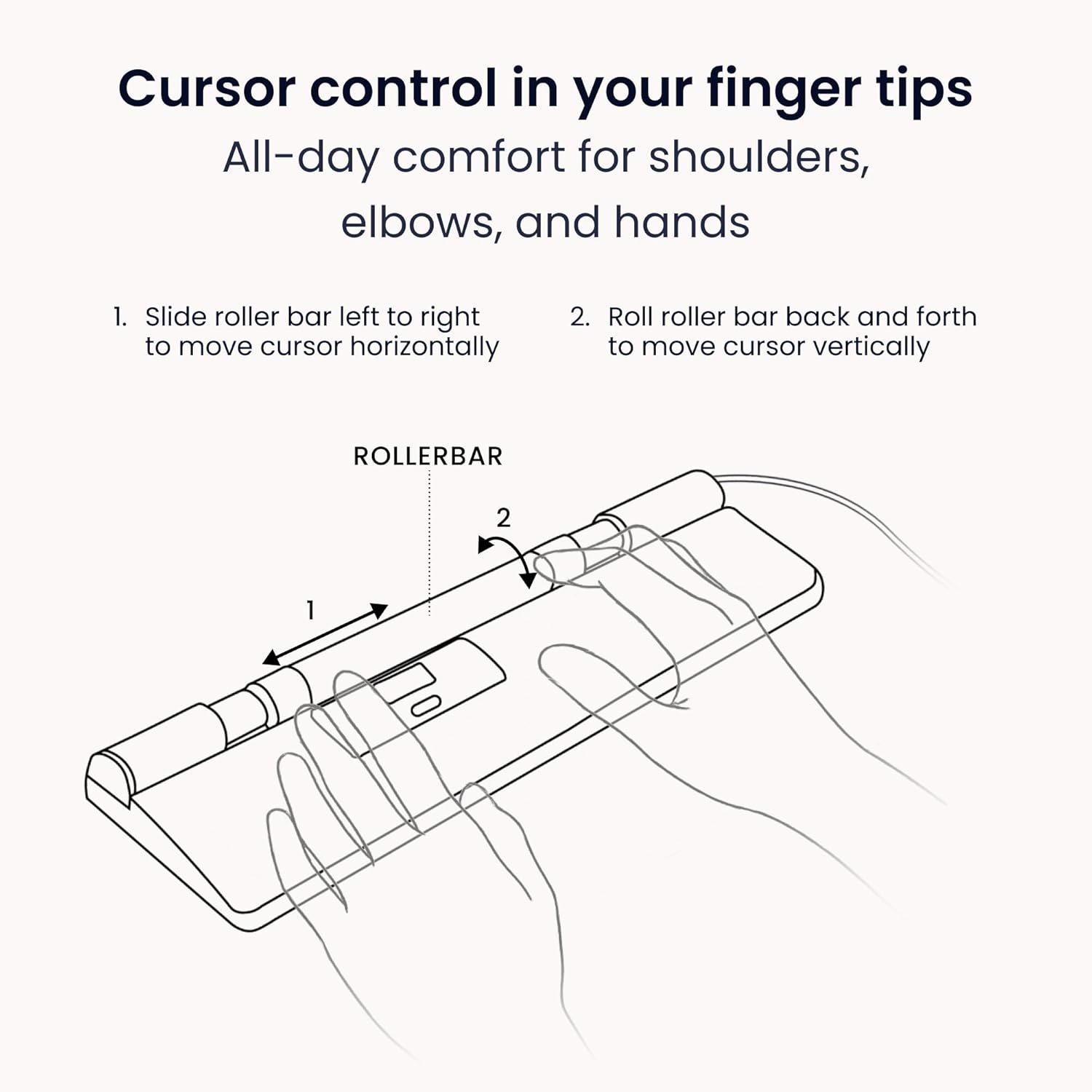
Image: A detailed diagram showing the two primary movements of the rollerbar for comprehensive cursor control.
Ergonomic Benefits and Workflow Optimization
The RollerMouse Pro is designed to reduce muscle strain and optimize your daily work.
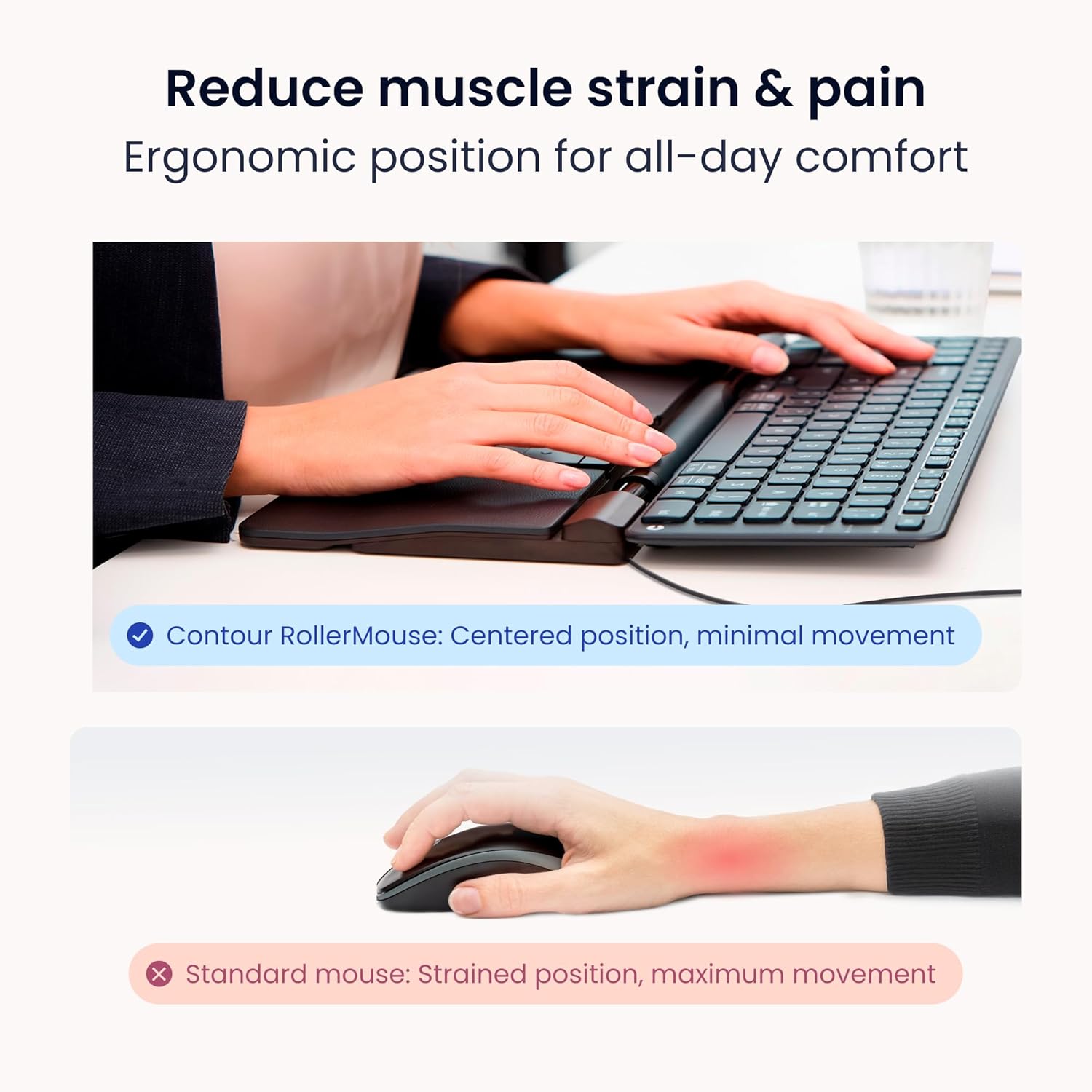
Image: A visual comparison highlighting the reduced muscle strain achieved with the RollerMouse Pro's centered ergonomic position compared to a standard mouse.
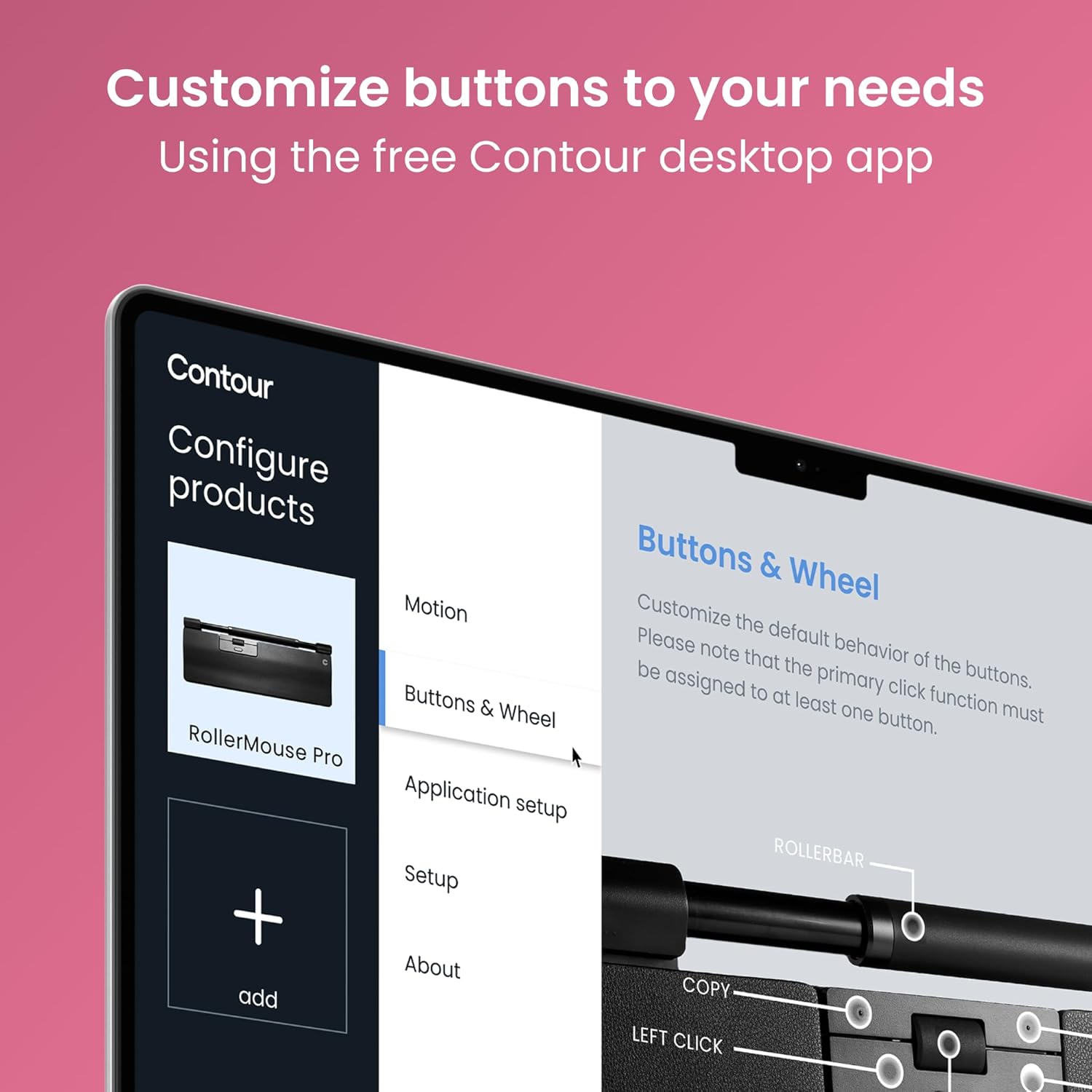
Image: A user demonstrating the comfortable and centered use of the RollerMouse Pro during a typical workday, promoting improved posture and all-day hand comfort.
Programmable Buttons and DPI Settings
The RollerMouse Pro features six programmable buttons and adjustable DPI settings to customize your experience.
- الوظائف الافتراضية: The buttons are pre-programmed for common functions such as Copy, Paste, Left Click, Right Click, Double Click, and a Scroll Button.
- التخصيص: You can reassign these buttons using the Contour desktop application. This allows you to tailor the mouse to your specific workflow and frequently used commands.
- تعديل DPI: The DPI (Dots Per Inch) can be set between 600 and 2800. Higher DPI settings result in faster cursor movement, ideal for large monitors or precise design work. Adjust the DPI to match your preference and task requirements.

الصورة: صورة علوية view of the RollerMouse Pro's control panel, labeling the default functions of its six programmable buttons and the scroll button.

Image: A screenshot of the Contour desktop application interface, demonstrating how users can customize the buttons and wheel settings for their RollerMouse Pro.
صيانة
Proper care and maintenance will ensure the longevity and optimal performance of your Contour RollerMouse Pro, Slim.
- Cleaning the Rollerbar: Periodically clean the rollerbar to prevent dust and debris buildup, which can affect tracking. Use a soft, dry, lint-free cloth. For stubborn dirt, a slightly damp cloth (water only) can be used, ensuring no liquid enters the device.
- تنظيف مسند المعصم: The vegan leather wrist rest can be wiped clean with a damp استخدم قطعة قماش وصابونًا خفيفًا إذا لزم الأمر. اتركه يجف تمامًا في الهواء قبل الاستخدام.
- النظافة العامة: Wipe the body of the mouse with a soft, dry cloth. Avoid abrasive cleaners or solvents.
- تخزين: When not in use for extended periods, store the RollerMouse Pro in a clean, dry environment away from extreme temperatures.
استكشاف الأخطاء وإصلاحها
If you encounter issues with your RollerMouse Pro, try the following troubleshooting steps:
| مشكلة | السبب المحتمل | حل |
|---|---|---|
| Cursor not moving or erratic movement. | Loose USB connection, debris on rollerbar, software issue. |
|
| الأزرار لا تستجيب. | تعارض في البرامج، تعيين غير صحيح للأزرار. |
|
| لم يتم التعرف على الجهاز بواسطة الكمبيوتر. | USB port issue, driver issue. |
|
إذا لم تنجح هذه الخطوات في حل المشكلة، فيرجى الرجوع إلى قسم الضمان والدعم للحصول على مزيد من المساعدة.
تحديد
Key technical specifications for the Contour RollerMouse Pro, Slim:
- رقم الموديل: CDRMPRO20110
- أبعاد المنتج: 15 × 4.3 × 0.9 بوصة
- وزن السلعة: 1.38 رطل
- تقنية الاتصال: USB (سلكي)
- نطاق DPI: 600-2800 نقطة في البوصة (قابلة للتعديل)
- ميزة خاصة: Ergonomic Design, Central Rollerbar, Programmable Buttons, Vegan Leather Wrist Rest
- لون: Vegan Leather (Black)
- التوافق: ويندوز، ماك أو إس
- الشركة المصنعة: تصميم الكنتور

Image: The RollerMouse Pro with various wrist support options (Slim, Regular, Extended), illustrating the adaptability of the design.
الضمان والدعم
Contour Design stands behind the quality of the RollerMouse Pro, Slim.
- ضمان: The RollerMouse Pro comes with a 2-year limited warranty. This warranty covers defects in materials and workmanship under normal use. Please retain your proof of purchase for warranty claims.
- دعم الخبراء: For technical assistance, troubleshooting beyond this manual, or warranty inquiries, please contact Contour Design's dedicated support team. Visit the official Contour Design webالموقع للحصول على معلومات الاتصال والموارد الإضافية.
- الموارد المتاحة على الإنترنت: Further information, FAQs, and software downloads may be available on the Contour Design webموقع.
لمزيد من المعلومات، قم بزيارة Contour Design Store on Amazon.
Ask a question about this manual
Ask about setup, troubleshooting, compatibility, parts, safety, or missing instructions. Manuals+ will review the question and use this page’s manual context to help answer it.