
1. المقدمة
This manual provides detailed instructions for the installation, operation, and maintenance of your WENMENGDE 10-inch Automatic Rotation Android Car Radio. Please read this manual thoroughly before using the product to ensure proper functionality and to prevent damage.

Figure 1.1: WENMENGDE 10-inch Automatic Rotation Android Car Radio. This image shows the main unit with its 10-inch display, featuring a user interface with various application icons. A rear-view camera module and a microphone are also visible, indicating included accessories.
2. معلومات السلامة
- يوصى بالتركيب الاحترافي: Due to the complexity of car electrical systems, professional installation is highly recommended. Incorrect wiring can cause damage to the unit or the vehicle.
- مزود الطاقة: Ensure the unit is connected to a 12V DC power supply with negative grounding.
- تجنب المشتتات: Do not operate the unit or watch videos while driving. Always prioritize road safety.
- درجة حرارة: تجنب تعريض الوحدة لدرجات حرارة عالية أو لأشعة الشمس المباشرة لفترات طويلة.
- تنظيف: استخدم قطعة قماش ناعمة وجافة للتنظيف. لا تستخدم منظفات أو مذيبات كاشطة.
- التعرض للماء: هذه الوحدة غير مقاومة للماء. تجنب تعريضها للماء أو الرطوبة الزائدة.
3. محتويات العبوة
تأكد من تضمين جميع العناصر المدرجة أدناه في الحزمة الخاصة بك:
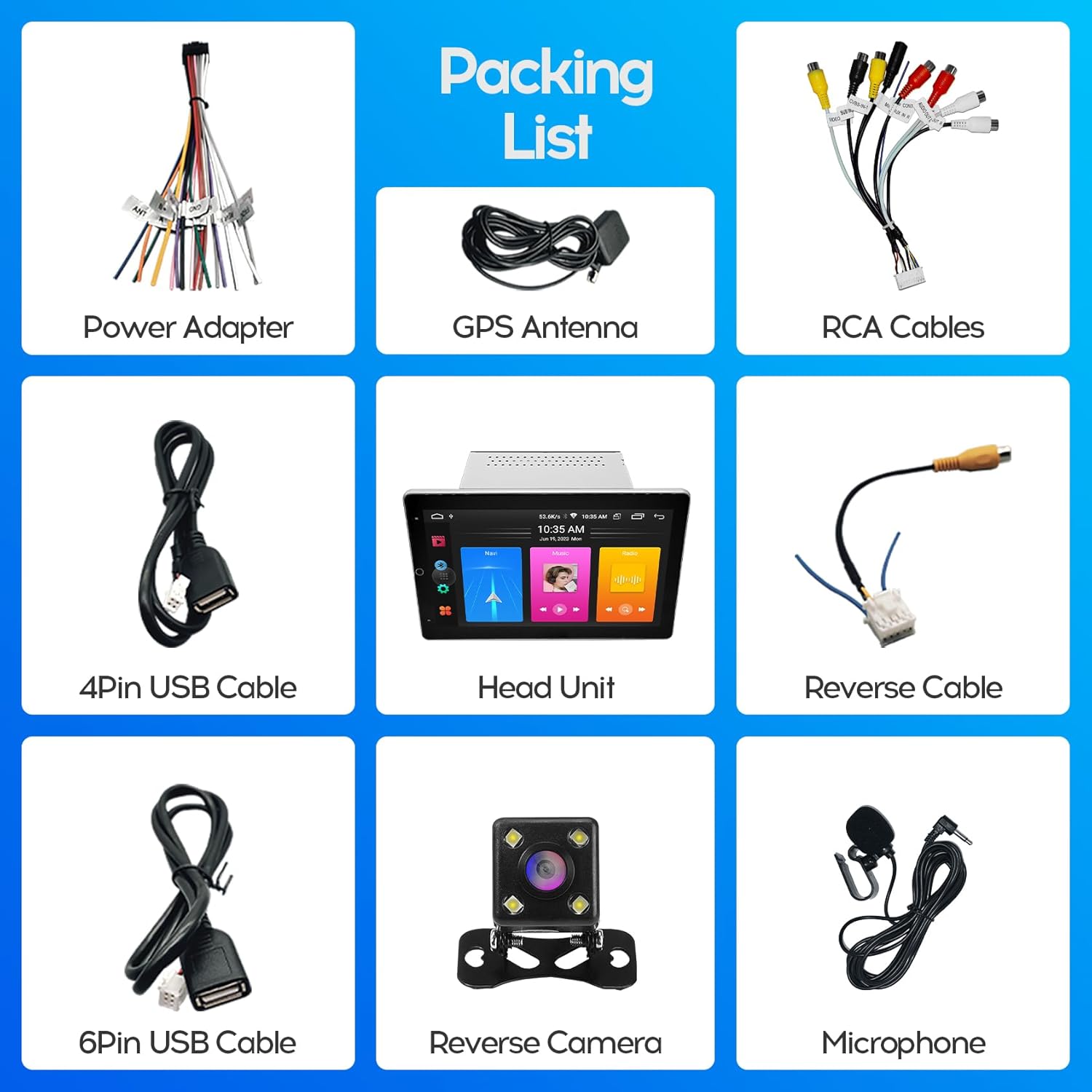
Figure 3.1: Included Accessories. This image displays the complete packing list, including the head unit, power adapter, GPS antenna, RCA cables, 4-pin USB cable, 6-pin USB cable, reverse cable, reverse camera, and microphone.
- WENMENGDE 10-inch Head Unit
- كابل محول الطاقة
- هوائي نظام تحديد المواقع العالمي (GPS)
- كابلات RCA
- 4-Pin USB Cable
- 6-Pin USB Cable
- كابل عكسي
- Reverse Camera (Waterproof Night Vision)
- ميكروفون خارجي
4. دليل التثبيت
This unit is designed for most general-purpose double DIN (2DIN) car center consoles. Ensure your vehicle has the appropriate installation space (178*100MM) before proceeding.
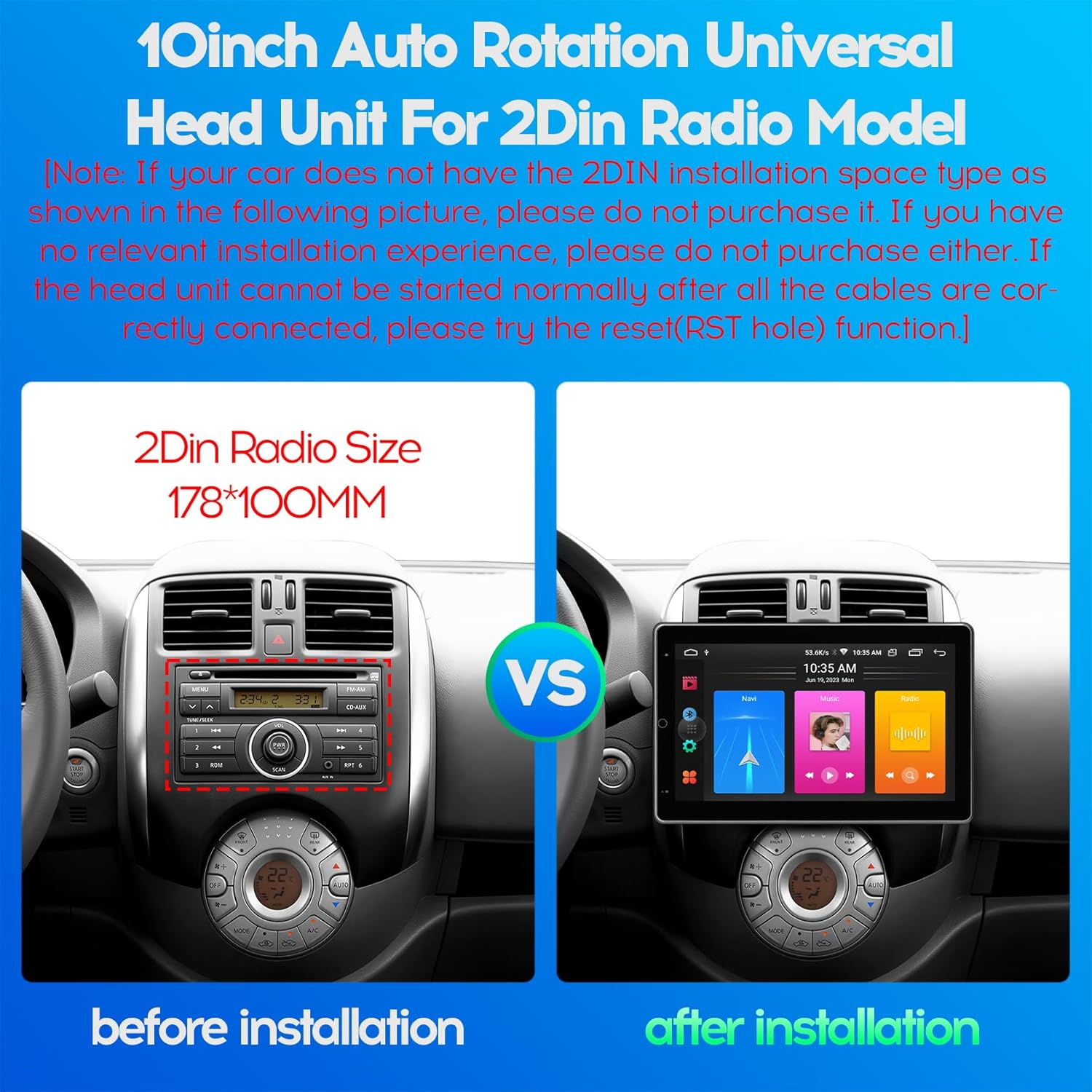
Figure 4.1: 2DIN Radio Size Comparison. This image illustrates the standard 2DIN radio slot dimensions (178x100mm) and how the WENMENGDE 10-inch unit fits into a compatible vehicle dashboard, showing a "before" and "after" installation view.
4.1. مخطط الأسلاك
Refer to the following diagram for proper wiring connections. Incorrect wiring can lead to malfunction or damage.

Figure 4.2: Head Unit Port Functions and Wiring. This diagram details the various ports on the back of the head unit, including the power adapter, USB cables, RCA cables, reverse video cable, GPS antenna, and WiFi/BT antenna. A close-up of the main power harness shows pin assignments for power, speakers, steering wheel control (SWC), reverse, and antenna.
- توصيل الطاقة:
- الأصفر (ب+): قم بتوصيله بمصدر طاقة ثابت 12 فولت.
- الأحمر (ACC): قم بتوصيله بمصدر طاقة 12 فولت (إشعال).
- أسود (GND): الاتصال بأرض هيكل السيارة.
- توصيلات السماعات: Connect the speaker wires (FL+, FL-, FR+, FR-, RL+, RL-, RR+, RR-) to your vehicle's corresponding speaker outputs. Ensure correct polarity.
- التحكم في عجلة القيادة (SWC): Connect KEY1 and KEY2 wires to your vehicle's steering wheel control wires. Manual learning may be required in the unit's settings.
- كاميرا الرجوع للخلف: Connect the reverse camera video input to the unit's "Reverse Video" port and the reverse trigger wire to the vehicle's reverse light signal.
- هوائي GPS: قم بتوصيل هوائي نظام تحديد المواقع العالمي (GPS) وضعه في مكان واضح view من السماء.
- كبلات USB: Connect the provided USB cables for external devices or wired CarPlay/Android Auto.
- هوائي الراديو: Connect your vehicle's radio antenna to the unit's radio port.
4.2. التثبيت المادي
- Carefully remove your existing car radio or blank panel from the dashboard.
- Connect all necessary wiring harnesses to the WENMENGDE head unit according to the wiring diagram.
- Mount the head unit into the 2DIN slot in your dashboard. Ensure it is securely fastened.
- Test all functions (power, audio, radio, camera, etc.) before fully reassembling your dashboard.
- أعد تجميع غطاء لوحة القيادة.
Note: If the head unit cannot be started normally after all cables are correctly connected, please try the reset (RST hole) function.
5. الإعداد الأولي
- تشغيل الطاقة: قم بتشغيل محرك سيارتك. يجب أن يتم تشغيل الوحدة تلقائيًا.
- اللغة والوقت: انتقل إلى إعدادات to set your preferred language, time zone, and date.
- اتصال واي فاي: اذهب الى الإعدادات > الشبكة والإنترنت > Wi-Fi to connect to an available Wi-Fi network (e.g., your mobile hotspot) for online features and app downloads.
- تعلم التحكم في عجلة القيادة: If your vehicle has steering wheel controls, go to Settings > Car Settings > Steering Wheel Learning (or similar) to program the buttons.
6. تعليمات التشغيل
6.1. Automatic Screen Rotation
The unit features a 90° automatic rotation function, allowing the display to switch between horizontal and vertical orientations. This adjustment occurs automatically based on the unit's physical orientation.
6.2. كاربلاي وأندرويد أوتو
The unit supports both Apple CarPlay and Android Auto, offering wireless and wired connectivity.
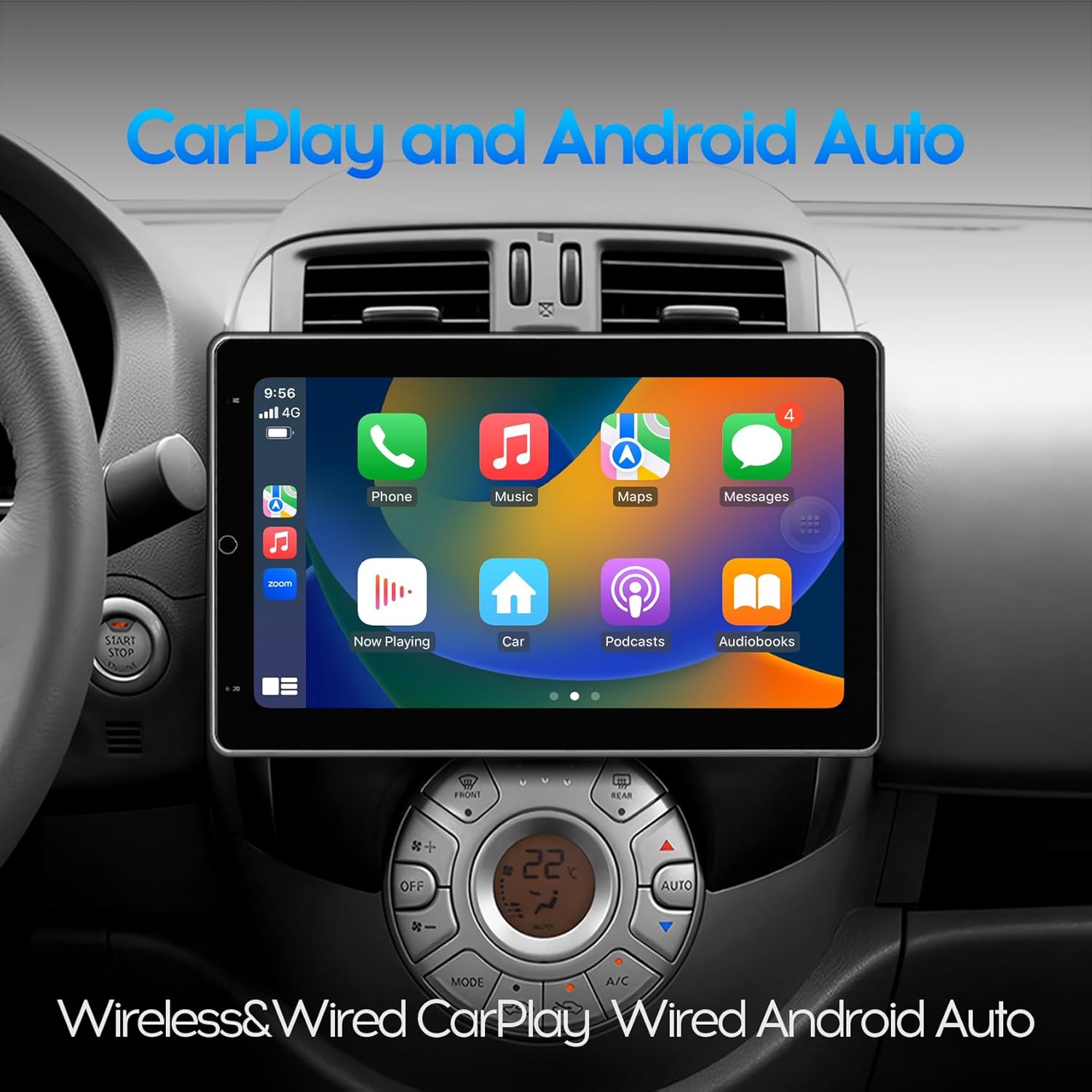
Figure 6.1: CarPlay Interface. This image shows the unit displaying the Apple CarPlay interface, featuring common applications like Phone, Music, Maps, and Messages, integrated into the car's dashboard.
- الاتصال اللاسلكي:
- قم بتمكين Bluetooth على هاتفك المحمول.
- Pair your phone with the car radio via Bluetooth.
- Open the pre-installed application named "Zlink" on the car radio.
- Wait for the automatic connection to CarPlay or Android Auto.
- الاتصال السلكي:
- Connect your mobile phone to the car radio using a USB cable.
- The unit should automatically launch CarPlay or Android Auto.
6.3. نظام الملاحة GPS
The unit includes a built-in GPS module and comes with offline maps pre-installed via the "Maps" application. With a Wi-Fi connection, online maps and real-time traffic information are also available.

Figure 6.2: GPS Navigation. This image shows the unit displaying a navigation map with route details and estimated travel time, along with icons for various navigation applications.
To use GPS navigation:
- Tap the "Maps" icon on the home screen.
- Enter your destination.
- Follow the on-screen directions and voice prompts.
6.4. وظيفة البلوتوث
The built-in Bluetooth 4.0 module supports hands-free calling, phone book synchronization, and music streaming (A2DP).
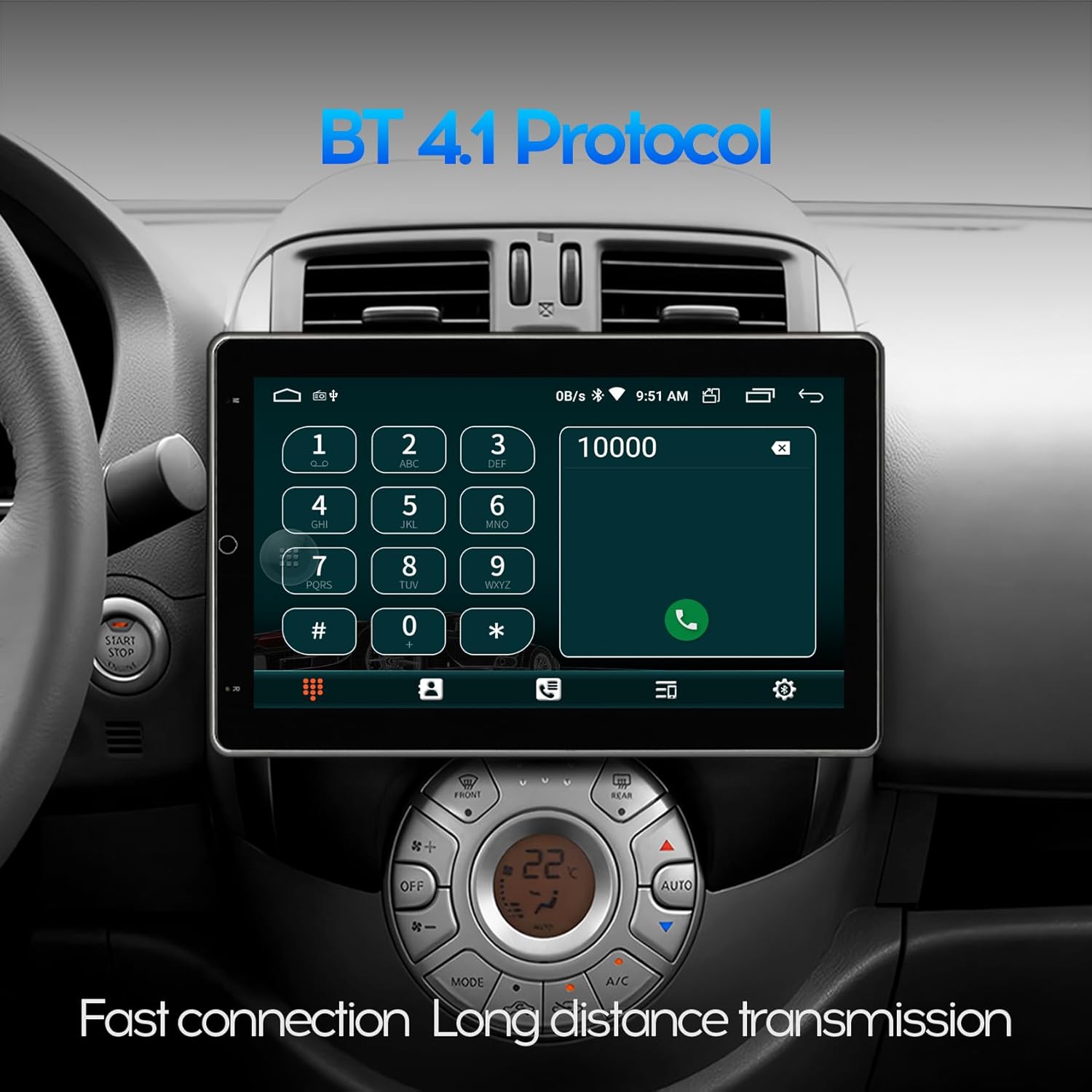
Figure 6.3: Bluetooth Dialer. This image displays the Bluetooth phone dialer interface on the unit, allowing users to make calls directly from the touchscreen.
- الاقتران:
- Go to the Bluetooth application on the unit.
- قم بتمكين البلوتوث على هاتفك المحمول وابحث عن الأجهزة المتاحة.
- Select the unit's Bluetooth name (e.g., "WENMENGDE Car Radio") and pair.
- Enter the PIN if prompted (usually "0000" or "1234").
- الاتصال بدون استخدام اليدين: بمجرد الاقتران، يمكنك إجراء واستقبال المكالمات مباشرة من شاشة الجهاز.
- تدفق الموسيقى: Play audio from your phone through the car speakers via Bluetooth.
6.5.الخلف View وظيفة الكاميرا
تدعم الوحدة الجزء الخلفي view camera input. When the vehicle is shifted into reverse gear, the car stereo will automatically display the rear view image, providing assistance for parking and maneuvering.

Figure 6.4: Reverse Rear View. This image shows the unit displaying the feed from a rear-view camera, complete with dynamic parking guidelines, assisting with safe reversing.
6.6. Split Screen Mode
تتيح لك ميزة تقسيم الشاشة تشغيل تطبيقين في وقت واحد على الشاشة، مثل نظام الملاحة وتشغيل الموسيقى.
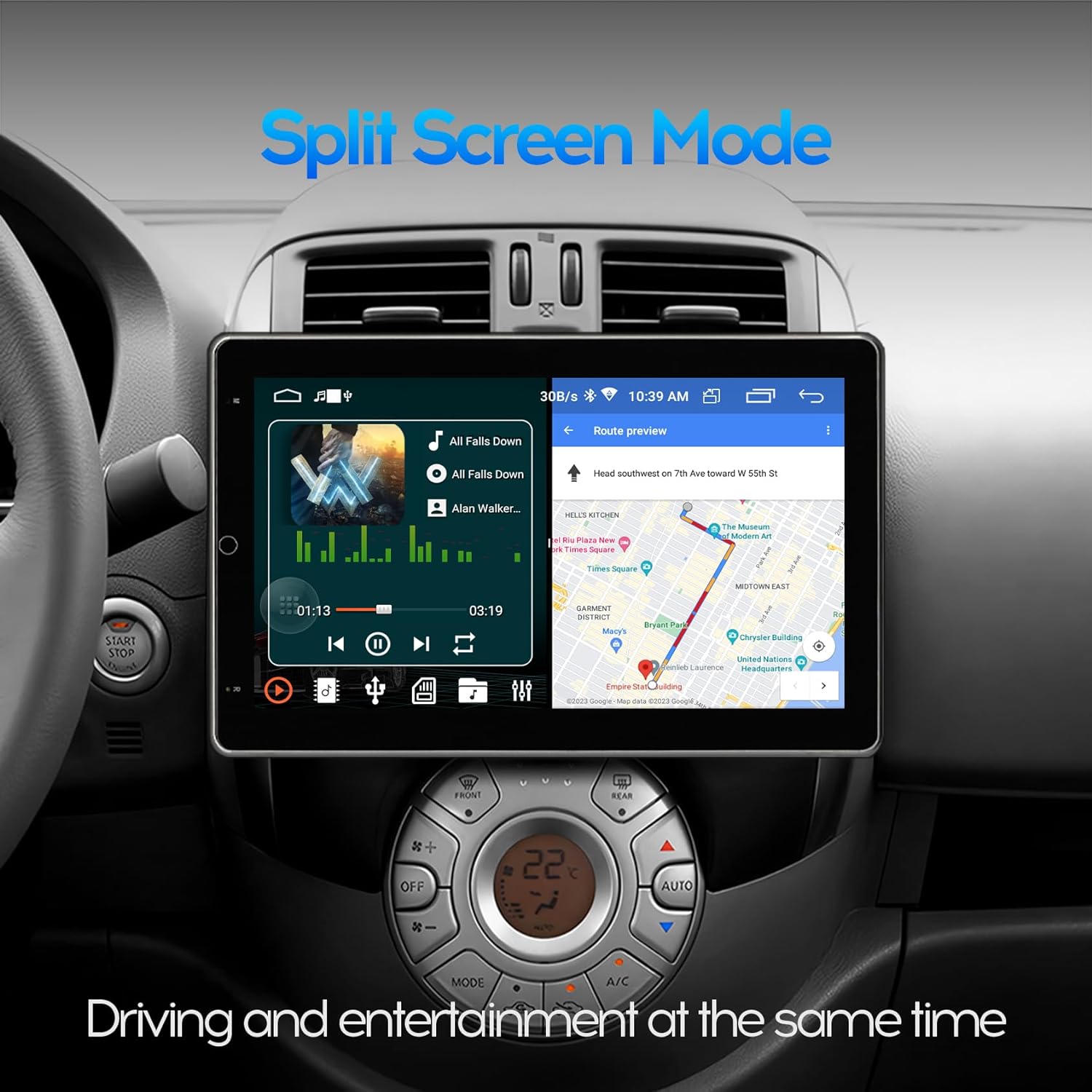
Figure 6.5: Split Screen Mode. This image demonstrates the unit's split-screen capability, showing a navigation application on one side and a music player on the other, allowing for simultaneous use.
To activate split screen:
- افتح التطبيق الأول الذي ترغب في استخدامه.
- Press and hold the recent apps button (usually a square icon) or swipe up from the bottom and hold, then drag the first app to one side of the screen.
- حدد التطبيق الثاني من قائمة التطبيقات الحديثة أو درج التطبيقات لملء النصف الآخر من الشاشة.
6.7. Wi-Fi and App Installation
Connect the unit to a 2.4GHz Wi-Fi network (e.g., your mobile hotspot) to access online features and download applications from the Google Play Store.

Figure 6.6: Wi-Fi Network and App Downloads. This image shows the unit connected to a Wi-Fi network and displaying the Google Play Store interface, allowing users to download various applications like YouTube, TikTok, and Spotify.
To download apps:
- Ensure the unit is connected to Wi-Fi.
- Open the "Play Store" application.
- بحث عن and install desired applications.
7. الصيانة
7.1. تنظيف الشاشة
استخدم قطعة قماش ناعمة وخالية من الوبر لمسح الشاشة برفق. لإزالة البقع الصعبة، امسحها برفق.ampen the cloth with water. Avoid using harsh chemicals, alcohol, or abrasive materials, as these can damage the screen coating.
7.2. Software Updates (FOTA)
The unit supports Firmware Over-The-Air (FOTA) updates for system and CAN versions. Regularly check for updates to ensure optimal performance and access to new features.

Figure 7.1: FOTA Upgrade Interface. This image shows the unit's wireless update screen, indicating that the device's software is currently up to date, with options to check for new updates.
للتحقق من التحديثات:
- Ensure the unit is connected to Wi-Fi.
- انتقل إلى Settings > About device > System update (or similar path).
- اتبع التعليمات التي تظهر على الشاشة لتنزيل وتثبيت أي تحديثات متاحة.
8. استكشاف الأخطاء وإصلاحها
| مشكلة | السبب المحتمل | حل |
|---|---|---|
| الوحدة لا تعمل بالطاقة. | Incorrect wiring (B+, ACC, GND), blown fuse, loose connection. | Check all power connections. Verify fuse. Press the RST (Reset) button. |
| لا يوجد صوت. | Speaker wires incorrectly connected, volume too low, mute activated. | Check speaker wiring polarity. Increase volume. Disable mute. |
| CarPlay/Android Auto غير متصل. | Bluetooth not paired (wireless), faulty USB cable (wired), "Zlink" app not open. | Ensure Bluetooth is paired. Try a different USB cable. Open "Zlink" app. Restart phone and unit. |
| إشارة نظام تحديد المواقع العالمي (GPS) ضعيفة أو غير دقيقة. | GPS antenna improperly placed, antenna faulty. | Relocate GPS antenna to a position with clear sky view. Check antenna connection. |
| مؤخرة view الكاميرا لا تعرض الصورة. | Camera wiring incorrect, reverse trigger wire not connected. | Check camera video input and reverse trigger wire connection. |
| شاشة اللمس لا تستجيب. | Software glitch, temporary freeze. | Press the RST (Reset) button. Restart the unit. |
إذا استمرت المشكلات بعد محاولة هذه الحلول، فيرجى الاتصال بدعم العملاء.
9. المواصفات

Figure 9.1: Product Dimensions. This image provides detailed measurements for the front, side, and back of the 10-inch head unit, including screen size (25.6cm / 10 inches diagonal) and chassis dimensions.

Figure 9.2: IPS Screen Technology. This image visually compares a non-IPS screen with the unit's 2.5D IPS screen, highlighting the superior visual experience and wider viewing angles of the IPS display.

Figure 9.3: Processor Architecture. This diagram illustrates the AC8227L SOC with its dual CPU architecture, including a Quad Core Cortex-A7 1.1GHz CPU, Quad Core ARM Mali 450 GPU, and a 400MHz ARM9 Coprocessor, indicating the unit's processing capabilities.
- نموذج: 10-inch Automatic Rotation Android Car Radio
- حجم الشاشة: 10 بوصة (25.6 سم)
- نوع العرض: IPS Full Touch Screen, 2.5D Tempered Glass
- دقة: 1024*600
- نظام التشغيل: أندرويد
- المعالج: AC8227L SOC (Quad Core Cortex-A7 1.1GHz CPU, Quad Core ARM Mali 450 GPU, 400MHz ARM9 Coprocessor)
- الذاكرة/التخزين: 2 جيجا بايت رام + 32 جيجا بايت روم
- الاتصال: Bluetooth 4.0, Wi-Fi (2.4GHz), USB
- المميزات الخاصة: Automatic Rotation, CarPlay (Wireless/Wired), Android Auto (Wireless/Wired), GPS Navigation, Split Screen, PIP, Rear View Camera Support, DVR Function Support, FOTA Upgrade
- مزود الطاقة: 12V DC (أرضي سلبي)
- وزن السلعة: 5.49 رطل (2.5 كجم)
- أبعاد الحزمة: 11.5 × 10.9 × 8.7 بوصة
10. دعم العملاء
For technical assistance, warranty inquiries, or any questions regarding your WENMENGDE car radio, please contact our professional support team. We aim to reply within 24 hours.
Refer to your purchase documentation or the seller's contact information for specific support channels.