
1. المقدمة
This manual provides essential instructions for the installation, operation, and maintenance of your PureLink Vuelogic VB200 Huddle Space Videobar. Please read this manual thoroughly before using the product to ensure proper functionality and to prevent damage.
The PureLink Vuelogic VB200 is an all-in-one conferencing solution designed for huddle spaces and small to medium meeting rooms. It integrates a 4K camera, multiple microphones, and stereo speakers to provide a comprehensive audio and video experience.
2. معلومات السلامة
يرجى مراعاة احتياطات السلامة التالية لمنع تلف الجهاز وضمان سلامة المستخدم:
- لا تعرض الجهاز للماء أو الرطوبة أو درجات الحرارة العالية.
- تجنب وضع الجهاز بالقرب من مصادر الحرارة أو تحت أشعة الشمس المباشرة.
- استخدم فقط محول الطاقة المرفق مع الجهاز.
- لا تحاول فتح أو إصلاح الجهاز بنفسك. أحل جميع أعمال الصيانة إلى فنيين مؤهلين.
- تأكد من التهوية المناسبة حول الجهاز أثناء التشغيل.
3. انتهى المنتجview
The PureLink Vuelogic VB200 combines a high-quality camera, microphone array, and speakers into a single, compact unit for streamlined video conferencing.
3.1. محتويات العبوة
تأكد من وجود جميع العناصر في العبوة:
- PureLink Vuelogic VB200 Videobar
- محول الطاقة
- كابل يو اس بي
- قوس التثبيت (إذا كان متضمنًا)
- دليل البدء السريع

Figure 3.1: The retail packaging for the PureLink Vuelogic VB200 Videobar, indicating it is an all-in-one conferencing solution.

الشكل 3.2: مفصل view of the product packaging, showing the model number VL-VB200 and UPC 4251364736913.
3.2. مكونات الجهاز
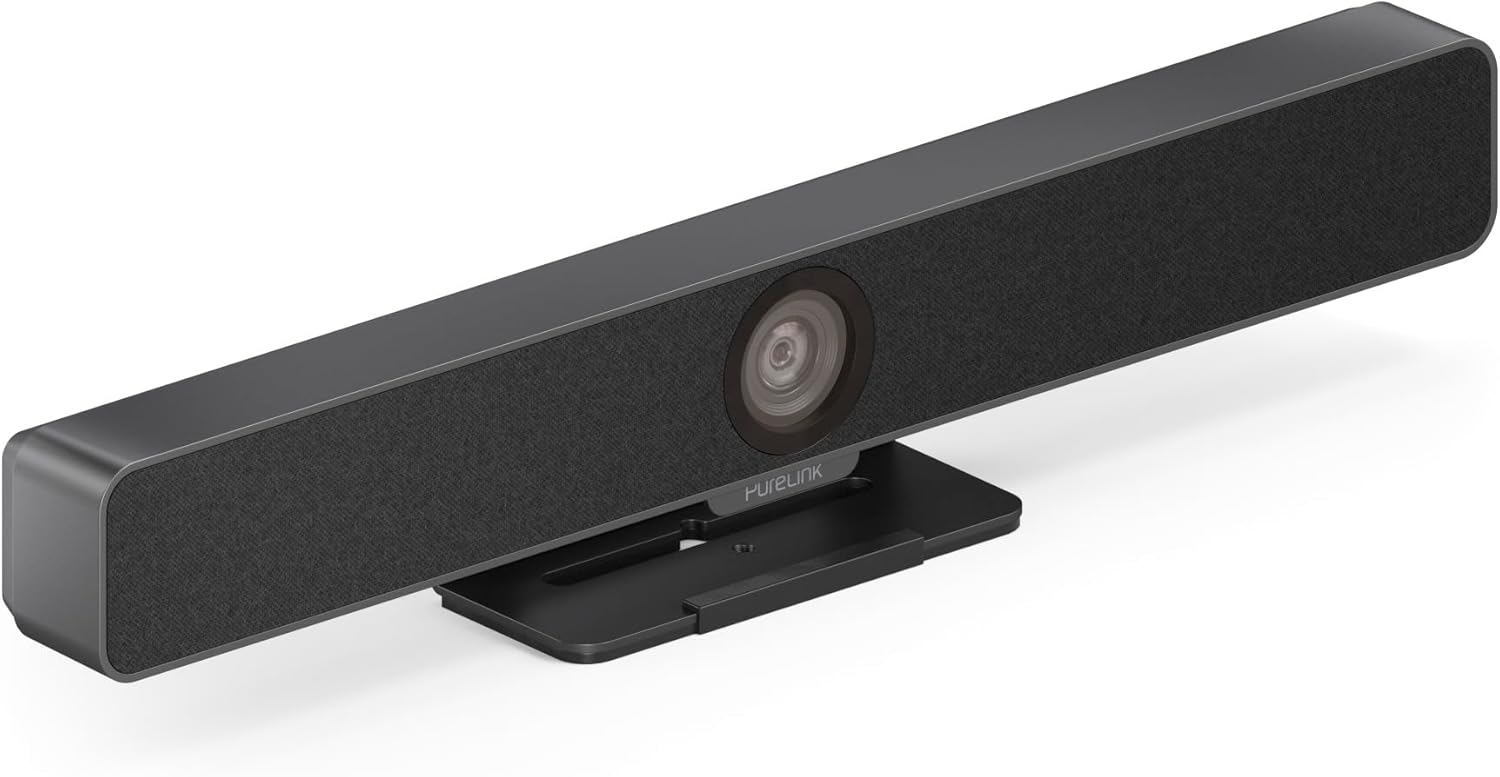
الشكل 3.3: الجبهة view of the PureLink Vuelogic VB200 Huddle Space Videobar, showcasing the integrated camera and speaker grille.

الشكل 3.4: الأمامي والخلفي views of the videobar. The rear view displays the power input, USB-C port, and other connectivity options.
- أمام: Integrated 4K camera, speaker grille, PureLink branding.
- مؤخرة: Power input, USB-C port for data and power, HDMI output (if applicable), mounting points.
4. الإعداد
Follow these steps to set up your PureLink Vuelogic VB200 Videobar:
- الموقع: Position the videobar on a stable surface, such as a table or monitor, ensuring the camera has a clear view of the meeting participants. The integrated stand allows for flexible placement.
- توصيل الطاقة: Connect the provided power adapter to the videobar's power input and then to a wall outlet.
- اتصال USB: Connect the videobar to your computer using the supplied USB-C cable. The device is plug-and-play and should be recognized automatically by your operating system.
- وصلة HDMI اختيارية: If your setup requires video output to a display, connect an HDMI cable from the videobar's HDMI output (if available) to your display.
- التعرف على البرامج: Once connected, your computer's operating system (Windows, macOS, etc.) should detect the device. You may need to select the "PureLink Vuelogic VB200" as your preferred camera, microphone, and speaker in your video conferencing application settings (e.g., Zoom, Microsoft Teams, Webالسابق).

Figure 4.1: The videobar positioned on a surface, demonstrating its flexible mounting options for various work environments.
5. تعليمات التشغيل
The PureLink Vuelogic VB200 is designed for ease of use with popular video conferencing platforms.
5.1. بدء الاجتماع
- Ensure the videobar is connected and powered on.
- Open your preferred video conferencing application (e.g., Zoom, Microsoft Teams, WebEx, Google Meet, Skype, Slack, GoToMeeting).
- In the application's audio and video settings, select "PureLink Vuelogic VB200" as your camera, microphone, and speaker device.
- Start or join your meeting.

Figure 5.1: The videobar is compatible with leading communication platforms such as Zoom, Slack, GoToMeeting, Google Hangouts, Skype, Microsoft Teams, and Google Meet.
5.2. الميزات الرئيسية
- جودة فيديو 4K: The 120° wide-angle lens captures sharp, high-resolution video, suitable for small to medium rooms.
- Intelligent Auto Framing and Tracking: The camera automatically adjusts its frame to keep all participants visible and can track the active speaker, ensuring optimal framing during dynamic meetings.
- High-Quality Audio Capture: Equipped with 4 MEMS digital microphone arrays, offering a 3-5m range and 180° coverage. Features like Acoustic Echo Cancellation (AEC), Automatic Gain Control (AGC), and Automatic Noise Suppression (ANS) ensure clear communication.
- Hi-Fi Stereo Speakers: Two 3W stereo speakers with bass boost provide clear and powerful audio output for an immersive sound experience.
6. الصيانة
To ensure the longevity and optimal performance of your videobar:
- تنظيف: Use a soft, dry cloth to clean the exterior of the device. For the camera lens, use a lens cleaning cloth and solution specifically designed for optics. Do not use abrasive cleaners or solvents.
- تخزين: عند عدم استخدام الجهاز لفترات طويلة، قم بتخزينه في مكان بارد وجاف بعيدًا عن أشعة الشمس المباشرة.
- تحديثات البرامج الثابتة: Periodically check the PureLink website for any available firmware updates to ensure your device has the latest features and performance enhancements.
7. استكشاف الأخطاء وإصلاحها
If you encounter issues with your PureLink Vuelogic VB200, refer to the following common problems and solutions:
| مشكلة | السبب المحتمل | حل |
|---|---|---|
| لا يوجد إخراج فيديو / لم يتم اكتشاف الكاميرا | اتصال USB غير محكم، إعدادات برمجية غير صحيحة، مشكلة في برنامج التشغيل. |
|
| No audio from speakers / Microphone not working | Incorrect audio settings, muted device. |
|
| Auto-framing not functioning correctly | Poor lighting, obstruction, software glitch. |
|
8. المواصفات
| ميزة | التفاصيل |
|---|---|
| ماركة | بيورلينك |
| رقم الموديل | VL-VB200 |
| أبعاد | 20.47 × 7.87 × 5.12 بوصة |
| وزن | 2.2 رطل |
| لون | أسود |
| دقة التقاط الفيديو | 4K |
| التكبير البصري | 5x |
| تقنية مستشعر الصور | سيموس |
| المميزات الخاصة | Auto Framing and Tracking |
| نوع الميكروفون | 4 MEMS Digital Microphone Arrays |
| مدى الميكروفون | 3-5m, 180° coverage |
| ميزات الصوت | AEC، AGC، ANS |
| المتحدثون | Two 3W Stereo Speakers with Bass Boost |
| تكنولوجيا الاتصال | اتش دي ام اي، يو اس بي |
| تنسيق الصوت المدعوم | AAC، MP3 |
| تنسيق الفيديو المدعوم | إم بي 4 |
| التوافق | Windows, macOS, Zoom, WebEx, Tencent Meeting, Teams, etc. |
9. الضمان والدعم
PureLink products are designed for reliability and performance. For specific warranty information, please refer to the warranty card included with your product or visit the official PureLink webموقع.
For technical support, troubleshooting assistance, or to inquire about service, please contact PureLink customer support through their official channels. Keep your purchase receipt and product model number (VL-VB200) handy when contacting support.
Official PureLink Webموقع: www.purelink.de