
1. المقدمة
This manual provides detailed instructions for the setup, operation, and maintenance of your INPHIC M6Pro Wireless Tri-Mode Ergonomic Mouse. Please read this manual thoroughly before using the product to ensure proper functionality and longevity.
2. انتهى المنتجview
The INPHIC M6Pro is a versatile wireless mouse designed for comfort and efficiency. It features multiple connectivity options, customizable performance, and smart features to enhance your computing experience.
المميزات الرئيسية:
- الاتصال المزدوج: Supports both 2.4G wireless and Bluetooth 5.0 connections for flexible device pairing.
- تصميم مريح: Right-handed design with a 39mm height, wide thumb rest, and non-slip grips for enhanced comfort and stability during extended use.
- Customizable Performance: Offers 5-speed DPI adjustment ranging from 800 to 2400 DPI, allowing you to tailor cursor sensitivity. Features silent click buttons for quiet operation.
- الميزات الذكية: Includes RGB lighting effects, a stepped battery indicator, and optimized three-dimensional side buttons designed to prevent accidental clicks.
- كفاءة الطاقة: Equipped with a 500mAh rechargeable battery and a convenient Type-C charging port for prolonged use.
3. محتويات العبوة
- INPHIC M6Pro Wireless Mouse
- مستقبل USB (مخزن داخل الماوس)
- كابل شحن USB-C
- دليل المستخدم
4. الإعداد
4.1 شحن الماوس
Before first use, fully charge the mouse. Connect the provided USB-C charging cable to the Type-C port on the front of the mouse and to a USB power source.

Image: The INPHIC M6Pro mouse being charged via its Type-C port. The battery indicator lights are visible, showing charging status.
The battery indicator lights will flash in a cycle while charging. Once fully charged, all battery indicator lights will remain steadily lit.
Video: Demonstrates the mouse charging process, showing the battery indicator lights flashing during charging and remaining solid when fully charged.
4.2 اتصال لاسلكي 2.4G
- قم بتحديد موقع مستقبل USB المخزن في الحجرة الموجودة في الجزء السفلي من الماوس.
- قم بتوصيل مستقبل USB بمنفذ USB متاح على جهاز الكمبيوتر الخاص بك.
- Turn on the mouse using the ON/OFF switch located at the bottom.
- Ensure the mode switch at the bottom is set to the '2.4G' position (red light will be on). The mouse should automatically connect to your device.
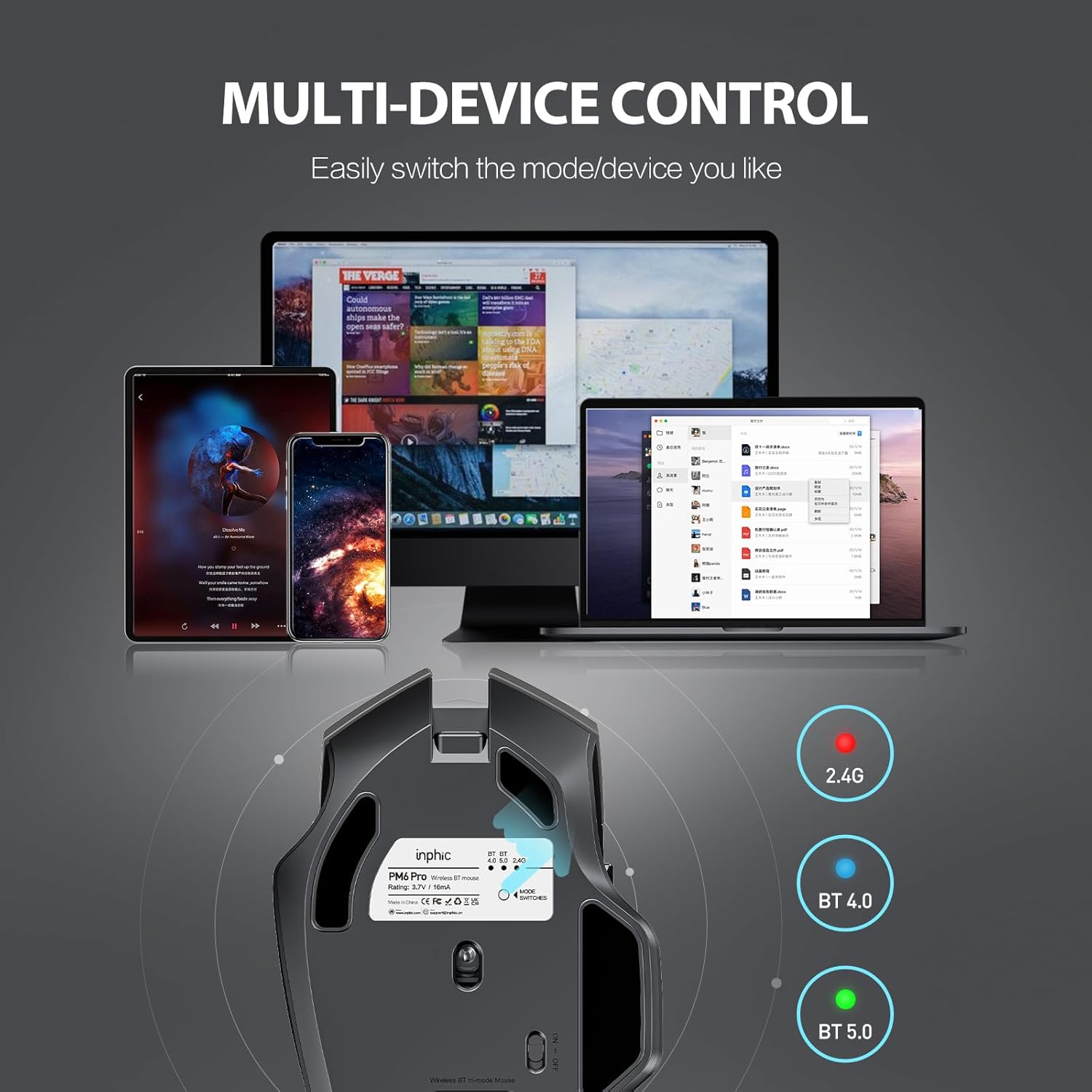
Image: The underside of the mouse, highlighting the USB receiver storage and the mode switch for 2.4G, BT 4.0, and BT 5.0 connections.
4.3 Bluetooth Connection (BT 5.0 / BT 4.0)
- Turn on the mouse using the ON/OFF switch at the bottom.
- Short-press the 'MODE SWITCHES' button at the bottom to cycle through connection modes until the desired Bluetooth indicator (BT 5.0 or BT 4.0) lights up.
- For pairing, long-press the 'MODE SWITCHES' button until the selected Bluetooth indicator light flashes rapidly. This indicates the mouse is in pairing mode.
- On your device (computer, tablet, etc.), go to Bluetooth settings and search for new devices. Select 'INPHIC M6Pro' (or similar name) to pair.
Video: Demonstrates how to switch between 2.4G and Bluetooth modes (BT 4.0, BT 5.0) and enter pairing mode by pressing the mode switch button on the mouse's underside.
5. تعليمات التشغيل
5.1 ضبط DPI
The mouse features a DPI switch button located behind the scroll wheel. Press this button to cycle through 5 DPI settings (800, 1200, 1600, 2000, 2400 DPI) to adjust cursor sensitivity to your preference.

Image: A diagram illustrating the location of the DPI switch button and other buttons on the mouse.
5.2 وظائف الأزرار
The INPHIC M6Pro mouse is equipped with 6 buttons:
- المفتاح الأيسر: وظيفة النقر بزر الماوس الأيسر القياسية.
- المفتاح الصحيح: وظيفة النقر بزر الماوس الأيمن القياسية.
- عجلة التمرير: Scrolls up/down, and acts as a middle-click button.
- مفتاح DPI: يضبط حساسية المؤشر (DPI).
- زر للأمام: يتنقل للأمام في web المتصفحات أو file المستكشفون.
- زر الرجوع: يتنقل للخلف في web المتصفحات أو file المستكشفون.

الصورة: مفصلة view of the mouse's underside, showing the power switch, LED indicator, and USB receiver slot.
5.3 تصميم مريح وتشغيل صامت
The mouse features a curved, skin-like material design for a comfortable grip, reducing hand strain during prolonged use. The widened thumb rest further enhances comfort and control.
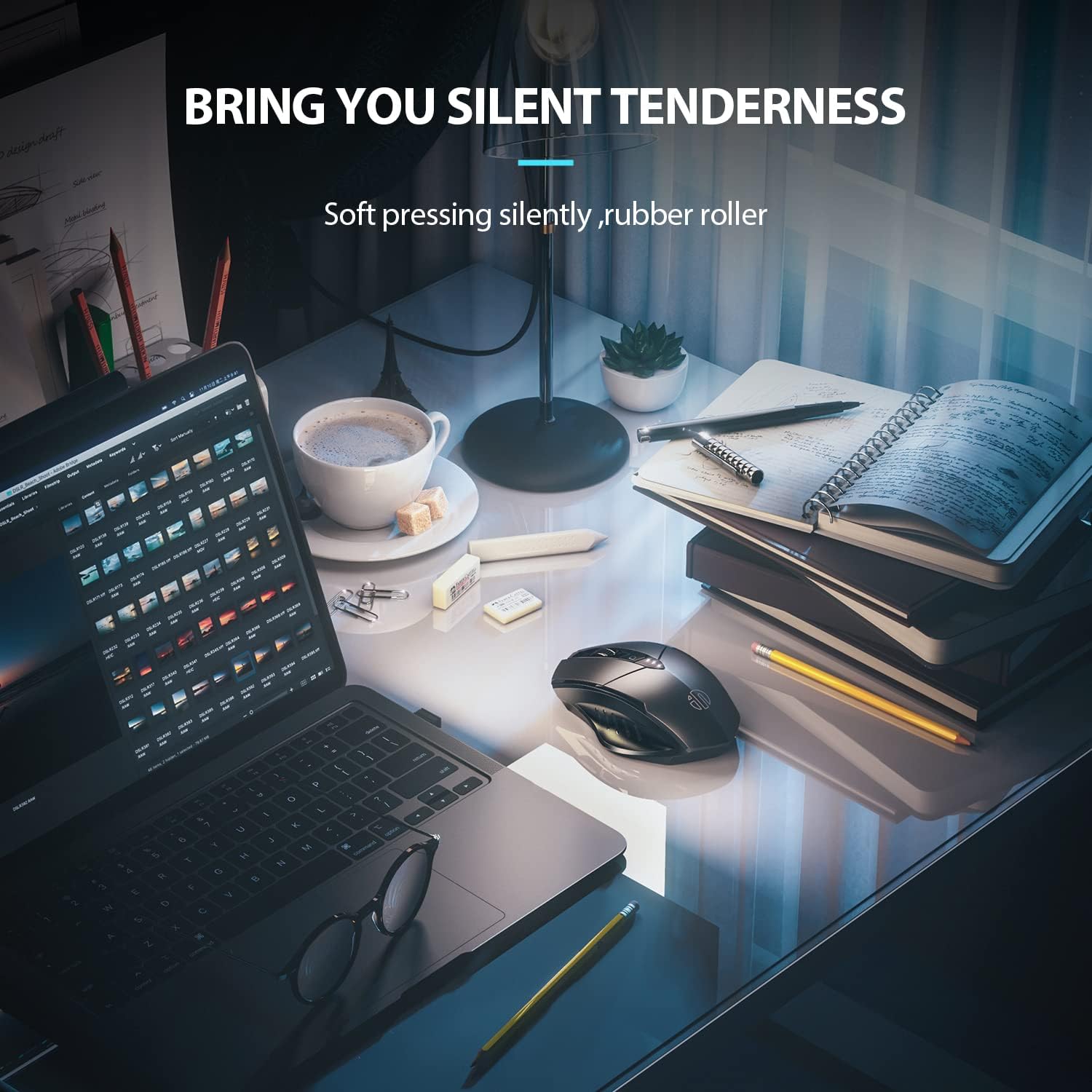
Image: The ergonomic shape of the mouse, designed for a comfortable user experience.

Image: A close-up showing the widened thumb rest for a more comfortable grip.
The left and right click buttons are designed for silent operation, allowing you to work without disturbing others.

Image: Illustrates the silent click feature of the mouse, ideal for quiet environments.
6. الصيانة
To ensure the longevity and optimal performance of your INPHIC M6Pro mouse, follow these maintenance guidelines:
- تنظيف: استخدم قطعة قماش ناعمة وجافة لمسح الفأرة. لإزالة الأوساخ المستعصية، افركها برفق.ampامسح بقطعة قماش مبللة بالماء أو بمحلول تنظيف خفيف. تجنب المواد الكيميائية القاسية أو المواد الكاشطة.
- تخزين: عند عدم استخدام الماوس لفترات طويلة، قم بإيقاف تشغيله لتوفير طاقة البطارية. خزّنه في مكان بارد وجاف بعيدًا عن أشعة الشمس المباشرة ودرجات الحرارة القصوى.
- العناية بالبطارية: تجنب تفريغ البطارية بالكامل بشكل متكرر. اشحن الماوس عندما يشير مؤشر البطارية إلى انخفاض مستوى الطاقة.
- مستقبل USB: Keep the USB receiver in its designated storage slot at the bottom of the mouse when traveling to prevent loss.
7. استكشاف الأخطاء وإصلاحها
If you encounter issues with your INPHIC M6Pro mouse, refer to the following common solutions:
| مشكلة | السبب المحتمل | حل |
|---|---|---|
| الفأرة لا تستجيب (2.4 جيجا) | USB receiver not properly connected or mouse is off. | Ensure the USB receiver is securely plugged into a USB port. Turn on the mouse and ensure the mode switch is set to 2.4G. Try a different USB port. |
| الماوس لا يستجيب (بلوتوث) | Not paired, out of range, or incorrect Bluetooth mode selected. | Ensure the mouse is in the correct Bluetooth mode (BT 5.0 or BT 4.0) and in pairing mode (flashing light). Re-pair the mouse with your device. Ensure the mouse is within 10 meters of your device. |
| حركة المؤشر غير منتظمة أو بطيئة | Low battery, incorrect DPI setting, or dirty sensor. | Charge the mouse. Adjust the DPI setting using the DPI button. Clean the optical sensor at the bottom of the mouse with a soft cloth. |
| الأزرار لا تستجيب للنقر أو لا تستجيب | انخفاض مستوى البطارية أو وجود مشكلة في الاتصال. | Charge the mouse. Re-establish the connection (2.4G or Bluetooth). |
| البطارية لا تشحن | كابل أو مصدر طاقة معيب. | Try a different USB-C cable and a different USB power source. Ensure the cable is properly connected to the mouse's Type-C port. |
8. المواصفات
| ميزة | التفاصيل |
|---|---|
| رقم الموديل | ام 6 برو |
| تكنولوجيا الاتصال | لاسلكي بتردد 2.4 جيجا هرتز، بلوتوث 5.0، بلوتوث 4.0 (ثلاثي الأوضاع) |
| تقنية كشف الحركة | بصري |
| إعدادات DPI | 800، 1200، 1600، 2000، 2400 |
| أزرار | 6 (يسار، يمين، عجلة التمرير، مفتاح DPI، للأمام، للخلف) |
| نوع البطارية | Rechargeable Lithium Polymer (500mAh) |
| منفذ الشحن | النوع-C |
| أبعاد المنتج | 4.65 × 1.57 × 0.04 بوصة |
| وزن العنصر | 3.35 أونصات |
| أنظمة التشغيل المتوافقة | Windows Vista/7 and above, Mac OS X 10.10 and above, iOS 13 and above, Android 5.0 and above, Linux kernel 2.6+, Chrome OS |
9. الضمان والدعم
INPHIC products are designed for reliability and performance. For warranty information or technical support, please refer to the contact details provided with your product packaging or visit the official INPHIC webالموقع. احتفظ بإيصال الشراء الخاص بك كإثبات للشراء في حالة مطالبات الضمان.