
1. المقدمة
Welcome to the Blackview Tab 16 user manual. This guide provides essential information for setting up, operating, maintaining, and troubleshooting your new Blackview Tab 16 Android tablet. Please read this manual carefully to ensure optimal performance and longevity of your device.

صورة: ذا بلاكview Tab 16 tablet, showcasinتصميمها الأنيق.
2. ماذا يوجد في الصندوق
تأكد من وجود جميع العناصر في صندوقك الأسودview Tab 16 package:
- أسودview Tab 16 Tablet (x1)
- دليل المستخدم (x1)
- محول الطاقة (x1)
- كبل USB (x1)
- قلم (x1)
- TPU Protective Case (x1)
3. انتهى المنتجview
3.1 التصميم المادي
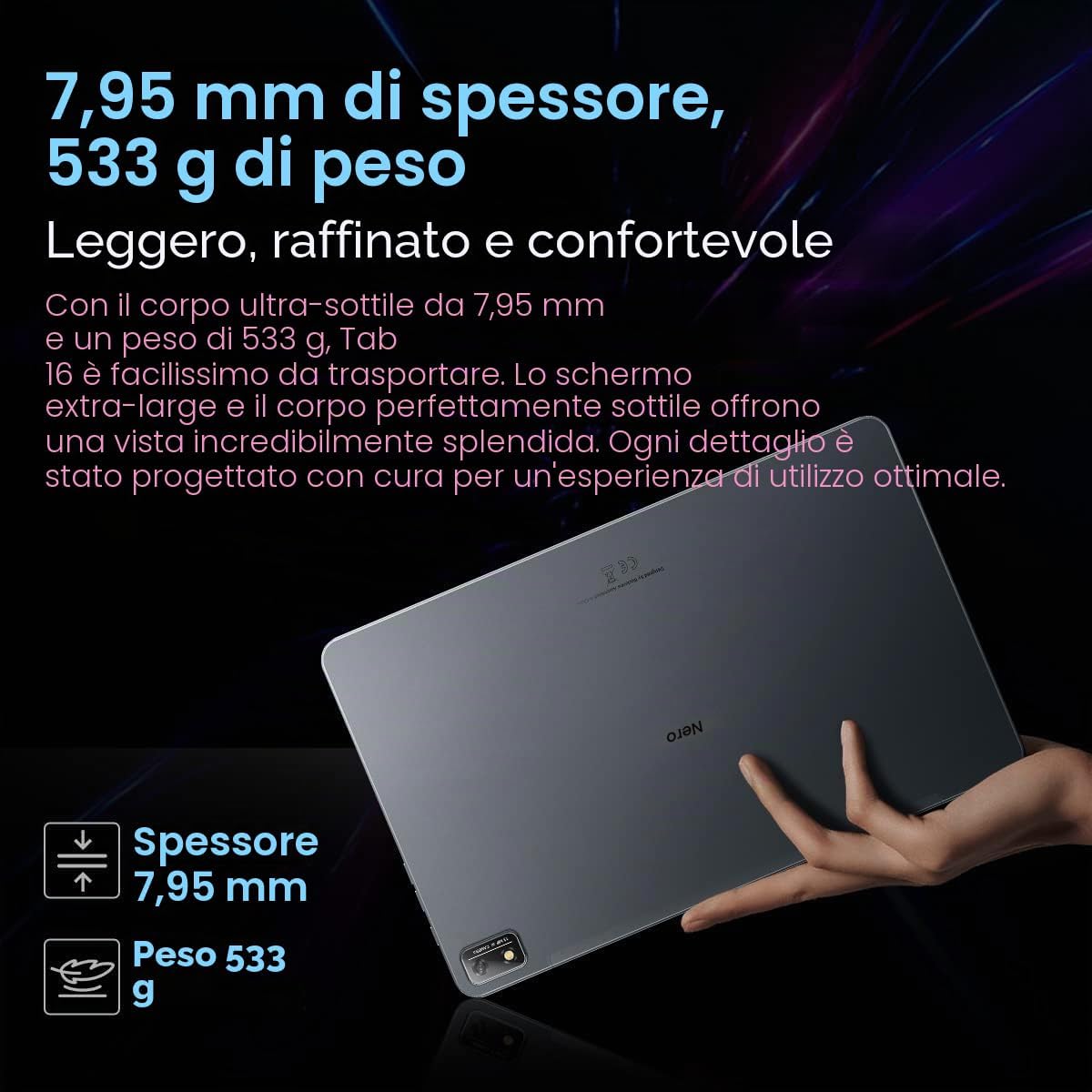
الأسودview Tab 16 features a slim and lightweight design, making it highly portable for daily use.

صورة: ذا بلاكview Tab 16, demonstrating its ultra-thin 7.95mm profile and light 533g weight.
3.2 العرض
Experience immersive visuals on the 11-inch 2K Full View IPS display, offering vibrant colors and wide viewزوايا متعددة.

Image: Visual representation of the 11-inch 2K Full View display, emphasizing its large screen for an enhanced viewتجربة رائعة.
3.3 صوت
The tablet is equipped with Quad-box Smart-K stereo speakers, providing rich and clear audio for all your multimedia needs.

صورة: ذا بلاكview Tab 16 showcasing its Quad-box Smart-K speakers, designed for an immersive audio experience.
أداء 3.4
Powered by an Octa-core Unisoc T616 processor, the Tab 16 ensures smooth operation and efficient multitasking.

Image: A visual representation of the Unisoc T616 Octa-core processor, highlighting its speed and efficiency.
3.5 كاميرا
Capture moments with the 13MP AI rear camera and 8MP AI front camera. The integrated Google Smart Lens offers advanced scanning, detection, and translation features.

صورة: ذا بلاكview Tab 16's camera system, featuring a 13MP AI camera and Google Smart Lens capabilities.
3.6 البطارية
The 7680mAh battery provides extended usage, supported by 18W fast charging for quick power-ups.

Image: Illustration of the Blackview Tab 16's 7680mAh battery and 18W fast charging capability.
4. الإعداد
4.1 شحن الجهاز
قبل الاستخدام الأول، اشحن جهاز بلاك بالكاملview Tab 16 using the provided power adapter and USB cable. Connect the USB cable to the tablet's Type-C port and the adapter to a power outlet. The charging indicator will show the charging status.
4.2 تشغيل/إيقاف التشغيل
- لتشغيل: اضغط مع الاستمرار على زر التشغيل حتى يظهر اللون الأسودview يظهر الشعار على الشاشة.
- لإيقاف التشغيل: اضغط مع الاستمرار على زر الطاقة حتى تظهر قائمة. اختر "إيقاف التشغيل" ثم أكد.
- لإعادة التشغيل: اضغط مع الاستمرار على زر الطاقة حتى تظهر قائمة. اختر "إعادة التشغيل" ثم أكد.
4.3 الإعداد الأولي
Upon first power-on, follow the on-screen instructions to configure your tablet:
- اختر اللغة المفضلة لديك.
- الاتصال بشبكة Wi-Fi.
- قم بتسجيل الدخول باستخدام حساب Google الخاص بك أو قم بإنشاء حساب جديد.
- إعداد قفل الشاشة (رقم التعريف الشخصي أو النمط أو كلمة المرور أو التعرف على الوجه).
- Review وقبول الشروط والأحكام.
4.4 تركيب بطاقة SIM وبطاقة SD
الأسودview Tab 16 supports Dual SIM and an SD card for expanded storage up to 1TB.
- حدد مكان درج بطاقة SIM/SD على جانب الجهاز اللوحي.
- استخدم أداة إخراج بطاقة SIM المتوفرة لفتح الدرج.
- Carefully place your Nano-SIM cards and/or microSD card into the designated slots. Ensure correct orientation.
- ادفع الدرج برفق إلى داخل الجهاز اللوحي حتى يستقر في مكانه.
5. تعليمات التشغيل
5.1 الملاحة الأساسية
الأسودview Tab 16 uses a touchscreen interface. Common gestures include:
- مقبض: حدد عنصرًا أو افتح تطبيقًا.
- انتقاد: تصفح الصفحات أو المحتوى.
- قرصة: تكبير أو تصغير الصور و web الصفحات.
- ضغطة طويلة: الوصول إلى القوائم السياقية أو نقل الأيقونات.
5.2 الاتصال
- واي فاي: انتقل إلى الإعدادات > الشبكة والإنترنت > Wi-Fi للاتصال بالشبكات المتاحة.
- بيانات الهاتف المحمول (4G/LTE): Ensure your SIM card is installed and mobile data is enabled in Settings > Network & internet > Mobile network.
- بلوتوث: Pair with Bluetooth devices (headphones, speakers) via Settings > Connected devices > Bluetooth.
5.3 استخدام الكاميرا
Open the Camera app to take photos or record videos. Utilize the Google Smart Lens feature for advanced functions:
- مسح: Digitize documents or QR codes.
- يكشف: Identify objects, plants, or animals.
- يترجم: Translate text in real-time.
5.4 الوسائط المتعددة والترفيه
Enjoy movies, music, and games on your Tab 16. The 11-inch 2K display and Quad-box speakers provide an engaging experience. The tablet supports Widevine L1 for high-definition streaming.
5.5 Productivity
الأسودview Tab 16 is suitable for office work and online learning. It supports external accessories like keyboards and mice for a PC-like experience.
صورة: ذا بلاكview Tab 16 paired with a keyboard and mouse, demonstrating its capability for a PC-like productivity experience.
5.6 أوضاع القراءة
To reduce eye strain, the Tab 16 offers three eye protection modes, including a TÜV Rheinland Low Blue Light certified mode and a Dark Mode with 3 levels of darkness. Access these settings in the display options.
6. الصيانة
6.1 تنظيف الجهاز
استخدم قطعة قماش ناعمة وخالية من الوبر لتنظيف شاشة وجسم الجهاز اللوحي. تجنب استخدام المواد الكيميائية القاسية أو المواد الكاشطة التي قد تُتلف السطح.
6.2 العناية بالبطارية
لإطالة عمر البطارية:
- تجنب درجات الحرارة القصوى.
- لا تترك البطارية تنفد بشكل كامل بانتظام.
- استخدم الشاحن والكابل الأصليين.
6.3 تحديثات البرامج
Regularly check for system updates to ensure your tablet has the latest features and security patches. Go to Settings > System > System update.
6.4 إدارة التخزين
Manage your 256GB internal storage and any installed microSD card by regularly deleting unnecessary files and uninstalling unused applications. Go to Settings > Storage.
7. استكشاف الأخطاء وإصلاحها
إذا واجهت مشاكل مع جهازك الأسودview Tab 16, refer to the following common solutions:
| مشكلة | الحل المحتمل |
|---|---|
| الجهاز لا يعمل | تأكد من شحن البطارية. اضغط باستمرار على زر التشغيل لمدة ١٠-١٥ ثانية على الأقل. |
| الجهاز اللوحي لا يشحن | Check the charging cable and adapter for damage. Try a different power outlet. Ensure the charging port is clean. |
| مشاكل اتصال Wi-Fi | Restart the tablet and your Wi-Fi router. Forget the network and reconnect. Ensure you are within range. |
| تعطل التطبيقات أو تجميدها | Close and reopen the app. Clear the app's cache (Settings > Apps > [App Name] > Storage & cache). Restart the tablet. |
| الأداء البطيء | Close background apps. Clear cache. Free up storage space. Restart the tablet. |
If problems persist, consider performing a factory reset (Settings > System > Reset options > Erase all data), but back up your data first as this will delete all personal information.
8. المواصفات
المواصفات الفنية الرئيسية للأسودview علامة التبويب 16:
- اسم الموديل: علامة التبويب 16
- نظام التشغيل: أندرويد 12
- المعالج: معالج Unisoc T616 ثماني النواة (2 جيجاهرتز)
- كبش: 8 جيجا بايت
- التخزين الداخلي: 256 جيجا بايت
- مساحة تخزين قابلة للتوسعة: بطاقة microSD بسعة تصل إلى 1 تيرابايت
- عرض: 11-inch IPS 2K (2000 x 1200), 60 Hz, 16:10 aspect ratio
- الكاميرا الخلفية: 13 ميجا بكسل
- الكاميرا الأمامية: 8 ميجا بكسل
- بطارية: 7680 mAh (26 hours average duration)
- الشحن: شحن سريع بقوة 18 واط
- الاتصال: Wi-Fi, Bluetooth, 4G/LTE (Dual SIM), GPS
- الموانئ: يو إس بي من النوع سي
- أبعاد: 26 لترًا × 16.5 عرضًا × 0.8 ارتفاعًا سم
- وزن: 533 جرام
- المميزات الخاصة: Google Smart Lens, Widevine L1 1080P Support, 3 Reading Modes
9. الضمان والدعم
أسودكview Tab 16 is covered by a manufacturer's warranty. Please refer to the warranty card included in your package for specific terms and conditions. For technical support or service inquiries, please visit the official Blackview webالموقع الإلكتروني أو تواصل مع قسم خدمة العملاء. احتفظ بإيصال الشراء كإثبات للشراء في حال وجود أي مطالبات بالضمان.
لمزيد من المعلومات يمكنك زيارة أسودview متجر على أمازون.