
1. المقدمة
This manual provides comprehensive instructions for the iClever MD179 Multi-Device Wireless Mouse. It covers setup, operation, maintenance, and troubleshooting to ensure optimal performance and a seamless user experience. Please read this manual thoroughly before using the product.
2. محتويات العبوة
تأكد من وجود جميع العناصر في الحزمة الخاصة بك:
- iClever MD179 Wireless Mouse
- USB 2.4GHz Receiver (stored inside the mouse)
- كابل شحن USB-C
- دليل المستخدم (هذا المستند)
3. انتهى المنتجview
Familiarize yourself with the mouse's components and controls:

الشكل 1: iClever MD179 Mouse Button Layout
- زر النقر بالزر الأيمن: Standard right-click functionality.
- زر النقر الأيسر: Standard left-click functionality.
- عجلة التمرير / زر النقر الأوسط: For scrolling and middle-click actions.
- زر للأمام: يتنقل للأمام في web المتصفحات أو file explorers (Windows only).
- زر الرجوع: يتنقل للخلف في web المتصفحات أو file explorers (Windows only).
- زر تبديل DPI: يضبط حساسية المؤشر (DPI).
- مفتاح التشغيل / الإيقاف: يوجد زر التشغيل أو الإيقاف في أسفل الماوس.
- 2.4GHz / Bluetooth 1 / Bluetooth 2 Channel Indicator: Displays the active connection mode.
4. الإعداد
4.1 شحن الماوس
Before initial use, fully charge the mouse.
- Connect the provided USB-C cable to the charging port on the front of the mouse and to a USB power source (e.g., computer USB port, USB wall adapter).
- سيضيء مؤشر الشحن أثناء الشحن وينطفئ عند اكتمال الشحن.
- A full charge typically provides up to 2 months of use, depending on usage.
- The mouse can be used wirelessly while it is charging.
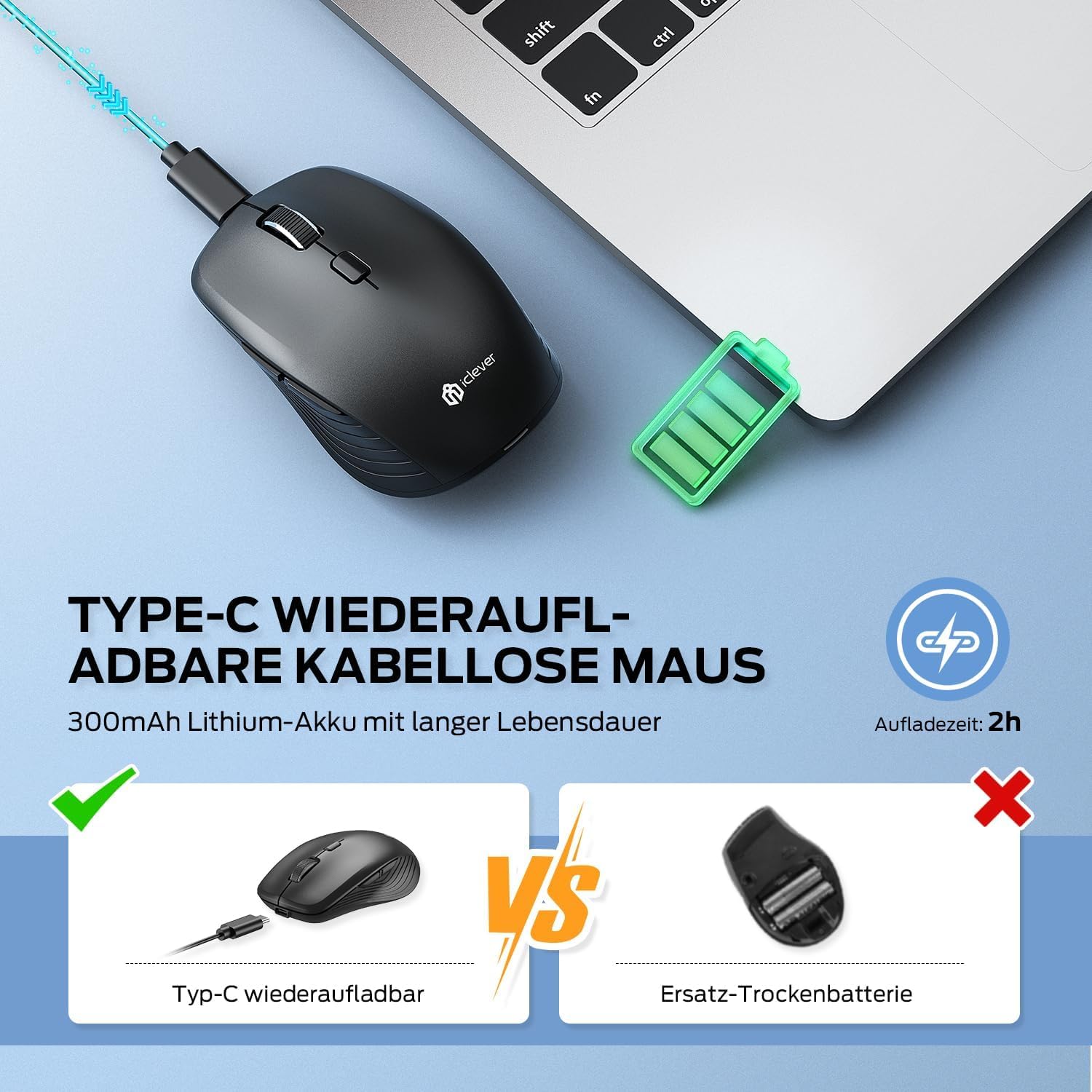
الشكل 2: USB-C Rechargeable Feature
4.2 الاتصال عبر شبكة لاسلكية بتردد 2.4 جيجاهرتز
For a stable and quick connection:
- Locate the USB 2.4GHz receiver. It is stored in a compartment under the magnetic top cover of the mouse. Gently lift the top cover to access it.
- أدخل مستقبل USB في منفذ USB متاح على جهاز الكمبيوتر الخاص بك.
- قم بتشغيل الماوس باستخدام مفتاح التشغيل/الإيقاف الموجود في الجزء السفلي.
- Switch the connection mode to 2.4GHz (refer to the channel indicator on the bottom).
- ينبغي أن يتصل الماوس تلقائيًا.

الشكل 3: خيارات الاتصال
4.3 الاتصال عبر البلوتوث (BT1 / BT2)
The mouse supports two Bluetooth connections:
- قم بتشغيل الماوس باستخدام مفتاح التشغيل/الإيقاف الموجود في الجزء السفلي.
- Switch the connection mode to either Bluetooth 1 (BT1) or Bluetooth 2 (BT2) using the channel switch button on the bottom. The indicator light will confirm the selected channel.
- Press and hold the channel switch button for 3-5 seconds until the indicator light flashes rapidly. This indicates the mouse is in pairing mode.
- On your device (PC, Mac, laptop, tablet), go to Bluetooth settings.
- بحث عن "iClever MD179" or a similar name in the list of available devices and select it to pair.
- كرر هذه الخطوات لجهاز بلوتوث ثان باستخدام قناة البلوتوث الأخرى (BT2).

الشكل 4: إمكانية الاتصال بأجهزة متعددة
4.4 التبديل بين الأجهزة
للتبديل بين الأجهزة المتصلة:
- Use the channel switch button on the bottom of the mouse to cycle between the 2.4GHz, Bluetooth 1, and Bluetooth 2 connections.
- The indicator light will confirm the currently active channel.
5. تعليمات التشغيل

الشكل 5: Mouse in Use with Multiple Devices
5.1 ضبط DPI
Adjust the cursor sensitivity to match your preference or task:
- Press the DPI switch button (button 6 in Product Overview) to cycle through the available DPI settings: 800, 1200, 1600, and 2400 DPI.
- The indicator light may flash briefly to confirm the DPI change.
- Higher DPI settings result in faster cursor movement across the screen.
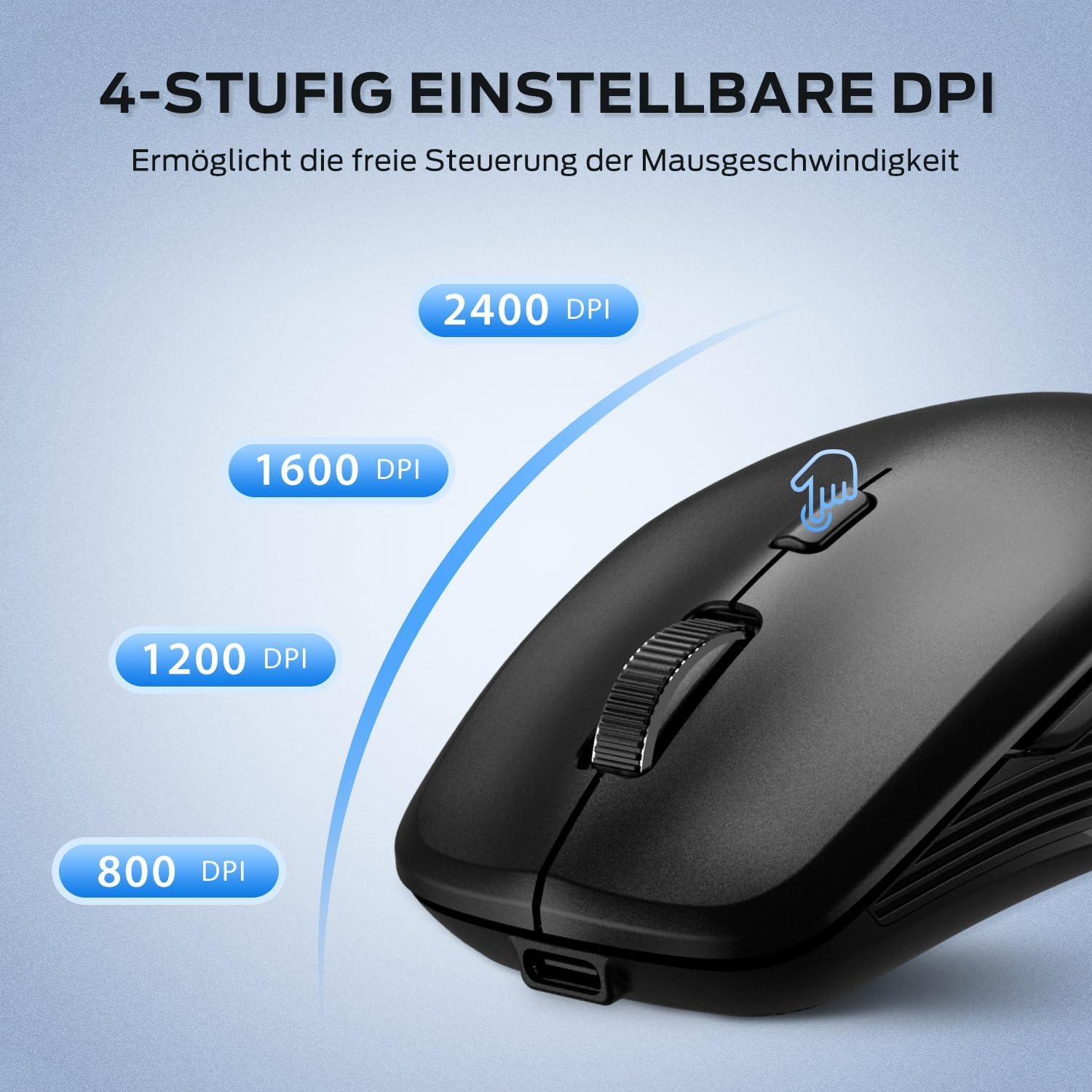
الشكل 6: Adjustable DPI Settings
5.2 ميزة النقر الصامت
The iClever MD179 mouse is designed with silent left and right click buttons to minimize noise, making it ideal for quiet environments such as libraries, offices, or late-night use at home.

الشكل 7: Silent Click Benefits
5.3 Side Buttons (Forward/Back)
The forward and back buttons (buttons 4 and 5 in Product Overview) provide convenient navigation in web المتصفحات و file explorers. Please note that these buttons are primarily functional on Windows operating systems. Their functionality may vary or require specific software configuration on macOS or other operating systems.
5.4 إدارة الطاقة
The mouse incorporates features to optimize battery life:
- وضع السكون التلقائي: The mouse will enter an automatic sleep mode after a period of inactivity to conserve power. Move the mouse or click any button to wake it up.
- مفتاح تشغيل / إيقاف: For extended periods of non-use, it is recommended to turn off the mouse completely using the ON/OFF switch (button 7 in Product Overview) located on the bottom.
6. الصيانة
6.1 التنظيف
To keep your mouse in optimal condition:
- Gently wipe the mouse surface with a soft, slightly damp قطعة قماش.
- تجنب استخدام المواد الكيميائية القاسية أو المنظفات الكاشطة أو المذيبات، لأنها قد تتلف السطح.
- تأكد من عدم دخول أي سائل إلى المكونات الداخلية للفأرة.
- Periodically clean the optical sensor on the bottom of the mouse with a dry cotton swab to ensure accurate tracking.
6.2 العناية بالبطارية
Proper battery care extends the lifespan of your mouse:
- Charge the mouse regularly and avoid letting the battery fully deplete frequently.
- If storing the mouse for an extended period, charge it to approximately 50% and turn it off using the power switch.
- Avoid exposing the mouse to extreme temperatures, which can affect battery performance.

الشكل 8: تخزين مستقبل USB
7. استكشاف الأخطاء وإصلاحها
If you encounter issues with your iClever MD179 mouse, refer to the following common solutions:
- الفأرة لا تستجيب:
- تأكد من تشغيل الماوس باستخدام مفتاح التشغيل/الإيقاف.
- تحقق من مستوى البطارية واشحن الماوس إذا لزم الأمر.
- For 2.4GHz connection: Verify the USB receiver is securely plugged into a working USB port and the mouse is set to 2.4GHz mode. Try a different USB port.
- For Bluetooth connection: Ensure Bluetooth is enabled on your device, the mouse is in the correct Bluetooth mode (BT1/BT2), and it is paired correctly. Try removing the mouse from your device's Bluetooth list and re-pairing it.
- أعد تشغيل الكمبيوتر أو الجهاز.
- حركة المؤشر غير منتظمة أو بطيئة:
- قم بتنظيف المستشعر البصري الموجود في الجزء السفلي من الماوس.
- تأكد من استخدام الماوس على سطح مناسب (غير عاكس، غير شفاف).
- Adjust the DPI setting to a higher value using the DPI switch button if the cursor is too slow.
- لا يمكن التبديل بين الأجهزة:
- Ensure the channel switch button on the bottom of the mouse is pressed firmly.
- Verify that each device is correctly connected to its respective channel (2.4GHz, BT1, BT2).
8. المواصفات
| ميزة | وصف |
|---|---|
| ماركة | iClever |
| نموذج | MD179 Bluetooth Mouse |
| أبعاد المنتج | 10.1 × 6.1 × 3.4 سم |
| وزن العنصر | 70 جرام |
| توافق نظام التشغيل | ويندوز، ماك، كروم أو إس |
| منصة الأجهزة | لينكس، ماك، كمبيوتر شخصي |
| الأجهزة المتوافقة | الكمبيوتر الشخصي والكمبيوتر اللوحي |
| المميزات الخاصة | Wireless, Silent Click, Multi-Device Connectivity |
| مصدر الطاقة | يعمل بالبطارية (قابلة لإعادة الشحن عبر USB-C) |
| تكنولوجيا الاتصال | بلوتوث، لاسلكي بتردد 2.4 جيجاهرتز |
| تقنية استشعار الحركة | بصري |
| اتجاه اليد | ثنائي الاستخدام |
| إعدادات DPI | 800 / 1200 / 1600 / 2400 نقطة في البوصة |
| سعة البطارية | بطارية ليثيوم 300 مللي أمبير |
9. الضمان والدعم
iClever products are designed for reliability and performance. For detailed warranty information, technical support, or service inquiries, please visit the official iClever webالموقع أو تواصل مع خدمة العملاء مباشرةً. احتفظ بإيصال الشراء لطلبات الضمان.