
1. المقدمة
The Intelbras GX 3000 is a multifunction wireless mesh router designed to provide high-speed internet connectivity via 5G/4G networks and Wi-Fi 6. This device integrates advanced Qualcomm technology for both its 5G modem and Wi-Fi 6 solution, ensuring high performance and reliability. It supports up to 128 devices simultaneously on the Wi-Fi network and offers wired connectivity options. The GX 3000 is suitable for various environments, from home to office, providing robust network performance.
This manual provides instructions for setting up, operating, and maintaining your Intelbras GX 3000 router. Please read it carefully before use.
2. Package Contents & Device Overview
2.1. محتويات العبوة
- Intelbras GX 3000 Wireless Mesh Router
- محول الطاقة
- كابل الشبكة
- دليل البدء السريع (غير مدرج في هذا الدليل)
2.2. انتهى الجهازview
الشكل 1: الجبهة View of the GX 3000 Router
This image displays the front of the Intelbras GX 3000 router, showing its sleek white design and LED indicators for 5G, 4G, call status, Wi-Fi, and WPS button.

Figure 2: GX 3000 Router with Highlighted Indicators and Ports
This image provides a closer look at the router, emphasizing the LED indicators on the front (5G, 4G, Call, Wi-Fi, WPS) and the various ports located on the rear panel, including LAN, WAN, and TEL ports.
2.2.1. منافذ اللوحة الخلفية

Figure 3: Rear Panel of the GX 3000 Router
This image shows the rear panel of the router, clearly displaying the LAN, WAN, and TEL ports for wired connections.
- موانئ LAN: For connecting wired devices such as computers, smart TVs, or gaming consoles.
- منفذ WAN: For connecting to an external modem or internet source (if not using 5G/4G).
- منفذ الهاتف: For voice services (if supported by your service provider).
- مدخلات الطاقة: يتصل بمحول الطاقة المرفق.
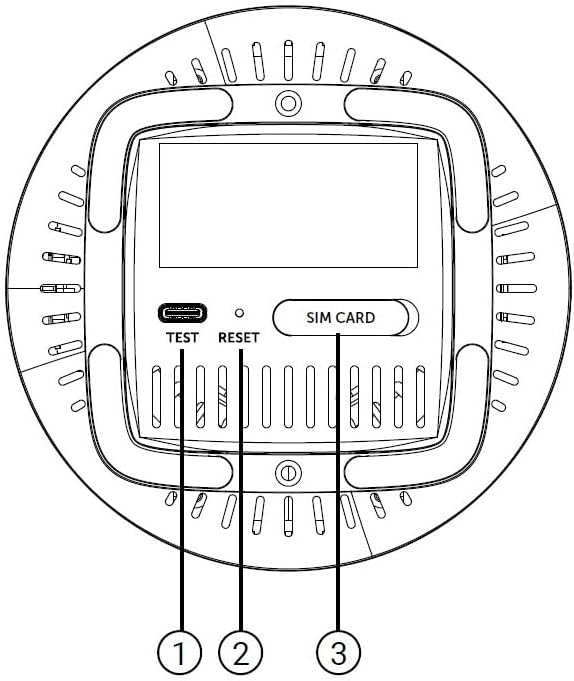
2.2.2. Bottom Panel Features

Figure 4: Bottom Panel Features of the GX 3000 Router
This diagram illustrates the bottom panel of the router, highlighting the TEST port, RESET button, and SIM CARD slot.
- TEST Port: لأغراض التشخيص.
- زر إعادة الضبط: Used to restore factory default settings. Press and hold for 10 seconds while the device is powered on.
- SIM CARD Slot: Insert your 5G/4G SIM card here for mobile broadband connectivity.
3. الإعداد
3.1. التعيين الأولي
Place the router in a central location within your desired coverage area, away from obstructions, metal objects, and other electronic devices that may cause interference. Ensure good ventilation around the device.
3.2. إدخال بطاقة SIM
- تأكد من إيقاف تشغيل جهاز التوجيه.
- Locate the SIM CARD slot on the bottom panel of the router (refer to Figure 4).
- Insert your activated 5G/4G SIM card into the slot with the gold contacts facing down and the notched corner oriented correctly. Push until it clicks into place.
- لإخراجها، ادفع بطاقة SIM برفق إلى الداخل مرة أخرى حتى تخرج.
3.3. توصيل الطاقة
- Connect one end of the power adapter to the Power Input port on the rear of the router.
- قم بتوصيل الطرف الآخر لمحول الطاقة بمأخذ كهربائي قياسي.
- The router will power on automatically. Wait for the LED indicators to stabilize.
3.4. Wired Connections (Optional)
If you wish to connect devices via Ethernet:
- Connect one end of the provided network cable to a LAN port on the rear of the router.
- Connect the other end of the network cable to the Ethernet port of your computer, smart TV, or other wired device.
3.5. الاتصال الأولي بشبكة الواي فاي
The default Wi-Fi network name (SSID) and password are usually printed on a label on the bottom of the router. Follow these steps to connect:
- On your wireless device (smartphone, laptop, tablet), open the Wi-Fi settings.
- Scan for available networks and select the SSID corresponding to your GX 3000 router.
- Enter the default Wi-Fi password when prompted.
- بمجرد الاتصال، يمكنك الوصول إلى جهاز التوجيه web interface to customize settings.
4. تعليمات التشغيل
4.1. مؤشرات LED
توفر مصابيح LED الموجودة باللوحة الأمامية معلومات الحالة:
- 5 جيجا ال اي دي: يشير إلى حالة شبكة الجيل الرابع (5G).
- 4 جيجا ال اي دي: يشير إلى حالة شبكة الجيل الرابع (4G).
- Call LED: يشير إلى حالة خدمة الصوت.
- مؤشر LED لشبكة Wi-Fi: يشير إلى نشاط شبكة Wi-Fi.
- LED WPS: يشير إلى حالة وظيفة WPS.
Refer to the full user manual (if provided separately) for detailed LED behavior (e.g., solid, blinking, color) and their meanings.
4.2. الوصول إلى Web واجهة الإدارة
To configure advanced settings, manage your network, or change Wi-Fi credentials, access the router's web الواجهة:
- Ensure your device is connected to the GX 3000's Wi-Fi network or via an Ethernet cable.
- افتح web المتصفح (على سبيل المثال، Chrome، Firefox، Edge).
- في شريط العناوين، اكتب عنوان IP الافتراضي لجهاز التوجيه (عادةً
192.168.1.1or192.168.0.1) and press Enter. This information is usually on the label on the bottom of the router. - أدخل اسم المستخدم وكلمة المرور الافتراضيين (الموجودين أيضاً على ملصق جهاز التوجيه).
- You will now be in the router's management interface, where you can customize settings such as Wi-Fi name, password, security protocols, and more.
4.3. Wi-Fi Protected Setup (WPS)
WPS allows you to connect Wi-Fi devices without entering the password manually:
- Press the WPS button on the front of the GX 3000 router (refer to Figure 1). The WPS LED will start blinking.
- Within two minutes, press the WPS button on your client device (e.g., Wi-Fi adapter, printer).
- سيتم توصيل الأجهزة تلقائيًا.
Note: WPS is a convenient feature but may be less secure than manual password entry.
4.4. Mesh Network Expansion
The GX 3000 supports mesh networking to expand Wi-Fi coverage. You can add other compatible Intelbras Qi5 line products to create a seamless mesh network. Each additional Wi-Fi 6 router can extend coverage by up to 300 m². It is recommended to use up to 6 routers in the same mesh network for optimal performance.
Refer to the specific instructions provided with additional mesh units for pairing and configuration.
5. الصيانة
5.1. تنظيف الجهاز
- تأكد من إيقاف تشغيل جهاز التوجيه وفصله عن الكهرباء قبل التنظيف.
- استخدم قطعة قماش ناعمة وجافة لمسح الجزء الخارجي من الجهاز.
- Do not use liquid cleaners, aerosols, or solvents, as they may damage the casinج أو المكونات الداخلية.
- احرص على إبقاء فتحات التهوية خالية من الغبار والحطام.
5.2. تحديثات البرامج الثابتة
Periodically check the Intelbras official website for firmware updates. Firmware updates can improve performance, add new features, and enhance security. Follow the instructions provided with the firmware update package carefully.
5.3. إعادة ضبط المصنع
If you encounter persistent issues or forget your login credentials, you can reset the router to its factory default settings:
- With the router powered on, locate the RESET button on the bottom panel (refer to Figure 4).
- باستخدام مشبك ورق أو جسم مدبب مماثل، اضغط مع الاستمرار على زر إعادة الضبط لمدة 10 ثوانٍ تقريبًا.
- Release the button. The router will restart with all settings restored to their original factory defaults.
- You will need to reconfigure your Wi-Fi settings and any other custom configurations after a factory reset.
6. استكشاف الأخطاء وإصلاحها
| مشكلة | السبب المحتمل | حل |
|---|---|---|
| No power / Router not turning on | محول الطاقة غير موصول أو معطل؛ مأخذ الطاقة لا يعمل. |
|
| No internet connection (5G/4G) | SIM card not inserted correctly; SIM card not activated; No 5G/4G signal; Service provider issue. |
|
| لا يمكن الاتصال بشبكة Wi-Fi | Incorrect Wi-Fi password; Wi-Fi disabled; Device too far from router. |
|
| سرعة الانترنت بطيئة | Network congestion; Poor signal strength; Interference; Outdated firmware. |
|
| نسيت web كلمة مرور الواجهة | Password forgotten or changed. |
|
7. المواصفات
| ميزة | التفاصيل |
|---|---|
| ماركة | انتلبراس |
| نموذج | جي اكس 3000 |
| تكنولوجيا الاتصال | 5G, 4G, Wi-Fi 6 (802.11a/b/g/n/ac/ax) |
| فئة نطاق التردد | النطاق المزدوج |
| معيار الاتصال اللاسلكي | 802.11أ |
| معدل نقل البيانات | سرعة تصل إلى 900 ميجابت في الثانية |
| عرض النطاق الترددي لمنفذ LAN | 1000 ميجابت في الثانية (جيجابت إيثرنت) |
| نوع الهوائي | داخلي |
| الأجهزة المتوافقة | Computer, Notebook, Tablet, Smart TV |
| المميزات الخاصة | Remote Access, Mesh Wi-Fi capability |
| لون | أبيض |
| وزن العنصر | 1000 جرام |
| المكونات المضمنة | Power supply, Network cable |
| Anatel Homologation Number | 13571-22-00180 |
8. الضمان والدعم
8.1. معلومات الضمان
Intelbras products are covered by a limited warranty. For specific warranty terms and conditions, please refer to the warranty card included with your product or visit the official Intelbras webالموقع. احتفظ بإثبات الشراء الخاص بك لتقديم مطالبات الضمان.
8.2. الدعم الفني
If you require technical assistance or have questions not covered in this manual, please contact Intelbras customer support. You can find contact information (phone numbers, email, support portal) on the official Intelbras webموقع:
إنتلبراس الرسمية Webموقع: www.intelbras.com.br
When contacting support, please have your product model (GX 3000) and serial number ready.