
1. المقدمة
This manual provides instructions for the installation, operation, and maintenance of your NETGEAR GS305P 5-Port PoE Gigabit Ethernet Unmanaged Switch. This device is designed to expand your network connectivity with both standard Gigabit Ethernet and Power over Ethernet (PoE+) capabilities, ideal for small office or home network environments.
2. محتويات العبوة
تأكد من أن الحزمة الخاصة بك تحتوي على العناصر التالية:
- NETGEAR GS305P 5-Port PoE Gigabit Ethernet Unmanaged Switch (GS305Pv3)
- محول الطاقة
- طقم التثبيت على الحائط
- دليل التثبيت السريع

Image: The NETGEAR GS305P switch, power adapter, and power cord as typically found in the package.
3. انتهى المنتجview
The NETGEAR GS305P is an unmanaged switch featuring 5 Gigabit Ethernet ports, with 4 of these ports supporting PoE+ (Power over Ethernet Plus). It provides a total power budget of 63W for connected PoE devices. The switch is designed for plug-and-play operation, requiring no software installation or configuration.
فيديو: أكثر منview of the NETGEAR 5-Port PoE Switch, demonstrating its features and ease of use.
اللوحة الأمامية

Image: Front panel of the GS305P switch, highlighting the 5 Gigabit Ethernet ports and LED indicators for power, PoE Max, link/activity, and PoE fault.
- مؤشر الطاقة LED: يشير إلى حالة الطاقة.
- بو ماكس LED: Illuminates when PoE power consumption is near maximum capacity.
- Link/Activity LEDs (Ports 1-5): Green for 1000Mbps link, Yellow for 10/100Mbps link. Blinks to indicate activity.
- مؤشرات LED لحالة PoE (المنافذ 1-4): Green for PoE powered, Yellow for PoE fault.
- منافذ إيثرنت (1-5): RJ-45 ports for network connections. Ports 1-4 support PoE+.
4. الإعداد والتثبيت
The NETGEAR GS305P switch is designed for simple plug-and-play installation. No software configuration is required.
4.1 توصيل المفتاح
- Connect the power adapter to the switch's power input and then plug the power adapter into an electrical outlet. The Power LED on the switch will illuminate.
- قم بتوصيل جهاز التوجيه أو المودم الخاص بك بأي من منافذ Gigabit Ethernet الثمانية الموجودة على المفتاح باستخدام كابل Ethernet.
- Connect your network devices (computers, printers, network storage) to the remaining Gigabit Ethernet ports. For PoE-powered devices (e.g., IP cameras, wireless access points), connect them to ports 1-4.

Image: A diagram illustrating the plug-and-play nature of the unmanaged switch, connecting various devices like WiFi Access Points, IP Cameras, Computers, and NAS.
4.2 خيارات التركيب
The GS305P switch can be placed on a desktop or mounted on a wall. A wallmount kit is included for secure installation.
- التنسيب على سطح المكتب: تأكد من وضع المفتاح على سطح مستوٍ وثابت مع تهوية كافية.
- جدار جبل: Use the provided wallmount kit to secure the switch to a wall. Refer to the quick installation guide for detailed steps on wall mounting.
5. تشغيل المفتاح
Once connected, the switch operates automatically. The LEDs provide visual feedback on the network status.
- تشغيل الطاقة: The Power LED will be green when the switch is receiving power.
- Network Activity: The Link/Activity LEDs will light up when a device is connected and blink to indicate data transmission.
- قوة بو: For PoE-powered devices, the PoE Status LED will be green when power is being supplied. If a PoE fault occurs, the LED will turn yellow.
- عملية صامتة: The fanless design ensures quiet operation, making it suitable for noise-sensitive environments.
6. الصيانة
To ensure optimal performance and longevity of your switch, follow these maintenance guidelines:
- تنظيف: استخدم قطعة قماش ناعمة وجافة لتنظيف الجزء الخارجي من المفتاح. لا تستخدم منظفات سائلة أو بخاخات.
- تهوية: تأكد من عدم انسداد فتحات التهوية لمنع ارتفاع درجة الحرارة.
- بيئة: Operate the switch within its specified temperature and humidity ranges. Avoid direct sunlight or extreme temperatures.
- إدارة الكابلات: حافظ على تنظيم كابلات الشبكة لمنع الضغط على المنافذ وتحسين تدفق الهواء.
7. استكشاف الأخطاء وإصلاحها
If you encounter issues with your NETGEAR GS305P switch, refer to the following common troubleshooting steps:
- لا يوجد طاقة: Ensure the power adapter is securely connected to the switch and a working electrical outlet. Check the Power LED.
- لا يوجد رابط/نشاط: Verify that Ethernet cables are properly connected to both the switch and the connected device. Try a different cable or port. Check the Link/Activity LED.
- جهاز PoE لا يعمل: Ensure the device is PoE-compatible and connected to one of the PoE+ ports (1-4). Check the PoE Status LED for the port; a yellow light indicates a fault. Verify the total power budget (63W) is not exceeded by all connected PoE devices.
- سرعة الشبكة بطيئة: Ensure all connected devices and cables support Gigabit Ethernet for optimal performance. Check for excessive network traffic.
8. المواصفات
Key technical specifications for the NETGEAR GS305P switch:
| ميزة | وصف |
|---|---|
| نموذج | GS305P (GS305Pv3) |
| عدد المنافذ | 5 منفذ إيثرنت جيجابت |
| منافذ بو + | 4 (المنافذ 1-4) |
| إجمالي ميزانية الطاقة PoE | 63 واط |
| معدل نقل البيانات | 1000 ميجابت في الثانية (جيجابت) |
| نوع المفتاح | غير مُدار |
| مادة العلبة | معدن |
| الأبعاد (الطول × العرض × الارتفاع) | 9.5" x 6.7" x 3.4" (approximate, from product data) |
| المجلدtage | 240 Volts (Power adapter input) |
| بيئة التشغيل | Designed for indoor use in U.S. & CA. |
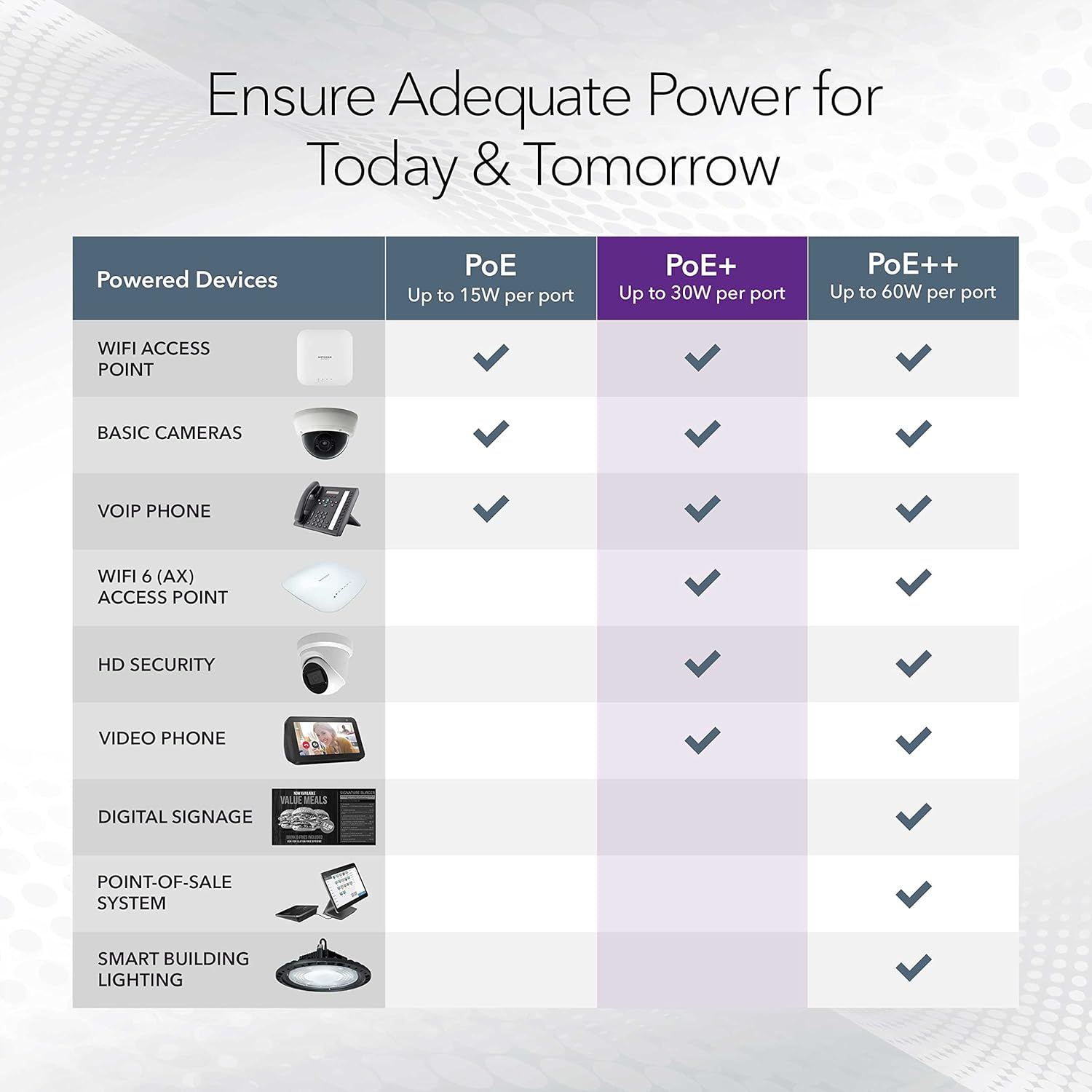
Image: A table illustrating the power capabilities of PoE, PoE+, and PoE++ for different powered devices.
9. الضمان والدعم
9.1 معلومات الضمان
The NETGEAR GS305P switch comes with an industry-leading ضمان محدود للأجهزة لمدة 3 سنوات. Please retain your proof of purchase for warranty claims. For full warranty terms and conditions, refer to the official NETGEAR webالموقع أو الوثائق المضمنة مع منتجك.
9.2 الدعم الفني
For technical assistance, product registration, or to access additional resources, visit the official NETGEAR support website. You can find FAQs, firmware updates, and community forums there.
دعم نتغير Webموقع: www.netgear.com/support.