
المنتج انتهىview
This manual provides detailed instructions for the installation, operation, and maintenance of your MOOKAKA Carplay Android Car Stereo. This multimedia head unit is designed specifically for Porsche 911/997 models manufactured between 2005 and 2008, offering an upgraded in-car entertainment and navigation experience.
Key features include an 8.4-inch IPS touchscreen, wireless Apple Carplay and Android Auto, DSP audio processing, Bluetooth 5.0, AM/FM radio with RDS, GPS navigation, and support for various multimedia formats.
يثبت
1. Installation Compatibility
This car radio is suitable for Porsche 911/997 models from 2005-2008. Before installation, please verify compatibility by comparing your car's center console with the images provided or by contacting customer support with a photo of your console.

Image: MOOKAKA Carplay Android Car Stereo installed in a Porsche 911/997 dashboard. This image shows the main unit integrated into the vehicle's interior.

Image: Comparison of the car's dashboard before and after installing the MOOKAKA Carplay Android Car Stereo. The top images show the original car radio, and the bottom image shows the new head unit seamlessly integrated.
2. محتويات العبوة
يرجى التحقق من محتويات العبوة ومقارنتها بالقائمة أدناه:
- Head Unit (Main Stereo Device)
- كابل الطاقة
- 4G/AV Cable Ports
- كابل إدخال الكاميرا
- USB Cable Ports
- هوائي نظام تحديد المواقع العالمي (GPS)
- هوائي واي فاي
- هوائي الراديو

Image: A layout of all accessories included with the MOOKAKA Carplay Android Car Stereo, such as power cables, USB cables, antennas, and the head unit itself.
3. Basic Installation Steps (Professional Installation Recommended)
- افصل البطارية: Before starting, disconnect the vehicle's negative battery terminal to prevent electrical shorts.
- إزالة وحدة الرأس القديمة: Carefully remove the existing car stereo from the dashboard. Refer to your vehicle's service manual for specific instructions.
- ربط حزمة الأسلاك: Connect the provided power cable and other necessary cables (4G/AV, camera input, USB, antennas) to the new head unit and the vehicle's wiring harness. Ensure all connections are secure.
- Install GPS and WiFi Antennas: Mount the GPS and WiFi antennas in suitable locations, typically on the dashboard or under the windshield, ensuring clear signal reception.
- اتصالات الاختبار: Before fully reassembling, temporarily reconnect the battery and power on the unit to test basic functions (power, sound, touch screen).
- وحدة الرأس الآمنة: Carefully slide the new head unit into the dashboard opening and secure it using the appropriate mounting brackets and screws.
- إعادة تجميع لوحة المعلومات: Reinstall any removed trim pieces and panels.
- إعادة توصيل البطارية: أعد توصيل الطرف السالب لبطارية السيارة.
تعليمات التشغيل
1. التشغيل الأولي والإعداد
After installation, turn on your vehicle's ignition. The MOOKAKA Carplay Android Car Stereo will boot up. Follow the on-screen prompts for initial setup, including language selection, time zone, and network configuration.

Image: The main interface of the MOOKAKA Carplay Android Car Stereo, showing various application icons and system information.
2. تشغيل شاشة اللمس
The unit features an 8.4-inch Ultra HD IPS capacitive touchscreen with a resolution of 1280x800 pixels. Use light touches for navigation. Swipe gestures are supported for scrolling and accessing different screens.
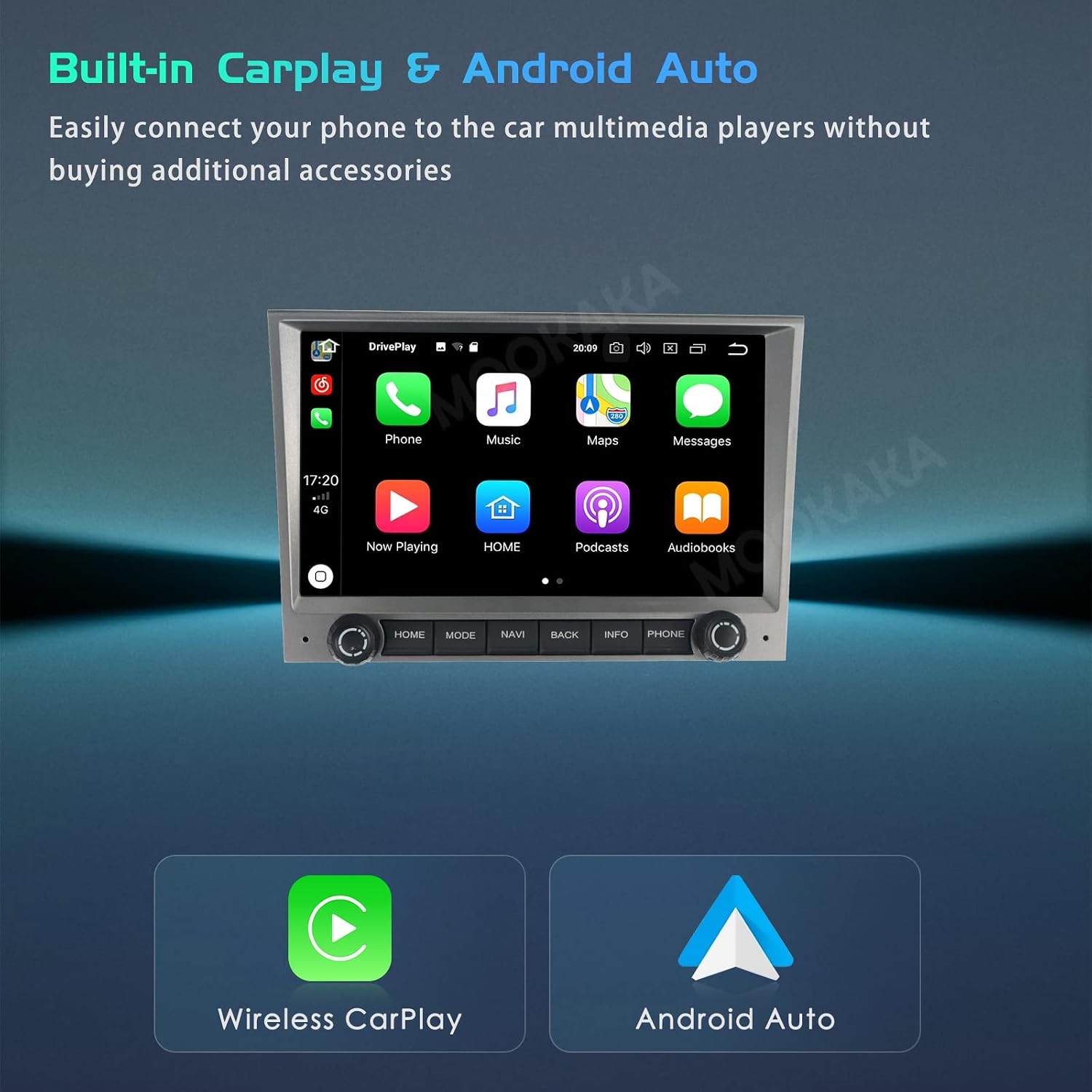
Image: A close-up of the 8.4-inch IPS screen displaying a map application, highlighting the clear visual quality and responsive touch interface.
3. نظام كاربلاي اللاسلكي ونظام أندرويد أوتو
Connect your smartphone wirelessly to access Apple Carplay or Android Auto. This allows you to use navigation, make calls, send messages, and listen to music directly from your phone's interface on the stereo screen.
- تأكد من تمكين Bluetooth وWi-Fi على هاتفك الذكي.
- On the head unit, select the "Carplay" or "Android Auto" application.
- اتبع التعليمات التي تظهر على الشاشة لإقران جهازك.

Image: A smartphone connected to the car stereo, displaying the Apple Carplay interface with various app icons for navigation, music, and communication.
4. بلوتوث 5.0
The unit supports Bluetooth 5.0 for hands-free calling, phone book download, and music streaming (APTX Loss Less). To pair a device:
- Go to the "Bluetooth" application on the head unit.
- قم بتفعيل البلوتوث على هاتفك وابحث عن الأجهزة المتاحة.
- Select "MOOKAKA" from the list on your phone and confirm pairing.

Image: An illustration showing a smartphone and a car connected via Bluetooth, indicating hands-free communication and music streaming capabilities.
5. AM/FM Radio with RDS
Access the "Radio" application to tune into AM/FM stations. The unit features RDS (Radio Data System) for displaying station information. You can save up to 12 FM presets and 6 AM presets.

Image: A stylized image of a radio receiver with a satellite and globe, representing the AM/FM radio and RDS functionality.
6. نظام الملاحة GPS
The head unit supports various GPS navigation applications (e.g., Google Maps, IGO). Ensure the GPS antenna is properly installed for accurate positioning. Download maps for offline use if desired.

Image: A map with navigation pins and a person walking, illustrating the GPS navigation capabilities with icons for Google Maps and IGO.
7. معالج الصوت الرقمي (DSP)
The built-in DSP allows for advanced audio customization. Access the equalizer settings to adjust sound profiles, balance, and fader to optimize your listening experience.

Image: An illustration of a car's sound system with speakers and a conductor, symbolizing the advanced audio processing capabilities of the built-in DSP.
8. وظيفة تقسيم الشاشة
Utilize the split-screen feature to run two applications simultaneously, such as navigation on one side and music playback on the other. To activate, long-press the recent apps button or follow specific app instructions.

Image: The car stereo screen divided into two sections, showing a map on one side and a music player on the other, demonstrating the split-screen function.
9. التحكم في عجلة القيادة (SWC)
The unit supports original steering wheel controls. After installation, you may need to configure the SWC settings in the system menu to map the buttons correctly to the stereo functions.

Image: A close-up of a car's steering wheel with control buttons, indicating the stereo's compatibility with existing steering wheel controls.
10. واجهة USB
Connect USB devices via the provided USB cable ports for media playback or data transfer. The unit supports various audio and video formats (AVI, WAV, WMA).

Image: Two USB ports with a car in the background, illustrating the USB interface for connecting external devices.
11. رابط المرآة
The Mirror Link function allows you to display your smartphone's screen directly onto the head unit. This is useful for apps not natively supported by Carplay or Android Auto.

Image: A smartphone screen mirrored onto a larger display, with a sports car background, demonstrating the Mirror Link feature.
12. 4G / WiFi Connectivity
Connect to the internet via 4G (if a SIM card slot is available and utilized) or by tethering to your phone's hotspot. This enables online navigation, app downloads (Netflix, YouTube, IGO, Facebook), and web التصفح.

Image: Stylized text "4G / WiFi" with circuit board elements, representing the unit's internet connectivity options.
13. Music & Video Playback
The unit supports playback of various audio and video formats. Access your media files via USB or streaming apps. The high-definition screen ensures a clear visual experience for videos.

Image: A stylized image of headphones and a record player, symbolizing the unit's capabilities for music and video playback.
14.الخلف View دعم الكاميرا
The unit supports an optional rear view camera input. When a compatible camera is connected and properly installed, the display will automatically switch to the camera feed when the vehicle is in reverse gear.

Image: The car stereo screen displaying a rear view camera feed with parking guidelines, indicating support for a rear view آلة تصوير.
صيانة
1. تنظيف الشاشة
To clean the touchscreen, power off the unit and gently wipe the screen with a soft, lint-free cloth. For stubborn smudges, slightly dampامسح القماش بالماء أو بمنظف آمن للشاشات. تجنب المواد الكيميائية القاسية أو المواد الكاشطة.
2. تحديثات البرامج
تحقق دوريًا من تحديثات البرامج لضمان الأداء الأمثل والوصول إلى الميزات الجديدة. عادةً ما تتوفر التحديثات على موقع الشركة المصنعة. website or through the unit's system settings if connected to the internet.
3. العناية العامة
Avoid exposing the unit to extreme temperatures or direct sunlight for prolonged periods. Ensure all cables are securely connected and not pinched. If the unit is not functioning correctly, refer to the troubleshooting section before attempting any repairs.
استكشاف الأخطاء وإصلاحها
| مشكلة | السبب المحتمل | حل |
|---|---|---|
| الوحدة لا تعمل بالطاقة. | وصلة كهربائية غير محكمة، فيوز محترق، مشكلة في بطارية السيارة. | افحص توصيلات كابلات الطاقة. افحص فيوزات السيارة. تأكد من شحن بطارية السيارة. |
| لا يوجد صوت من مكبرات الصوت. | مستوى الصوت منخفض جدًا، تم تفعيل خاصية كتم الصوت، توصيلات غير صحيحة، مشاكل في السماعات. | Increase volume. Check if mute is active. Verify speaker wiring. Test with different audio sources. |
| إشارة GPS ضعيفة أو غير دقيقة. | GPS antenna improperly installed or obstructed. | تأكد من أن هوائي GPS لديه إشارة واضحة view of the sky and is securely connected. Relocate if necessary. |
| Bluetooth device fails to pair. | Bluetooth not enabled on device/unit, device too far, interference. | Ensure Bluetooth is active on both devices. Keep devices close. Restart both devices. |
| شاشة اللمس لا تستجيب. | System freeze, screen calibration issue. | Restart the unit (turn off ignition and restart car). If issue persists, perform a factory reset (refer to system settings). |
تحديد
| ميزة | التفاصيل |
|---|---|
| ماركة | MOOKAKA |
| نموذج | شنومكسب رام + شنومكسب روم |
| المركبات المتوافقة | Porsche 911/997 (2005-2008) |
| حجم الشاشة | 8.4 بوصة |
| نوع العرض | شاشة تعمل باللمس IPS |
| دقة | 1280 × 800 بكسل |
| الاتصال | Bluetooth 5.0, 4G, Wi-Fi, USB |
| المميزات الخاصة | Wireless Carplay, Android Auto, DSP, GPS Navigation, Split Screen, Steering Wheel Control, Mirror Link |
| خدمات الإنترنت المدعومة | نتفليكس، يوتيوب |
| وضع إخراج الصوت | ستيريو |
| التنسيقات المدعومة | AVI, WAV, WMA |
الضمان والدعم
1. معلومات الضمان
This navigation head unit comes with a ضمان لمدة 1 سنواتيغطي هذا الضمان عيوب التصنيع والأعطال في ظل الاستخدام العادي. يُرجى الاحتفاظ بإيصال الشراء للمطالبة بالضمان.
2. الدعم الفني
For any issues or questions regarding product usage, installation, or troubleshooting not covered in this manual, please contact MOOKAKA customer support. You can typically find contact information on the product packaging or the official MOOKAKA webموقع.
When contacting support, please provide your product model number (6GB RAM+128GB ROM) and a detailed description of the issue.