
1. انتهى المنتجview
The GIGABYTE G24F 2 is a 23.8-inch gaming monitor designed for an immersive visual experience. It features a Super Speed IPS panel, Full HD (1920 x 1080) resolution, and a high refresh rate for smooth gameplay.

الشكل 1.1: الجبهة view of the GIGABYTE G24F 2 gaming monitor.
المميزات الرئيسية:
- حجم اللوحة: 23.8-inch SS IPS display
- دقة: 1920 × 1080 (FHD)
- وقت الاستجابة: 1 مللي ثانية زمن استجابة سريع
- معدل التحديث: 165 هرتز (قابلة لزيادة التردد إلى 180 هرتز)
- تشبع اللون: 95% DCI-P3، 125% sRGB
- سطوع: 300 شمعة / م 2 (نموذجي)
- نسبة التباين: 1100:1
- الاتصال: 2 x HDMI 2.0, 1 x DisplayPort 1.2 (HDR capable), 2 x USB 3.2 Gen 1 Downstream, 1 x USB 3.2 Gen 1 Upstream, 1 x Earphone Jack
- المميزات الخاصة: OSD Sidekick, Aim Stabilizer, Black Equalizer, Dashboard, Crosshair, Timer, Counter, Auto-Update, Smart OD, HDR Ready, Flicker-free, Kensington lock
2. معلومات السلامة
يرجى قراءة جميع التعليمات بعناية قبل استخدام الشاشة. احتفظ بهذا الدليل للرجوع إليه مستقبلاً.
- لا تعرض الشاشة للمطر أو الرطوبة لتجنب مخاطر الحريق أو الصدمات الكهربائية.
- لا تفتح الشاشةasinز. لا توجد قطع غيار قابلة للصيانة من قِبل المستخدم. يُرجى إحالة جميع أعمال الصيانة إلى فنيين مؤهلين.
- ضع الشاشة على سطح ثابت ومستوٍ لمنع سقوطها.
- تأكد من التهوية الجيدة حول الشاشة. لا تسد فتحات التهوية.
- استخدم فقط محول الطاقة والكابلات التي يوفرها المصنع.
- افصل الشاشة عن مأخذ الطاقة أثناء العواصف الرعدية أو عند عدم استخدامها لفترات طويلة.
- Clean the screen with a soft, lint-free cloth. Avoid using liquid cleaners directly on the screen.
3. محتويات العبوة
تأكد من وجود جميع العناصر في الحزمة الخاصة بك:
- GIGABYTE G24F 2 Monitor
- حامل الشاشة (القاعدة والرقبة)
- كابل الطاقة
- كابل HDMI
- USB Cable (Upstream)
- دليل البدء السريع (QSG)
- بطاقة الضمان

الشكل 3.1: خلفي view يوضح الرسم التوضيحي للشاشة منطقة تثبيت الحامل.
4. الإعداد
4.1 تجميع الحامل
- قم بإزالة مكونات الشاشة والحامل من العبوة بعناية.
- قم بتثبيت قاعدة الحامل على لوحة الشاشة. تأكد من تثبيتها بإحكام في مكانها أو باستخدام البراغي إن وجدت.
- Attach the stand base to the stand neck. Tighten the thumb screw or screws at the bottom of the base.
- ضع الشاشة المجمعة على سطح ثابت ومستوٍ.
4.2 توصيل الشاشة
Connect the monitor to your computer and other devices using the appropriate cables.

Figure 4.1: Monitor connectivity ports.
- توصيل الطاقة: قم بتوصيل كابل الطاقة بمدخل الطاقة الخاص بالشاشة ثم بمأخذ الطاقة.
- اتصال الفيديو:
- For optimal performance, use the DisplayPort 1.2 cable to connect to your computer's graphics card.
- Alternatively, use one of the two HDMI 2.0 ports.
- اتصال USB بالتيار الكهربائي: Connect the provided USB 3.2 Gen 1 Upstream cable from your computer to the monitor's upstream USB port to enable the monitor's downstream USB ports.
- USB Downstream Connections: Connect USB devices (e.g., keyboard, mouse) to the monitor's two USB 3.2 Gen 1 Downstream ports.
- مخرج الصوت: Connect headphones or external speakers to the Earphone Jack.
5. تشغيل الشاشة
5.1 تشغيل/إيقاف التشغيل
Press the power button, usually located on the bottom or rear of the monitor, to turn the monitor on or off. The power indicator light will show the monitor's status.
5.2 قائمة العرض على الشاشة (OSD)
The OSD menu allows you to adjust various monitor settings. Navigate the OSD using the joystick or buttons typically found on the rear of the monitor.

Figure 5.1: OSD Sidekick software for convenient monitor control.
For advanced control, install the OSD Sidekick software on your PC. This utility allows you to adjust monitor settings directly from your desktop.
5.3 ميزات الألعاب
The GIGABYTE G24F 2 includes several features to enhance your gaming experience:
- Aim Stabilizer: Reduces motion blur and improves visual clarity in fast-paced games.
- المعادل الأسود: Enhances visibility in dark areas of the game without overexposing bright areas.

Figure 5.2: Black Equalizer in action.
- لوحة القيادة: Displays real-time hardware information (e.g., CPU/GPU temperature, usage) directly on the screen.

Figure 5.3: Dashboard displaying system metrics.
- علامة التقاطع: Provides a customizable on-screen crosshair to assist with aiming.

Figure 5.4: On-screen Crosshair.
- المؤقت/العداد: On-screen timers and counters for in-game tracking.
- Smart OD: Optimizes overdrive settings for the best response time.
- التحديث التلقائي: Ensures the monitor's firmware and OSD Sidekick software are up-to-date.
5.4 إعدادات العرض
- معدل التحديث: The monitor supports up to 165Hz, with an overclock option to 180Hz, for fluid motion.
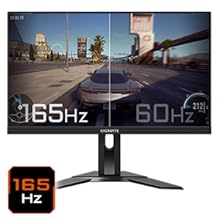
Figure 5.5: Visual comparison of 165Hz vs. 60Hz refresh rate.
- وقت الاستجابة: Enjoy a 1ms MPRT (Moving Picture Response Time) for minimal ghosting.
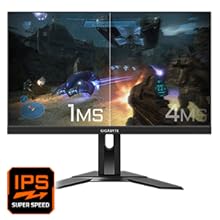
Figure 5.6: Visual comparison of 1ms vs. 4ms response time.
- مجموعة الألوان: The monitor covers 95% DCI-P3 and 125% sRGB for vibrant and accurate colors.
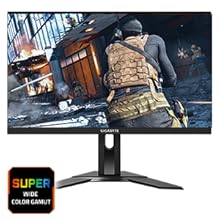
Figure 5.7: Wide color gamut for rich visuals.
- الضوء الأزرق المنخفض: Reduces blue light emissions to protect your eyes during extended use.
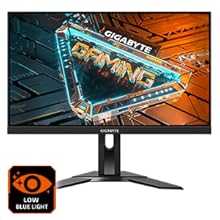
Figure 5.8: Low Blue Light feature for reduced eye strain.
- وميض مجاني: يزيل وميض الشاشة لتجربة مشاهدة أكثر راحة viewتجربة رائعة.

Figure 5.9: Flicker-Free technology for comfortable viewعمل.
5.5 فيديو ميزات المنتج
فيديو 5.1: أكثر منview of the GIGABYTE G24F 2 monitor's features and specifications.
6. الصيانة
تضمن الصيانة المناسبة طول عمر شاشتك.
- تنظيف الشاشة: امسح الشاشة برفق بقطعة قماش ناعمة وجافة وخالية من الوبر. لإزالة البقع الصعبة، امسح برفق.ampبللي قطعة القماش بالماء أو بمنظف شاشات متخصص (ضعيه على قطعة القماش، وليس مباشرة على الشاشة).
- تنظيف Casing: استخدم قطعة قماش ناعمة وجافة لمسح الشاشة.asinز. تجنب استخدام المنظفات الكاشطة.
- تهوية: تأكد من أن فتحات التهوية الموجودة على الشاشة خالية من الغبار والعوائق.
- إيقاف التشغيل: Turn off and unplug the monitor when not in use for extended periods.
7. استكشاف الأخطاء وإصلاحها
If you encounter issues with your monitor, refer to the following table for common problems and solutions.
| مشكلة | السبب المحتمل | حل |
|---|---|---|
| لا توجد صورة على الشاشة | Power cable not connected; Video cable not connected; Incorrect input source selected | Check power and video cable connections; Select correct input source via OSD. |
| الصورة ضبابية أو مشوهة | دقة غير صحيحة؛ كابل فيديو مفكوك | اضبط دقة العرض على 1920x1080؛ وتأكد من توصيل كابل الفيديو بشكل آمن. |
| لا يصدر صوت من سماعات الرأس/مكبرات الصوت | Audio cable not connected; Volume too low; Incorrect audio output selected on PC | Check audio cable connection; Adjust volume; Select monitor as audio output on PC. |
| منافذ USB لا تعمل | كابل USB العلوي غير متصل | Connect the USB 3.2 Gen 1 Upstream cable from the monitor to your PC. |
| شاشة متذبذبة | Refresh rate issue; Faulty cable | Ensure refresh rate is set correctly; Try a different video cable. |
8. المواصفات
Detailed technical specifications for the GIGABYTE G24F 2 monitor.

الشكل 8.1: أبعاد الشاشة.
| ميزة | التفاصيل |
|---|---|
| ماركة | جيجابايت |
| اسم الموديل | ج24ف 2 |
| رقم الموديل | 9DG24F2-00-1ABIN |
| حجم الشاشة | 23.8 بوصة |
| دقة | 1920 × 1080 بكسل (FHD 1080p) |
| نسبة العرض إلى الارتفاع | 16:9 |
| نوع العرض | LCD (SS IPS Panel) |
| معدل التحديث | 165 Hz (180Hz OC) |
| وقت الاستجابة | 1 Milliseconds (MPRT) |
| سطوع | 300 candela_per_square_meter (TYP) |
| نسبة التباين | 1100:1 |
| تشبع اللون | 95% DCI-P3، 125% sRGB |
| Viewزاوية جي | 178 درجة |
| الاتصال | 2 x HDMI 2.0, 1 x DisplayPort 1.2, 2 x USB 3.2 Gen 1 Downstream, 1 x USB 3.2 Gen 1 Upstream, 1 x Earphone Jack |
| المزامنة التكيفية | FreeSync بريميوم |
| استهلاك الطاقة | 17.5 واط |
| وزن العنصر | 3.2 كيلوغرام |
| أبعاد المنتج (العمق × العرض × الارتفاع) | 5.3 عمق × 54.1 عرض × 32.6 ارتفاع سنتيمتر |
| نوع التركيب | حامل الحائط |
| مميزات المنتج | Flicker-Free, Height Adjustment, High Dynamic Range, Tilt Adjustment |
9. الضمان والدعم
The GIGABYTE G24F 2 monitor comes with a ضمان لمدة 3 سنوات من الشركة المصنعة.
For technical support, warranty claims, or further inquiries, please contact GIGABYTE customer service:
- الشركة المصنعة: GIGABYTE Technology (India) Pvt Ltd
- عنوان: B-808, Naman Midtown, Elphinstone Road, Mumbai – 400013 – INDIA
- هاتف: +91-22-40633222
يرجى الاحتفاظ بإثبات الشراء الخاص بك لخدمة الضمان.