
1. Introduction to Sphero RVR+
The Sphero RVR+ is an advanced programmable robot designed for learning and exploration in coding, robotics, and artificial intelligence. It is fully assembled and ready for immediate use, offering a versatile platform for both beginners and advanced programmers. RVR+ features a robust design, a suite of programmable sensors, and expandability options for third-party hardware integration.

2. الإعداد والاستخدام الأول
2.1 فك الصندوق والفحص الأولي
Upon opening the package, ensure all components are present. The Sphero RVR+ comes fully assembled. The package typically includes the RVR+ robot, a removable cover plate, a rechargeable battery, a micro USB charger, a battery key, and color cards.

2.2 تركيب البطارية وشحنها
- Locate the battery compartment on the RVR+ robot.
- Insert the rechargeable battery into the compartment. Ensure it clicks securely into place.
- Connect the micro USB charger to the battery port.
- Plug the charger into a power source. The battery indicator light will show charging status.
- Allow the battery to fully charge before first use. A full charge ensures optimal performance.

2.3 اتصال التطبيق
The Sphero RVR+ is controlled and programmed via the Sphero Edu app. This app is available on iOS, Android, Windows, macOS, ChromeOS, and web browsers. No account or installation is needed for web الوصول إلى المتصفح.
- Download and install the Sphero Edu app on your device, or navigate to the web-based version.
- Ensure your RVR+ is powered on and within Bluetooth range of your device.
- Open the Sphero Edu app and follow the on-screen prompts to connect to your RVR+.
3. Operating Your RVR+
3.1 Driving and Basic Control
Once connected to the Sphero Edu app, you can use the drive interface to manually control your RVR+. This allows for immediate interaction and familiarization with the robot's movement capabilities.

3.2 Programming Fundamentals
The Sphero Edu app supports various programming levels:
- Block Coding: Ideal for beginners, allowing users to drag and drop visual blocks to create programs.
- JavaScript and Python: For more advanced users, enabling text-based coding.
The Sphero AI Assistant, 'Explain My Program', can assist in understanding code logic.

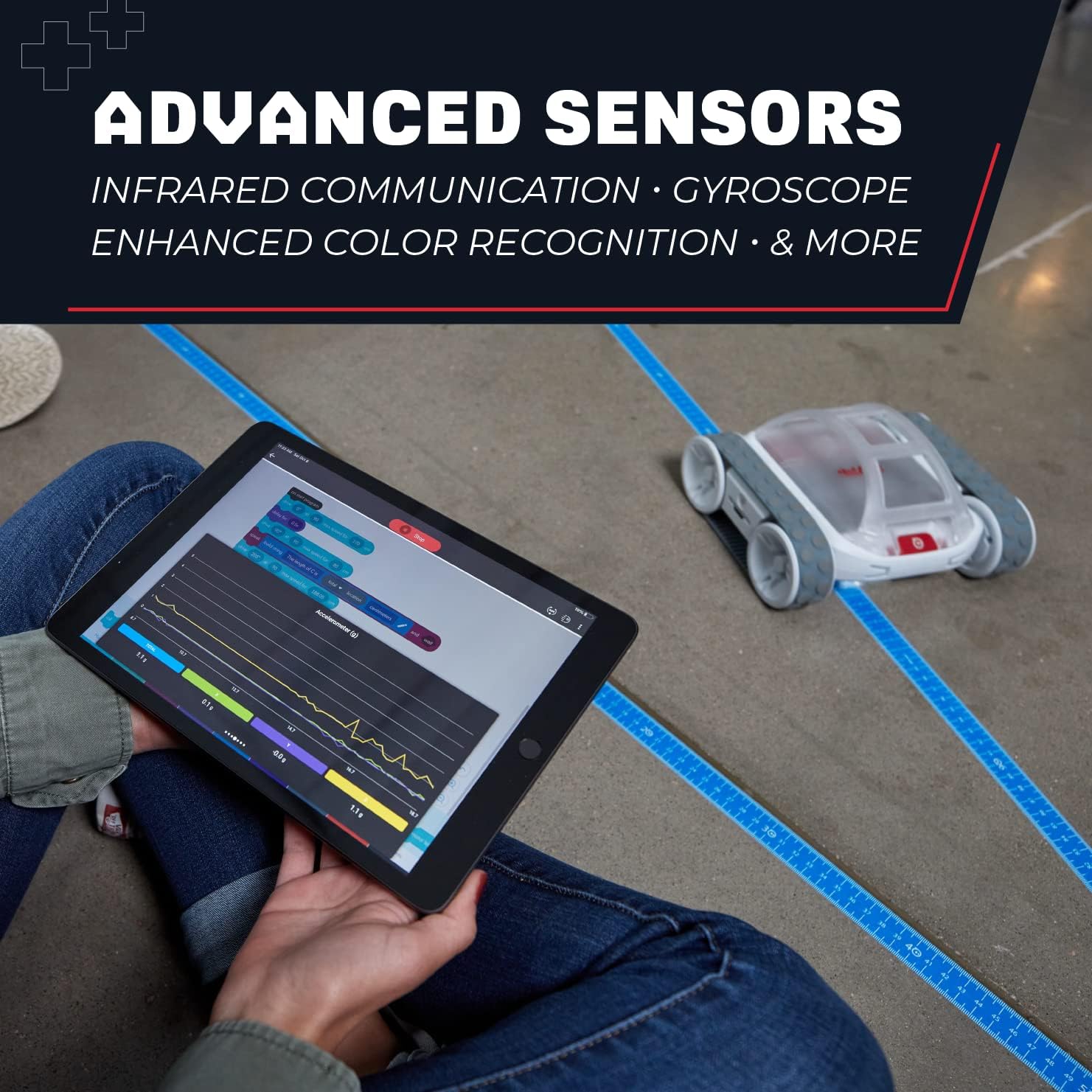
3.3 Utilizing Sensors
RVR+ is equipped with multiple sensors to gather real-time data and interact with its environment:
- مستشعر اللون: Detects and reacts to different colors.
- مستشعر الضوء: قياس مستويات الإضاءة المحيطة.
- حساس الأشعة تحت الحمراء: For communication and obstacle detection.
- Gyroscope and Accelerometer: Provides data on orientation and movement.
These sensors enable RVR+ to react to its surroundings, bridging coding with systems thinking.
3.4 Advanced Expansion
RVR+ supports integration with third-party hardware through its Public SDK. This allows for advanced projects using platforms like Raspberry Pi and micro:bit, expanding its capabilities beyond its core features.

4. الصيانة
4.1 العناية بالبطارية
- Always use the provided charger for the rechargeable battery.
- تجنب تفريغ البطارية بالكامل بشكل متكرر لإطالة عمرها.
- Store the RVR+ and its battery in a cool, dry place when not in use.
4.2 التنظيف
To clean your RVR+, use a soft, dry cloth. Avoid using harsh chemicals or abrasive materials, as these can damage the robot's surface or internal components. Ensure no moisture enters the electronic components.
5. استكشاف الأخطاء وإصلاحها
If you encounter issues with your Sphero RVR+, consider the following common troubleshooting steps:
- مشاكل الاتصال: Ensure RVR+ is powered on and fully charged. Verify Bluetooth is enabled on your device and that the Sphero Edu app has necessary permissions. Try restarting both the RVR+ and your device.
- مشاكل الشحن: Check that the charging cable is securely connected to both the battery and the power source. Ensure the power source is active.
- سلوك غير متوقع: If RVR+ is not responding as expected to commands or programs, check your code for errors. Ensure the robot's sensors are clean and unobstructed. A factory reset (refer to Sphero support resources for instructions) may resolve persistent software issues.
For more detailed troubleshooting guides, please visit the official Sphero support webموقع.
6. المواصفات
| ميزة | التفاصيل |
|---|---|
| أبعاد المنتج | 1.97 × 1.57 × 874.8 بوصة |
| وزن العنصر | 3.5 رطل |
| رقم موديل العنصر | 940-0601 |
| العمر الموصى به من قبل الشركة المصنعة | 8 أشهر - 8 سنوات |
| البطاريات | 1 A battery required (rechargeable, included) |
| الشركة المصنعة | كروي |
7. معلومات الضمان
For detailed warranty information regarding your Sphero RVR+, please refer to the documentation included with your product or visit the official Sphero webقد تختلف شروط وأحكام الضمان حسب المنطقة وتاريخ الشراء.
8. الدعم والموارد
Sphero provides extensive resources to help you get the most out of your RVR+:
- Sphero Edu App: The primary interface for controlling and programming RVR+. Available on multiple platforms.
- Sphero Central: Explore lessons, activities, and educational resources for RVR+ and other Sphero products. Visit www.sphero.com لمزيد من المعلومات.
- الدعم عبر الإنترنت: Access FAQs, troubleshooting guides, and contact customer support through the official Sphero webموقع.