
typecase KB206129
typecase Keyboard Case for iPad Pro 12.9-inch User Manual
الموديل: KB206129
1. انتهى المنتجview
The typecase Keyboard Case is designed to enhance your iPad Pro 12.9-inch experience by transforming it into a versatile laptop-like device. It features a full-size keyboard with multi-touch trackpad, backlit keys, and a protective case with a magnetic attachment system.
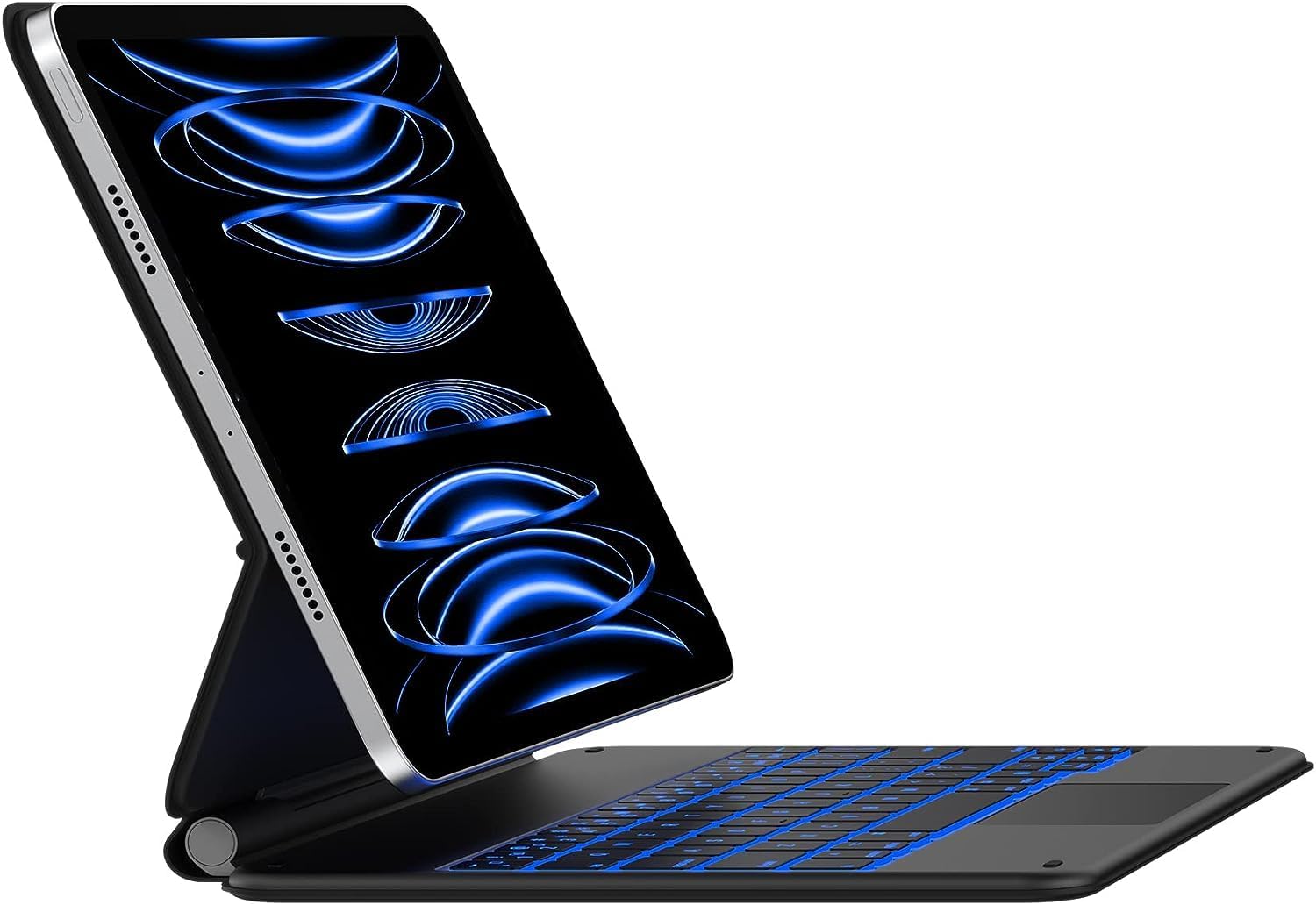
Image: The typecase Keyboard Case with an iPad Pro 12.9-inch attached, showcasing its backlit keyboard and floating cantilever design.
2. الإعداد
2.1 التوافق
This keyboard case is compatible with the following iPad Pro 12.9-inch models:
- آيباد برو 12.9 بوصة (الجيل السادس، 2022)
- iPad Pro 12.9-inch (5th Generation, 2021) - Models: A2378, A2379, A2461, A2462
- iPad Pro 12.9-inch (4th Generation, 2020) - Models: A2229, A2069, A2232, A2233
- iPad Pro 12.9-inch (3rd Generation, 2018) - Models: A1876, A2014, A1895, A1983

Image: Visual guide to compatible iPad Pro 12.9-inch models, including 6th, 5th, 4th, and 3rd generations.
2.2 محتويات العبوة
تأكد من وجود جميع العناصر في العبوة:
- 1 x typecase Keyboard for iPad Pro 12.9 inch with Trackpad
- كابل شحن 1 x USB-C
- 1 x Full-Color Product Manual (this document)
2.3 الشحن الأولي
Before first use, fully charge the keyboard case using the provided USB-C charging cable. Connect the USB-C cable to the charging port on the keyboard and the other end to a USB power adapter (not included) or a computer's USB port.

Image: Detail of the USB-C charging port located on the side of the keyboard case.
2.4 اقتران بلوتوث
- تأكد من شحن لوحة المفاتيح.
- قم بتشغيل لوحة المفاتيح عن طريق تحريك مفتاح الطاقة. سيومض ضوء المؤشر، مما يشير إلى أنها في وضع الاقتران.
- على جهاز iPad الخاص بك، انتقل إلى إعدادات > بلوتوث.
- قم بتشغيل البلوتوث.
- Select "typecase Keyboard" from the list of available devices.
- اتبع التعليمات التي تظهر على الشاشة لإكمال عملية الاقتران. سيضيء مؤشر لوحة المفاتيح بشكل ثابت عند نجاح الاقتران.
Once paired, the keyboard will automatically connect to your iPad when both devices are turned on and within range.
3. تعليمات التشغيل
3.1 توصيل جهاز iPad الخاص بك
The keyboard case features a strong magnetic attachment system. Simply align your iPad Pro 12.9-inch with the magnetic back cover of the case. The magnets will securely hold your iPad in place, allowing for a floating cantilever design.

Image: Demonstrates the magnetic attachment of the iPad to the keyboard case, highlighting the floating design.
3.2 تعديل Viewزاوية جي
The floating cantilever design allows for smooth and precise adjustment of the viewing angle. Gently tilt your iPad to achieve the desired angle for typing, viewالرسم أو التخطيط.

Image: Illustrates the smooth angle adjustment feature of the keyboard case, allowing for various viewالمواقف.
3.3 ميزات لوحة المفاتيح
The keyboard provides a comfortable and efficient typing experience with its ergonomic, laser-etched, and illuminated keys.
- الإضاءة الخلفية: The keyboard features 10-color backlighting with three adjustable brightness levels. Use the dedicated backlight keys (usually Fn + Light icon) to cycle through colors and adjust brightness.
- اختصارات نظام iPadOS: A full row of dedicated iPadOS shortcut keys allows quick access to functions like screen brightness, media control, volume, search, and more.

Image: The keyboard displaying its 10-color backlight feature.

Image: A close-up of the keyboard highlighting the dedicated iPadOS shortcut keys.
3.4 لوحة تتبع متعددة اللمس
The integrated multi-touch trackpad allows for precise navigation and gesture control on your iPad. You can scroll, swipe, pinch, and perform other multi-touch gestures as you would on a laptop.
- رفض النخيل: The trackpad features palm rejection technology, which automatically disables the trackpad when you are actively typing to prevent accidental cursor movements.
- Disabling Trackpad: If desired, the trackpad can be temporarily disabled using a dedicated function key (refer to the keyboard shortcut map in the included manual for specific key).

Image: The multi-touch trackpad with visual cues for various gestures like scrolling and app switching.
3.5 الميزات الذكية
- Auto-Sleep/Wake: The keyboard case supports the iPad's auto-sleep/wake function. Closing the case will put your iPad to sleep, and opening it will wake it up.
- الغطاء الواقي: When folded, the case provides front and back protection for your iPad, ensuring its safety during travel or storage.
4. الصيانة
4.1 التنظيف
To clean the keyboard case, gently wipe the surfaces with a soft, damp قطعة قماش. تجنب استخدام المواد الكيميائية القاسية أو المنظفات الكاشطة، لأنها قد تتلف الطبقة الخارجية.
4.2 العناية بالبطارية
The keyboard is powered by a rechargeable Lithium Polymer battery. For optimal battery life, it is recommended to fully charge the keyboard before extended periods of non-use. The keyboard can last up to 90 days on a single charge with backlighting turned off.
5. استكشاف الأخطاء وإصلاحها
5.1 مشاكل الاتصال
- لوحة المفاتيح غير متصلة: Ensure Bluetooth is enabled on your iPad and the keyboard is turned on and charged. Try unpairing and re-pairing the keyboard in your iPad's Bluetooth settings.
- اتصال متقطع: Ensure the keyboard and iPad are within close proximity (within 10 meters or 33 feet). Other wireless devices might cause interference.
5.2 Trackpad Performance
- Trackpad unresponsive or erratic: Ensure your fingers are clean and dry. If the issue persists, try turning the keyboard off and on again. Verify that the trackpad is not accidentally disabled via its function key.
- Accidental touches while typing: The palm rejection feature is designed to minimize this. If it occurs frequently, ensure your typing posture is not causing your palm to rest directly on the trackpad. You may also temporarily disable the trackpad using its dedicated function key while typing long passages.
5.3 Keyboard Sleep Mode
The keyboard enters a sleep mode after a period of inactivity to conserve battery. To wake it up, simply press any key. There might be a brief delay as it reconnects to your iPad.
6. المواصفات
| رقم الموديل | كيه بي 206129 |
| أبعاد المنتج | 11.81 × 9.84 × 0.79 بوصة |
| وزن العنصر | 2.16 رطل |
| تكنولوجيا الاتصال | بلوتوث |
| وصف لوحة المفاتيح | متعدد الوظائف |
| المميزات الخاصة | Backlit, Hotkeys and Media Keys, Integrated Stand, Rechargeable, Trackpad |
| لون | أسود غير لامع |
| ألوان الإضاءة الخلفية | RGB (10 لونًا) |
| نوع البطارية | بوليمر الليثيوم (متضمن) |
7. الضمان والدعم
Your typecase Keyboard Case comes with a ضمان الشركة المصنعة لمدة 12 شهرًا من تاريخ الشراء، بما في ذلك تغطية عيوب المواد والصناعة.
typecase also provides دعم فني مجاني مدى الحياة. If you encounter any issues or have questions regarding your product, please contact our support team for assistance.
For support, please visit the official typecase webالموقع أو الرجوع إلى معلومات الاتصال المقدمة في عبوة المنتج الخاص بك.
الموارد المتاحة على الإنترنت: typecase Official Store on Amazon
Ask a question about this manual
Ask about setup, troubleshooting, compatibility, parts, safety, or missing instructions. Manuals+ will review the question and use this page’s manual context to help answer it.