
Introduction to Apple Watch Series 7 and WatchOS 8
The Apple Watch Series 7, powered by WatchOS 8, introduces several enhancements designed to improve user experience, health monitoring, and connectivity. Key features include a mindfulness application, an always-on display, and enhanced Find My integration. WatchOS 8 further refines the Photos app with new display options and sharing capabilities, alongside new workout types and guest coaches.
This manual provides step-by-step instructions to help you set up, operate, and troubleshoot your Apple Watch Series 7, ensuring you can fully utilize its features and WatchOS 8 capabilities.
Getting Started: Setup and Charging
Setting Up Your Apple Watch
To begin using your Apple Watch Series 7, follow the initial setup prompts on both your iPhone and the watch. Ensure your iPhone is updated to the latest iOS version.
شحن Apple Watch
The Apple Watch Series 7 uses a magnetic fast charger. Connect the charger to a power adapter and place the back of your Apple Watch on the magnetic charging puck.
- بدء الشحن: Place the watch on the charger. A charging indicator will appear on the screen.
- Check Remaining Power: اسحب لأعلى من واجهة الساعة إلى view the Control Center, which displays the battery percentage.
- توفير الطاقة: When the battery is low, the watch may prompt you to enter Power Reserve mode. This mode disables most features to conserve battery life, showing only the time.
- Return to Normal Mode: To exit Power Reserve, press and hold the side button until the Apple logo appears.
- التحقق من حالة البطارية: On your iPhone, open the Watch app, go to My Watch > Battery > Battery Health ل view your battery's maximum capacity and performance.
- Optimized Battery Charging: This feature learns your daily charging routine to reduce battery aging by delaying charging past 80% until closer to when you need to use it. Enable it in الإعدادات > البطارية > حالة البطارية على Apple Watch الخاص بك.
الإشعارات والاتصالات
إدارة الإشعارات
- Viewإشعارات ing: Swipe down from the top of the watch face to see all your notifications.
- تغيير إعدادات الإشعارات: On your iPhone, open the Watch app, then go to ساعتي > الإشعارات to customize how you receive alerts for each app.
- Keeping Notifications Secret: You can choose to show notification previews only when you raise your wrist or tap the notification. Adjust this in the Watch app on your iPhone under Notifications > Notification Privacy.
Using Walkie-Talkie
The Walkie-Talkie app allows for quick voice communication with friends who also have an Apple Watch.
- Joining Walkie-Talkie: Open the Walkie-Talkie app on your watch and tap the '+' button to add a friend. They must accept your invitation.
- الدردشة: Once connected, open the app, tap your friend's name, and press and hold the "Talk" button to speak. Release to listen.
- Deleting Contacts: In the Walkie-Talkie app, swipe left on a contact and tap 'X' to remove them.
إجراء واستقبال المكالمات
- Entering a Phone Number: Open the Phone app on your watch, tap 'Keypad', and dial the number.
- Making Calls over Wi-Fi: If your iPhone is nearby or your watch is connected to Wi-Fi, calls can be made even without cellular service.
- Viewing Call Information: The Phone app shows recent calls and contacts.
- الرد على المكالمات: Tap the green button on your watch when a call comes in.
- Listening to Voicemail: Access voicemails directly from the Phone app on your watch.
مراقبة الصحة والعافية
تسجيل المعلومات الصحية
The Apple Watch is a powerful tool for monitoring various aspects of your health.
- Heart Health Notifications: Enable notifications for high/low heart rate and irregular rhythm in the Health app on your iPhone.
- Wash Hands Thoroughly: The watch can detect when you're washing your hands and encourage a full 20-second wash.
تتبع النوم
Prioritize sleep by setting a sleep schedule and tracking your sleep patterns with your Apple Watch.
- إعداد تتبع النوم: Configure your sleep schedule in the Health app on your iPhone.
- Bedside Table Mode: When charging overnight, your Apple Watch can function as a bedside clock with an alarm.
تتبع الدورة الشهرية
Track your menstrual cycle and receive fertility predictions using the Cycle Tracking app.
- Set Up Cycle Tracking: Open the Health app on your iPhone, navigate to Browse > Cycle Tracking، واتبع تعليمات الإعداد.
- Log Your Cycle: Use the Cycle Tracking app on your Apple Watch to log your period and symptoms.
- Add Cycle Factors: Record symptoms, spotting, and other factors within the app.
- Forecast Data: The app provides predictions for your next period and fertile window.
- Hide Cycle Tracker: You can remove the Cycle Tracking complication from your watch face or hide the app from your app list if desired.
الميزات والإعدادات المتقدمة
أخذ لقطات
- Enable Screenshots: On your iPhone, open the Watch app, go to My Watch > General, and toggle on 'Enable Screenshots'.
- التقط لقطة للشاشة: Simultaneously press the Digital Crown and the side button. The screenshot will be saved to your iPhone's Photos app.
إعداد العائلة
If you've set up an Apple Watch for a family member who doesn't have their own iPhone, you can manage their watch from your iPhone.
Apple Pay and Wallet
Use your Apple Watch for secure and convenient payments.
- Set Up Apple Pay: On your iPhone, open the Watch app, go to My Watch > Wallet & Apple Pay, and tap 'Add Card'.
- Add a Card: Follow the on-screen instructions to add a credit or debit card.
- Select Default Card: In the Wallet & Apple Pay settings, you can choose your preferred card for transactions.
- Reorganize Payment Cards: Drag and drop cards in the Wallet & Apple Pay section to change their order.
- Remove a Card: Select a card and tap 'Remove Card'.
- Modify Transaction Information: Adjust billing and shipping details in the Wallet & Apple Pay settings on your iPhone.
- الساعة المفقودة أو المسروقة: If your Apple Watch is lost or stolen, you can suspend or remove your cards using the Find My app or iCloud.com.
استكشاف الأخطاء وإصلاحها والصيانة
This section provides general guidance for common issues and maintaining your Apple Watch.
- Restarting Your Watch: If your watch is unresponsive, press and hold the side button until the power off slider appears, then drag it. To force restart, hold both the Digital Crown and side button for at least 10 seconds until the Apple logo appears.
- تحديثات البرامج: Ensure your Apple Watch is running the latest WatchOS version for optimal performance and security. Update via the Watch app on your iPhone.
- تنظيف ساعتك: Regularly clean your Apple Watch and bands with a soft, lint-free cloth. Avoid harsh chemicals.
- مقاومة الماء: Apple Watch Series 7 is water resistant, but not waterproof. It can be used for shallow-water activities like swimming in a pool or ocean. It should not be used for scuba diving, waterskiing, or other activities involving high-velocity water or submersion below shallow depths.
مواصفات المنتج
| ميزة | التفاصيل |
|---|---|
| ASIN | B09MYSS8HR |
| الناشر | نُشرت بشكل مستقل |
| تاريخ النشر | 8 ديسمبر 2021 |
| لغة | إنجليزي |
| طول الطباعة | 102 صفحة |
| رقم الكتاب الدولي المعياري 13 | 979-8780838524 |
| وزن العنصر | 7.4 أونصات |
| أبعاد | 6 × 0.42 × 9 بوصة |
Note: These specifications are for the user guide book itself, not the Apple Watch Series 7 hardware.
الضمان والدعم
For detailed warranty information and technical support for your Apple Watch Series 7, please refer to Apple's official website or contact Apple Support directly. This manual provides operational guidance and is not a substitute for official warranty documentation or professional technical assistance.
You can find more information at the official صفحة دعم ساعة أبل.
المساعدات البصرية
صور المنتج
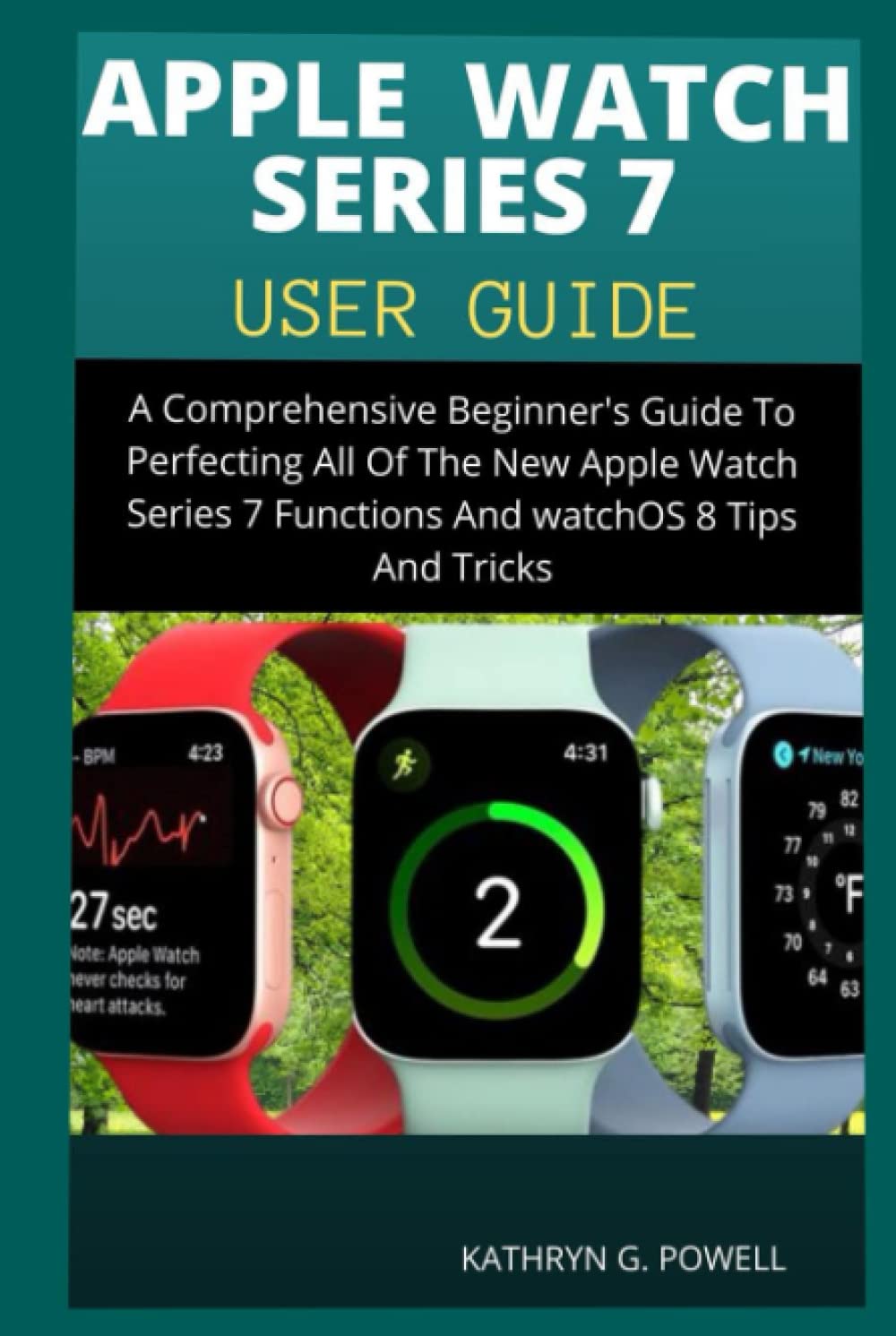
Note: No specific product images of the Apple Watch Series 7 device were provided in the source data. The image above is the cover of the user guide book.
مقاطع فيديو رسمية للمنتج
No official product videos were provided in the source data for embedding.