
weelikeit C72W
weelikeit 7-inch Kids Tablet C72W User Manual
الموديل: C72W
1. المقدمة
The weelikeit 7-inch Kids Tablet is designed to provide a safe and engaging digital experience for children. Running on Android 11.0, it features a durable kid-proof case, parental control functions, and access to educational content. This manual will guide you through the setup, operation, and maintenance of your new tablet.

Figure 1: weelikeit 7-inch Kids Tablet
2. ماذا يوجد في الصندوق
يرجى التحقق من محتويات الحزمة للتأكد من وجود جميع العناصر:
- 1 x 7-inch Android Tablet
- 1 × واقي شاشة
- 1 X ستايلس
- 1 × كابل من النوع C
- 1 x UL Certified Charger
- 1 × دليل المستخدم (هذه الوثيقة)

Figure 2: Stylus and Screen Protector included with the tablet.
3. انتهى المنتجview
The weelikeit Kids Tablet features a 7-inch IPS HD display, dual cameras (2MP front, 5MP rear), and a durable kid-proof case with an integrated stand. It is equipped with a 1.5 GHz quad-core processor, 2GB RAM, and 32GB ROM, expandable up to 256GB via an SD card.

Figure 3: Tablet Features and Ports
المميزات الرئيسية:
- عرض: 7-inch IPS HD (1024x600)
- المعالج: 1.5 جيجاهرتز رباعي النواة
- ذاكرة: 2GB RAM, 32GB ROM (expandable to 256GB with SD card)
- الكاميرات: 2 ميجا بكسل أمامية، 5 ميجا بكسل خلفية
- الاتصال: واي فاي، بلوتوث
- نظام التشغيل: أندرويد 11.0
- الموانئ: Type-C, 3.5mm Headphone Jack, Micro SD Card Slot
- حماية: Built-in Kid-Proof Case with Stand
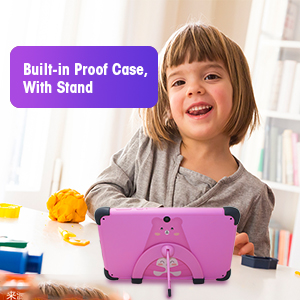
Figure 4: Built-in Kid-Proof Case with Stand
4. الإعداد
Follow these steps to set up your weelikeit Kids Tablet for the first time:
- شحن الجهاز اللوحي: Before first use, fully charge the tablet using the provided Type-C cable and UL Certified Charger. The charging port is located on the side of the tablet.
- تشغيل الطاقة: Press and hold the Power button (refer to Figure 3) for a few seconds until the screen lights up.
- معالج الإعداد الأولي: The tablet will guide you through the initial setup process. This includes selecting your language, connecting to a Wi-Fi network, and setting up a Google account. A Google account is required to download apps from the Google Play Store.
- اتصال واي فاي: During setup, you will be prompted to connect to a Wi-Fi network. Select your network from the list and enter the password. If you encounter issues, ensure your Wi-Fi router is on and within range.
- حساب جوجل: You can choose to set up the tablet with a parent's Google account or create a new one. This account will be used for app downloads and parental control management.
5. تعليمات التشغيل
5.1 تشغيل/إيقاف التشغيل وإعادة التشغيل
- تشغيل الطاقة: Press and hold the Power button until the screen turns on.
- إيقاف التشغيل: Press and hold the Power button until a menu appears. Select "Power off" to shut down the tablet.
- إعادة تشغيل: Press and hold the Power button until a menu appears. Select "Restart" to reboot the tablet.
5.2 الملاحة الأساسية
The tablet uses a touchscreen interface. Swipe, tap, and pinch gestures are used for navigation and interaction. Swipe up from the bottom of the screen to access the app drawer or navigate between screens.
5.3 Parental Control Function (iWawa App)
The tablet comes with the iWawa App pre-installed, offering robust parental control features. This allows parents to manage content and screen time for their children.
- Access iWawa: Turn on the tablet and open the iWawa application.
- إعداد احترافيfiles: Parents can create separate profileلكل طفل.
- إدارة المحتوى: Within the parental control settings, you can add or block specific applications, filter web content, and set screen time limits.
- Lock Device: The tablet can be locked with a password to prevent children from exiting the child mode without permission.
- Exit Child Mode: Parents can exit the child mode using a password to use the tablet as a regular Android device.
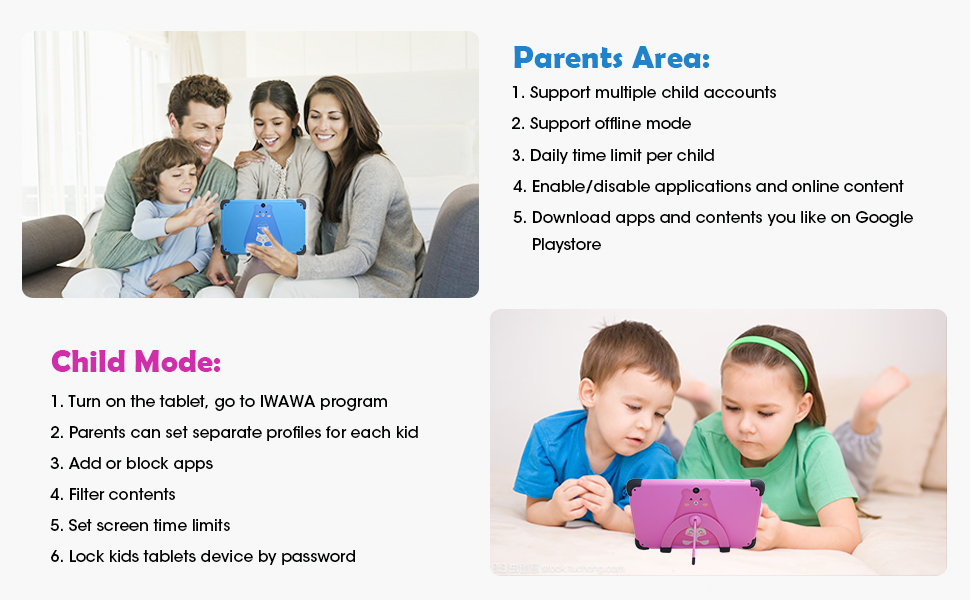
Figure 5: Parental Control Interface
5.4 Learning and Entertainment
The iWawa App provides a range of age-appropriate creative and educational content. Additionally, the tablet is GMS Certified, allowing access to the Google Play Store for downloading more educational apps like ABC Mouse, YouTube Kids, and Zoom.

Figure 6: Children engaging with the tablet
الفيديو 1: انتهىview of the weelikeit Kids Tablet features, including ports, parental control, and learning apps.
6. الصيانة
To ensure the longevity and optimal performance of your tablet, follow these maintenance guidelines:
- تنظيف: استخدم قطعة قماش ناعمة وخالية من الوبر لتنظيف شاشة الجهاز اللوحي وجسمه. تجنب استخدام المواد الكيميائية القاسية أو المواد الكاشطة.
- العناية بالبطارية: Avoid completely draining the battery frequently. Charge the tablet regularly. Do not expose the tablet to extreme temperatures.
- تحديثات البرامج: Periodically check for system updates to ensure your tablet has the latest features and security patches.
- ادارة التخزين: قم بإزالة الأشياء غير الضرورية بانتظام files and apps to maintain optimal performance. Consider using an SD card for additional storage.
- حافظة الحماية: The built-in kid-proof case provides protection against drops and bumps. Ensure it remains properly fitted.
7. استكشاف الأخطاء وإصلاحها
إذا واجهت مشاكل مع جهازك اللوحي، فراجع المشاكل والحلول الشائعة التالية:
| مشكلة | الحل المحتمل |
|---|---|
| الجهاز اللوحي لا يعمل | Ensure the tablet is charged. Connect it to the charger for at least 30 minutes, then try powering it on again. If it still doesn't turn on, try pressing and holding the power button for 10-15 seconds. |
| مشاكل اتصال Wi-Fi | Check if your Wi-Fi router is working correctly. Restart the tablet and your router. Ensure you are entering the correct Wi-Fi password. Try connecting to a different Wi-Fi network if available. |
| الأداء البطيء | Close unused applications. Clear cache and data for frequently used apps. Uninstall unnecessary apps. Restart the tablet. |
| عمر البطارية قصير | Reduce screen brightness. Close background apps. Disable Wi-Fi or Bluetooth when not in use. Limit continuous video streaming or gaming. |
| شاشة اللمس لا تستجيب | Restart the tablet. If specific areas are unresponsive, ensure the screen is clean and free of debris. If the issue persists, contact customer support. |
| Cannot download apps | Ensure you are connected to Wi-Fi. Check your Google account settings and payment methods if applicable. Verify that parental controls are not blocking the app. |
8. المواصفات
Detailed technical specifications for the weelikeit 7-inch Kids Tablet C72W:
| ميزة | التفاصيل |
|---|---|
| ماركة | com.weelikeit |
| اسم الموديل | يلمس |
| رقم الموديل | سي72 دبليو |
| نظام التشغيل | أندرويد 11.0 |
| حجم الشاشة | 7 بوصة |
| دقة العرض | 1024 × 600 IPS HD |
| سرعة المعالج | 1.5 جيجاهرتز رباعي النواة |
| ذاكرة الوصول العشوائي (RAM) | 2 جيجا بايت |
| التخزين الداخلي | 32 جيجا بايت |
| تخزين قابل للتوسيع | ما يصل إلى 256 جيجابايت (مايكرو إس دي) |
| الكاميرا الخلفية | 5 ميجا بكسل |
| الكاميرا الأمامية | 2 ميجا بكسل |
| سعة البطارية | 3000 مليamp ساعات (أيون الليثيوم) |
| الاتصال | بلوتوث ، واي فاي |
| الموانئ | Type-C, 3.5mm Headphone Jack, MicroSD Slot |
| إدخال واجهة الإنسان | شاشة تعمل باللمس، شاشة تعمل باللمس مع دعم القلم |
| GTIN / UPC | 608571029989 |
9. الضمان والدعم
weelikeit tablets come with a one-year warranty. For any questions or technical assistance regarding your weelikeit Kids Tablet, please refer to the following:
- ضمان: سنة واحدة من تاريخ الشراء.
- اتصل بالدعم: If you purchased through Amazon, find your order and click "Get Product Support." Weelikeit aims to assist you within 24 hours.
- الموارد المتاحة على الإنترنت: Visit the official weelikeit store on Amazon for additional product information and FAQs: weelikeit Store
Ask a question about this manual
Ask about setup, troubleshooting, compatibility, parts, safety, or missing instructions. Manuals+ will review the question and use this page’s manual context to help answer it.