
1. المقدمة
This manual provides detailed instructions for the setup, operation, and maintenance of your Bytech BYMCWC101BLK PC Web Camera. Please read this manual thoroughly before using the product to ensure proper functionality and longevity.
2. محتويات العبوة
تأكد من تضمين جميع العناصر المدرجة أدناه في عبوة المنتج الخاصة بك:
- جهاز كمبيوتر Bytech BYMCWC101BLK Web آلة تصوير
- دليل المستخدم (هذا المستند)
- كابل يو اس بي متكامل
3. الإعداد
Follow these steps to set up your Bytech BYMCWC101BLK PC Web آلة تصوير:
- الموقع: وضع webcam on top of your computer monitor, laptop screen, or a flat surface. The adjustable clip allows for secure attachment.
- الاتصال بجهاز الكمبيوتر: قم بتوصيل كابل USB المدمج من webقم بتوصيل الكاميرا بمنفذ USB المتوفر على جهاز الكمبيوتر الخاص بك.
- تثبيت برنامج التشغيل: ال webcam is typically plug-and-play. Your operating system (Windows, macOS, Linux) should automatically detect and install the necessary drivers. Wait for the installation to complete.
- تَحَقّق: افتح تطبيق مؤتمرات الفيديو (مثل Zoom أو Skype أو Microsoft Teams) أو تطبيق الكاميرا على جهاز الكمبيوتر الخاص بك لتأكيد ذلك. webتم التعرف على الكاميرا وعرض الفيديو.
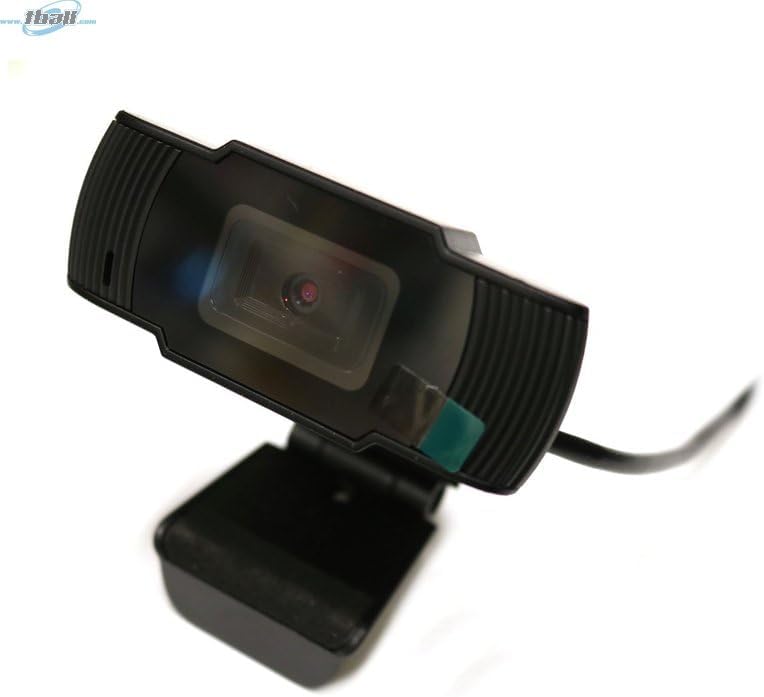
Image: The Bytech BYMCWC101BLK PC Web Camera securely mounted on top of a computer monitor, demonstrating its adjustable clip design.
4. تعليمات التشغيل
Once installed, the Bytech BYMCWC101BLK PC Web Camera can be used with various applications:
- مؤتمرات الفيديو: Select the Bytech webcam as your video input device within your preferred video conferencing software (e.g., Zoom, Skype, Google Meet).
- جاري: For live streaming platforms, configure the webcam as your primary video source in your streaming software (e.g., OBS Studio).
- تسجيل: Use your computer's built-in camera application or third-party software to record video.
- أداء الإضاءة المنخفضة: ال webcam features BSI CMOS photo sensor technology and is designed to perform effectively in low-light conditions, providing clear video even with limited ambient lighting.
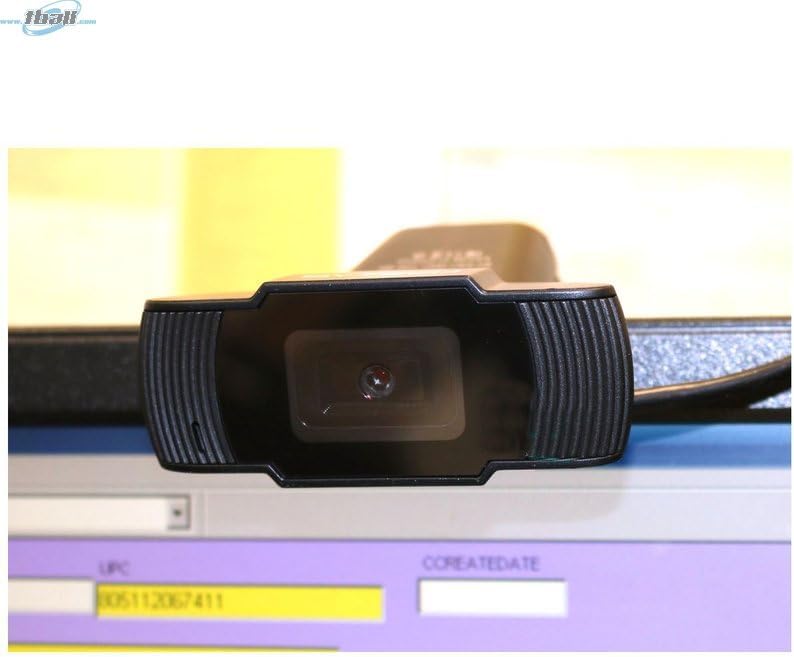
الصورة: لقطة مقربة view of the Bytech BYMCWC101BLK PC Web Camera's lens, highlighting its design and integrated privacy cover (if applicable, otherwise just lens).
5. الصيانة
To ensure optimal performance and extend the lifespan of your webكام:
- تنظيف: امسح العدسة برفق بقطعة قماش ناعمة وخالية من الوبر. تجنب استخدام المواد الكيميائية القاسية أو المواد الكاشطة.
- تخزين: عندما لا تكون قيد الاستخدام ، قم بتخزين ملف webcam in a clean, dry environment away from direct sunlight and extreme temperatures.
- العناية بالكابلات: لا تقم بثني أو ضغط كابل USB بشكل مفرط.
6. استكشاف الأخطاء وإصلاحها
إذا واجهت مشاكل مع webكاميرا، راجع المشاكل والحلول الشائعة التالية:
- لا يوجد صورة/فيديو:
- تأكد من توصيل كابل USB بإحكام بكل من webالكاميرا وجهاز الكمبيوتر الخاص بك.
- حاول توصيل webكاميرا في منفذ USB مختلف.
- أعد تشغيل الكمبيوتر الخاص بك.
- Check your application settings to ensure the Bytech webcam is selected as the video input device.
- جودة الفيديو رديئة:
- تأكد من وجود إضاءة كافية في محيطك.
- تنظيف webنظف عدسة الكاميرا بقطعة قماش ناعمة.
- Check your application's video settings for resolution and frame rate.
- Microphone Not Working (if applicable):
- تأكد من أن webcam's microphone is selected as the audio input device in your computer's sound settings and within your application.
- Ensure the microphone is not muted in your system or application.
7. المواصفات
| ميزة | التفاصيل |
|---|---|
| اسم الموديل | BYMCWC101BLK |
| ماركة | بايتك |
| تكنولوجيا الاتصال | USB |
| تقنية مستشعر الصور | بي إس آي سي إم أو إس |
| تنسيق التقاط الفيديو | إم بي 4 |
| ميزة خاصة | ضوء منخفض |
| لون | أسود |
| وزن العنصر | 4.9 أونصات |
| أبعاد الحزمة | 7.76 × 4.65 × 2.44 بوصة |
8. الضمان والدعم
For warranty information or technical support, please refer to the documentation included with your purchase or contact your retailer. Keep your proof of purchase for warranty claims.