
1. المقدمة
This manual provides detailed instructions for the EVICIV Portable Touchscreen Monitor, Model MDS-156B03. Please read this manual thoroughly before using the product to ensure proper operation and to maximize its performance and lifespan. This monitor is designed to extend your visual workspace and enhance productivity with its portable design and touchscreen capabilities.

Image 1.1: The EVICIV Portable Touchscreen Monitor.
2. محتويات العبوة
يرجى التحقق من محتويات العبوة عند فتحها. في حال وجود أي أغراض مفقودة أو تالفة، يُرجى التواصل مع خدمة العملاء.
- EVICIV Portable Touchscreen Monitor (MDS-156B03)
- كابل HDMI
- USB-A to USB-C Cable (for touch functionality)
- USB-C to USB-C Cables (x2, for power, display, and touch)
- محول طاقة USB-C
- دليل المستخدم (هذا المستند)
3. مواصفات المنتج
The EVICIV Portable Touchscreen Monitor offers a range of features designed for versatility and high performance:
- 15.6-inch Full HD (1080p) Display: Enjoy crisp and clear visuals.
- 5-Point Touch Functionality: Interact directly with your content for intuitive control.
- 100% sRGB Color Accuracy: Experience vibrant and true-to-life colors.
- Built-in Kick-Stand: يوفر قابل للتعديل viewing angles and supports both portrait and landscape orientations.
- إدارة الكابلات: Integrated design helps keep cables organized behind the monitor.
- الاضاءة الخلفية: Features RGB light effects for an enhanced aesthetic.
- اتصال متعدد الاستخدامات: Equipped with USB-C and HDMI ports for broad compatibility.
3.1. Adjustable Stand and Orientation
The integrated kick-stand allows for flexible positioning, enabling you to pivot the monitor 90 degrees for portrait mode, which can significantly increase viewability for certain tasks like coding or document review.

Image 3.1: Monitor pivoted 90 degrees for increased viewability in portrait mode.

Image 3.2: The monitor's rounded bezel and built-in kick-stand supporting both portrait and landscape orientations.
3.2. إدارة الكابلات
The monitor features a design that helps manage cables, keeping your workspace tidy and organized.

Image 3.3: The monitor's cable management system keeps connections neat.
3.3. دقة الألوان
With 100% sRGB coverage, the monitor delivers outstanding color accuracy and resolution, making it suitable for tasks requiring precise color representation.

Image 3.4: Visual representation of 100% sRGB color accuracy.
3.4. الإضاءة الخلفية LED
The monitor includes an LED backlight with customizable RGB light effects, allowing you to personalize your setup.
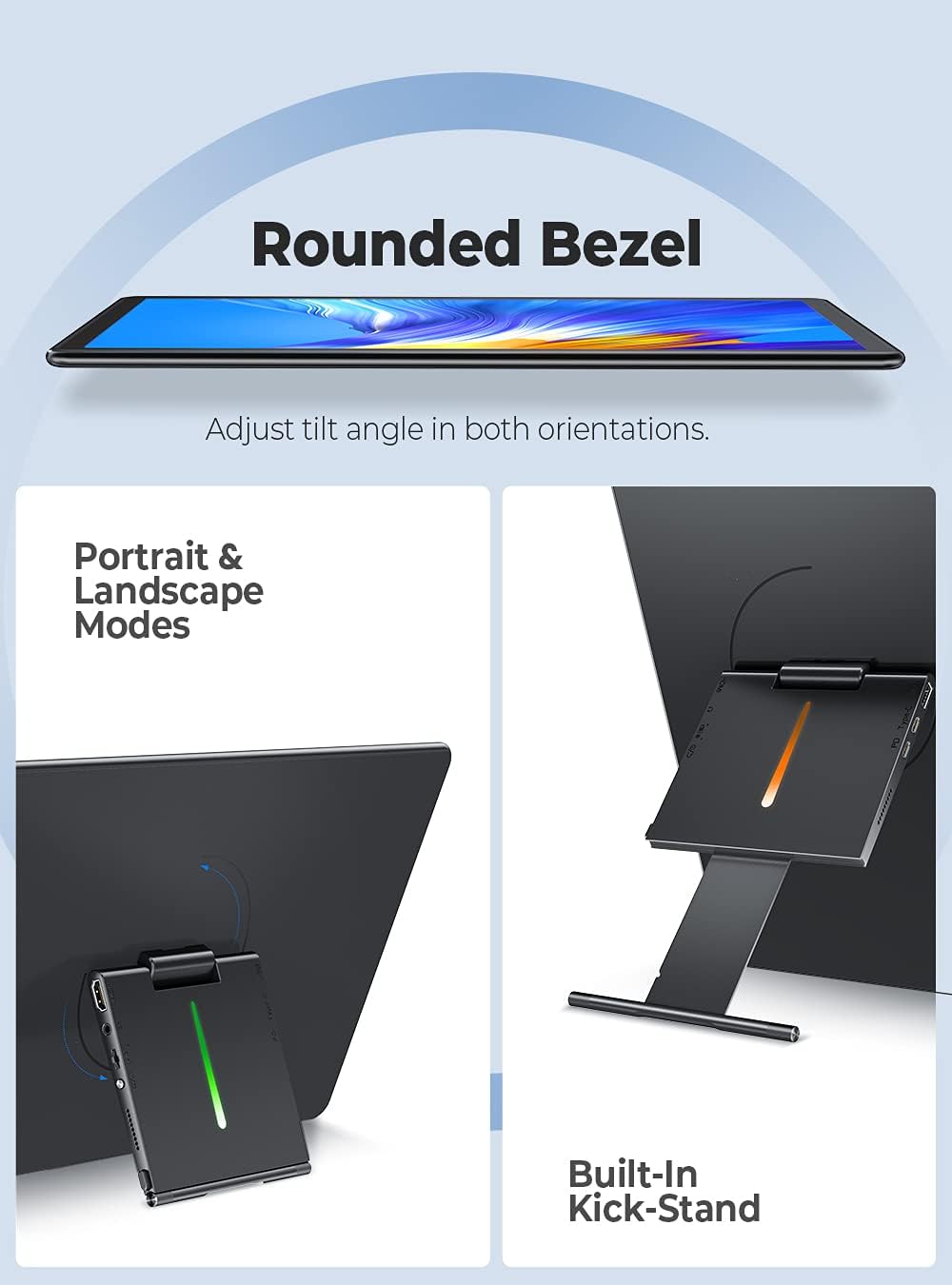
Image 3.5: The monitor's LED backlight feature.
4. تعليمات الإعداد
Follow these steps to set up your EVICIV Portable Touchscreen Monitor:
- توصيل الطاقة: Connect the USB-C power adapter to the monitor's USB-C PD port. Ensure the monitor receives adequate power.
- التوصيل بجهاز:
- Using USB-C (Full Function): If your device (laptop, smartphone) has a full-featured USB-C port that supports DisplayPort Alternate Mode and power delivery, connect one of the provided USB-C to USB-C cables directly from your device to the monitor's USB-C port. This single cable can provide power, video, and touch functionality.
- Using HDMI and USB-A: If your device does not have a full-featured USB-C port, connect the HDMI cable from your device to the monitor's HDMI port for video output. For touch functionality, connect the USB-A end of the USB-A to USB-C cable to your device and the USB-C end to the monitor's USB-C data port. Ensure the monitor is also powered via its USB-C PD port.
- العرض الأولي: Once connected, your device should automatically detect the monitor. If not, you may need to adjust display settings on your device (e.g., extend display, duplicate display).
- Touch Driver Installation: For Windows 10/11, the touch driver should install automatically when connected via USB. For other operating systems, specific drivers may be required.

Image 4.1: Connecting the monitor using USB and HDMI cables.
4.1. دليل فيديو الإعداد
For a visual guide on setting up your EVICIV Portable Touchscreen Monitor, please refer to the official product video below:
Video 4.1: Official EVICIV video demonstrating the 15.6-inch USB Type-C Portable Monitor's features and connectivity.
5. تعليمات التشغيل
5.1. تشغيل/إيقاف التشغيل
Locate the power button on the side or back of the monitor. Press and hold for a few seconds to power on or off. A short press may activate or deactivate the display.
5.2. قائمة العرض على الشاشة (OSD)
The OSD menu allows you to adjust various display settings. Typically, buttons on the side or back of the monitor are used to navigate and select options within the OSD. Common settings include:
- السطوع / التباين: ضبط مستويات سطوع الشاشة والتباين.
- إعدادات الألوان: قم بتعديل درجة حرارة اللون، والصبغة، والتشبع.
- مصدر الإدخال: Manually select between USB-C and HDMI inputs.
- مقدار: Control the volume of the built-in speakers.
5.3. وظيفة اللمس
The monitor supports 5-point multi-touch. Basic touch gestures include tapping to select, swiping to scroll, and pinch-to-zoom. Ensure the USB connection for touch is properly established for this feature to work.
5.4. Screen Orientation
The monitor can be used in both landscape and portrait modes. To switch orientation, physically rotate the monitor. Your operating system may automatically adjust the display orientation. If not, you can manually change it in your device's display settings.
6. الصيانة
تضمن الصيانة المناسبة طول عمر الشاشة والأداء الأمثل لها.
- تنظيف الشاشة: استخدم قطعة قماش ناعمة وخالية من الوبر، مصممة خصيصًا للإلكترونيات. امسح برفقampen the cloth with water or a screen-cleaning solution. Avoid harsh chemicals, alcohol, or abrasive materials.
- تنظيف الجسم: Wipe the monitor's body with a soft, dry cloth.
- تخزين: When not in use, store the monitor in a clean, dry place away from direct sunlight and extreme temperatures. Consider using a protective sleeve or case for transport to prevent scratches and damage.
- تجنب السوائل: لا تقم برش السوائل مباشرة على الشاشة.
7. استكشاف الأخطاء وإصلاحها
إذا واجهت مشكلات مع شاشتك، فراجع الحلول الشائعة التالية:
- لا يوجد عرض/شاشة سوداء:
- Ensure the monitor is properly powered and the power adapter is connected.
- Check all video cables (USB-C, HDMI) are securely connected to both the monitor and your device.
- تأكد من تحديد مصدر الإدخال الصحيح في قائمة OSD الخاصة بالشاشة.
- Test with a different cable or device if possible.
- خاصية اللمس لا تعمل:
- Ensure the USB connection for touch (USB-C to USB-C or USB-A to USB-C) is firmly connected.
- For Windows, check Device Manager to see if the touch screen driver is installed correctly. Reconnect the USB cable to trigger driver reinstallation.
- Some operating systems may require specific drivers or may not fully support multi-touch.
- Poor Image Quality/Incorrect Colors:
- Access the OSD menu and adjust brightness, contrast, and color settings.
- For optimal color, navigate to the OSD's color options, select 'User Settings', and adjust the RGB sliders. A common adjustment for better balance is setting Green to 70-80% while Red and Blue remain at 100%.
- Ensure your device's graphics settings are configured for the monitor's native resolution (1920x1080).
- لا يوجد صوت أو مستوى الصوت منخفض:
- Check the volume settings in the monitor's OSD menu.
- Verify the audio output settings on your connected device.
- The built-in speakers are designed for basic audio; for higher quality sound, external speakers are recommended.
8. المواصفات
| ميزة | التفاصيل |
|---|---|
| ماركة | إيفيكيف |
| رقم الموديل | إم دي إس-156ب03 |
| حجم الشاشة | 15.6 بوصة |
| دقة | دقة عالية كاملة 1080 بكسل (1920 × 1080) |
| نسبة العرض إلى الارتفاع | 16:10 |
| وصف سطح الشاشة | لامع |
| نسبة التباين | 2000:1 |
| معدل التحديث | 60 هرتز |
| Viewزاوية جي | 178 درجة |
| وقت الاستجابة | 1 ميلي ثانية |
| تكنولوجيا الاتصال | USB, HDMI, USB Type C |
| استخدامات محددة للمنتج | Gaming, Productivity |
| نوع التركيب | Desk Mount (Built-in Kick-Stand) |
| Total Number of HDMI Ports | 1 |
9. الضمان والدعم
EVICIV products are manufactured to high-quality standards. For specific warranty information, please refer to the warranty card included in your product packaging or visit the official EVICIV website. For technical support, troubleshooting assistance, or to inquire about replacement parts, please contact EVICIV customer service through the contact information provided on the official webالموقع أو منصة الشراء الخاصة بك.