
مقدمة
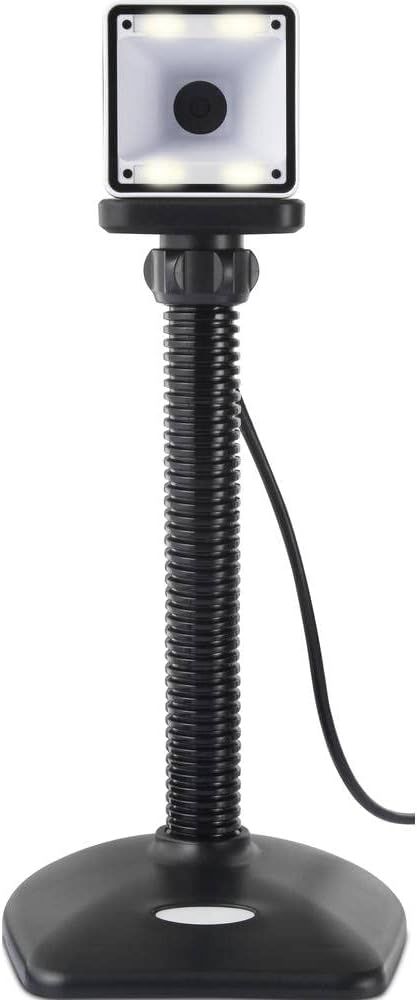
Thank you for choosing the Renkforce RF-SBS-500 2D Wired Barcode Scanner. This device is designed for efficient and reliable scanning of both 1D and 2D barcodes from various surfaces, including paper and smartphone screens. Its omnidirectional scanning capability and hands-free operation make it suitable for a wide range of applications. This manual provides essential information for the proper setup, operation, and maintenance of your scanner.
تعليمات السلامة
- لا تعرض الماسح الضوئي لدرجات حرارة شديدة أو رطوبة عالية أو لأشعة الشمس المباشرة.
- تجنب إسقاط الماسح الضوئي أو تعريضه لصدمات قوية.
- لا تحاول تفكيك الماسح الضوئي أو تعديله. سيؤدي ذلك إلى إلغاء الضمان.
- Keep the scanning window clean to ensure optimal performance. Use a soft, dry cloth.
- Ensure the USB cable is connected securely to prevent accidental disconnection.
محتويات الحزمة
- Renkforce RF-SBS-500 2D Wired Barcode Scanner
- Integrated USB-A Cable
- دليل المستخدم (هذا المستند)
يثبت
Follow these steps to set up your Renkforce RF-SBS-500 barcode scanner:
- فك حزمة الماسح الضوئي: قم بإزالة الماسح الضوئي من عبوته بعناية.
- الاتصال بجهاز الكمبيوتر: Plug the integrated USB-A cable from the scanner into an available USB port on your desktop or laptop computer.
- تثبيت برنامج التشغيل: The scanner is typically plug-and-play. Your operating system (Windows, macOS, Linux) should automatically detect and install the necessary drivers. Wait for the installation to complete.
- الموقع: Place the scanner on a stable, flat surface. The flexible neck allows for adjustment of the scanning head angle for optimal positioning.

تشغيل الماسح
The Renkforce RF-SBS-500 is designed for ease of use with its omnidirectional and hands-free capabilities.
- تشغيل الطاقة: Once connected via USB, the scanner will power on automatically. The LED indicators on the scanner head may illuminate briefly.
- مسح الرمز الشريطي: Position the barcode within the scanning area of the scanner head. The scanner will automatically detect and read the barcode.
- ردود الفعل المرئية والمسموعة: Upon successful scanning, the integrated buzzer will emit a short beep, and the LED display on the scanner will flash or change color, indicating a successful read.
- Omnidirectional Reading: The scanner can read barcodes regardless of their orientation, eliminating the need to align the barcode precisely.
- Hands-Free Mode (Presentation Mode): The scanner operates continuously in a presentation mode, allowing you to simply pass items with barcodes in front of the scanning window without pressing any buttons. This saves time and improves workflow efficiency.
- الباركود المدعومة: The scanner supports both 1D (e.g., EAN, UPC, Code 39) and 2D (e.g., QR Code, Data Matrix, PDF417) barcode types.
صيانة
تضمن الصيانة المناسبة طول عمر الماسح الضوئي الخاص بك وأدائه الأمثل.
- تنظيف نافذة المسح الضوئي: نظّف نافذة المسح الضوئي بانتظام بقطعة قماش ناعمة وخالية من الوبر. لإزالة الأوساخ العنيدة، امسحها برفق.ampen the cloth with water or a mild, non-abrasive cleaner. Do not spray cleaner directly onto the scanner.
- النظافة العامة: امسح الجزء الخارجي من الماسح الضوئي بقطعة قماش جافة أو مبللة قليلاًamp قماش. تجنب استخدام الكيماويات القاسية أو المواد الكاشطة.
- تخزين: عند عدم الاستخدام، قم بتخزين الماسح الضوئي في بيئة نظيفة وجافة بعيدًا عن أشعة الشمس المباشرة ودرجات الحرارة القصوى.
استكشاف الأخطاء وإصلاحها
إذا واجهت مشكلات مع الماسح الضوئي الخاص بك، فراجع المشكلات والحلول الشائعة التالية:
| مشكلة | السبب المحتمل | حل |
|---|---|---|
| الماسح الضوئي لا يعمل. | USB cable not connected properly or faulty USB port. | Ensure the USB cable is firmly connected to both the scanner and the computer. Try a different USB port. |
| الماسح الضوئي لا يقرأ الباركود. | Barcode damaged, scanning window dirty, or incorrect barcode type. | Check the barcode for damage. Clean the scanning window. Ensure the barcode type is supported (1D/2D). Adjust the distance and angle of the barcode to the scanner. |
| No beep or LED feedback after scanning. | Barcode not read successfully. | Refer to the "Scanner does not read barcodes" solution. If the issue persists, contact support. |
| تظهر البيانات الممسوحة ضوئياً بشكل غير صحيح. | Keyboard layout mismatch or software issue. | Ensure your computer's keyboard layout matches the expected output. Test with a simple text editor. |
If the problem persists after trying these solutions, please contact Renkforce customer support.
تحديد
| ميزة | مواصفة |
|---|---|
| رقم الموديل | آر إف-4679568 |
| القدرة على المسح | الباركودات أحادية وثنائية الأبعاد |
| تكنولوجيا الاتصال | USB-A (سلكي) |
| معدل المسح | 60 صورة في الثانية الواحدة |
| وضع المسح الضوئي | Omnidirectional, Hands-free (Presentation Mode) |
| تعليق | Integrated Buzzer, LED Display |
| الأجهزة المتوافقة | Desktop Computer, Laptop, Smartphone (via appropriate adapter if needed) |
| الأبعاد (الطول × العرض × الارتفاع) | 150 × 5.2 × 5.2 سم |
| وزن العنصر | 102 جرام |
| مصدر الطاقة | USB بالطاقة |
| بلد المنشأ | ألمانيا |
الضمان والدعم
Renkforce products are manufactured to high-quality standards and come with a standard warranty. Please refer to your purchase documentation or the Renkforce official webالموقع الخاص بشروط وأحكام الضمان المحددة المطبقة على منطقتك.
For technical support, troubleshooting assistance, or warranty claims, please contact Renkforce customer service. Contact details can typically be found on the Renkforce webالموقع أو على عبوة منتجك.