
1. انتهى المنتجview
The SIIG JU-DK0L11-S1 is a versatile USB 3.0 Dual Monitor Docking Station designed to expand your laptop or desktop's connectivity and display capabilities. It supports up to two 1080p@60Hz Full HD video displays via two HDMI ports, along with multiple USB ports, Gigabit Ethernet, and a 3.5mm audio jack. This docking station is compatible with both Windows and macOS operating systems, including Mac M1/M2/M3 Pro&Max.
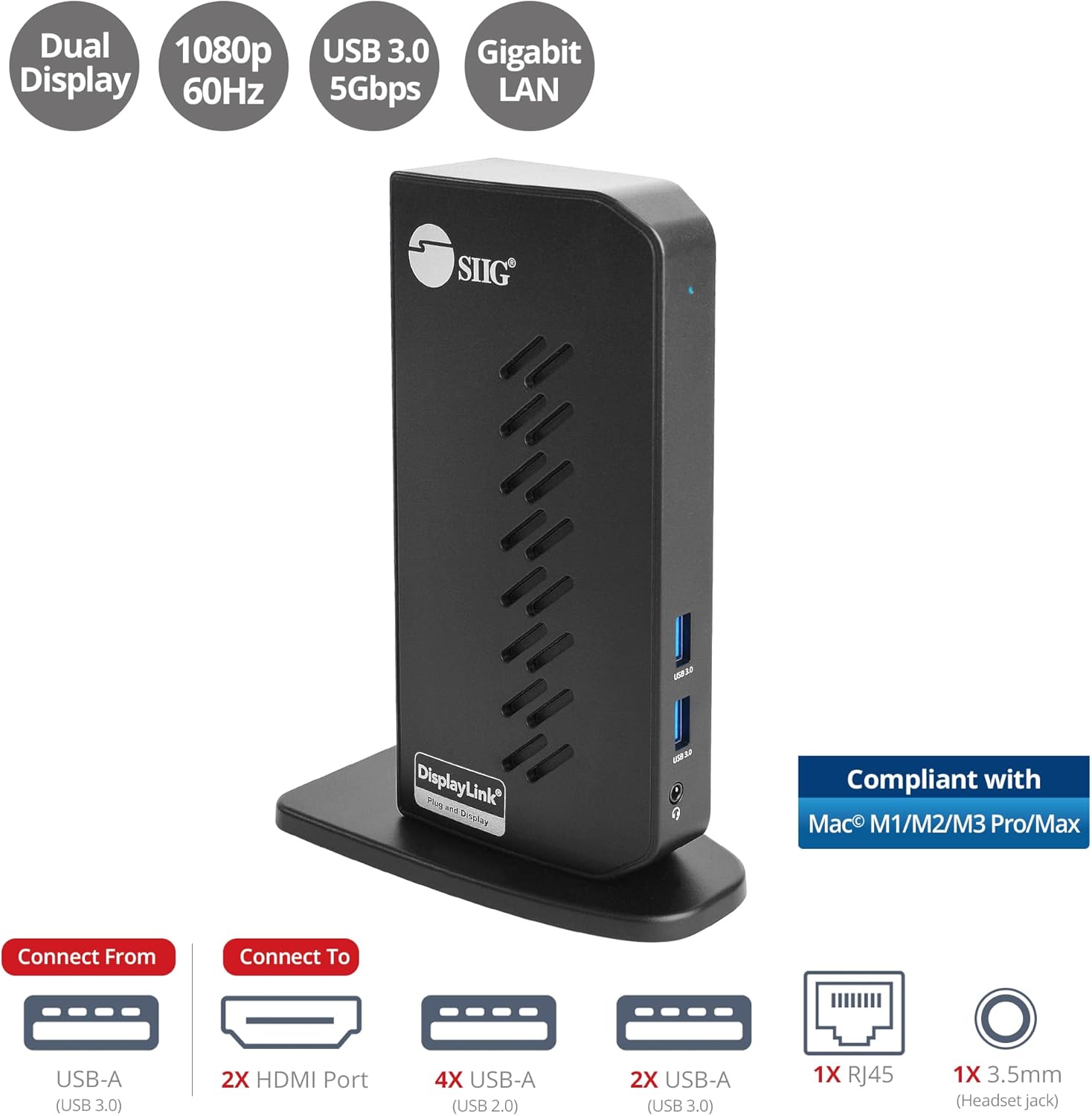
Image 1.1: The SIIG JU-DK0L11-S1 Dual Monitor Docking Station, showcasing its compact vertical design and various connectivity options.
2. محتويات العبوة
تأكد من وجود كافة العناصر في العبوة قبل المتابعة بالتثبيت.
- SIIG JU-DK0L11-S1 Dual Head Full HD HDMI Video Docking Station
- محول الطاقة (12 فولت / 2 أمبير)
- USB 3.0 Type-A to Type-B Cable
- Driver CD (Drivers can also be downloaded from the official SIIG webموقع)
- دليل المستخدم

Image 2.1: All components included in the SIIG JU-DK0L11-S1 docking station package, including the docking station, power adapter, USB cable, driver CD, and user manual.
3. تخطيط الأجهزة
Familiarize yourself with the ports and indicators on the docking station.
اللوحة الأمامية
- مؤشر الطاقة LED: يشير إلى حالة الطاقة.
- منفذان USB 3.0: For connecting high-speed USB devices (5Gbps, 4.5W/900mA).
- مقبس سماعة الرأس 3.5 ملم: For connecting headphones or stereo speakers with microphone input.
اللوحة الخلفية
- منفذان USB 2.0: For connecting standard USB devices (480Mbps, 5V/900mA).
- منفذ إيثرنت جيجابت RJ45: For wired network connection (10/100/1000Mbps).
- 2x HDMI Outputs: For connecting external displays (up to 1080p@60Hz).
- منفذ USB 3.0 من النوع B: For connecting the docking station to your host computer.
- مقبس الكهرباء: لتوصيل محول الطاقة 12 فولت/2 أمبير.

الصورة 3.1: تفصيلية view of the front and rear panels of the docking station, highlighting all available ports and their functions.
4. تعليمات الإعداد
اتبع هذه الخطوات لإعداد محطة الإرساء الخاصة بك:
- تثبيت برامج تشغيل DisplayLink: Before connecting the docking station, install the necessary DisplayLink drivers on your computer. You can use the included driver CD or download the latest drivers from the official DisplayLink webموقع (www.displaylink.com/downloads.) or SIIG's support page.
- توصيل الطاقة: Plug the provided 12V/2A power adapter into the docking station's power jack and then into a wall outlet. The Power LED on the front panel should illuminate.
- الاتصال بجهاز الكمبيوتر المضيف: Use the supplied USB 3.0 Type-A to Type-B cable to connect the docking station's USB 3.0 Type-B port to an available USB 3.0 Type-A port on your laptop or desktop computer.
- توصيل الشاشات: Connect your external monitors to the two HDMI output ports on the rear of the docking station using HDMI cables.
- توصيل الأجهزة الطرفية: Connect your USB devices (keyboard, mouse, printer, flash drives, etc.) to the available USB 3.0 and USB 2.0 ports. Connect an Ethernet cable to the RJ45 port for a wired network connection. Plug your headset or speakers into the 3.5mm audio jack.
Video 4.1: An official video demonstrating the setup and connectivity of the SIIG JU-DK0L11-S1 Dual Head Full HD HDMI Docking Station, showing how to connect monitors and peripherals.
5. تعليمات التشغيل
Once the docking station is set up, you can configure your display settings and utilize the connected peripherals.
أوضاع العرض
The docking station supports three primary display modes:
- وضع المرآة: Duplicates your primary display onto the external monitors.
- تمديد الوضع: يوسع سطح المكتب الخاص بك عبر شاشات متعددة، مما يسمح بزيادة مساحة العمل.
- الوضع الأساسي: Designates one of the connected displays as the main display.
يمكنك ضبط هذه الإعدادات من خلال إعدادات العرض الخاصة بنظام التشغيل الخاص بك (على سبيل المثال، إعدادات العرض في نظام التشغيل Windows أو إعدادات النظام في نظام macOS > شاشات العرض).

Image 5.1: A typical dual 1080p monitor setup utilizing the SIIG docking station, demonstrating an extended display configuration for enhanced productivity.
اتصال USB
The docking station provides two USB 3.0 ports for high-speed data transfer (e.g., external hard drives, SSDs) and four USB 2.0 ports for standard peripherals (e.g., keyboard, mouse, printer). Simply plug your devices into the corresponding ports.
جيجابت إيثرنت
For a stable and fast internet connection, connect an Ethernet cable from your router or modem to the RJ45 port on the docking station. This provides a more reliable connection than Wi-Fi, supporting 10/100/1000 BASE-T wired networks.

الصورة 5.2: عن قرب view of the Gigabit RJ45 Ethernet port and USB ports, illustrating their use for network and high-speed data transmission.
اتصال صوتي
The 3.5mm headset jack allows you to connect headphones, speakers, or a microphone. Ensure your operating system's audio settings are configured to use the docking station's audio output/input.
6. Specifications (Model: JU-DK0L11-S1)
| ماركة | المجموعة السعودية |
| رقم الموديل | جو-DK0L11-S1 |
| واجهة الأجهزة | 3.5mm Audio, Ethernet, HDMI, USB 1.1, USB 2.0, USB 3.0 |
| الأجهزة المتوافقة | Desktop or laptop computer with an available USB 3.0 Type-A port. Compatible with Windows® 11/10/8.1/8/7 and macOS® 11 / 10.15 to 10.10. |
| إجمالي منافذ USB | 6 (2x USB 3.0، 4x USB 2.0) |
| إجمالي منافذ HDMI | 2 |
| اقصي دقة | 1080p@60Hz (per display) |
| سرعة الإيثرنت | جيجابت (10/100/1000 ميجابت في الثانية) |
| حجم الإدخالtage | 100 فولت (تيار متردد) |
| أبعاد المنتج (الطول × العرض × الارتفاع) | 5.31 بوصة × 2.87 بوصة × 7.36 بوصة |
| وزن العنصر | 0.75 رطل |

Image 6.1: Physical dimensions of the SIIG JU-DK0L11-S1 docking station, illustrating its compact and space-saving design.
7. استكشاف الأخطاء وإصلاحها
- لا يوجد إخراج للعرض:
- تأكد من تشغيل محطة الإرساء وأن مؤشر الطاقة مضاء.
- Verify that the USB 3.0 cable is securely connected between the docking station and your computer.
- Check that HDMI cables are firmly connected to both the docking station and your monitors.
- Confirm that DisplayLink drivers are correctly installed and up to date.
- حاول إعادة تشغيل جهاز الكمبيوتر الخاص بك.
- أجهزة USB غير معترف بها:
- Ensure the docking station is powered and connected to your computer.
- حاول توصيل جهاز USB بمنفذ مختلف على محطة الإرساء.
- قم بتوصيل جهاز USB مباشرة بجهاز الكمبيوتر الخاص بك لاستبعاد مشاكل الجهاز.
- لا يوجد اتصال بالشبكة:
- Verify the Ethernet cable is securely connected to the RJ45 port on the docking station and your network source.
- تحقق من إعدادات الشبكة في جهاز الكمبيوتر الخاص بك للتأكد من تفعيل محول الإيثرنت.
- Confirm that your router/modem is functioning correctly.
- مشاكل الصوت:
- Ensure your headset/speakers are properly plugged into the 3.5mm jack.
- Check your computer's sound settings to select the docking station as the default audio output/input device.
8. الصيانة
To ensure the longevity and optimal performance of your SIIG docking station, follow these maintenance guidelines:
- حافظ على نظافة الجهاز بمسحه بقطعة قماش ناعمة وجافة. تجنب استخدام المنظفات السائلة أو البخاخات.
- Ensure proper ventilation around the docking station to prevent overheating. The vertical design with heat dissipation features aids in this.
- تجنب تعريض الجهاز لدرجات حرارة شديدة أو رطوبة أو أشعة الشمس المباشرة.
- تعامل مع الكابلات والموصلات بلطف لمنع تعرضها للتلف.
9. الضمان والدعم
For warranty information and technical support, please refer to the documentation included with your product or visit the official SIIG website. SIIG is committed to providing reliable products and customer assistance.
For further assistance, you may contact SIIG customer support directly through their webالموقع أو معلومات الاتصال المقدمة في عبوة منتجك.