
1. المقدمة
Welcome to the user manual for your XOOPAR Buddy Cable XP71031. This document provides essential information on how to set up, operate, and maintain your multi-connector cable. Please read these instructions carefully to ensure proper use and longevity of your product.
2. انتهى المنتجview
The XOOPAR Buddy Cable is a versatile charging and data transfer solution designed for modern mobile devices. It features a unique 'Buddy' shaped design and a compact keychain format for enhanced portability. This cable integrates three common connectors:
- يو اس بي-ايه: For connecting to standard USB ports on computers, wall adapters, and power banks.
- يو اس بي سي: Compatible with a wide range of modern smartphones (e.g., Huawei, Google), tablets, and laptops.
- البرق: Designed for Apple iPhones, iPads, and other Lightning-compatible devices.

Image: The XOOPAR Buddy Cable showcasing its three integrated connectors (USB-A, USB-C, and Lightning) and its coiled cable design.
3. الإعداد
Using the XOOPAR Buddy Cable is straightforward. Follow these steps to connect your devices:
- تحديد الموصلات: Locate the appropriate connector for your power source (USB-A) and your mobile device (USB-C or Lightning).
- الاتصال بمصدر الطاقة: Plug the USB-A end of the Buddy Cable into a compatible USB port on a wall adapter, computer, or power bank.
- الاتصال بالجهاز: Plug the USB-C or Lightning end into the charging port of your smartphone or other compatible device.
- تحقق من الاتصال: Ensure both ends are securely connected. Your device should indicate that it is charging or connected for data transfer.
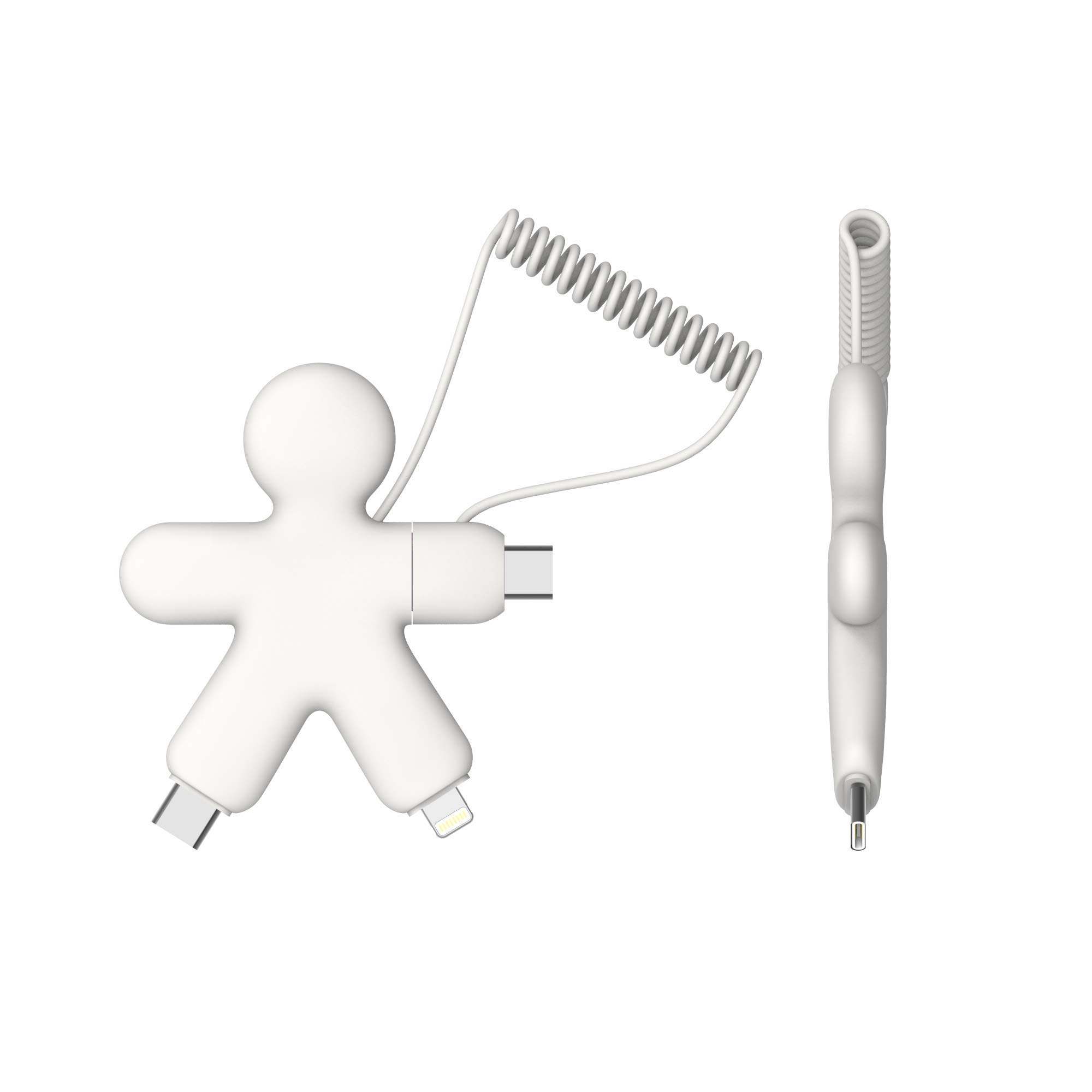
Image: The XOOPAR Buddy Cable facilitating a connection between a smartphone and a portable power bank.
4. تعليمات التشغيل
The XOOPAR Buddy Cable is designed for both charging and data synchronization. Its high-speed capabilities ensure efficient performance.
4.1. شحن جهازك
Once connected as described in the Setup section, your device will begin charging. The cable supports standard charging speeds. For optimal charging, use a compatible power adapter or a powered USB port.

Image: A smartphone being charged by the XOOPAR Buddy Cable connected to a laptop's USB port.
4.2. نقل البيانات
When connected to a computer, the XOOPAR Buddy Cable allows for data transfer between your device and the computer. Depending on your device and operating system, you may need to confirm the connection type (e.g., 'Allow' on your phone for data access).
5. الصيانة
To ensure the longevity and optimal performance of your XOOPAR Buddy Cable, follow these maintenance guidelines:
- تنظيف: Gently wipe the cable and connectors with a dry, soft cloth. Avoid using harsh chemicals or abrasive materials.
- تخزين: Store the cable in a cool, dry place away from direct sunlight and extreme temperatures. The coiled design helps prevent tangling.
- التعامل: Avoid excessive bending or pulling on the cable, especially near the connectors, to prevent internal damage. Always grasp the connector head when plugging or unplugging.
- رُطُوبَة: Keep the cable away from water and other liquids. If it gets wet, ensure it is completely dry before use.
6. استكشاف الأخطاء وإصلاحها
If you encounter issues with your XOOPAR Buddy Cable, try the following troubleshooting steps:
- الجهاز لا يشحن:
- Ensure both ends of the cable are securely plugged into the power source and your device.
- حاول استخدام محول طاقة مختلف أو منفذ USB.
- قم باختبار الكابل باستخدام جهاز مختلف لاستبعاد وجود مشكلة خاصة بالجهاز.
- تحقق من وجود أي تلف مرئي في الكابل أو الموصلات.
- الشحن البطيء:
- Ensure your power source provides sufficient output (e.g., a wall adapter is generally faster than a computer USB port).
- أغلق التطبيقات غير الضرورية على جهازك.
- مشاكل نقل البيانات:
- Confirm that your device is set to allow data transfer when connected to a computer.
- Try restarting both your device and the computer.
- تأكد من أن برامج تشغيل USB الخاصة بجهاز الكمبيوتر الخاص بك محدثة.
7. المواصفات
| ميزة | التفاصيل |
|---|---|
| ماركة | يشق |
| رقم الموديل | إكس بي 71031 |
| لون | أبيض |
| الموصلات | USB-A, USB-C, Lightning |
| المميزات الخاصة | High Speed, Keychain Format |
| الأجهزة المتوافقة | Smartphones (Apple, Huawei, Google, etc.) |
| الشركة المصنعة | XOOPAR |
| بلد المنشأ | الصين |
8. معلومات الضمان
Specific warranty details for the XOOPAR Buddy Cable XP71031 are typically provided with the product packaging or can be found on the official Xoopar webيرجى الرجوع إلى هذه المصادر للاطلاع على شروط وأحكام الضمان الكاملة.
9. الدعم
For further assistance, technical support, or inquiries regarding your XOOPAR Buddy Cable XP71031, please visit the official Xoopar website or contact their customer service department. Contact information is usually available on the product packaging or the manufacturer's webموقع.