
مقدمة
Thank you for choosing the iClever BK10 Bluetooth Wireless Keyboard. This manual provides detailed instructions on how to set up, operate, and maintain your keyboard to ensure optimal performance. Please read this manual carefully before use and retain it for future reference.
محتويات الحزمة
- لوحة مفاتيح iClever BK10 اللاسلكية بتقنية البلوتوث
- كابل شحن USB
- دليل المستخدم
تحديد
| ماركة | iClever |
| رقم الموديل | بي كيه 10 |
| تكنولوجيا الاتصال | بلوتوث |
| الأجهزة المتوافقة | Android 9+, ChromeOS (BT 4.0+), Windows 10/11, iPadOS 13.4+, macOS 10.15+ |
| تخطيط لوحة المفاتيح | أزيرتي |
| عدد المفاتيح | 78 |
| نوع المفتاح | تبديل مقص |
| مصدر الطاقة | تعمل بالبطارية |
| أبعاد المنتج | 43 طول × 14 عرض × 2.5 ارتفاع سم |
| المواد الداخلية | أكريلونتريل بوتادين ستايرين، فولاذ مقاوم للصدأ |
يثبت
1. الشحن الأولي
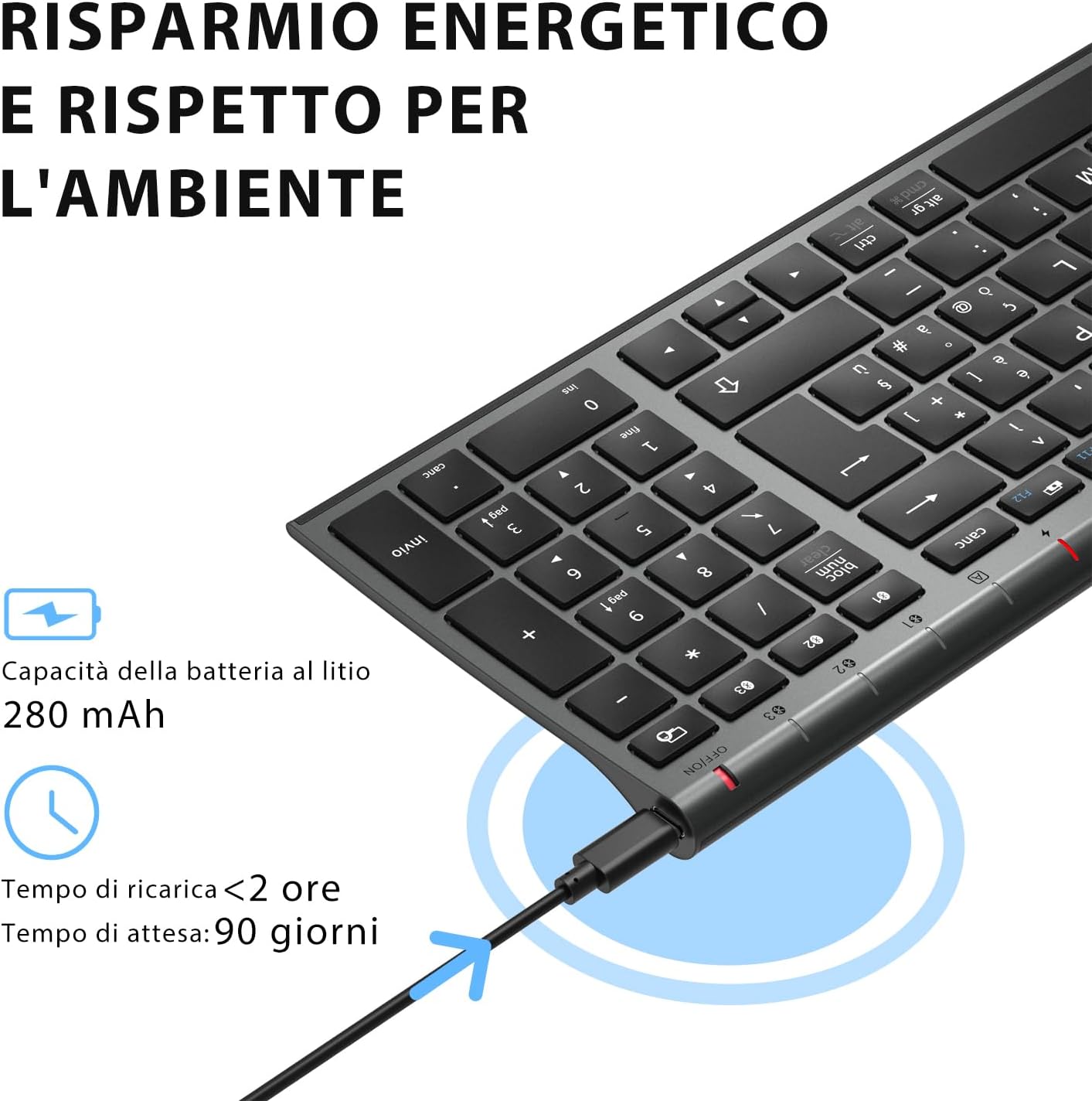
Before first use, fully charge the keyboard. Connect the provided USB charging cable to the keyboard's USB-C port and the other end to a USB power source (e.g., computer, wall adapter). The charging indicator light will show charging status and turn off when fully charged.

The iClever BK10 keyboard connected via USB-C for charging. This image details the 280 mAh lithium battery capacity, a charging time of less than 2 hours, and a standby time of 90 days.
2. تشغيل/إيقاف التشغيل
Locate the power switch on the keyboard. Slide the switch to the 'ON' position to power on the keyboard. Slide it to the 'OFF' position when not in use to conserve battery.
3. اقتران بلوتوث
The iClever BK10 keyboard supports connection to up to three devices simultaneously.
- قم بتشغيل لوحة المفاتيح باستخدام مفتاح الطاقة.
- اضغط على Fn اضغط على المفتاح في نفس الوقت مع أحد مفاتيح قناة البلوتوث (بي تي 1, بي تي 2، أو بي تي 3) to select a channel.
- Press and hold the selected Bluetooth channel key (e.g., بي تي 1) for 3-5 seconds until the indicator light for that channel starts blinking rapidly. This indicates the keyboard is in pairing mode.
- على جهازك (الكمبيوتر، الجهاز اللوحي، الهاتف الذكي)، قم بتمكين البلوتوث وابحث عن الأجهزة المتاحة.
- Select "iClever BK10" (or similar name) from the list of found devices.
- Follow any on-screen prompts to complete the pairing process. The indicator light will stop blinking and remain solid for a few seconds, then turn off, indicating a successful connection.

The iClever BK10 keyboard demonstrating its ability to connect to an iPad, MacBook, and iPhone via three distinct Bluetooth channels. The image also illustrates key mapping for Windows/Android (Alt/Cmd) and iPad/Mac (Alt/Cmd) operating systems.
تشغيل لوحة المفاتيح
1. التبديل بين الأجهزة المقترنة
للتبديل بين أجهزتك المقترنة، ما عليك سوى الضغط على Fn المفتاح بالإضافة إلى مفتاح قناة البلوتوث المقابل (بي تي 1, بي تي 2، أو بي تي 3) that your device is paired to. The keyboard will automatically connect to the selected device.
2. مفاتيح الوظائف (Fn)
The keyboard features a row of function keys (F1-F12) that also serve as multimedia and shortcut keys. To use the secondary function of these keys, press and hold the Fn key while pressing the desired function key.
3. التوافق مع نظام التشغيل
The iClever BK10 keyboard is designed to be compatible with various operating systems. Key functions may adapt slightly depending on the connected OS. For optimal performance, ensure your device's Bluetooth version is 4.0 or higher.

Close-up of the iClever BK10 keyboard with a hand typing, highlighting the low-profile keys and scissor switch mechanism designed for quiet and comfortable typing.
صيانة
1. التنظيف
لتنظيف لوحة المفاتيح، قم بإيقاف تشغيلها وفصلها عن جميع الأجهزة. استخدم قطعة قماش ناعمة وخالية من الوبر لتنظيفها برفق.ampened with water or a mild cleaning solution. Avoid using harsh chemicals, abrasives, or excessive moisture. Do not spray cleaners directly onto the keyboard.
2. العناية بالبطارية
لإطالة عمر بطارية لوحة المفاتيح الخاصة بك:
- Charge the keyboard fully before its first use.
- تجنب تفريغ البطارية بالكامل بشكل متكرر.
- قم بتخزين لوحة المفاتيح في مكان بارد وجاف عندما لا تكون قيد الاستخدام لفترات طويلة.
- Turn off the keyboard when transporting it or when not in use to prevent accidental key presses and battery drain.
استكشاف الأخطاء وإصلاحها
1. عدم اتصال/اقتران لوحة المفاتيح
- تأكد من تشغيل لوحة المفاتيح وشحنها بالكامل.
- تأكد من تمكين البلوتوث على جهازك.
- تأكد من أن لوحة المفاتيح في وضع الاقتران (يومض ضوء المؤشر).
- حاول إلغاء إقران لوحة المفاتيح وإعادة إقرانها من إعدادات البلوتوث في جهازك.
- أعد تشغيل كل من لوحة المفاتيح والجهاز.
- Ensure your device's Bluetooth version is compatible (BT 4.0+ recommended).
2. المفاتيح لا تستجيب
- Check if the keyboard is connected to the correct device.
- Ensure the battery is not low. Charge the keyboard if necessary.
- أعد تشغيل لوحة المفاتيح والجهاز المتصل بها.
- نظف أي شوائب من حول المفاتيح.
3. انقطاع الاتصال بشكل متكرر
- تأكد من عدم وجود مصادر تداخل قوية (مثل أجهزة توجيه الواي فاي، وأجهزة البلوتوث الأخرى) في مكان قريب.
- Keep the keyboard within the recommended operating range of your device.
- تأكد من أن لوحة المفاتيح مشحونة بالكامل.
الضمان والدعم
iClever products come with a standard warranty. For detailed warranty information, technical support, or customer service, please refer to the warranty card included with your product or visit the official iClever website. Please have your product model number (BK10) and purchase information ready when contacting support.
المنتج انتهىview الصور

من أعلى إلى أسفل view of the iClever BK10 Bluetooth Wireless Keyboard, showcasing تخطيطه الكامل بما في ذلك لوحة المفاتيح الرقمية ومفاتيح الوظائف.
جانب view of the iClever BK10 keyboard, illustrating its ultra-thin profile with a thickness ranging from 0.16 inches to 0.45 inches.

The iClever BK10 keyboard positioned on a desk in an office environment, alongside a computer monitor, laptop, tablet, and smartphone, illustrating its versatile use in various professional and personal setups.