
1. المقدمة
Thank you for choosing the iClever GK08 Wireless Keyboard and Mouse Combo. This full-size keyboard with a numeric keypad and a silent mouse offers a stable 2.4 GHz connection, USB-C recharging, and dual-layout compatibility for Mac and Windows systems. This manual provides detailed instructions to help you set up, operate, and maintain your new device.
2. معلومات السلامة
- أبقِ الجهاز بعيداً عن الماء والنار ودرجات الحرارة العالية.
- لا تحاول فك أو تعديل الجهاز.
- استخدم فقط كابل USB-C المقدم للشحن.
- تجنب إسقاط الجهاز أو تعريضه لصدمات قوية.
- تخلص من البطاريات والمكونات الإلكترونية بطريقة مسؤولة وفقًا للوائح المحلية.
3. دليل الإعداد
3.1 محتويات العبوة
- iClever GK08 Wireless Keyboard
- iClever Wireless Mouse
- USB-A Nano Receiver (stored inside the mouse)
- كابل شحن USB-C
- Washable Dust Cover
- دليل المستخدم
3.2 الشحن الأولي
Before first use, ensure both the keyboard and mouse are fully charged.
- Connect the provided USB-C charging cable to the keyboard's USB-C port (located on the top edge).
- قم بتوصيل الطرف الآخر من الكابل بمصدر طاقة USB (على سبيل المثال، منفذ USB في الكمبيوتر، أو محول حائط USB).
- The charging indicator light on the keyboard will illuminate during charging and turn off when fully charged.
- For the mouse, connect the USB-C cable to its charging port. The mouse also has an indicator light.
- A full charge takes approximately 2 hours and provides up to 45 days of use for the keyboard.
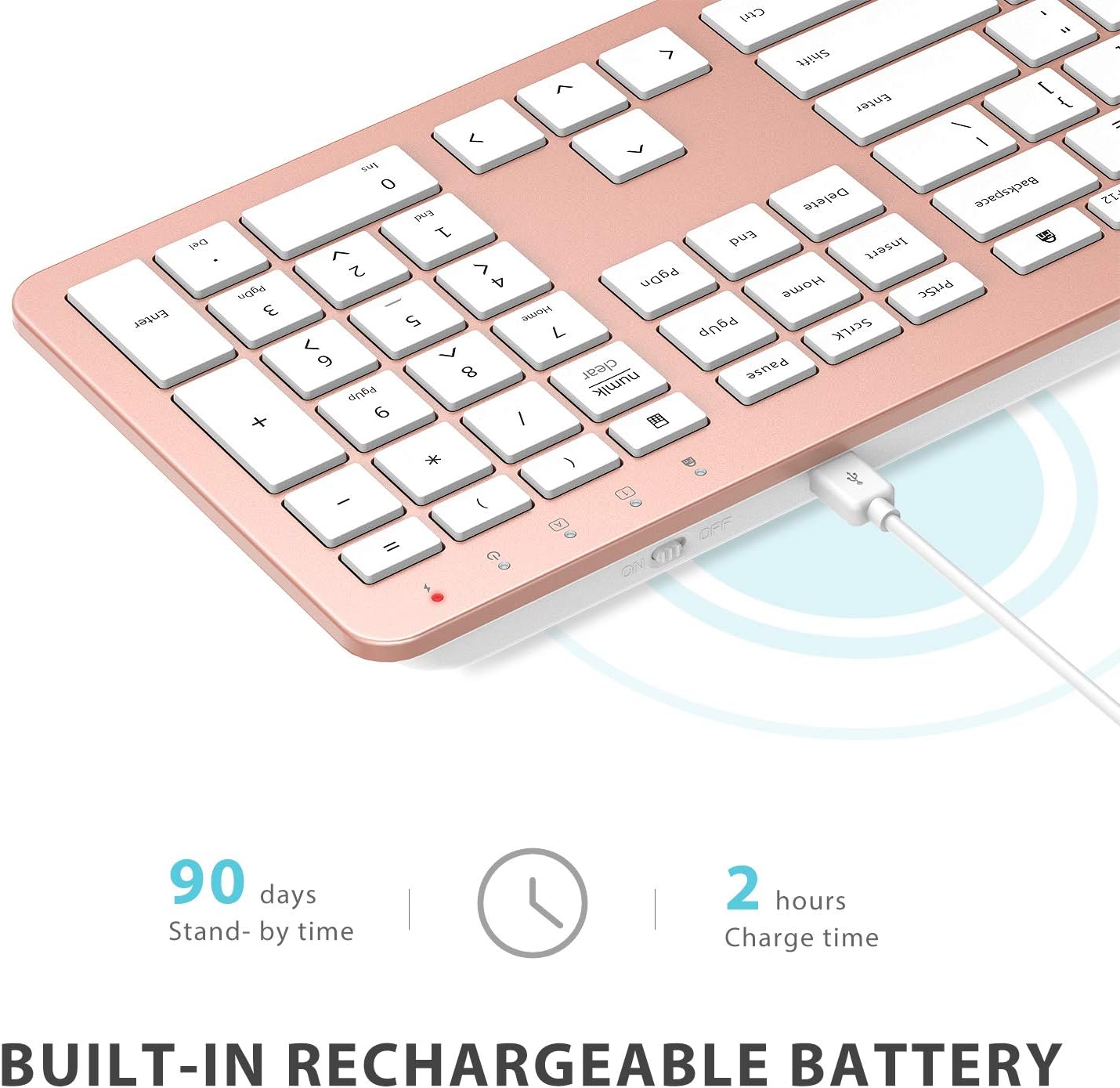
Image: The iClever GK08 keyboard connected to a USB-C charging cable, illustrating the charging process and battery life indicators.
3.3 Connecting to Your Computer (2.4 GHz Wireless)
The keyboard and mouse connect via a single 2.4 GHz USB-A nano receiver.
- Locate the USB-A nano receiver. It is typically stored in a compartment on the underside of the mouse.
- Plug the nano receiver into an available USB-A port on your computer.
- Turn on the keyboard using the ON/OFF switch (usually on the top edge).
- Turn on the mouse using the ON/OFF switch (located on the underside).
- Your computer should automatically detect and install the necessary drivers. The devices are ready for use once recognized.
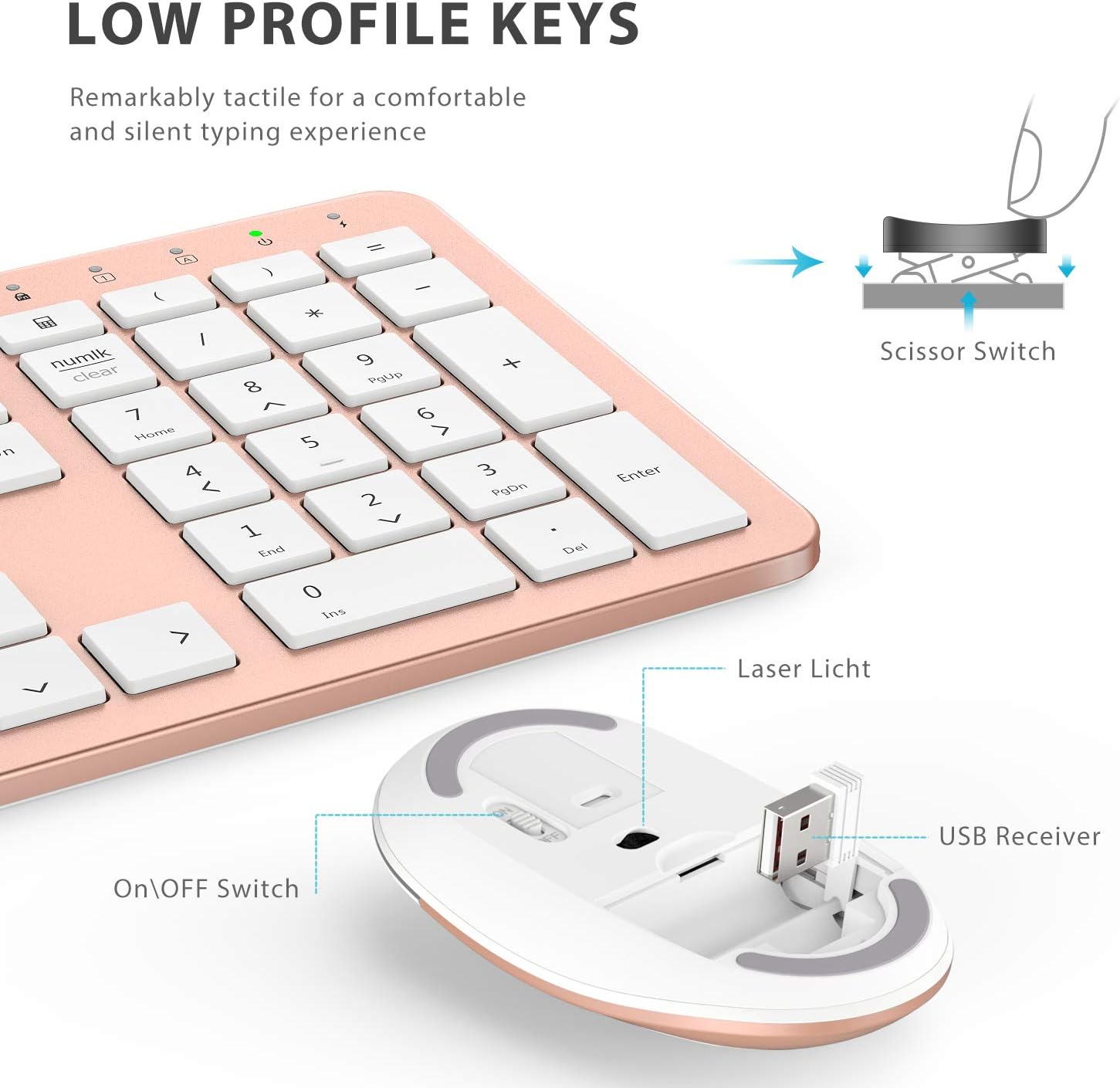
الصورة: لقطة مقربة view of the iClever mouse, highlighting the compartment where the USB nano receiver is stored for convenience.
3.4 التحقق من التوافق
This combo requires an available USB-A port for the nano receiver. For newer Macs with only USB-C ports, a USB-C to USB-A adapter (not included) is required. It is compatible with:
- Windows 10/11 PC & laptop
- macOS desktops / notebooks with USB-A port (e.g., iMac Retina 4K/5K, MacBook Air/Pro ≤ 2017)
- نظام التشغيل كروم

Image: A visual representation emphasizing the requirement of a USB-A port for the 2.4G wireless receiver, with a note about USB-C adapters for newer devices.
4. تعليمات التشغيل
4.1 وظائف لوحة المفاتيح
- تخطيط بالحجم الكامل: The keyboard features a 110-key layout with a dedicated numeric keypad for efficient data entry.
- Quiet Scissor-Switch Keys: Enjoy a comfortable and quiet typing experience with low-profile keys that produce less than 50 dB of sound.
- Media Shortcuts: Access common media functions directly from the keyboard.
- Dual-Layout Compatibility: The keyboard has clearly printed Mac and PC legends.
Switching Between Mac and Windows Layouts:
- ل نوافذ: يضعط Fn + W to activate Win, Alt, NumLK functions.
- ل نظام التشغيل ماك: يضعط Fn + Q to activate Alt (Option), Cmd, Clear functions.

Image: The iClever GK08 keyboard displaying the dual Mac and Windows key legends, with instructions for switching between operating system layouts using the Fn key combinations.
4.2 وظائف الماوس
- نقرة صامتة: The mouse is designed for quiet operation, minimizing distractions.
- DPI قابل للتعديل: The mouse features 3 adjustable DPI levels (800/1200/1600) to customize cursor sensitivity. Press the DPI button (usually located near the scroll wheel) to cycle through the settings.

Image: A visual demonstrating the quiet operation of the iClever mouse and the three adjustable DPI settings (800, 1200, 1600) for varied precision needs.
4.3 ميزة السكون التلقائي
To conserve battery life, both the keyboard and mouse will enter an auto-sleep mode after 10 minutes of inactivity. To wake them up, simply press any key on the keyboard or move the mouse.
Video: A seller-provided video demonstrating the plug-and-play functionality and long battery life of the iClever Wireless Keyboard and Mouse. This video highlights the ease of setup and extended usage between charges.
5. الصيانة
- تنظيف: استخدمي قطعة قماش ناعمةamp cloth to clean the surfaces of the keyboard and mouse. Avoid harsh chemicals.
- غطاء الغبار: Utilize the included washable dust cover to protect the keyboard from dust and spills when not in use.
- تخزين: When not in use for extended periods, turn off both devices to conserve battery. Store the USB receiver inside the mouse.
6. استكشاف الأخطاء وإصلاحها
- لا يوجد اتصال:
- Ensure both keyboard and mouse are turned ON.
- Verify the USB nano receiver is securely plugged into a working USB-A port on your computer.
- Try plugging the receiver into a different USB-A port.
- Check if the devices are charged.
- اتصال متقطع أو متقطع:
- Ensure the devices are within the 33 ft / 10 m operating range of the receiver.
- Avoid placing the receiver near strong interference sources (e.g., other wireless devices, large metal objects).
- Re-pair the devices by unplugging and re-plugging the receiver.
- Keyboard Not Typing Correctly (Mac/Windows):
- Ensure you have selected the correct operating system layout using Fn + W لنظام التشغيل Windows أو Fn + Q للماك.
- يقفز مؤشر الماوس أو يكون غير دقيق:
- قم بضبط إعداد DPI باستخدام زر DPI الموجود على الماوس.
- تأكد من أن مستشعر الماوس نظيف وخالٍ من العوائق.
- استخدم الماوس على سطح مناسب (ليس عاكسًا أو شفافًا بدرجة كبيرة).
7. المواصفات
| ميزة | التفاصيل |
|---|---|
| ماركة | iClever |
| رقم الموديل | جي كيه 08 |
| لون | الذهب الوردي |
| تكنولوجيا الاتصال | 2.4 GHz wireless (USB-A nano receiver) |
| لاسلكي المدى | حتى 33 قدم / 10 م |
| تخطيط لوحة المفاتيح | QWERTY, Full-size 110-key with Numpad |
| نوع المفتاح | Scissor Switch (Quiet typing < 50 dB) |
| مصدر الطاقة | Rechargeable Lithium Ion Battery (Keyboard) |
| منفذ الشحن | يو اس بي-سي |
| وقت الشحن | حوالي 2 ساعات |
| عمر البطارية (لوحة المفاتيح) | مدة تصل إلى 45 أيام (للاستخدام المعتاد) |
| إعدادات الماوس DPI | 800 / 1200 / 1600 نقطة في البوصة |
| أنظمة التشغيل المتوافقة | Windows 8/10/11, macOS, Chrome OS |
| المميزات الخاصة | Dual Mac/Windows layout, 10-min auto-sleep, Washable dust cover |
8. الضمان والدعم
iClever products typically come with a standard manufacturer's warranty. Please refer to the warranty card included in your product packaging or visit the official iClever webالموقع للحصول على شروط وأحكام الضمان التفصيلية.
For technical support, troubleshooting assistance, or any product-related inquiries, please contact iClever customer service through their official webالموقع أو معلومات الاتصال المقدمة في وثائق المنتج الخاص بك.
الدعم عبر الإنترنت: www.iclever.com/support