
1. المقدمة
This manual provides instructions for the setup, operation, maintenance, and troubleshooting of your JUQITECH Backlit Keyboard Case. Please read this manual thoroughly before using the product to ensure proper function and longevity.

Image 1.1: JUQITECH Backlit Keyboard Case with a tablet in an upright position, showcasing the backlit keyboard.
2. محتويات العبوة
تأكد من وجود جميع العناصر في الحزمة الخاصة بك:
- 1 x Smart Case for Galaxy Tab S8/S7 11"
- 1 x Wireless Backlit Keyboard
- كابل USB (للشحن)
- 1 × دليل المستخدم
3. التوافق
This keyboard case is designed for the following Samsung Galaxy Tab models:
- Samsung Galaxy Tab S8 11-inch (2022 models: SM-X700, SM-X706)
- Samsung Galaxy Tab S7 11-inch (2020 models: SM-T870, SM-T875, SM-T876)
Please verify your tablet's model number in the tablet's 'Settings' before use. This product is not compatible with other tablet models, including Samsung Galaxy Tab S7+, S7 FE, S8+, or 12.4-inch models.

Image 3.1: Visual guide to compatible Samsung Galaxy Tab models and their model numbers.
4. الإعداد
4.1 Installing the Tablet
- Align your Samsung Galaxy Tab with the case's inner shell.
- Gently press the tablet into the flexible TPU inner shell until it is securely seated. Ensure all edges are protected and cutouts align with ports and buttons.
4.2 شحن لوحة المفاتيح
Before initial use, fully charge the wireless keyboard.
- Connect the provided USB cable to the keyboard's charging port.
- قم بتوصيل الطرف الآخر من كابل USB بمحول طاقة USB (غير متضمن) أو بمنفذ USB الخاص بالكمبيوتر.
- سيضيء مؤشر الشحن. بعد اكتمال الشحن، سينطفئ المؤشر أو يتغير لونه.

Image 4.1: Keyboard charging port with USB cable connection.
4.3 اقتران بلوتوث
To connect the wireless keyboard to your tablet:
- Ensure the keyboard is charged and powered on using the ON/OFF switch.
- Press the 'Connect' button on the keyboard. The Bluetooth indicator light will flash, indicating it is in pairing mode.
- On your Samsung Galaxy Tab, go to 'Settings' > 'Connected devices' > 'Bluetooth'.
- قم بتشغيل البلوتوث والبحث عن الأجهزة المتاحة.
- Select 'Bluetooth Keyboard' (or similar name) from the list of devices.
- Follow any on-screen prompts to complete the pairing process. The Bluetooth indicator light on the keyboard will stop flashing once connected.
4.4 تبديل أنظمة التشغيل
The keyboard supports iOS, Android, and Windows operating systems. To switch between systems:
- اضغط على Fn key simultaneously with the corresponding system key:
- Fn + Q للاندرويد
- Fn + W لنظام التشغيل Windows
- Fn + E للأجهزة التي تعمل بنظام iOS

Image 4.2: Keyboard layout showing system switching keys (Fn + Q/W/E).
5. تشغيل علبة لوحة المفاتيح
5.1 التحكم في الإضاءة الخلفية
The keyboard features 7-color backlighting with stable and breathing modes.
- اضغط على bulb key to cycle through stable backlight mode, breathing backlight mode, or turn the backlight off.
- اضغط على RGB key to change the backlight color in stable mode (Blue, Green, Red, Light Blue, Purple, Yellow, White).
5.2 مفاتيح اختصار
The keyboard includes a row of dedicated shortcut keys for enhanced productivity:
- خروج: يهرب
- بحث: Access search function
- حدد الكل
- ينسخ
- لصق
- يقطع
- سابق (media control)
- تشغيل/إيقاف مؤقت (media control)
- التالي (media control)
- الصوت -
- حجم +
- Screen Lightness -
- Screen Lightness +
- قفل الشاشة

الصورة 5.1: انتهىview of dedicated shortcut keys.
5.3 تعديل Viewزوايا جي
The case allows for multiple viewing angles. The keyboard is magnetically attached and can be detached to adjust the tablet's position for optimal viewing, reading, working, or gaming.
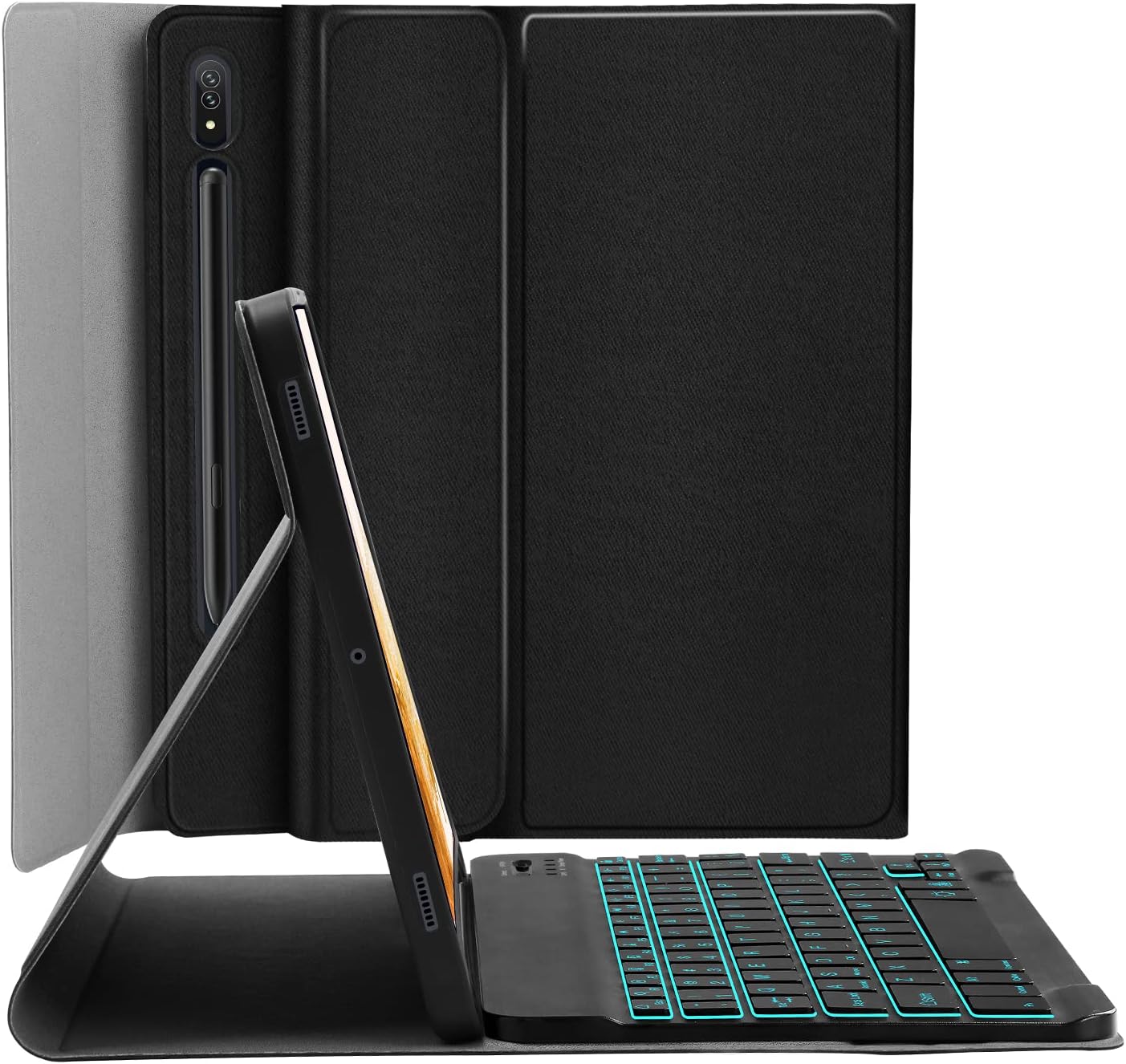
Image 5.2: Tablet case in a propped-up position with the keyboard, illustrating a common viewزاوية جي.

Image 5.3: Illustration of various adjustable viewزوايا متعددة.
5.4 S Pen Integration
The case includes a built-in slot for the S Pen, ensuring it is stored securely and is readily available. The design also supports magnetic attachment and wireless charging of the S Pen on the tablet's side without removing the case.

Image 5.4: S Pen holder and magnetic charging area.

الصورة 5.5: تفصيلية view of the S Pen slot and magnetic attachment.
5.5 وظيفة النوم/الاستيقاظ التلقائي
The magnetic auto sleep/wake feature helps conserve battery life. The tablet will automatically wake up when the lid is opened and go to sleep when the lid is closed.

Image 5.6: Features including auto sleep/wake, soft TPU, and precise cutouts.
6. الصيانة
6.1 التنظيف
- Wipe the case exterior with a soft, damp قماش. تجنب المواد الكيميائية القاسية.
- For the keyboard, use a dry, soft cloth. Do not immerse the keyboard in water.
6.2 العناية بالبطارية
- اشحن لوحة المفاتيح بانتظام للحفاظ على صحة البطارية.
- تجنب درجات الحرارة القصوى، والتي يمكن أن تؤثر على أداء البطارية.
7. استكشاف الأخطاء وإصلاحها
7.1 لوحة المفاتيح غير متصلة
- تأكد من تشغيل لوحة المفاتيح وشحنها بالكامل.
- Verify Bluetooth is enabled on your tablet.
- اضغط على زر "الاتصال" الموجود على لوحة المفاتيح للدخول إلى وضع الاقتران.
- Forget the device in your tablet's Bluetooth settings and attempt to re-pair.
7.2 المفاتيح لا تستجيب
- تأكد من أن لوحة المفاتيح متصلة عبر البلوتوث.
- Ensure the correct operating system mode is selected (Fn + Q/W/E).
- أعد شحن بطارية لوحة المفاتيح.
7.3 الإضاءة الخلفية لا تعمل
- Press the bulb key to cycle through backlight modes.
- تأكد من أن بطارية لوحة المفاتيح بها شحنة كافية.
8. المواصفات
| رقم الموديل | JU2011BTB |
| أبعاد المنتج | 10.2 × 7.37 × 0.78 بوصة |
| وزن العنصر | 1.28 رطل |
| تكنولوجيا الاتصال | بلوتوث |
| نوع لوحة المفاتيح | Wireless, Detachable, 7 Colors Backlit |
| ألوان الإضاءة الخلفية | RGB (Blue, Green, Red, Light Blue, Purple, Yellow, White) |
| بطارية | 1 بطارية ليثيوم أيون (مضمنة) |
| المميزات الخاصة | Backlit, Built-in S Pen Holder, Multi-Angle Adjustable, Rechargeable, Auto Sleep/Wake |
9. الضمان والدعم
JUQITECH offers a 24-hour after-sales service guarantee for any issues with your purchase. Please contact JUQITECH customer support for assistance.