
1. المقدمة
This manual provides detailed instructions for the setup, operation, maintenance, and troubleshooting of your Sharkoon Light² 200 Gaming Mouse. Please read this manual thoroughly before using the device to ensure optimal performance and longevity.
2. محتويات العبوة
تأكد من وجود جميع العناصر في العبوة:
- Sharkoon Light² 200 Gaming Mouse
- Interchangeable Solid Top Cover (7g)
- Set of Replacement PTFE Glide Feet
- دليل التعليمات
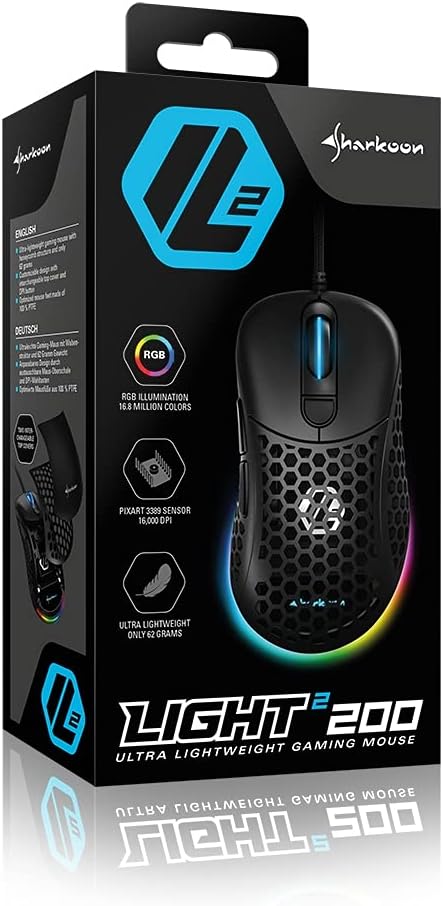
Image: The retail packaging for the Sharkoon Light² 200 Gaming Mouse, showing the mouse and its key features.
3. الإعداد
3.1 توصيل الماوس
- Unpack the Sharkoon Light² 200 Gaming Mouse from its packaging.
- قم بتوصيل موصل USB الخاص بكابل الماوس بمنفذ USB متاح على جهاز الكمبيوتر الخاص بك.
- سيقوم نظام التشغيل تلقائيًا باكتشاف وتثبيت برامج التشغيل اللازمة.

Image: The Sharkoon Light² 200 Gaming Mouse with its USB cable, ready for connection to a computer.
3.2 تثبيت البرنامج
For full customization and access to all features, download and install the Sharkoon gaming software from the official Sharkoon website. The software allows for DPI adjustments, button programming, and RGB lighting control.
- Visit the official Sharkoon webموقع.
- Navigate to the support or downloads section for the Light² 200 Gaming Mouse.
- Download the latest version of the gaming software.
- اتبع الإرشادات التي تظهر على الشاشة لإكمال التثبيت.
4. تشغيل الماوس
4.1 الوظائف الأساسية
The Light² 200 features standard mouse buttons and a scroll wheel:
- الزر الأيسر: زر الإجراء الأساسي.
- انقر على اليمين: زر إجراء ثانوي، يُستخدم عادةً في قوائم السياق.
- عجلة التمرير: For vertical scrolling. Can also be pressed for a middle-click function.
- الأزرار الجانبية: Two buttons located on the left side, typically for 'forward' and 'back' navigation.
- زر DPI: Located behind the scroll wheel, used to cycle through DPI settings.

الصورة: الجانب view of the Sharkoon Light² 200 Gaming Mouse, highlighting the two programmable side buttons and the honeycomb structure.
4.2 ضبط DPI
The optical PixArt sensor supports up to 16,000 DPI. You can adjust the DPI sensitivity using the dedicated DPI button behind the scroll wheel or through the Sharkoon gaming software. The RGB lighting on the scroll wheel and rear of the mouse indicates the current DPI profile.
4.3 أزرار قابلة للبرمجة
The Light² 200 features six programmable buttons. Use the Sharkoon gaming software to assign custom functions, macros, or key bindings to these buttons for an optimized gaming experience.
4.4 تخصيص إضاءة RGB
The mouse features adjustable RGB illumination on the scroll wheel and the back end. The gaming software allows you to customize colors, effects, and brightness to match your preferences or gaming setup.
4.5 Modular Design: Changing the Top Cover
The Light² 200 has a modular design, allowing you to change the top surface. The default honeycomb top cover can be replaced with a closed 7-gram alternative for a different feel or aesthetic.
- Gently lift the rear edge of the honeycomb top cover to detach it. It is held by magnets.
- Align the replacement solid top cover with the mouse body and gently press it down until the magnets secure it in place.

Image: The Sharkoon Light² 200 Gaming Mouse with its honeycomb top cover removed, revealing the internal structure and magnetic attachment points.
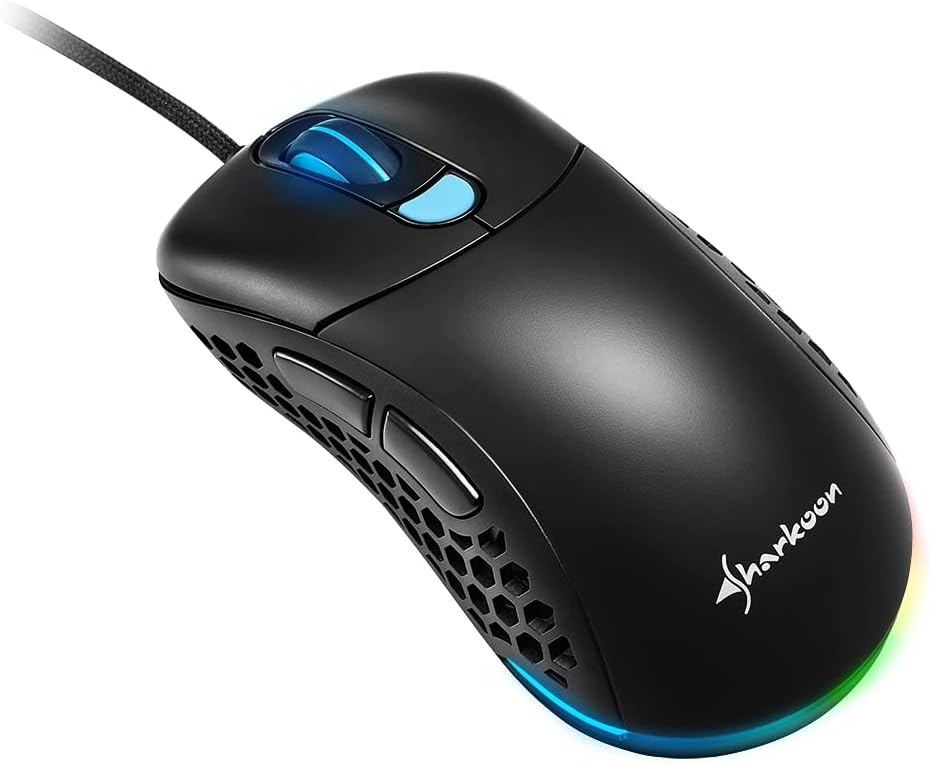
Image: The Sharkoon Light² 200 Gaming Mouse with the alternative solid top cover installed, providing a different aesthetic and feel.
5. الصيانة
5.1 تنظيف الماوس
للحفاظ على الأداء الأمثل، نظّف الماوس بانتظام:
- افصل الماوس عن الكمبيوتر.
- استخدم قطعة قماش ناعمة وجافة لمسح سطح الفأرة.
- بالنسبة للأوساخ العنيدة، قم بإزالة الأوساخ برفق.ampاغسل قطعة القماش بالماء أو محلول تنظيف معتدل. تجنب المواد الكيميائية القاسية.
- Use compressed air to clear dust from the honeycomb structure and around buttons.
- Clean the optical sensor area with a cotton swab lightly dampمخفف بالكحول الأيزوبروبيل.
5.2 Replacing PTFE Glide Feet
The PTFE glide feet ensure smooth movement. If they become worn, replace them using the included spare set:
- قم بإزالة أقدام PTFE القديمة بعناية باستخدام أداة رفيعة غير كاشطة.
- قم بتنظيف السطح الذي تم تثبيت الأقدام عليه للتأكد من عدم وجود أي بقايا.
- Peel the new PTFE feet from their backing and carefully apply them to the corresponding areas on the mouse's underside.
- اضغط بقوة لضمان الالتصاق المناسب.

Image: The underside of the Sharkoon Light² 200 Gaming Mouse, showing the optical sensor, the DPI switch, and the four white PTFE glide feet.
6. استكشاف الأخطاء وإصلاحها
- الفأرة لا تستجيب:
- Ensure the USB cable is securely connected to a working USB port.
- Try connecting the mouse to a different USB port or another computer to rule out port or system issues.
- قم بإعادة تشغيل جهاز الحاسوب الخاص بك. - إعدادات DPI لا تتغير:
- Ensure the Sharkoon gaming software is installed and running.
- Check if the DPI button is functioning correctly. - إضاءة RGB لا تعمل أو غير صحيحة:
- Verify that the Sharkoon gaming software is installed and that lighting settings are configured correctly.
- Ensure the mouse is properly connected. - Mouse movement is erratic or imprecise:
- Clean the optical sensor on the underside of the mouse.
- Ensure you are using the mouse on a suitable surface (e.g., a mouse pad).
- Check for any physical obstructions around the sensor. - الأزرار لا تستجيب:
- Check button assignments in the Sharkoon gaming software.
- Ensure no physical debris is obstructing the button mechanism.
7. المواصفات
| ميزة | التفاصيل |
|---|---|
| اسم الموديل | ضوء² 200 |
| رقم موديل العنصر | 4044951029013 |
| أبعاد المنتج | 4.72 × 2.6 × 1.65 بوصة (120 × 66 × 42 مم) |
| وزن العنصر | 2.19 أونصة (62 جرام) |
| تقنية كشف الحركة | بصري (مستشعر PixArt) |
| ماكس DPI | 16,000 نقطة في البوصة |
| أزرار قابلة للبرمجة | 6 |
| تكنولوجيا الاتصال | USB |
| ميزة خاصة | RGB LED Lights, Modular Design |
| الشركة المصنعة | شركة شاركون تكنولوجيز |
8. الضمان والدعم
8.1 معلومات الضمان
Sharkoon products are covered by a manufacturer's warranty against defects in materials and workmanship. The specific warranty period and terms may vary by region. Please retain your proof of purchase for warranty claims.
8.2 الدعم الفني
For technical assistance, driver downloads, or further information, please visit the official Sharkoon webموقع:
- Webموقع: www.sharkoon.com
You may also find FAQs and troubleshooting guides on their support pages.