
1. المقدمة
Thank you for choosing the iClever BK10 Bluetooth Keyboard. This manual provides essential information for setting up, operating, maintaining, and troubleshooting your new wireless keyboard. Please read it carefully to ensure optimal performance and longevity of your device.
ماذا يوجد في الصندوق
- لوحة مفاتيح iClever BK10 بلوتوث
- كابل شحن USB-C
- دليل المستخدم
- Protective Silicone Cover (for key protection)

Figure 1: Included items with the iClever BK10 Bluetooth Keyboard.
2. الميزات الرئيسية
- Sleek & Wireless Design: Constructed with stainless steel and ABS, featuring a 10-degree tilt for comfortable desktop use.
- Multi-Device & Multi-OS Compatibility: Seamlessly switch between up to 3 devices using Bluetooth 5.1 technology. Automatically recognizes and adapts to Windows, macOS, iPadOS, Android, iPhone, and Chromebooks.
- Responsive & Low-Profile المفاتيح: Scissor-key mechanism provides enhanced feedback, stability, and quiet typing (below 50 dB). Optimized key-travel and anti-slip tapes ensure comfort and precision.
- Compact & Efficient: Full-size layout with a standard numeric keypad. Includes hotkeys for Calculator, Fn lock, Mute, Volume up/down, and more to boost productivity.
- USB-C Rechargeable & Energy Saving: Built-in rechargeable battery offers up to 45 days of use after a 2-hour charge. Features an automatic power-saving sleep mode after 30 minutes of inactivity.
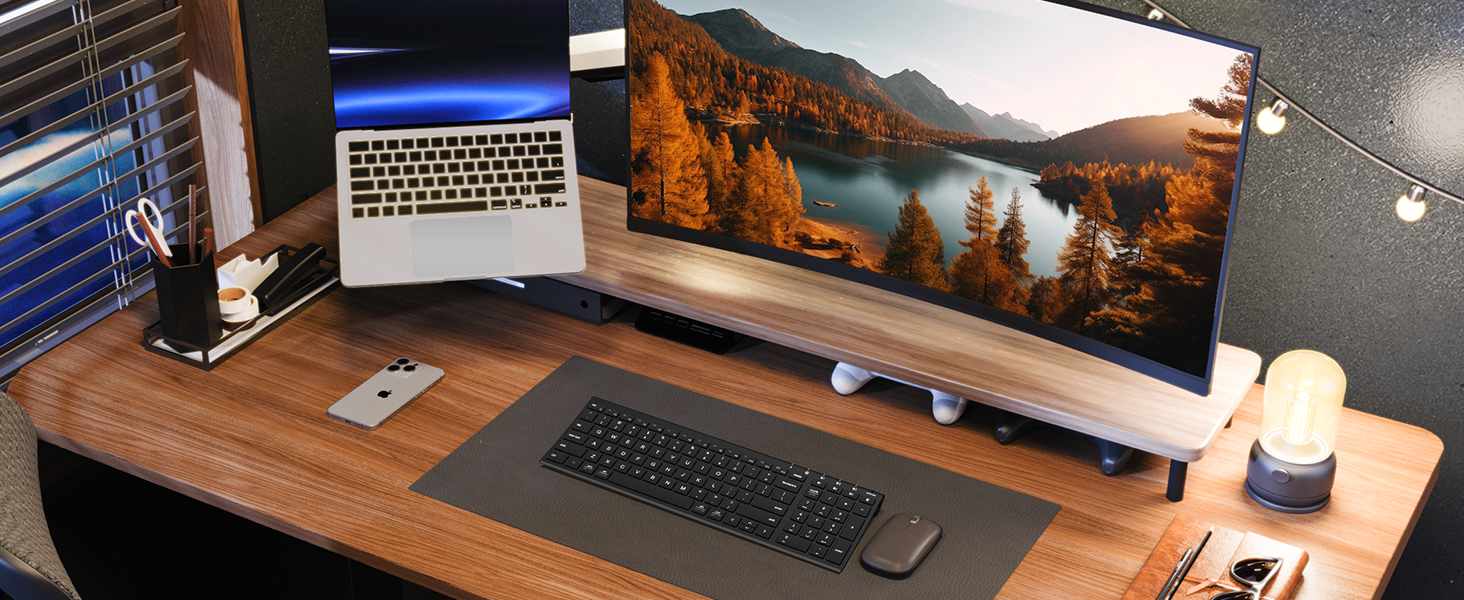
Figure 2: The sleek and wireless design of the iClever BK10 keyboard.
3. الإعداد
3.1 شحن لوحة المفاتيح
Before initial use, fully charge the keyboard using the provided USB-C cable. Connect the USB-C end to the keyboard's charging port (located on the right side) and the USB-A end to a power source (e.g., computer USB port, USB wall adapter). The charging indicator light will illuminate during charging and turn off when fully charged.

Figure 3: USB-C charging port on the iClever BK10 keyboard.
3.2 تشغيل/إيقاف التشغيل
Locate the ON/OFF switch on the top right side of the keyboard. Slide the switch to the 'ON' position to power on the keyboard. Slide it to 'OFF' when not in use to conserve battery life.
3.3 اقتران بلوتوث
The iClever BK10 keyboard supports pairing with up to three devices simultaneously. Follow these steps to pair your devices:
- قم بتشغيل لوحة المفاتيح باستخدام مفتاح التشغيل/الإيقاف.
- Press and hold one of the Bluetooth channel keys (B1, B2, or B3) for 3-5 seconds until its indicator light starts flashing rapidly. This indicates the keyboard is in pairing mode.
- على جهازك (الكمبيوتر، الجهاز اللوحي، الهاتف الذكي)، انتقل إلى إعدادات البلوتوث وابحث عن الأجهزة المتاحة.
- Select "iClever BK10" from the list of found devices.
- Follow any on-screen prompts to complete the pairing process. The indicator light on the keyboard will stop flashing and remain solid for a few seconds, then turn off, indicating successful pairing.
- Repeat these steps for up to two additional devices using the other Bluetooth channel keys (B2 and B3).

Figure 4: Multi-device connectivity of the iClever BK10 keyboard.
4. تعليمات التشغيل
4.1 التبديل بين الأجهزة
To switch between paired devices, simply press the corresponding Bluetooth channel key (B1, B2, or B3) once. The keyboard will connect to the selected device automatically.
4.2 مفاتيح الوظائف ومفاتيح الاختصار
The iClever BK10 keyboard features a row of function keys (F1-F12) that also serve as hotkeys for various media and system controls. To use the hotkey functions, press the 'Fn' key simultaneously with the desired function key. Some common hotkeys include:
- الجبهة الوطنية + F1: بيت
- الجبهة الوطنية + F2: بحث
- الجبهة الوطنية + F3: حدد الكل
- الجبهة الوطنية + F4: ينسخ
- الجبهة الوطنية + F5: لصق
- الجبهة الوطنية + F6: يقطع
- الجبهة الوطنية + F7: المسار السابق
- الجبهة الوطنية + F8: تشغيل/إيقاف مؤقت
- الجبهة الوطنية + F9: المسار التالي
- الجبهة الوطنية + F10: صامت
- الجبهة الوطنية + F11: خفض الصوت
- الجبهة الوطنية + F12: رفع الصوت
The keyboard also includes dedicated keys for Calculator, Fn lock, and a standard numeric keypad for efficient data entry.

الشكل 5: انتهىview of keyboard layout and multi-OS features.
4.3 Operating System Layout Recognition
The keyboard automatically recognizes different operating systems (Windows, macOS, iPadOS, Android) and adjusts its key layout accordingly. For example, the 'Win' key functions as 'Alt' on Mac, and 'Alt' functions as 'Cmd'.
5. الصيانة
5.1 التنظيف
To clean your keyboard, power it off and disconnect any cables. Use a soft, lint-free cloth slightly dampened with water or a mild cleaning solution. Avoid excessive moisture and harsh chemicals. The included silicone cover can be removed and washed with mild soap and water.
5.2 العناية بالبطارية
لزيادة عمر البطارية إلى أقصى حد:
- تجنب تفريغ البطارية بالكامل بشكل متكرر.
- اشحن لوحة المفاتيح عندما يكون مؤشر البطارية منخفضًا.
- قم بتخزين لوحة المفاتيح في مكان بارد وجاف إذا لم يتم استخدامها لفترات طويلة.
- The keyboard enters a power-saving sleep mode after 30 minutes of inactivity. Press any key to wake it up.
6. استكشاف الأخطاء وإصلاحها
6.1 لوحة المفاتيح لا تتصل/تقترن
- تأكد من تشغيل لوحة المفاتيح وشحنها بالكامل.
- تأكد من تمكين البلوتوث على جهازك.
- Place the keyboard within the effective range (typically 10 meters) of your device.
- If already paired, try unpairing the keyboard from your device's Bluetooth settings and then re-pairing it.
- حاول إعادة تشغيل لوحة المفاتيح والجهاز.
6.2 المفاتيح لا تستجيب
- Check if the keyboard is connected to the correct device (verify the active Bluetooth channel).
- تأكد من أن مستوى شحن البطارية ليس منخفضاً بشكل حرج.
- Clean any debris from around the affected keys.
6.3 Connectivity Issues/Lag
- قلل التداخل عن طريق الابتعاد عن الأجهزة اللاسلكية الأخرى (مثل أجهزة توجيه الواي فاي والهواتف اللاسلكية).
- تأكد من تحديث برامج تشغيل البلوتوث الخاصة بجهازك.
- Try connecting to a different Bluetooth channel on the keyboard.
7. المواصفات
| ميزة | التفاصيل |
|---|---|
| رقم الموديل | بي كيه 10 |
| تكنولوجيا الاتصال | بلوتوث 5.1 |
| الأجهزة المتوافقة | Windows laptops/desktops, MacBook/iMac, iPad/iPhone, Android tablets/phones, Chromebooks |
| عدد المفاتيح | 104 |
| مفتاح نوع التبديل | مفتاح مقص |
| مستوى الضوضاء | <50 ديسيبل |
| مصدر الطاقة | بطارية قابلة لإعادة الشحن (USB-C) |
| عمر البطارية | Up to 45 days (after 2 hours charging) |
| أبعاد المنتج (الطول × العرض × الارتفاع) | 14.41 بوصة × 4.92 بوصة × 0.63 بوصة |
| مادة | أكريلونتريل بوتادين ستايرين، ألومنيوم |
8. الضمان والدعم
8.1 معلومات الضمان
The iClever BK10 Bluetooth Keyboard comes with a ضمان لمدة 12 شهرًا من تاريخ الشراء. يغطي هذا الضمان عيوب التصنيع ويضمن خلو منتجك من عيوب المواد والتصنيع في ظل الاستخدام العادي.
8.2 دعم العملاء
If you encounter any issues or have questions regarding your iClever BK10 Bluetooth Keyboard, please refer to the contact information provided in your product packaging or visit the official iClever support webموقع للحصول على المساعدة.