
Macally ACEBTKEY-US
دليل استخدام لوحة مفاتيح ماكالي اللاسلكية بتقنية بلوتوث
Model: ACEBTKEY-US | Brand: Macally
مقدمة
Thank you for choosing the Macally Wireless Bluetooth Keyboard. This multi-device keyboard is designed to enhance your productivity across various platforms, including Mac, iOS, Windows, and Android devices. Featuring 110 keys, 20 Mac OS shortcuts, and a numeric keypad, it offers a comfortable and efficient typing experience. Its ultra-slim design and rechargeable battery make it an ideal companion for both work and leisure.

Image: The Macally Wireless Bluetooth Keyboard, showcasing its full layout and sleek silver design.
محتويات الحزمة
- Macally Wireless Bluetooth Keyboard
- كابل الشحن
- دليل المستخدم
يثبت
1. شحن لوحة المفاتيح
Before initial use, fully charge the keyboard using the included charging cable. Connect the cable to the keyboard's charging port and a USB power source. The LED indicator will show charging status.

Image: Illustration showing the keyboard connected to a charging cable, emphasizing its rechargeable nature.
2. الاقتران بالأجهزة
The Macally Wireless Bluetooth Keyboard supports connecting up to three Bluetooth-enabled devices simultaneously. Follow these steps to pair your devices:
- قم بتشغيل لوحة المفاتيح باستخدام مفتاح الطاقة.
- Press and hold one of the Bluetooth keys (BT1, BT2, or BT3) for a few seconds until the corresponding LED indicator starts blinking rapidly. This indicates pairing mode.
- On your device (computer, tablet, or smartphone), go to Bluetooth settings and search for available devices.
- Select "Macally Keyboard" (or similar name) from the list.
- If prompted, enter the pairing code displayed on your screen using the Macally keyboard and press Enter.
- بمجرد الاقتران، سيتوقف مؤشر LED عن الوميض وسيظل مضاءً بشكل ثابت لبضع ثوانٍ قبل أن ينطفئ.
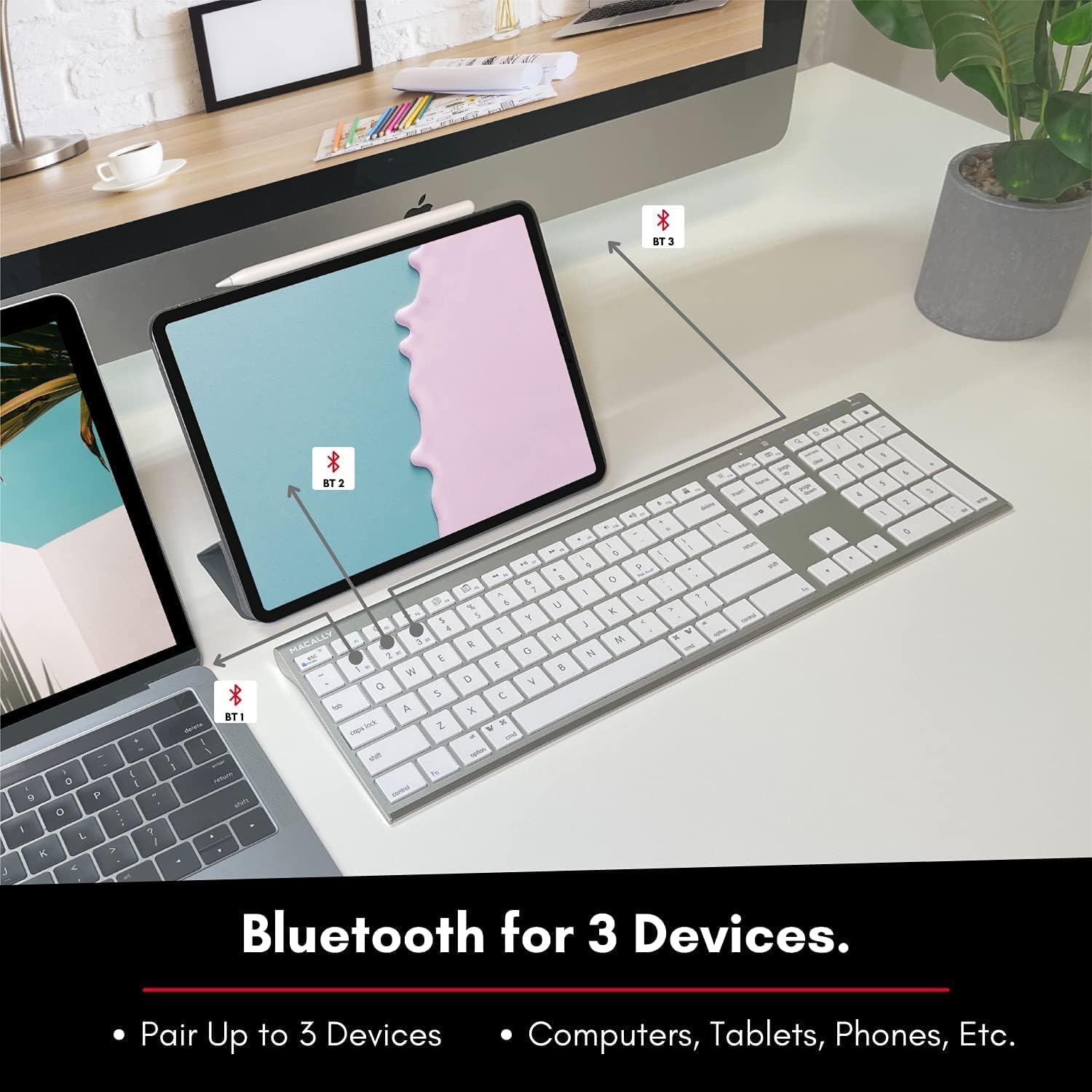
Image: The keyboard connected to a laptop and a tablet, illustrating its multi-device pairing capability.
تعليمات التشغيل
التبديل بين الأجهزة
To switch between paired devices, simply press the corresponding Bluetooth key (BT1, BT2, or BT3) once. The keyboard will automatically connect to the selected device within a few seconds.

Image: Visual representation of the keyboard seamlessly switching between a smartphone, iMac, and laptop, highlighting the multi-sync feature.
مفاتيح الوظائف والاختصارات
The keyboard features a full set of 110 keys, including a numeric keypad and 20 dedicated Mac OS shortcut keys. These shortcuts provide quick access to various functions such as brightness control, volume adjustment, media playback, and more. Refer to your device's operating system documentation for specific shortcut functionalities.
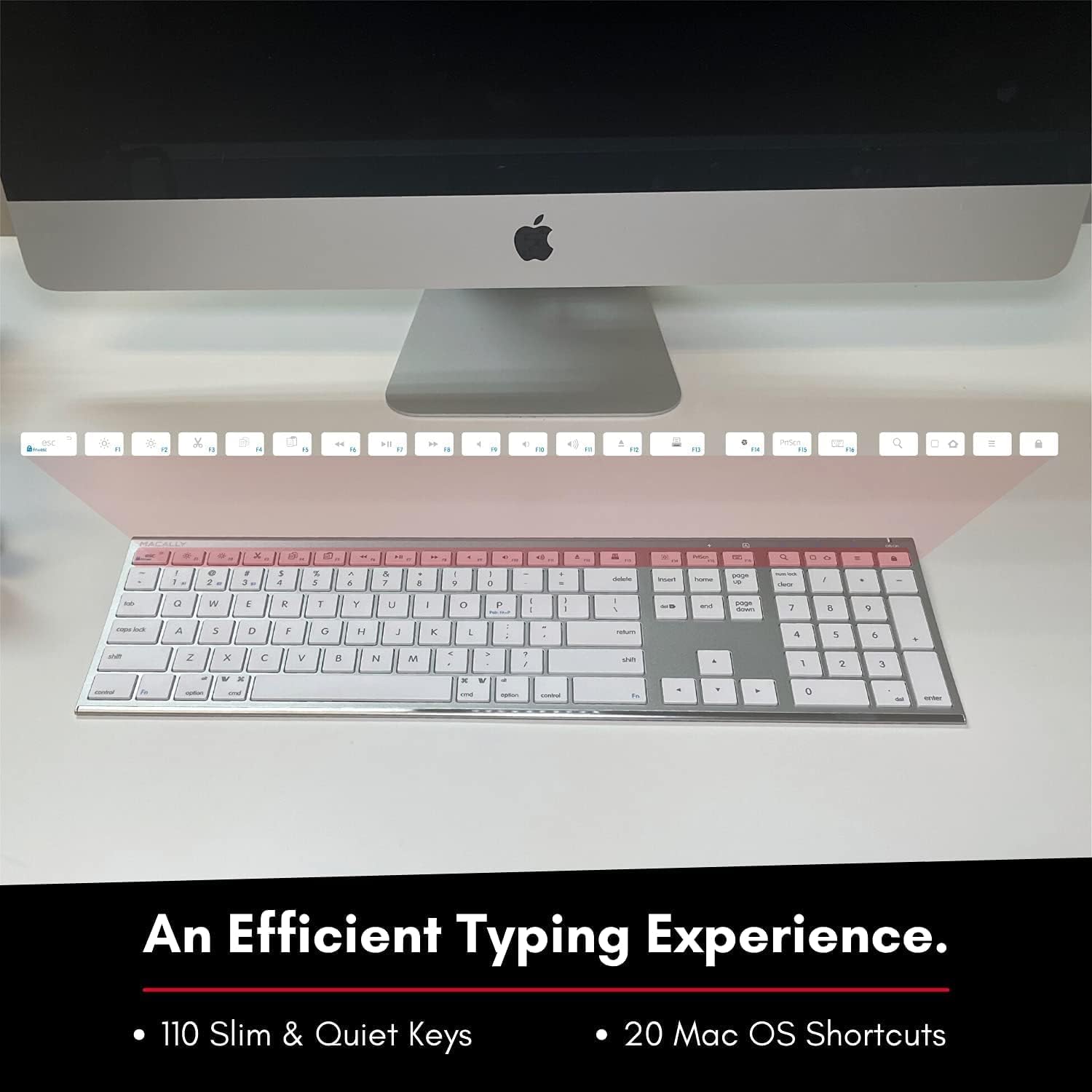
Image: Close-up of the keyboard's top row, highlighting the dedicated function and shortcut keys.
التوافق
This keyboard is broadly compatible with a range of operating systems and devices, including:
- ماك
- نوافذ
- نظام التشغيل iOS (آيفون، آيباد)
- أندرويد

Image: The keyboard positioned in front of an iMac, indicating its compatibility with Mac systems.
صيانة
To ensure the longevity and optimal performance of your Macally Wireless Bluetooth Keyboard, follow these maintenance guidelines:
- تنظيف: استخدم قطعة قماش ناعمة وخالية من الوبر لمسح سطح لوحة المفاتيح. لإزالة الأوساخ المستعصية، افركها برفق.ampانقع قطعة القماش في الماء أو محلول تنظيف خفيف. تجنب الرطوبة الزائدة.
- العناية بالبطارية: The keyboard features a built-in rechargeable battery. To maximize battery life, avoid fully discharging the battery frequently. Charge the keyboard when the low battery indicator appears.
- تخزين: عند عدم استخدام لوحة المفاتيح لفترات طويلة، قم بإيقاف تشغيلها لتوفير طاقة البطارية. خزّنها في مكان بارد وجاف بعيدًا عن أشعة الشمس المباشرة ودرجات الحرارة القصوى.
- تجنب الانسكابات: قم بإبعاد السوائل عن لوحة المفاتيح لمنع تلف المكونات الداخلية.
استكشاف الأخطاء وإصلاحها
Keyboard Not Responding or Typing Incorrectly
- تأكد من شحن لوحة المفاتيح.
- Verify that the keyboard is powered on and the correct Bluetooth channel (BT1, BT2, or BT3) is selected for your device.
- حاول إعادة إقران لوحة المفاتيح بجهازك.
- Check if the Fn lock is active. On the top right, there should be a lock symbol with an FN in the lock. If there is a Blue LED light on the panel which is on the top right, then press and hold Fn و اضغط خروج to shut off the Fn lock.

Image: A troubleshooting tip for the Fn lock feature, showing the relevant keys.
Mouse Keys Issue (macOS)
- If your keyboard inputs are behaving like mouse movements, you may have "Mouse Keys" enabled.
- Go to System Preferences (or System Settings on newer macOS versions), then click on إمكانية الوصول. After that, scroll to التحكم بالمؤشر وتعطيل تفعيل مفاتيح الماوس.

Image: A troubleshooting tip for disabling Mouse Keys in system settings.
مشاكل اتصال البلوتوث
- تأكد من تمكين تقنية البلوتوث في جهازك وإمكانية اكتشافها.
- Move the keyboard closer to your device to ensure a strong signal.
- قم بإزالة أي مصادر محتملة للتداخل (على سبيل المثال، الأجهزة اللاسلكية الأخرى، والأجسام المعدنية الكبيرة).
- أعد تشغيل كل من لوحة المفاتيح والجهاز.
تحديد
| ماركة | ماكالي |
| رقم الموديل | ACEBTKEY-US |
| أبعاد المنتج | 18.11 × 6.3 × 0.91 بوصة |
| وزن العنصر | 14.9 أونصات |
| تكنولوجيا الاتصال | بلوتوث |
| عدد المفاتيح | 110 |
| الأجهزة المتوافقة | ماك أو إس، ويندوز، آي أو إس، أندرويد |
| بطارية | 3 Lithium Polymer batteries (included, rechargeable) |
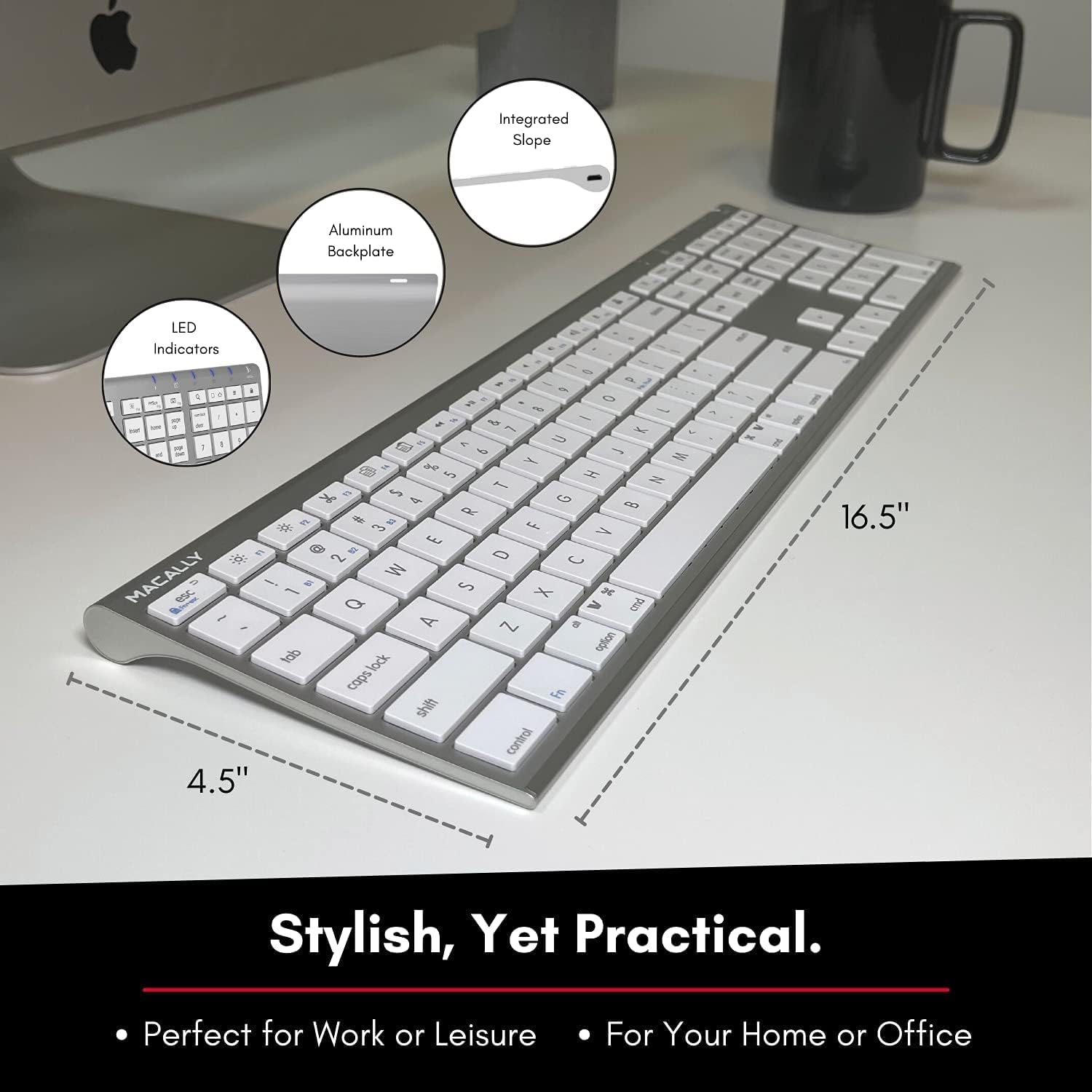
Image: Diagram illustrating the physical dimensions of the Macally Wireless Bluetooth Keyboard.
الضمان والدعم
Macally is committed to delivering high-quality, user-friendly workflow solutions. For any product inquiries, technical support, or warranty information, please visit the official Macally webيمكنك زيارة الموقع الإلكتروني أو الاتصال بخدمة العملاء. ستجد المزيد من المعلومات وموارد الدعم على الموقع الإلكتروني. Macally Store on Amazon.
Ask a question about this manual
Ask about setup, troubleshooting, compatibility, parts, safety, or missing instructions. Manuals+ will review the question and use this page’s manual context to help answer it.