
مقدمة
This manual provides detailed instructions for setting up, operating, and maintaining your HUION KAMVAS Pro 16 Drawing Tablet. Please read this guide thoroughly to ensure proper use and to maximize your creative experience.
محتويات الحزمة
تأكد من تضمين جميع العناصر المدرجة أدناه في الحزمة الخاصة بك:
- HUION KAMVAS Pro 16 Pen Display
- قلم رقمي PW507
- كابل 3 في 1
- محول الطاقة
- Foldable Stand ST200
- Pen Holder PH05 (with 10 replacement nibs inside)
- كليب بنك الاستثمار القومي
- قفاز
- قطعة قماش للتنظيف
- دليل البدء السريع

صورة: A visual representation of all items included in the HUION KAMVAS Pro 16 package, neatly arranged on a surface. This includes the pen display, stylus, various cables, stand, pen holder, nibs, glove, and cleaning cloth.
دليل الإعداد
1. Connecting the Pen Display
The KAMVAS Pro 16 connects to your computer using the provided 3-in-1 USB-C cable. This cable handles power, video (HDMI signal), and data transfer.
- Connect the USB-C end of the 3-in-1 cable to the USB-C port on the side of the Kamvas Pro 16.
- Connect the HDMI and USB-A ends of the 3-in-1 cable to the corresponding ports on your computer.
- Connect the power adapter to the power port on the 3-in-1 cable and then plug it into a power outlet.

صورة: An illustration showing the HUION KAMVAS Pro 16 connected to a laptop using the 3-in-1 USB-C cable. The cable branches into HDMI, USB-A, and a power adapter, demonstrating the connection points on both the tablet and the computer.
فيديو: This video demonstrates the connection process for the Huion Pen display, showing how to properly connect the cables to the tablet and computer for initial setup.
2. تثبيت برنامج التشغيل
For the pen display to function correctly, you must install the latest drivers from the official HUION webموقع.
- قم بزيارة موقع HUION الرسمي webموقع: www.huion.com
- Navigate to the "Support" section and then click "Download".
- Select "Kamvas Pro 16" as your product model, choose your operating system (Windows, macOS, or Linux), and select "Driver" as the category.
- Download the latest driver and follow the on-screen instructions to complete the installation.
- أعد تشغيل جهاز الكمبيوتر بعد التثبيت إذا طُلب منك ذلك.
3. إعداد حامل قابل للتعديل
The included ST200 foldable stand allows you to adjust the viewing angle of your Kamvas Pro 16 for comfortable use. Adjust the stand to your preferred angle between 20 and 60 degrees to reduce strain on your neck, shoulders, and back.

صورة: A user demonstrating the adjustable foldable desk stand (ST200) for the HUION KAMVAS Pro 16, showing different angles at which the tablet can be positioned for ergonomic comfort during use.
تعليمات التشغيل
1. Pen Features and Customization
The Digital Pen PW507 is battery-free and offers 8192 levels of pressure sensitivity with 60° tilt recognition, providing a natural drawing experience.
- حساسية الضغط: The pen detects 8192 levels of pressure, allowing for varied line thickness and opacity based on how hard you press.
- التعرف على الميل: Supports 60° tilt, enabling brush strokes to mimic traditional art tools.
- الأزرار القابلة للبرمجة: The pen features two side buttons that can be customized to perform various functions (e.g., right-click, eraser, undo) within the driver software.
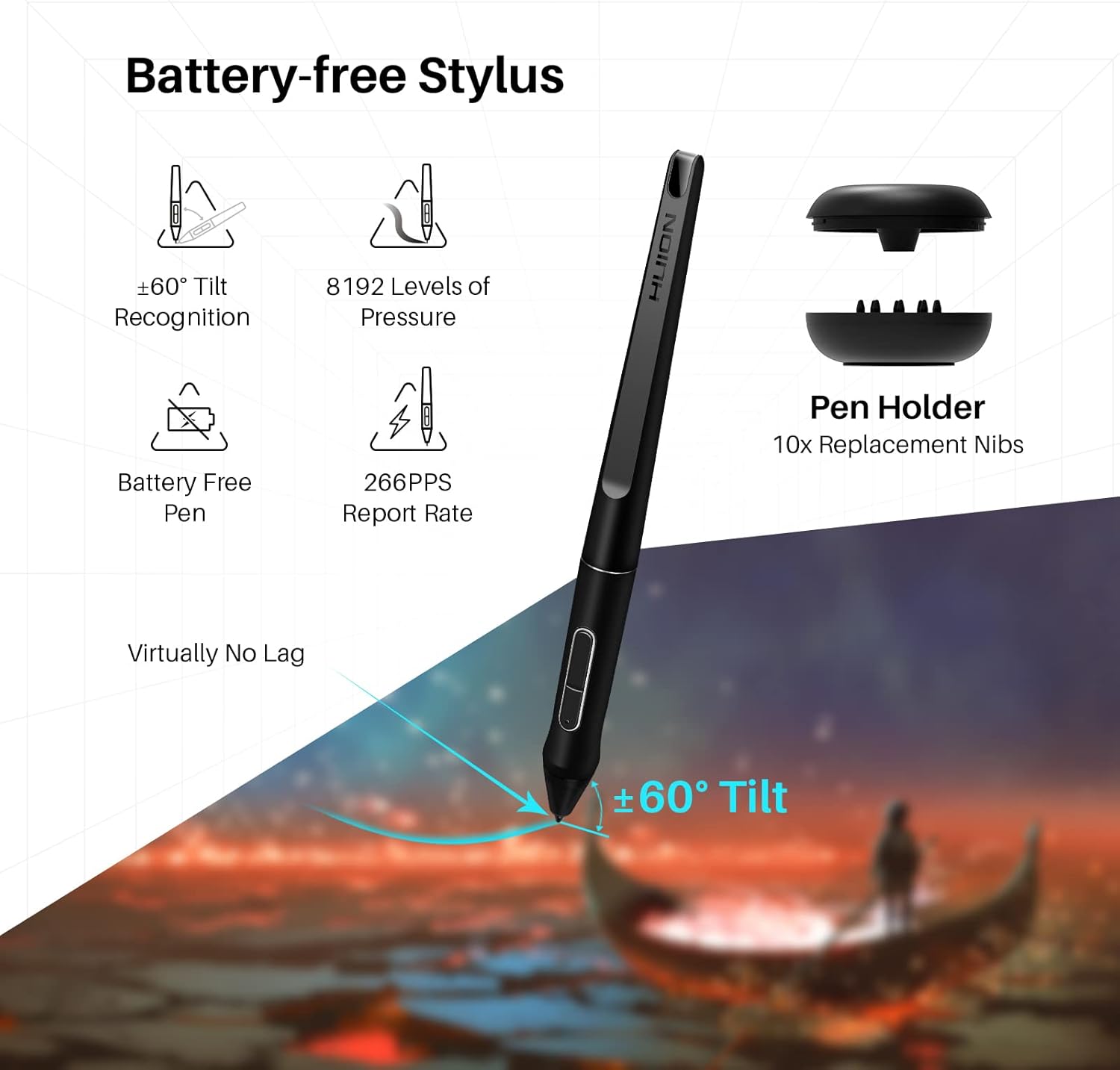
صورة: تفصيلية view of the battery-free Digital Pen PW507, highlighting its features such as ±60° tilt recognition, 8192 levels of pressure, 266PPS report rate, and virtually no lag. The image also shows the pen holder with replacement nibs.
2. Express Keys and Touch Bar
The Kamvas Pro 16 is equipped with 6 customizable express keys and a touch bar to streamline your workflow.
- Express Keys: Assign frequently used shortcuts (e.g., zoom in/out, brush size adjustment, undo/redo) to these keys via the HUION driver software.
- شريط اللمس: The touch bar can be configured for functions like zooming, scrolling, or adjusting brush size, offering quick and intuitive control.

صورة: A close-up of the HUION KAMVAS Pro 16 showing the 6 customizable express keys and the touch bar on the side. Labels indicate their functions and the OSD function key.
3. ميزات العرض
The 15.6-inch full-laminated screen with anti-glare glass provides outstanding visuals and a comfortable drawing surface.
- Anti-Glare Glass: Reduces reflections and glare, improving visibility in various lighting conditions.
- تغليف كامل: Minimizes parallax between the pen tip and the cursor, making the drawing experience more precise and natural.
- مجموعة الألوان: Features 120% sRGB (92% AdobeRGB) color gamut volume and 1000:1 contrast ratio for vibrant and accurate colors.

صورة: A visual comparison demonstrating the effect of anti-glare glass on the HUION KAMVAS Pro 16, showing how it reduces reflections compared to normal glass. Icons also highlight full-laminated technology, more sensitive pen, and higher transparency.

صورة: The HUION KAMVAS Pro 16 display showcasing its wide gamut colors with a vibrant image. Icons indicate 120% sRGB Gamut, 16.7 Million Display Colors, 5080 LPI Pen Resolution, and 178° Viewزاوية جي.
فيديو: This video provides an introduction to the anti-glare glass feature of the Huion Kamvas Pro 16, demonstrating its benefits in reducing reflections and improving visual clarity.
4. التوافق
The Kamvas Pro 16 is compatible with a wide range of operating systems and creative software:
- أنظمة التشغيل: Windows 7 or later, macOS 10.12 or later, and Linux (Ubuntu).
- برمجة: Compatible with major creative software such as Adobe Photoshop, Clip Studio Paint, SAI, Lightroom, and more.
صيانة
- تنظيف: Use the provided cleaning cloth to gently wipe the screen and body of the tablet. Avoid using harsh chemicals or abrasive materials.
- سنان القلم: Replace pen nibs when they show signs of wear to maintain optimal drawing performance. Use the nib clip to easily remove and insert new nibs from the pen holder.
- تخزين: When not in use, store the tablet in a safe place to prevent scratches or damage.
استكشاف الأخطاء وإصلاحها
- لا يوجد عرض/إشارة: Ensure all cables (HDMI, USB, Power) are securely connected. Check your computer's display settings to ensure the tablet is detected and configured correctly.
- القلم لا يعمل: Verify that the driver is correctly installed and updated. Check the pen's settings in the HUION driver software. Ensure the pen nib is properly inserted.
- مشاكل السائق: If experiencing driver-related problems, uninstall the current driver, restart your computer, and then install the latest driver from the official HUION webموقع.
- قضايا المعايرة: Recalibrate the screen and pen in the HUION driver software if the cursor does not align with the pen tip.
المواصفات الفنية
| ميزة | التفاصيل |
|---|---|
| ماركة | هويون |
| اسم الموديل | Kamvas Pro 16 |
| حجم الشاشة | 15.6 بوصة |
| الدقة الأصلية | 1920×1080 |
| نوع العرض | شاشة الكريستال السائل |
| حساسية الضغط | 8192 مستويات |
| التعرف على الميل | دعامة قابلة للإمالة بزاوية 60 درجة |
| تكنولوجيا الاتصال | USB (3-in-1 Cable) |
| توافق نظام التشغيل | Windows 7+, macOS 10.12+, Linux (Ubuntu) |
| المميزات الخاصة | Anti-Glare Glass, Full Lamination, Programmable Press Keys |
| وزن العنصر | 3 رطل |
| أبعاد المنتج (الطول × العرض) | 9.88 بوصة طول × 17.24 بوصة عرض |
| مساحة السطح النشطة | 344.16 × 193.59 ملم |

صورة: من أعلى إلى أسفل view of the HUION KAMVAS Pro 16 with its length (17.24") and width (9.88") clearly labeled, providing a visual reference for its physical dimensions.
الضمان والدعم
For warranty information, technical support, or to access additional resources, please visit the official HUION webالموقع أو الاتصال بخدمة العملاء.
- رسمي Webموقع: www.huion.com
- صفحة الدعم: Find FAQs, troubleshooting guides, and contact information on the support section of the webموقع.