
1. المقدمة
Thank you for choosing the Targus W620 Wireless Optical Mouse. This manual provides detailed instructions for setting up, operating, and maintaining your mouse to ensure optimal performance and longevity. The Targus W620 offers reliable 2.4 GHz wireless connectivity, a precise 1600 DPI optical sensor, and a compact design suitable for both office and mobile use.
2. محتويات العبوة
يرجى التحقق من الحزمة للعناصر التالية:
- Targus W620 Wireless Optical Mouse
- جهاز إستقبال يو إس بي
- 2 بطاريات AAA
3. انتهى المنتجview
Familiarize yourself with the components of your Targus W620 Wireless Optical Mouse.
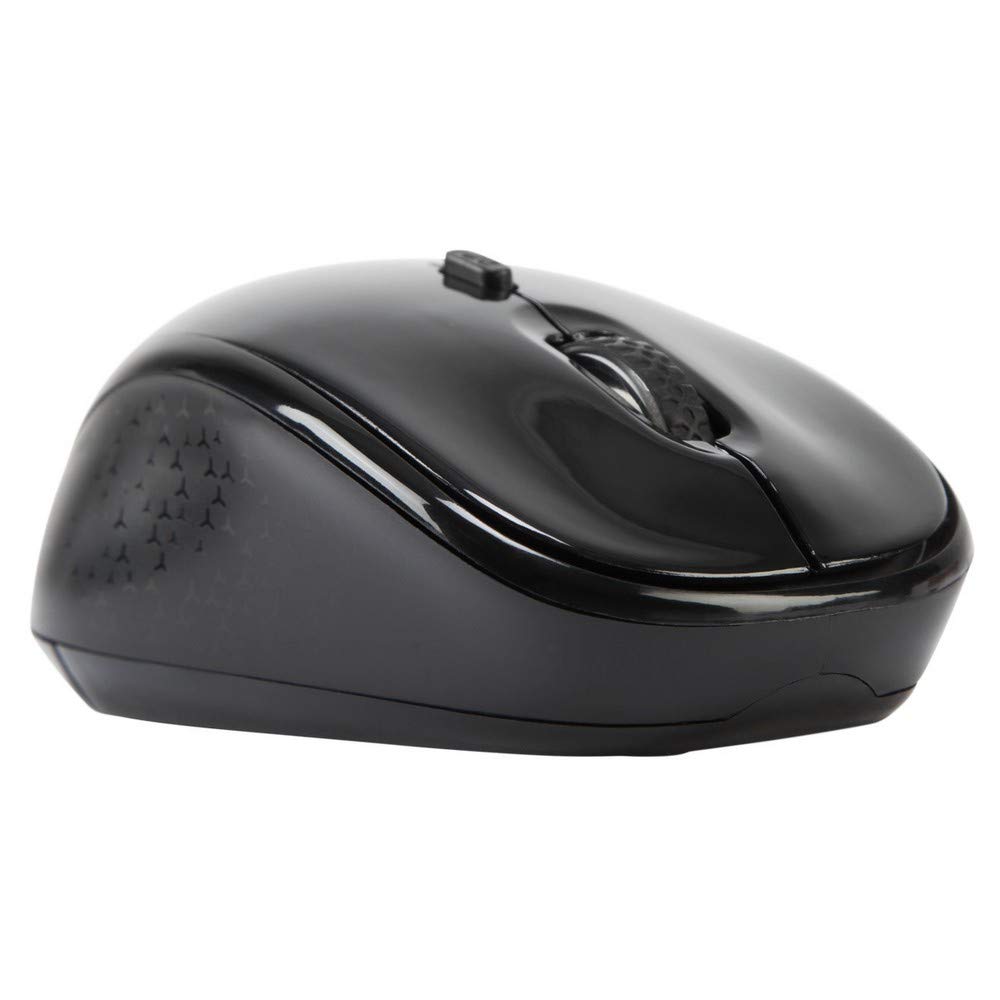
الصورة 3.1: قمة view of the Targus W620 Wireless Optical Mouse. This image displays the primary buttons and scroll wheel.
- زر النقر الأيسر: وظيفة النقر الأساسية القياسية.
- زر النقر بالزر الأيمن: وظيفة النقر الثانوية القياسية.
- عجلة التمرير: للتمرير العمودي ووظيفة النقر الأوسط.
- زر DPI: ضبط حساسية الماوس (DPI).
- أجهزة الاستشعار البصرية: Located on the bottom, detects mouse movement.
- حجرة البطارية: Located on the bottom, holds two AAA batteries.
- تخزين جهاز استقبال USB: A dedicated slot on the bottom for storing the USB receiver when not in use.

الصورة 3.2: قاع view of the mouse, highlighting the battery compartment and optical sensor.
4. تعليمات الإعداد
Follow these steps to set up your Targus W620 Wireless Optical Mouse:
- تركيب البطاريات:
- حدد مكان غطاء حجرة البطارية في الجزء السفلي من الماوس.
- حرك الغطاء لفتحه.
- قم بإدخال بطاريتين AAA، مع التأكد من القطبية الصحيحة (+/-).
- أغلق غطاء حجرة البطارية جيدًا.
- توصيل جهاز استقبال USB:
- The USB receiver is typically stored in a slot on the bottom of the mouse for transport. Gently remove it.
- قم بتوصيل مستقبل USB بمنفذ USB متاح على جهاز الكمبيوتر الخاص بك.

الصورة 4.1: The mouse with its USB receiver, ready for connection.
- تشغيل الطاقة:
- There is no explicit power switch on this model; the mouse activates upon movement and connection.
- سيكتشف جهاز الكمبيوتر لديك برامج التشغيل اللازمة ويُثبّتها تلقائيًا. قد يستغرق هذا بضع لحظات.
- Once drivers are installed, the mouse is ready for use.
5. تعليمات التشغيل
The Targus W620 Wireless Optical Mouse is designed for intuitive use. Here are its primary functions:
- الملاحة الأساسية: حرك الماوس على سطح مستو للتحكم في المؤشر على شاشتك.
- الزر الأيسر: Use for selecting items, opening fileأو وظائف التنشيط.
- انقر على اليمين: Use for accessing context menus or secondary functions.
- عجلة التمرير: Rotate the wheel to scroll vertically through documents and web pages. Press the scroll wheel for a middle-click function, often used for opening links in new tabs or auto-scrolling.
- تعديل DPI: Press the DPI button (located behind the scroll wheel) to cycle through the available DPI settings (800, 1200, 1600 DPI). This changes the sensitivity of the mouse cursor. A higher DPI means the cursor moves further with less physical mouse movement.
6. الصيانة
Proper maintenance ensures the longevity and performance of your mouse.
- تنظيف: استخدم قطعة قماش ناعمة وجافة وخالية من الوبر لتنظيف الجزء الخارجي من الفأرة. لإزالة الأوساخ المستعصية، افركها برفق.ampاغسل قطعة القماش بالماء. تجنب استخدام المواد الكيميائية القاسية أو المنظفات الكاشطة.
- أجهزة الاستشعار البصرية: Keep the optical sensor area on the bottom of the mouse clean and free from dust or debris to ensure accurate tracking.
- استبدال البطارية: When the mouse performance degrades or stops responding, it is likely time to replace the batteries. Follow the steps in Section 4.1 to replace the two AAA batteries.
- تخزين: When transporting or storing the mouse, always place the USB receiver back into its dedicated storage slot on the bottom of the mouse to prevent loss.
7. استكشاف الأخطاء وإصلاحها
If you encounter issues with your Targus W620 mouse, try the following solutions:
| مشكلة | الحل المحتمل |
|---|---|
| Mouse not responding or cursor not moving. |
|
| حركة المؤشر غير منتظمة أو متقطعة. |
|
| DPI button not changing sensitivity. |
|
| مشاكل في الاتصال اللاسلكي. |
|
8. المواصفات
| ماركة | تارجوس |
| رقم الموديل | AMW620AP |
| تكنولوجيا الاتصال | 2.4 جيجاهرتز لاسلكي (تردد الراديو) |
| تقنية كشف الحركة | Optical (BlueTrace Technology) |
| مستويات DPI | 800 / 1200 / 1600 نقطة في البوصة (قابلة للتعديل) |
| عدد الأزرار | 4 (يسار، يمين، عجلة التمرير، DPI) |
| اتجاه اليد | Right (Comfortable for ambidextrous use) |
| مصدر الطاقة | 2 بطاريات AAA (مضمنة) |
| وزن العنصر | 26 جرام |
| توافق نظام التشغيل | Linux, Windows XP (Compatible with modern Windows and macOS) |
| منصة الأجهزة | ماك، كمبيوتر شخصي |
| لون | أسود |
9. الضمان والدعم
معلومات الضمان: The Targus W620 Wireless Optical Mouse comes with a ضمان الشركة المصنعة لمدة عامين من تاريخ الشراء. يغطي هذا الضمان عيوب المواد والتصنيع في ظل الاستخدام العادي. يُرجى الاحتفاظ بإيصال الشراء للمطالبة بالضمان.
دعم العملاء: For technical assistance, troubleshooting beyond this manual, or warranty inquiries, please visit the official Targus website or contact their customer support service. Refer to the contact information provided with your product packaging or on the Targus official webموقع.