1. المقدمة
Thank you for choosing the Yantop Wireless Mouse. This device offers reliable 2.4G wireless connectivity, an ergonomic design for comfortable use, and adjustable DPI settings to enhance your productivity and gaming experience. This manual provides detailed instructions for setup, operation, maintenance, and troubleshooting.

Figure 1: Yantop Wireless Mouse and USB Nano Receiver. A top-down view of the black Yantop wireless mouse, showcasing its ergonomic design, scroll wheel, and DPI button. The compact USB nano receiver is shown next to it.
2. محتويات العبوة
- 1 x Yantop Wireless Mouse
- 1 x USB Nano Receiver (stored in the battery compartment)
- 1 × دليل المستخدم
ملحوظة: 2 AAA batteries are required and are not included in the package.
3. انتهى المنتجview
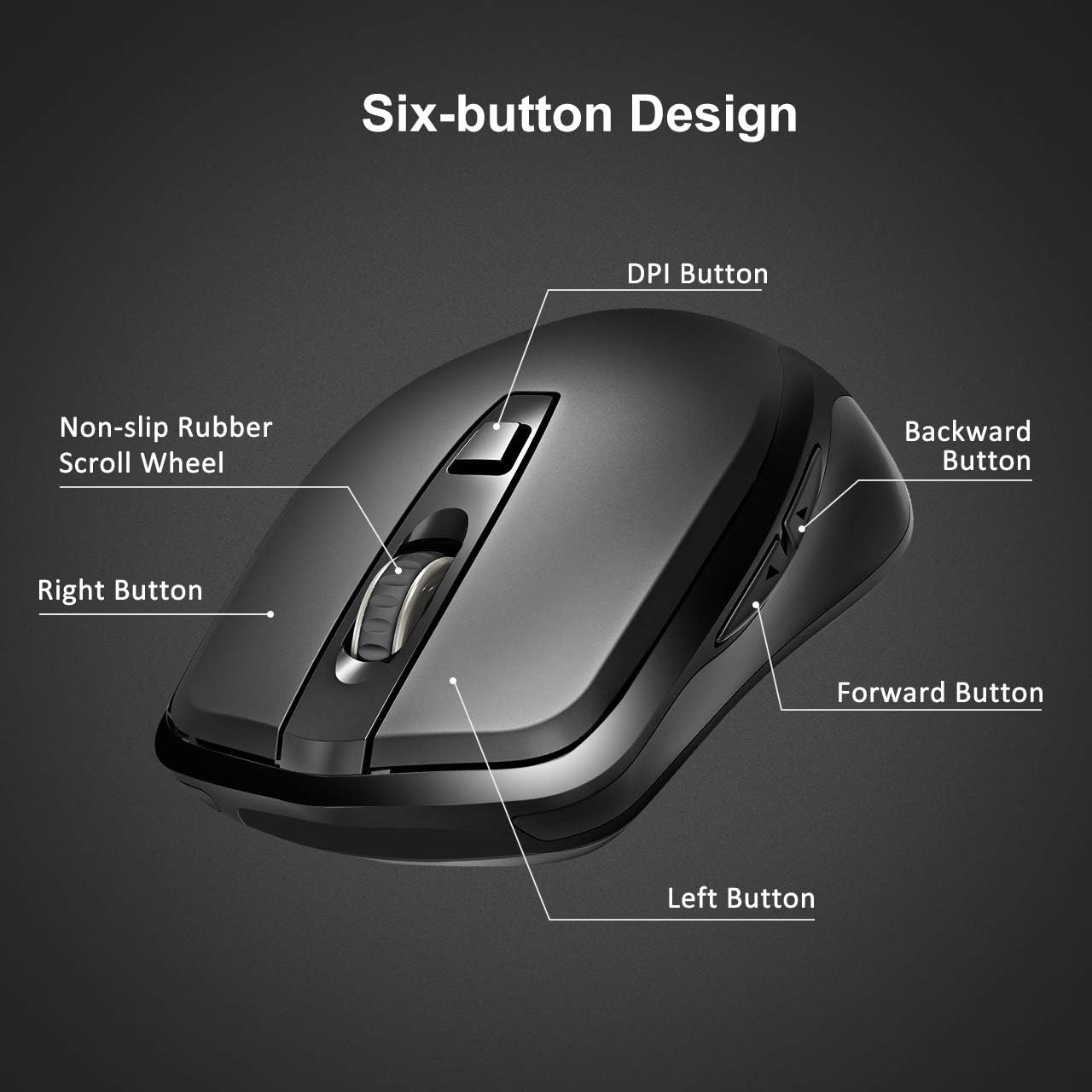
Figure 2: Six-Button Design. A detailed diagram labeling the six buttons of the Yantop wireless mouse: Left Button, Right Button, Non-slip Rubber Scroll Wheel, DPI Button, Forward Button, and Backward Button.
- الزر الأيسر: وظيفة النقر بزر الماوس الأيسر القياسية.
- الزر الأيمن: وظيفة النقر بزر الماوس الأيمن القياسية.
- عجلة التمرير: For scrolling up and down, and can also function as a middle-click button.
- زر DPI: يضبط حساسية المؤشر (DPI).
- زر للأمام: يتنقل للأمام في web المتصفحات أو file المستكشفون.
- زر الرجوع: يتنقل للخلف في web المتصفحات أو file المستكشفون.
4. الإعداد
4.1 تركيب البطاريات
- حدد موقع حجرة البطارية على الجانب السفلي من الماوس.
- افتح غطاء حجرة البطارية.
- قم بإدخال بطاريتين AAA، مع التأكد من القطبية الصحيحة (+/-).
- أغلق غطاء حجرة البطارية.
4.2 توصيل جهاز الاستقبال
- The USB Nano Receiver is stored inside the battery compartment of the mouse. Carefully remove it.
- Plug the USB Nano Receiver into an available USB port on your computer (desktop, laptop, MacBook, etc.).
- Your computer should automatically detect and install the necessary drivers. No additional software installation is required.
4.3 تشغيل/إيقاف التشغيل
Locate the ON/OFF switch on the bottom of the mouse. Slide the switch to the "ON" position to power on the mouse. Slide it to the "OFF" position when not in use to conserve battery life.

Figure 3: Battery and Receiver Location. An image of the mouse's underside, illustrating the battery compartment where two AAA batteries are inserted, the storage slot for the USB nano receiver, and the ON/OFF power switch.
5. التشغيل
5.1 Adjusting DPI (Cursor Sensitivity)
The Yantop Wireless Mouse features three adjustable DPI settings: 800, 1200 (default), and 1600. To change the DPI, press the DPI button located below the scroll wheel. Each press will cycle through the available settings, allowing you to select the cursor speed that best suits your needs.
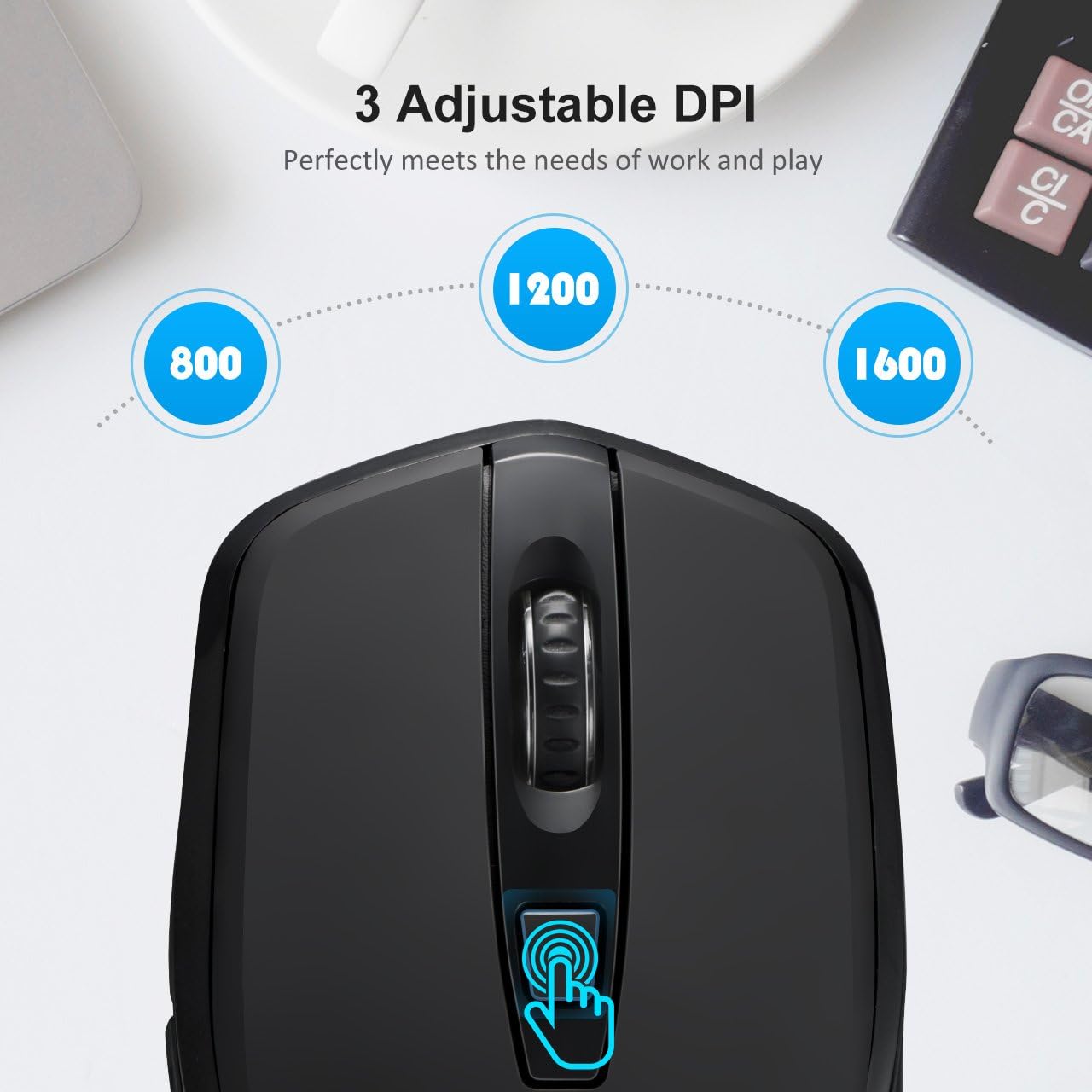
Figure 4: Adjustable DPI Settings. A close-up of the mouse's top, showing the DPI button and visual indicators for the three adjustable DPI settings: 800, 1200 (default), and 1600.
5.2 ميزات توفير الطاقة
To conserve battery life, the mouse is equipped with a smart power-saving mode. If the mouse is inactive for 10 minutes, it will automatically enter sleep mode. To wake it up, simply click any button on the mouse.
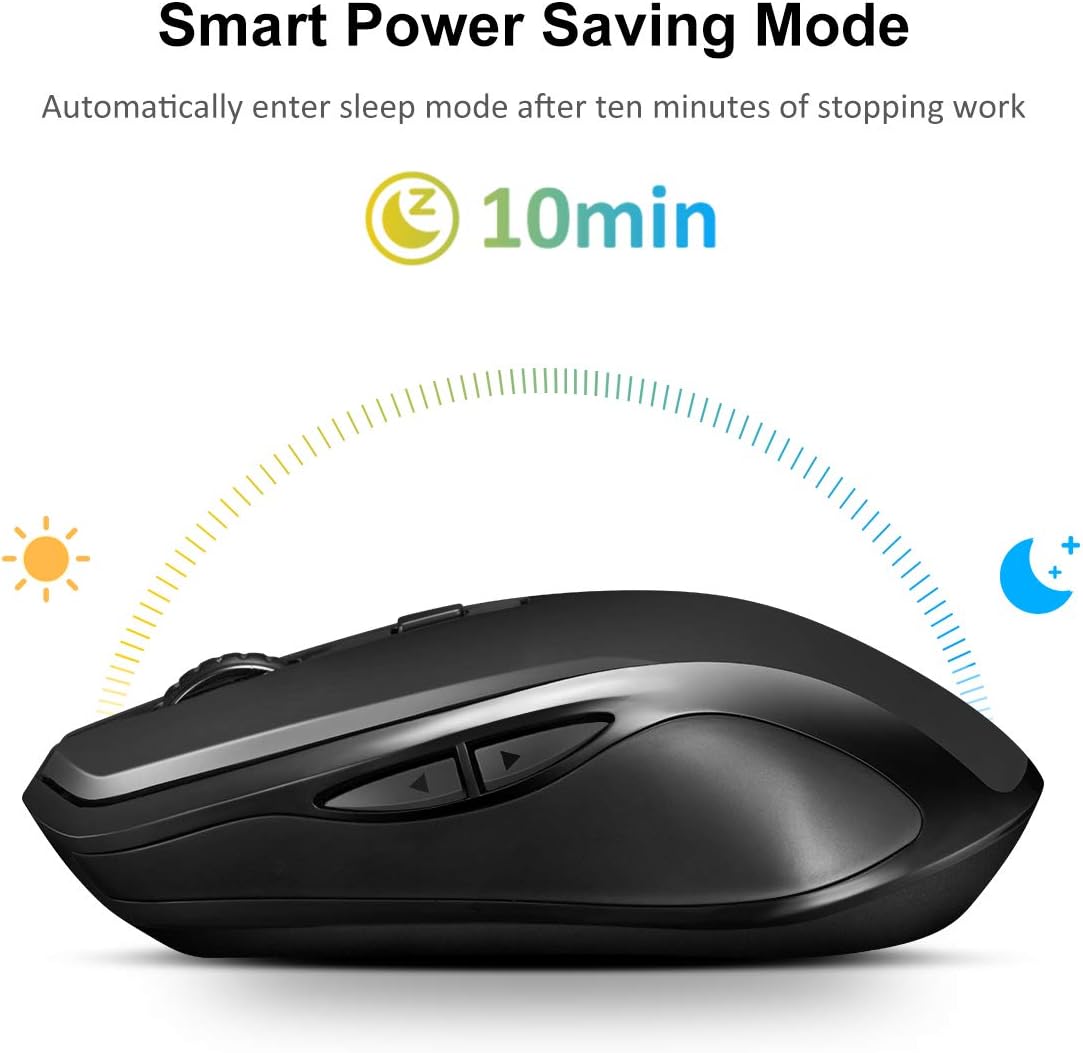
Figure 5: Smart Power Saving Mode. An image depicting the mouse's smart power-saving feature, showing it automatically entering sleep mode after 10 minutes of inactivity.
6. التوافق
The Yantop Wireless Mouse is compatible with a wide range of operating systems, including:
- ويندوز اكس بي / 7 / 8 / 10
- Mac OS (Note: Side buttons are not supported on Mac OS)
- لينكس
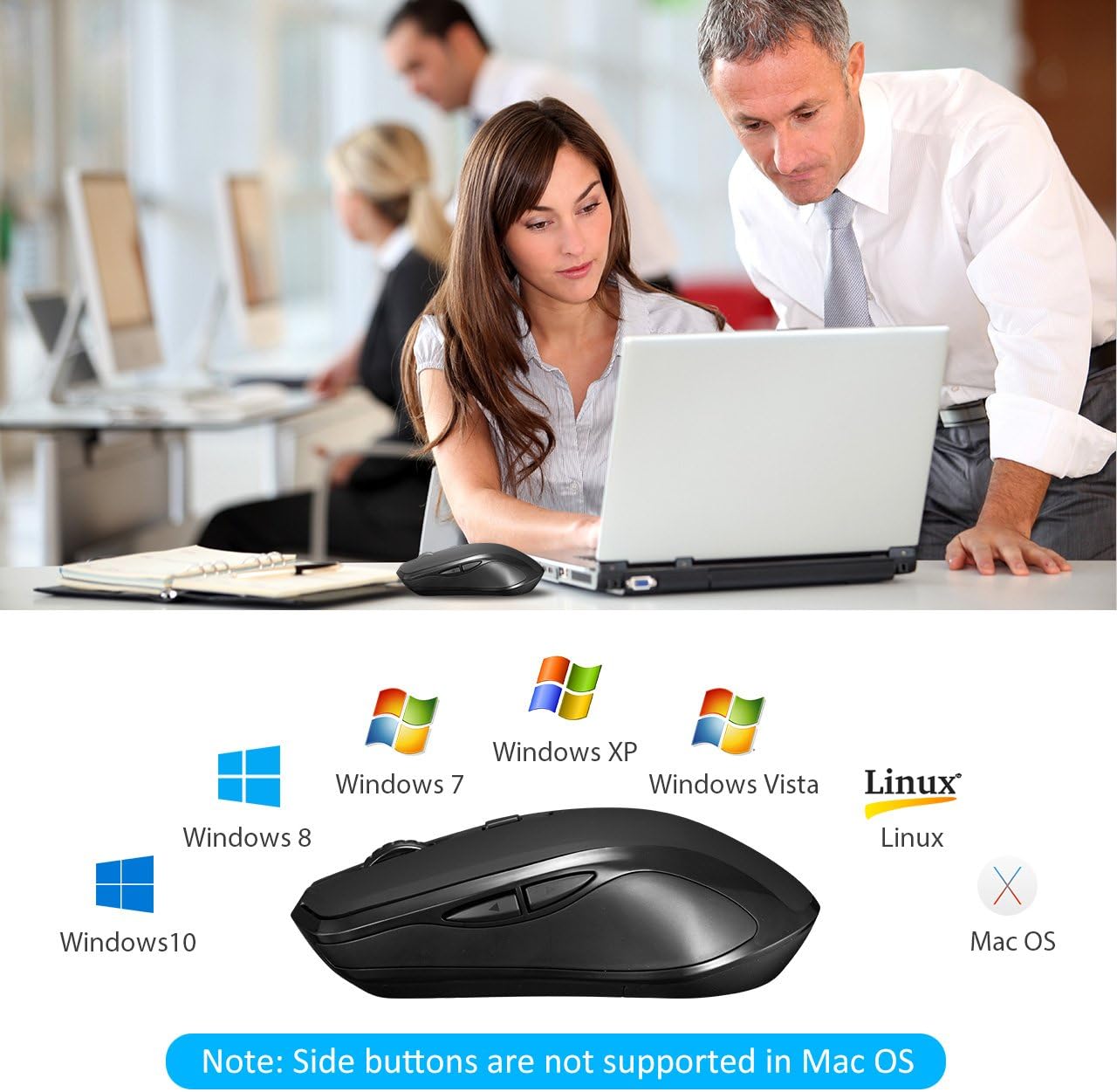
Figure 6: Operating System Compatibility. The Yantop wireless mouse displayed alongside logos of compatible operating systems.
7. الصيانة
7.1 التنظيف
لتنظيف الماوس، امسح السطح برفق بقطعة قماش ناعمة.amp cloth. Avoid using harsh chemicals or abrasive materials, as these may damage the finish. Ensure no liquid enters the mouse's internal components.
7.2 استبدال البطارية
When the mouse performance degrades or it stops responding, it's likely time to replace the batteries. Follow the steps in Section 4.1 to replace the two AAA batteries. Dispose of old batteries responsibly according to local regulations.
8. استكشاف الأخطاء وإصلاحها
- الفأرة لا تستجيب:
- Ensure the mouse is powered on (ON/OFF switch on the bottom).
- تأكد من تركيب البطاريات بشكل صحيح وشحنها بشكل كافٍ. استبدلها إذا لزم الأمر.
- Ensure the USB Nano Receiver is securely plugged into a working USB port on your computer. Try a different USB port.
- Move the mouse closer to the receiver to rule out range issues (maximum 15m/32ft).
- حركة المؤشر غير منتظمة أو بطيئة:
- قم بتنظيف المستشعر البصري الموجود في الجزء السفلي من الماوس.
- حاول استخدام الماوس على سطح مختلف.
- Adjust the DPI setting using the DPI button (see Section 5.1).
- الأزرار الجانبية لا تعمل:
- If you are using a Mac OS system, the side buttons are not supported. This is a known compatibility limitation.
- For Windows/Linux, ensure no software conflicts are present.
9. المواصفات
| ميزة | التفاصيل |
|---|---|
| رقم الموديل | USAA1-YPGEPC157AB |
| نوع الاتصال | 2.4G Wireless (USB Nano Receiver) |
| إعدادات DPI | 800/1200 (افتراضي) / 1600 |
| عدد الأزرار | 6 (يسار، يمين، عجلة التمرير، DPI، للأمام، للخلف) |
| مسافة العمل | حتى 15 مترا (32 قدما) |
| مصدر الطاقة | 2 بطاريات AAA (غير مدرجة) |
| عمر البطارية | Up to 12 months (with power-saving mode) |
| وضع السكون التلقائي | بعد 10 دقيقة من عدم النشاط |
| متانة ضغطات المفاتيح | أكثر من 5,000,000 ألف نقرة |
| أبعاد المنتج | 12.5 x 7.01 x 3.99 cm (4.92 x 2.76 x 1.57 inches) |
| وزن المنتج | 90.72 جرام (0.2 رطل) |
| التوافق | Windows XP/7/8/10, Mac OS (side buttons not supported), Linux |
10. الضمان والدعم
For warranty information and technical support, please refer to the documentation included with your purchase or contact Yantop customer service through the retailer where the product was purchased. Keep your proof of purchase for warranty claims.