
1. المقدمة
Thank you for choosing the Macally USB Type C Wired Mouse. This manual provides detailed instructions for setting up, operating, and maintaining your new mouse. Designed for simplicity and reliability, this plug-and-play mouse offers comfortable use with adjustable DPI settings for various computing needs.
2. محتويات العبوة
- Macally USB Type C Wired Mouse
- دليل التعليمات
3. الإعداد
The Macally USB Type C Wired Mouse is designed for easy plug-and-play functionality, requiring no additional drivers for most operating systems.
- توصيل الماوس: Locate an available USB-C port on your computer (MacBook Pro, iMac, PC, Laptop, Tablet, etc.). Insert the USB-C connector of the mouse cable firmly into the USB-C port.
- التعرف التلقائي: Your operating system should automatically detect and configure the mouse. No software installation is typically required.
- بدء الاستخدام: بمجرد التعرف عليها، تصبح الفأرة جاهزة للاستخدام الفوري.

Image: The Macally USB-C mouse connected to a laptop via its USB-C cable, demonstrating the plug-and-play setup.
Video: A demonstration of connecting the wired USB-C mouse to a laptop, highlighting its plug-and-play functionality for Type-C computers.
4. تعليمات التشغيل
4.1 الاستخدام الأساسي
The mouse features a standard 3-button layout for intuitive control:
- زر النقر الأيسر: تُستخدم لاختيار العناصر وفتحها fileوتنفيذ الأوامر.
- زر النقر بالزر الأيمن: Used for accessing contextual menus and additional options.
- عجلة التمرير: يستخدم للتمرير عبر المستندات و web pages. The scroll wheel can also be pressed as a middle click button for specific functions in some applications.

الصورة: من أعلى إلى أسفل view of the Macally USB-C mouse, clearly showing the left-click, right-click, and scroll wheel buttons.
4.2 ضبط DPI
The mouse features a dedicated DPI (Dots Per Inch) switch to adjust cursor sensitivity. This allows you to change the speed and responsiveness of the cursor to suit your preference or task.
- اضغط على زر DPI (located below the scroll wheel) to cycle through the available sensitivity settings: 800, 1200, 1600, and 2400 DPI.
- Select the DPI setting that provides the most comfortable and efficient cursor movement for your current activity.
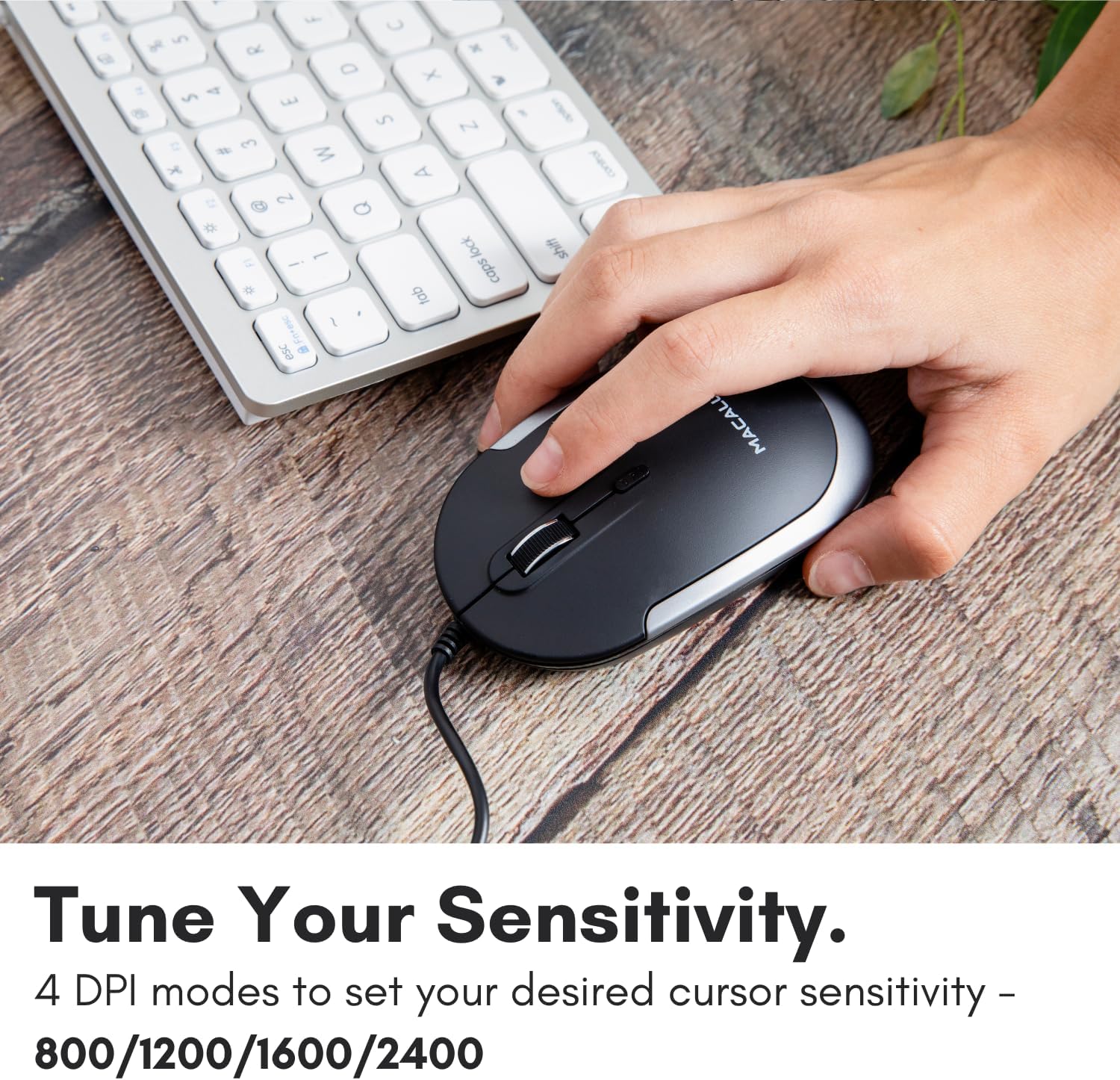
Image: A hand demonstrating how to press the DPI button on the Macally USB-C mouse to adjust sensitivity.
4.3 التوافق
The Macally USB Type C Wired Mouse is universally compatible with a wide range of devices and operating systems:
- ماك (macOS)
- كمبيوتر شخصي (Windows)
- ايباد او اس
- Android devices with USB-C ports

Image: The Macally USB-C mouse displayed with compatibility logos for Mac, PC, iPadOS, and Android operating systems.
5. الميزات الرئيسية
- اتصال USB-C: Specifically designed for modern laptops and computers with USB-C ports, ensuring a reliable wired connection.
- تصميم نحيف ومدمج: With a height of only 1 inch, the mouse is slim, comfortable, and portable, fitting snugly in your hand.
- أزرار نقر هادئة: Reduces clicking noise by 90% compared to traditional mice, providing a quieter work environment.
- DPI قابل للتعديل: Easily switch between 800, 1200, 1600, and 2400 DPI settings for precise cursor control.
- 5-Foot Cable: يوفر ample length for flexible setup and comfortable use, even with desktop computers.
- تصميم بارع: مناسبة لكل من مستخدمي اليد اليمنى واليسرى.

Image: The Macally USB-C mouse highlighting its elegant and slim design with dimensions.
Video: A detailed look at the Macally USB-C Optical Mouse, emphasizing its quiet click buttons and compatibility with Mac and PC.
6. الصيانة
To ensure the longevity and optimal performance of your Macally USB Type C Wired Mouse, follow these simple maintenance guidelines:
- تنظيف: استخدم قطعة قماش ناعمة وجافة وخالية من الوبر لمسح سطح الفأرة. لإزالة الأوساخ المستعصية، افركها برفق.ampامسح بقطعة قماش مبللة بالماء أو بمحلول تنظيف خفيف. تجنب استخدام المواد الكيميائية القاسية أو المواد الكاشطة.
- أجهزة الاستشعار البصرية: حافظ على نظافة المستشعر البصري أسفل الفأرة وخلوه من الغبار والأوساخ. استخدم قطعة قطن أو هواءً مضغوطًا إذا لزم الأمر.
- العناية بالكابلات: Avoid sharp bends or excessive pulling on the USB-C cable to prevent damage. Store the cable neatly when not in use.
- تخزين: عند عدم الاستخدام، قم بتخزين الماوس في بيئة نظيفة وجافة بعيدًا عن درجات الحرارة القصوى.
7. استكشاف الأخطاء وإصلاحها
If you encounter any issues with your Macally USB Type C Wired Mouse, please refer to the following common solutions:
| مشكلة | حل |
|---|---|
| لا يستجيب الماوس. |
|
| حركة المؤشر غير منتظمة أو متقطعة. |
|
| الأزرار أو عجلة التمرير لا تعمل. |
|
8. المواصفات
| ماركة | ماكالي |
| رقم الموديل | UCDYNAMOUSESG |
| تكنولوجيا الاتصال | USB-C سلكي |
| تقنية كشف الحركة | بصري |
| إعدادات DPI | 800، 1200، 1600، 2400 |
| طول الكابل | 5 أقدام (حوالي 1.5 أمتار) |
| أزرار | 3 (Left, Right, Scroll Wheel/Middle Click) + DPI Switch |
| وزن العنصر | 2.56 أونصة (حوالي 72.5 جرامًا) |
| أبعاد المنتج (الطول × العرض × الارتفاع) | 2.8 × 4.21 × 1 بوصة (حوالي 7.1 × 10.7 × 2.5 سم) |
| التوافق | Mac (macOS), PC (Windows), iPadOS, Android (with USB-C) |
9. الضمان والدعم
Macally provides a ضمان لمدة 1 سنوات for this product. For technical support, troubleshooting assistance, or warranty claims, please contact Macally customer service. You can find contact information and additional resources on the official Macally webموقع:
Webموقع: www.macally.com
Macally also offers easy returns and lifetime support with your purchase.