
Bytech BYTECH Wireless Optical Mouse
دليل مستخدم فأرة BYTECH اللاسلكية البصرية
Model: BYTECH Wireless Optical Mouse
مقدمة
This manual provides detailed instructions for the setup, operation, maintenance, and troubleshooting of your BYTECH Wireless Optical Mouse. Please read this manual thoroughly before using the device to ensure optimal performance and longevity.
المنتج انتهىview
The BYTECH Wireless Optical Mouse is designed for comfortable and efficient navigation. It features a precise optical sensor, a scroll wheel, and a DPI adjustment button for customizable sensitivity. Its ergonomic design and wireless connectivity provide a clutter-free workspace.

الشكل 1: من أعلى إلى أسفل view of the BYTECH Wireless Optical Mouse. The mouse is black with a silver stripe along its sides. A scroll wheel and a DPI button are visible on the top surface.
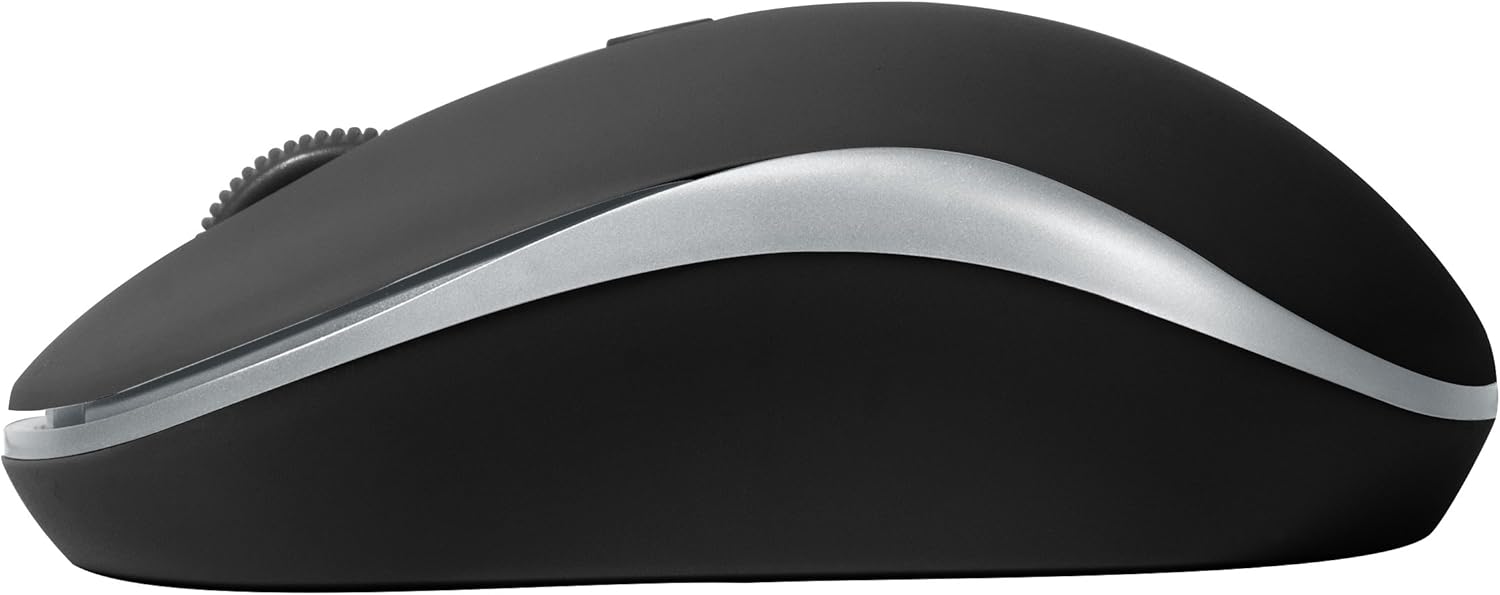
الشكل 2: الجانب view of the BYTECH Wireless Optical Mouse. This angle highlights the ergonomic curve and the silver accent line that runs along the side of the mouse.
يثبت
1. تركيب البطارية
- حدد موقع حجرة البطارية على الجانب السفلي من الماوس.
- افتح غطاء حجرة البطارية.
- Insert one AA battery (not included) into the compartment, ensuring the correct polarity (+/-) as indicated inside.
- أغلق غطاء حجرة البطارية جيدًا.
2. توصيل مستقبل USB
- قم بإزالة جهاز استقبال USB من فتحة التخزين الخاصة به، والتي عادة ما توجد داخل حجرة البطارية أو بالقرب منها.
- قم بتوصيل جهاز استقبال USB بمنفذ USB متاح على جهاز الكمبيوتر أو الكمبيوتر المحمول الخاص بك.
- Your operating system should automatically detect and install the necessary drivers. This may take a few moments.
3. تشغيل
- Locate the On/Off switch on the underside of the mouse.
- Slide the switch to the "On" position. The mouse should now be ready for use.
تعليمات التشغيل
الوظائف الأساسية
- الزر الأيسر: اضغط على الزر الأيسر لتحديد العناصر أو فتح الروابط أو تفعيل الوظائف.
- انقر على اليمين: اضغط على الزر الأيمن لفتح قوائم السياق أو الوصول إلى خيارات إضافية.
- عجلة التمرير: Roll the wheel up or down to scroll through documents or web الصفحات. اضغط على عجلة التمرير لتفعيل وظيفة النقر الأوسط (مثل فتح الروابط في علامات تبويب جديدة).
ضبط DPI
The mouse features a DPI (Dots Per Inch) button, typically located behind the scroll wheel. Press this button to cycle through different sensitivity settings. Each press will change the cursor speed, allowing you to find the optimal setting for your task.
- اضغط على زر DPI once to switch to the next sensitivity level.
- Repeat until you find your preferred cursor speed.
وضع توفير الطاقة
To conserve battery life, the BYTECH Wireless Optical Mouse is designed to automatically enter a sleep mode after a period of inactivity. To wake the mouse, simply move it or click any button.
صيانة
تنظيف
- تأكد من إيقاف تشغيل الماوس قبل التنظيف.
- استخدم قطعة قماش ناعمة وخالية من الوبر وامسحها برفق.ampبالماء أو بمحلول تنظيف معتدل.
- امسح سطح الفأرة برفق. تجنب الرطوبة الزائدة.
- بالنسبة للمستشعر البصري، استخدم قطعة قطن جافة لإزالة أي غبار أو شوائب بعناية.
- لا تستخدم المنظفات الكاشطة أو الكحول أو المذيبات، لأنها قد تؤدي إلى إتلاف السطح.
استبدال البطارية
When the mouse performance degrades or the cursor becomes erratic, it may be time to replace the battery. Follow the battery installation steps outlined in the "Setup" section.
تخزين
When not in use for an extended period, it is recommended to turn off the mouse to conserve battery life. The USB receiver can be stored in its dedicated slot on the mouse's underside to prevent loss.
استكشاف الأخطاء وإصلاحها
- الفأرة لا تستجيب:
- تأكد من تشغيل الماوس.
- تحقق من مستوى البطارية واستبدلها إذا لزم الأمر.
- تأكد من توصيل جهاز استقبال USB بإحكام بمنفذ USB سليم. جرّب منفذ USB آخر.
- أعد تشغيل الكمبيوتر الخاص بك.
- Cursor erratic or jumping:
- قم بتنظيف المستشعر البصري الموجود على الجانب السفلي للفأرة.
- Ensure you are using the mouse on a suitable surface (non-reflective, non-transparent). A mouse pad is recommended.
- تحقق من وجود تداخل كهرومغناطيسي قوي من أجهزة أخرى.
- مشاكل الاتصال:
- قم بتقليل المسافة بين الماوس وجهاز الاستقبال USB.
- Remove any large metal objects or electronic devices that might be obstructing the wireless signal.
- إذا كنت تستخدم موزع USB، فحاول توصيل جهاز الاستقبال مباشرة بالكمبيوتر.
تحديد
| ميزة | التفاصيل |
|---|---|
| ماركة | بايتك |
| نموذج | BYTECH Wireless Optical Mouse |
| تكنولوجيا الاتصال | لاسلكي (مستقبل USB) |
| تقنية كشف الحركة | بصري |
| لون | أسود |
| مصدر الطاقة | تعمل بالبطارية (1x AA، غير متضمنة) |
| توافق نظام التشغيل | macOS, Android (and generally Windows) |
| وزن العنصر | 3.56 أونصات |
| أبعاد المنتج (الطول × العرض × الارتفاع) | 1 × 1 × 1 بوصة (تقريبًا) |
ملاحظة: المواصفات عرضة للتغيير دون إشعار.
الضمان والدعم
Bytech products are manufactured to the highest quality standards. For information regarding warranty coverage, technical support, or service, please refer to the warranty card included with your product or visit the official Bytech webالموقع. احتفظ بإيصال الشراء الخاص بك كإثبات للشراء في حالة مطالبات الضمان.
For further assistance, please contact Bytech customer support through their official channels.
Ask a question about this manual
Ask about setup, troubleshooting, compatibility, parts, safety, or missing instructions. Manuals+ will review the question and use this page’s manual context to help answer it.