
1. المقدمة
This manual provides instructions for the ROCCAT KONE Aimo Gaming Mouse. The KONE Aimo features an Owl-Eye Optical Sensor, customizable RGB AIMO LED illumination, and 23 programmable keys. It is designed for precision and ergonomic comfort during extended use.
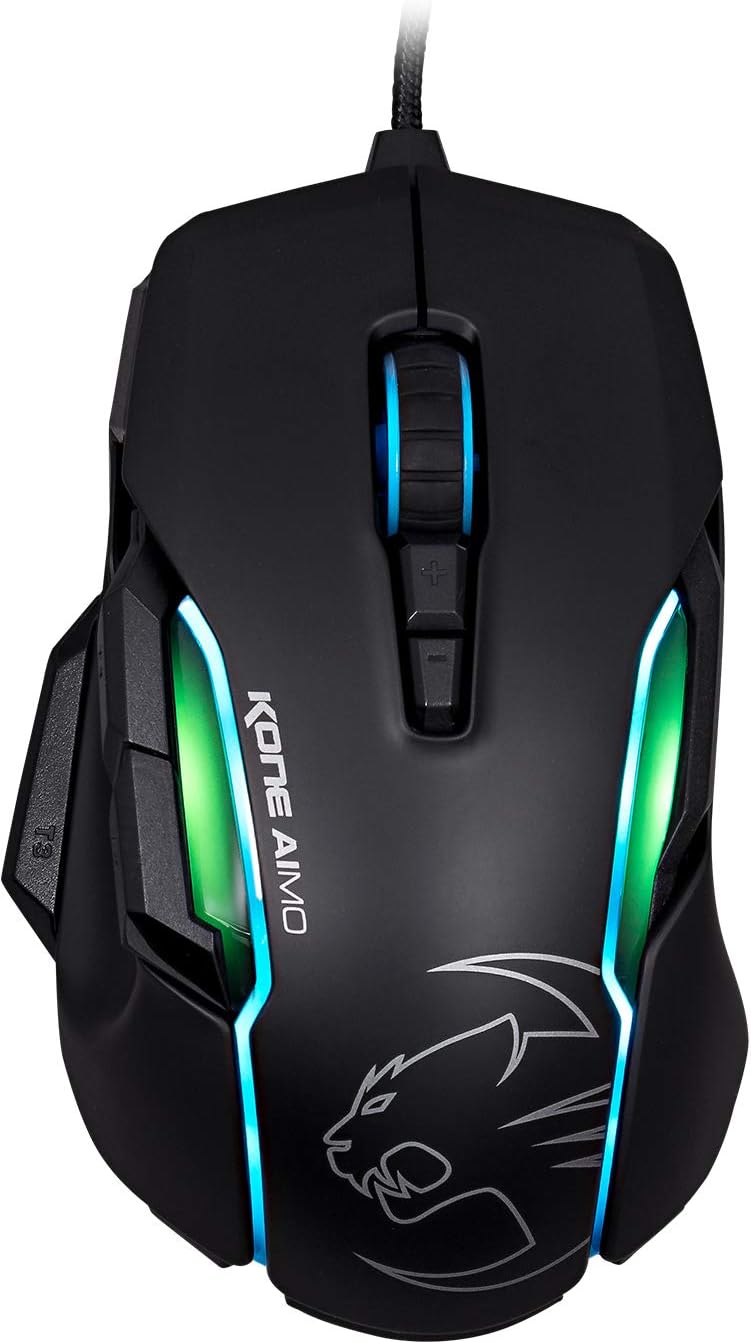
الشكل 1: الجزء العلوي view of the ROCCAT KONE Aimo Gaming Mouse, showcasing its ergonomic shape and RGB lighting zones.
2. محتويات العبوة
تأكد من وجود جميع العناصر في العبوة:
- KONE AIMO Mouse with Attached Braided USB Cable
- ROCCAT Stickers

Figure 2: Retail packaging of the ROCCAT KONE Aimo Gaming Mouse.
3. الإعداد
- توصيل الماوس: Plug the USB cable of the ROCCAT KONE Aimo mouse into an available USB port on your computer.
- تثبيت برنامج التشغيل: Your operating system (Windows 7, 8, 8.1, 10) should automatically detect and install the necessary drivers.
- Install ROCCAT Swarm Software: For full customization of DPI settings, button assignments, and AIMO lighting, download and install the ROCCAT Swarm software from the official ROCCAT webالموقع. يتيح لك هذا البرنامج إنشاء وإدارة المحترفينfiles.

Figure 3: The ROCCAT KONE Aimo mouse in use on a mouse pad, connected to a computer.
4. تعليمات التشغيل
4.1. وظائف الأزرار
The KONE Aimo features 23 programmable keys, including a tri-button thumb zone and a 4D tilting Titan wheel. These can be customized via the ROCCAT Swarm software.
- النقر بالزر الأيسر/الأيمن: وظائف الفأرة الأساسية.
- Scroll Wheel (4D Titan Wheel): Scrolls vertically and can tilt horizontally for additional functions. Also acts as a clickable button.
- أزرار ضبط DPI: Located above and below the scroll wheel, these buttons allow for on-the-fly DPI sensitivity changes. Settings are configured in the Swarm software.
- Thumb Buttons (T1, T2, T3): Three buttons located on the left side, easily accessible by the thumb. The bottom-most button (T3) is often defaulted to the Easy-Shift[+] function.
- Easy-Shift[+] Button: This exclusive ROCCAT feature doubles the number of programmable functions for other buttons when held down, effectively expanding the total programmable keys.

الشكل 4: مفصل view of the programmable thumb buttons (T1, T2, T3) on the left side of the mouse.
4.2. AIMO Lighting System
The AIMO lighting system provides intelligent, reactive RGB illumination across four independently configurable LED light zones and the glowing mouse wheel. It can synchronize with other compatible ROCCAT devices and is programmable through the ROCCAT Swarm software.

Figure 5: The KONE Aimo mouse displaying its multi-zone RGB AIMO illumination.
4.3. Owl-Eye Optical Sensor
The mouse is equipped with the ROCCAT Owl-Eye Optical Sensor, a modified PixArt 3361 sensor, offering adjustable DPI from 100 to 12,000. This sensor provides precise tracking and responsiveness. A built-in tracking distance control unit monitors the lift-off distance for enhanced accuracy.

Figure 6: The bottom of the mouse, highlighting the Owl-Eye Optical Sensor.
4.4. بيئة العمل
The KONE Aimo features refined ergonomics designed for comfort during extended use. Its shape provides a natural fit for the hand, with a dedicated thumb rest area.

Figure 7: A hand gripping the KONE Aimo mouse, illustrating its ergonomic design.
5. الصيانة
- تنظيف: استخدم قطعة قماش ناعمة وجافة لتنظيف سطح الفأرة. لإزالة الأوساخ العنيدة، امسحها برفق بقطعة قماش جافة.amp يمكن استخدام القماش، مما يضمن عدم دخول الرطوبة إلى المكونات الداخلية.
- العناية بالمستشعر: Keep the optical sensor on the underside of the mouse clean and free of dust or debris to ensure optimal tracking performance.
- إدارة الكابلات: تجنب الانحناءات الحادة أو الشد المفرط على كابل USB المضفر لمنع التلف.
6. استكشاف الأخطاء وإصلاحها
- الماوس لا يستجيب:
- تأكد من توصيل كابل USB بشكل آمن بمنفذ USB العامل.
- Try a different USB port or another computer to rule out port or system issues.
- أعد تشغيل الكمبيوتر الخاص بك.
- Tracking Issues / Inaccurate Movement:
- قم بتنظيف المستشعر البصري الموجود في الجزء السفلي من الماوس.
- Ensure you are using the mouse on a clean, suitable mouse pad or surface.
- Check DPI settings in the ROCCAT Swarm software.
- إضاءة RGB لا تعمل / غير صحيحة:
- Verify that the ROCCAT Swarm software is running and updated.
- Check lighting settings within the Swarm software.
- تأكد من عدم وجود برامج متعارضة تتحكم في إضاءة RGB.
- الأزرار لا تعمل:
- Check button assignments in the ROCCAT Swarm software.
- Ensure the software is not experiencing issues (try restarting it).
7. المواصفات
| ميزة | التفاصيل |
|---|---|
| ماركة | ROCCAT |
| رقم الموديل | ROC-11-815-BK |
| المستشعر | Owl-Eye Optical Sensor (modified PixArt 3361) |
| نطاق DPI | من 100 إلى 12,000 نقطة في البوصة |
| أزرار قابلة للبرمجة | 23 (with Easy-Shift[+]) |
| إضاءة | RGBA AIMO LED Illumination (4 independent zones + scroll wheel) |
| الاتصال | USB (سلكي) |
| توافق نظام التشغيل | Windows 7, Windows 8, Windows 8.1, Windows 10 (32-bit and 64-bit versions) |
| وزن العنصر | 11.2 أونصة (حوالي 317.5 جرامًا) |
| أبعاد المنتج (الطول × العرض × الارتفاع) | 5.12 × 2.95 × 1.57 بوصة (حوالي 13 × 7.5 × 4 سم) |
8. الضمان والدعم
For warranty information, technical support, and additional resources, please visit the official ROCCAT website or contact ROCCAT customer service. Keep your proof of purchase for warranty claims.
يمكنك أيضًا زيارة ROCCAT Store on Amazon لمزيد من المعلومات عن المنتج.