
SNBC BTP-M300
SNBC BTP-M300 Impact Receipt Printer User Manual
Model: BTP-M300 | Part Number: 132081
1. انتهى المنتجview
The SNBC BTP-M300 Impact Receipt Printer is a reliable and efficient solution for point-of-sale environments. Designed for durability and ease of use, it provides fast and clear receipt printing using a ribbon mechanism. Its versatile connectivity and robust features make it an ideal choice for various business applications.
المميزات الرئيسية:
- اتصال متعدد الاستخدامات: Supports USB, Serial, and Ethernet interfaces for flexible integration.
- سرعة طباعة عالية: Achieves a fast 4.7 lines per second print speed.
- تحميل الورق بسهولة: Features a "Drop and Print" paper loading mechanism.
- Logo Image Printing: Capable of storing and printing custom logo images.
- حامل جداري مدمج: Allows for flexible placement and space-saving installation.
- تصميم متين: Engineered for dependable performance in demanding environments.
2. دليل الإعداد
2.1 فك الصندوق ومحتويات العبوة
Carefully unpack the printer and verify all components are present. The standard package includes:
- SNBC BTP-M300 Impact Receipt Printer
- سلك الطاقة
- دليل المستخدم (هذا المستند)
2.2 توصيل الطابعة
The BTP-M300 offers multiple connectivity options. Choose the appropriate connection for your system.

الشكل 2.2.1: خلفي view of the SNBC BTP-M300 printer, highlighting the USB, Ethernet, and power ports for connectivity.
- توصيل الطاقة: Connect the supplied power cord to the printer's power input port and then to a standard electrical outlet. Ensure the power switch is in the OFF position before connecting.
- اتصال USB: For direct connection to a computer, plug one end of a USB cable (not included) into the printer's USB port and the other end into an available USB port on your computer.
- الاتصال التسلسلي: For serial communication, connect a serial cable (not included) to the printer's serial port and to your host device.
- اتصال إيثرنت: للطباعة عبر الشبكة، قم بتوصيل كابل إيثرنت (غير مرفق) من منفذ إيثرنت الخاص بالطابعة إلى جهاز توجيه الشبكة أو المحول الخاص بك.
2.3 تحميل الورق
The BTP-M300 features a "Drop and Print" paper loading system for quick and easy paper replacement.

الشكل 2.3.1: من أعلى إلى أسفل view of the SNBC BTP-M300 printer with the cover open, illustrating the paper roll compartment and the path for paper loading.
- افتح غطاء الطابعة برفع المزلاج.
- Insert a new paper roll into the compartment, ensuring the paper feeds from the bottom of the roll.
- اسحب كمية صغيرة من الورق خارج القاطع.
- Close the printer cover firmly until it clicks into place. The printer will automatically feed the paper to the correct position.
2.4 التركيب على الحائط
The printer includes built-in wall mount capability for flexible installation. Locate the mounting holes on the back of the unit and secure it to a sturdy surface using appropriate screws (not included).

الشكل 2.4.1: خلفي view of the SNBC BTP-M300 printer, highlighting the integrated mounting holes for wall installation.
3. تعليمات التشغيل
3.1 تشغيل/إيقاف التشغيل
Locate the power switch on the side of the printer. Flip the switch to the 'ON' position to power on the printer. The 'POWER' indicator light will illuminate. To power off, flip the switch to the 'OFF' position.
3.2 تثبيت برنامج التشغيل (ويندوز/ماك أو إس)
Before printing, you may need to install the appropriate printer drivers for your operating system. Drivers are typically available on the SNBC official website or included on a CD with the printer (if applicable). Follow the on-screen instructions during installation.
3.3 الطباعة الأساسية
Once connected and drivers are installed, you can print receipts from your POS software or application. Ensure the printer is selected as the default printer in your system settings or application.
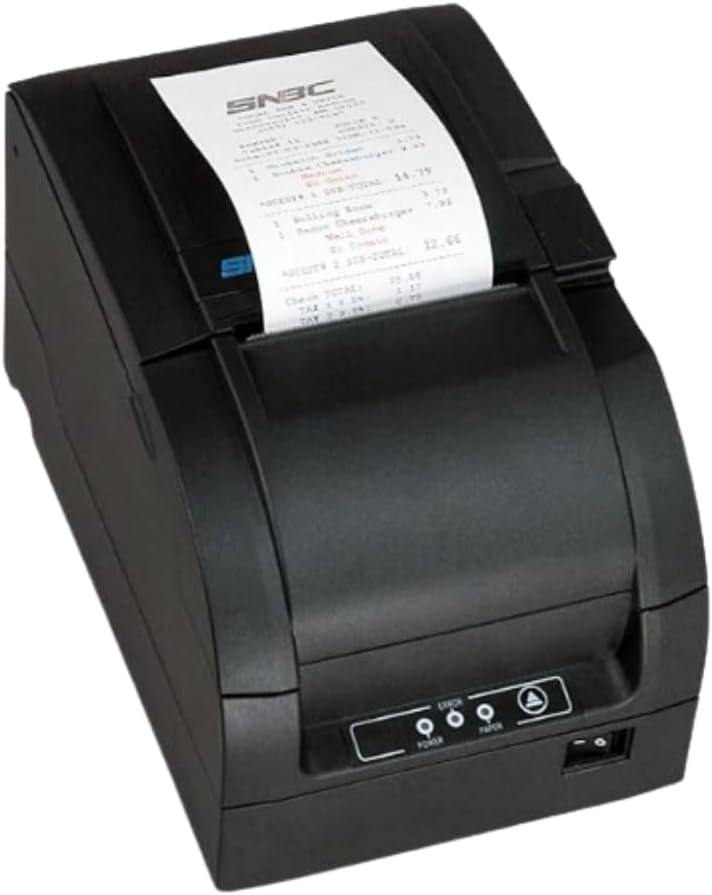
Figure 3.3.1: The SNBC BTP-M300 printer in operation, with a sample receipt being printed and emerging from the top slot.
3.4 Auto Paper Cutting
The BTP-M300 features an auto-cutter with selectable full or partial cut options. This function automatically cuts the receipt after printing. Refer to your printer's utility software or driver settings to configure the cutting mode.
3.5 Printing Logo Images
The printer supports storing and printing custom logo images. This feature typically requires specific software or utility tools provided by SNBC to upload and manage the logo data. Consult the software's documentation for detailed instructions on logo programming.
4. الصيانة
4.1 تنظيف الطابعة
يساعد التنظيف المنتظم على الحفاظ على جودة الطباعة وإطالة عمر الطابعة.
- الخارج: امسحي الجزء الخارجي بقطعة قماش ناعمة.amp القماش. لا تستخدم المنظفات أو المذيبات الكاشطة.
- رأس الطباعة: The print head should be cleaned periodically, especially if print quality degrades. Use a cotton swab lightly dampنظفها بالكحول الإيزوبروبيلي. امسح سطح رأس الطباعة برفق. اتركه يجف تمامًا قبل الاستخدام.
- Paper Path/Cutter: Remove any paper dust or debris from the paper path and around the auto-cutter using a soft brush or compressed air.
4.2 استبدال لفة الورق
Replace the paper roll as described in Section 2.3 when the 'PAPER' indicator light illuminates or when the paper is running low.
4.3 Ribbon Cartridge Replacement
As an impact printer, the BTP-M300 uses a ribbon cartridge. Replace the ribbon when print output becomes faint or illegible. Refer to the printer's internal diagrams or a dedicated ribbon replacement guide for specific instructions on accessing and replacing the cartridge.
5. استكشاف الأخطاء وإصلاحها
This section addresses common issues you might encounter with your SNBC BTP-M300 printer.
| مشكلة | السبب المحتمل | حل |
|---|---|---|
| الطابعة لا تعمل. | سلك الطاقة غير موصول؛ مفتاح الطاقة مطفأ؛ لا يوجد تيار كهربائي من المقبس. | Ensure power cord is securely connected. Flip power switch to ON. Test outlet with another device. |
| No printing/Faint receipts. | Paper loaded incorrectly; Out of paper; Ribbon needs replacement; Incorrect driver/settings; Cable disconnected. | Reload paper correctly (refer to Section 2.3). Replace paper roll. Replace ribbon cartridge (refer to Section 4.3). Verify driver installation and printer selection. Check USB/Serial/Ethernet cable connections. |
| جودة طباعة رديئة. | Dirty print head; Worn ribbon. | Clean the print head (refer to Section 4.1). Replace the ribbon cartridge (refer to Section 4.3). |
| انحشار الورق. | تم تحميل الورق بشكل غير صحيح؛ يوجد جسم غريب في مسار الورق. | Open cover, remove jammed paper carefully. Ensure paper is loaded straight. Remove any obstructions. |
| لم يتم التعرف على الطابعة بواسطة الكمبيوتر. | Driver not installed; Incorrect cable; USB port issue. | Install/reinstall printer drivers. Use a different USB cable or port. Restart computer and printer. |
6. المواصفات
Detailed technical specifications for the SNBC BTP-M300 Impact Receipt Printer.
| ميزة | وصف |
|---|---|
| اسم الموديل | BTP-M300 |
| رقم موديل العنصر | 132081 |
| تكنولوجيا الطباعة | Impact (Dot Matrix) |
| سرعة الطباعة | 4.7 خطوط في الثانية |
| مخرجات الطابعة | Monochrome (Black/Red capable with appropriate ribbon) |
| تكنولوجيا الاتصال | USB، المسلسل، إيثرنت |
| طريقة التحكم | App (via drivers/SDK) |
| أبعاد المنتج | 6 × 6 × 6 بوصة |
| وزن العنصر | 9.11 رطل |
| مزود الطاقة | Included Power Cord |
| المميزات الخاصة | Network-Ready, Auto-Cutter, Wall Mount Capability, Logo Printing |
7. الضمان والدعم
For warranty information and technical support, please refer to the official SNBC webالموقع أو اتصل بالوكيل المعتمد لديك. احتفظ بإيصال الشراء كإثبات للشراء.
لمزيد من المساعدة، يمكنك زيارة SNBC Brand Store on Amazon.
Ask a question about this manual
Ask about setup, troubleshooting, compatibility, parts, safety, or missing instructions. Manuals+ will review the question and use this page’s manual context to help answer it.