
مقدمة
This manual provides essential information for the installation, operation, maintenance, and troubleshooting of your NVIDIA 699-51030-0501-101 graphics card. This component is designed for desktop computer systems to enhance graphics processing capabilities. Please read this manual thoroughly before proceeding with installation or use.
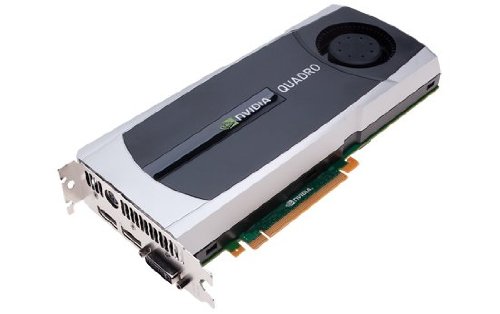
Image: NVIDIA 699-51030-0501-101 Graphics Card. This image displays the graphics card from an angled perspective, showing the cooling fan, heatsink, and the PCIe connector.
إرشادات السلامة
اتبع احتياطات السلامة التالية لمنع تلف المنتج أو إصابتك:
- احرص دائمًا على فصل الطاقة عن جهاز الكمبيوتر قبل تثبيت أو إزالة أي مكونات.
- ارتدِ سوارًا مضادًا للكهرباء الساكنة على معصمك أو المس جسمًا معدنيًا مؤرضًا بشكل متكرر لتفريغ الكهرباء الساكنة.
- أمسك بطاقة الرسومات من حوافها لتجنب لمس المكونات الحساسة.
- تأكد من التهوية المناسبة داخل علبة الكمبيوتر لديك لمنع ارتفاع درجة الحرارة.
- احفظ المنتج بعيدًا عن الرطوبة ودرجات الحرارة القصوى.
يثبت
1. فحوصات ما قبل التثبيت
- Verify your power supply unit (PSU) has sufficient wattage and appropriate connectors for the graphics card.
- Ensure your motherboard has an available PCI Express (PCIe) x16 slot.
- Confirm your computer case has adequate space for the graphics card dimensions.
- اجمع الأدوات اللازمة: مفك براغي فيليبس، سوار معصم مضاد للكهرباء الساكنة (مستحسن).
2. تركيب الأجهزة
- انقطاع التيار الكهربائي وقطع الاتصال: Shut down your computer completely and unplug the power cord from the wall outlet.
- القضية المفتوحة: قم بإزالة اللوحة الجانبية لهيكل الكمبيوتر الخاص بك للوصول إلى اللوحة الأم.
- تحديد موقع فتحة PCIe: Identify an available PCI Express x16 slot on your motherboard. This is typically the longest slot.
- قم بإزالة غطاء الفتحة: Remove the metal slot cover(s) from the back of your computer case corresponding to the PCIe slot you will use.
- إدخال بطاقة الرسوميات: Carefully align the graphics card with the PCIe slot. Press down firmly and evenly on both ends of the card until it is fully seated in the slot. You should hear a click from the retention clip.
- بطاقة آمنة: Secure the graphics card to the computer case using the screw(s) removed from the slot cover(s).
- قم بتوصيل الطاقة (إن وجدت): If your graphics card requires additional power, connect the appropriate PCIe power cables from your PSU to the graphics card. This model (NVIDIA 699-51030-0501-101) may not require external power, but always check the card itself for connectors.
- إغلاق القضية: استبدل اللوحة الجانبية لحافظة جهاز الكمبيوتر الخاص بك.
- Reconnect Peripherals: Reconnect your monitor cable to one of the display outputs on the new graphics card. Reconnect all other peripherals and the power cord.
3. تثبيت برنامج التشغيل
- تشغيل الطاقة: قم بتشغيل جهاز الكمبيوتر الخاص بك.
- تنزيل برامج التشغيل: انتقل إلى موقع NVIDIA الرسمي webموقع (www.nvidia.com/drivers) and download the latest drivers compatible with your NVIDIA 699-51030-0501-101 graphics card and operating system.
- تثبيت برامج التشغيل: Run the downloaded driver installer and follow the on-screen instructions. It is recommended to perform a clean installation if prompted.
- إعادة تشغيل: أعد تشغيل الكمبيوتر بعد اكتمال تثبيت برنامج التشغيل.
التشغيل
Once installed and drivers are updated, your NVIDIA 699-51030-0501-101 graphics card will automatically handle graphics processing for your system. You can verify its operation through your operating system's device manager or NVIDIA Control Panel.
- لوحة تحكم NVIDIA: Access the NVIDIA Control Panel (usually via right-click on desktop or through Windows Control Panel) to adjust display settings, 3D settings, and monitor various aspects of your graphics card.
- تحديثات برنامج التشغيل: تحقق بانتظام من NVIDIA website for driver updates to ensure optimal performance and compatibility with new software and games.
صيانة
تضمن الصيانة المناسبة طول عمر بطاقة الرسوميات لديك وأدائها الأمثل.
- إزالة الغبار: Periodically (e.g., every 6-12 months), power off and unplug your computer. Open the case and use compressed air to gently clear dust from the graphics card's heatsink and fan. Hold the fan blades to prevent over-spinning during cleaning.
- الظروف البيئية: Operate your computer in a clean, dry, and well-ventilated environment. Avoid extreme temperatures and humidity.
استكشاف الأخطاء وإصلاحها
إذا واجهت مشكلات، راجع خطوات استكشاف الأخطاء وإصلاحها الشائعة التالية:
- لا يوجد إخراج للعرض:
- تأكد من توصيل كابل الشاشة بشكل آمن ببطاقة الرسومات والشاشة.
- تأكد من ضبط الشاشة على مصدر الإدخال الصحيح.
- Check if the graphics card is fully seated in its PCIe slot.
- If applicable, ensure all PCIe power connectors are securely attached.
- قم بإجراء الاختبار باستخدام شاشة أو كابل مختلف إذا كان ذلك ممكنًا.
- مشاكل السائق:
- Reinstall the latest drivers from the NVIDIA webموقع.
- Try rolling back to a previous driver version if issues started after an update.
- استخدم Display Driver Uninstaller (DDU) في الوضع الآمن لإزالة برامج التشغيل القديمة تمامًا قبل تثبيت برامج التشغيل الجديدة.
- Performance Problems (Low FPS, Stuttering):
- تأكد من تحديث برامج التشغيل.
- Check for overheating using monitoring software (e.g., MSI Afterburner, HWMonitor). Clean dust if necessary.
- تأكد من أن نظامك يفي بالحد الأدنى من متطلبات التطبيقات أو الألعاب التي تقوم بتشغيلها.
- تحقق من وحدة تزويد الطاقة (PSU) واطtage; an insufficient PSU can cause performance issues.
- System Instability (Crashes, Blue Screens):
- Check for driver conflicts or corruption.
- Monitor temperatures to rule out overheating.
- Ensure the graphics card is properly seated and secured.
- قم بتشغيل أدوات تشخيص الذاكرة للتحقق من وجود مشكلات في ذاكرة الوصول العشوائي (RAM).
المواصفات الفنية
Key specifications for the NVIDIA 699-51030-0501-101 graphics card:
| رقم الموديل | NVIDIA 699-51030-0501-101 |
| ماركة | نفيديا |
| معالج الرسوميات المساعد | NVIDIA 699-51030 |
| مصنّع معالجات الرسومات | نفيديا |
| الأجهزة المتوافقة | سطح المكتب |
| ASIN | B01NBI92VC |
| تاريخ أول توفر | 8 ديسمبر 2016 |
الضمان والدعم
This NVIDIA graphics card is covered by the manufacturer's standard warranty. For specific warranty terms, duration, and to register your product, please refer to the official NVIDIA website or contact NVIDIA customer support directly.
For technical assistance, driver downloads, and further support resources, visit the official NVIDIA support portal:
- دعم NVIDIA: www.nvidia.com/support


