
مقدمة
This manual provides instructions for setting up, operating, and maintaining your Mercury MW3030R Dual Band Wireless Router. Please read this manual carefully before use to ensure proper installation and optimal performance.
معلومات السلامة
- لا تعرض الجهاز للماء أو الرطوبة الزائدة.
- لا تحاول تفكيك الجهاز أو إصلاحه بنفسك.
- استخدم فقط محول الطاقة المرفق بالجهاز.
- تأكد من التهوية المناسبة حول جهاز التوجيه لمنع ارتفاع درجة الحرارة.
محتويات الحزمة
تأكد من أن الحزمة الخاصة بك تحتوي على العناصر التالية:
- Mercury MW3030R Wireless Router
- محول الطاقة
- كابل إيثرنت
- Quick Installation Guide (this manual serves as a detailed guide)
المنتج انتهىview
تعرّف على مكونات جهاز التوجيه ومؤشراته.
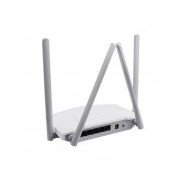
الشكل 1: مؤخرة view of the Mercury MW3030R router. This image displays the four external antennas, the WAN port (typically blue), multiple LAN ports (typically yellow), and the power input jack. The reset button and WPS button are also usually located on the rear panel.
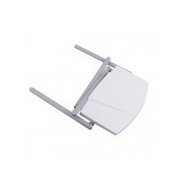
الشكل 2: من أعلى إلى أسفل view of the Mercury MW3030R router with its antennas folded. This perspective highlights the router's sleek, white casing and its overall compact form factor, suitable for various placements.
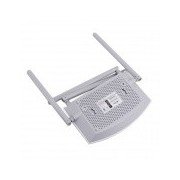
الشكل 3: قاع view of the Mercury MW3030R router. This image shows the ventilation holes designed for heat dissipation and the product label, which typically contains important information such as the default Wi-Fi name (SSID), password, and web management address.
مؤشرات LED:
- مؤشر الطاقة LED: يشير إلى حالة الطاقة الخاصة بجهاز التوجيه.
- مؤشر LED للإنترنت: يشير إلى حالة الاتصال بالإنترنت.
- LED للشبكة المحلية اللاسلكية: يشير إلى نشاط لاسلكي.
- المصابيح LAN: Indicate connection status for each LAN port.
يثبت
1. اتصال الأجهزة
- تشغيل الطاقة: Connect the power adapter to the router's power port and plug it into a wall outlet. Wait for the Power LED to become stable.
- الاتصال بالإنترنت (WAN): Connect one end of an Ethernet cable to your modem's LAN port and the other end to the router's WAN port (usually distinctively colored, e.g., blue).
- توصيل الأجهزة (الشبكة المحلية): For wired connections, connect your computer or other devices to the router's LAN ports (usually yellow) using Ethernet cables.
- هوائيات: Adjust the four antennas for optimal signal coverage.
2. التكوين الأولي (Web واجهه المستخدم)
- الاتصال بالموجه: Connect your computer to the router either via an Ethernet cable to a LAN port or wirelessly using the default Wi-Fi SSID and password printed on the router's label (refer to Figure 3).
- وصول Web المتصفح: افتح web browser (e.g., Chrome, Firefox) and type the default access address (e.g., http://192.168.1.1 or http://tplinkwifi.net) في شريط العناوين واضغط على Enter.
- تسجيل الدخول: أدخل اسم المستخدم وكلمة المرور الافتراضيين (عادةً مسؤل لكليهما، أو كما هو محدد على ملصق جهاز التوجيه).
- تشغيل الإعداد السريع: Follow the on-screen instructions of the Quick Setup Wizard to configure your internet connection type (e.g., PPPoE, Dynamic IP, Static IP) and wireless settings (SSID, password).
- تغيير كلمة المرور الافتراضية: For security, it is highly recommended to change the default login password for the router's web واجهة الإدارة.
تعليمات التشغيل
الاتصال بشبكة Wi-Fi
- On your wireless device (smartphone, laptop), search for available Wi-Fi networks.
- Select your router's Wi-Fi network name (SSID) that you configured during setup.
- Enter the Wi-Fi password you set.
- يجب أن يكون جهازك متصلاً بالإنترنت الآن.
عملية النطاق المزدوج
The MW3030R supports both 2.4GHz and 5.0GHz wireless bands. The 2.4GHz band offers wider coverage, while the 5.0GHz band provides faster speeds with less interference over shorter distances. You can connect your devices to either band based on your needs.
شبكة الضيوف
الوصول إلى جهاز التوجيه web interface to enable and configure a separate guest network. This allows guests to access the internet without accessing your main network resources.
صيانة
- تحديثات البرامج الثابتة: التحقق من الشركة المصنعة بشكل منتظم webموقع لتحديثات البرامج الثابتة. يمكن لتحديث البرامج الثابتة تحسين الأداء، وإضافة ميزات جديدة، وإصلاح الثغرات الأمنية.
- إعادة تشغيل جهاز التوجيه: إذا واجهت مشاكل في الشبكة، فحاول إعادة تشغيل جهاز التوجيه عن طريق فصل محول الطاقة، والانتظار لمدة 10 ثوانٍ، ثم إعادة توصيله.
- تنظيف: Keep the router clean and free from dust. Use a soft, dry cloth. Do not use liquid cleaners.
- الموقع: ضع جهاز التوجيه في مكان مركزي، بعيدًا عن العوائق والأجهزة التي قد تسبب التداخل (مثل أجهزة الميكروويف والهواتف اللاسلكية).
استكشاف الأخطاء وإصلاحها
لا يوجد اتصال بالإنترنت
- Check if the Internet LED on the router is lit or blinking correctly.
- تأكد من توصيل كابل الإيثرنت من المودم الخاص بك بشكل آمن بمنفذ WAN الخاص بجهاز التوجيه.
- أعد تشغيل المودم وجهاز التوجيه الخاص بك.
- تحقق من إعدادات اتصال الإنترنت في جهاز التوجيه (الراوتر). web واجهة.
سرعة لاسلكية بطيئة
- Ensure your device is connected to the 5.0GHz band if it supports it, for faster speeds.
- Move closer to the router or adjust antenna positions.
- تحقق من عدم وجود تداخل من الأجهزة الإلكترونية الأخرى.
- Reduce the number of devices connected to the network or bandwidth-intensive activities.
لا يمكن الوصول إلى جهاز التوجيه Web الواجهة
- تأكد من أن جهازك متصل بالموجه (سلكيًا أو لاسلكيًا).
- تأكد من صحة عنوان IP الذي تكتبه في المتصفح (على سبيل المثال، http://192.168.1.1).
- حاول مسح ذاكرة التخزين المؤقت للمتصفح الخاص بك أو استخدام متصفح آخر.
- If you forgot the login password, you may need to perform a factory reset (Warning: This will erase all your settings).
تحديد
| ميزة | وصف |
|---|---|
| نموذج | م و 3030ر |
| المعايير اللاسلكية | IEEE 802.11ac/n/g/b/a |
| تكرار | 2.4 جيجاهرتز و 5.0 جيجاهرتز (نطاق مزدوج) |
| سرعة الاتصال اللاسلكي | Up to 600Mbps (combined) |
| الهوائيات | 4 هوائيات خارجية |
| الواجهات | 1x WAN Port, Multiple LAN Ports (typically 3 or 4) |
| مزود الطاقة | External Power Adapter (provided) |
الضمان والدعم
The Mercury MW3030R router comes with a standard manufacturer's warranty. For detailed warranty information, technical support, or service inquiries, please refer to the official Mercury webالموقع أو تواصل مع خدمة العملاء. احتفظ بإيصال الشراء لطلبات الضمان.